There are retro-computing projects, and then there are retro-computing projects that feel like they were designed specifically to make modern computers look overdressed. Raspberry Pi boots CP/M is exactly that kind of idea: a tiny, inexpensive single-board computer starts up not into Linux, not into a glossy desktop, not into a blinking wallpaper engine demanding updates, but into the gloriously plain command prompt of CP/M.
For anyone who loves vintage operating systems, Z80 emulation, bare-metal programming, or the oddly satisfying sound of a computer doing one simple job without drama, this project is a small masterpiece. It combines the Raspberry Pi’s accessible hardware with one of the most important operating systems in personal computing history. The result is part emulator, part history lesson, and part “wait, why is this so fun?”
At the heart of the concept is a bare-metal Z80 emulator that allows CP/M to run directly from an SD card on supported Raspberry Pi boards. Instead of booting a full Linux distribution and then launching an emulator, the Pi starts the CP/M environment almost immediately. In some builds, the experience is fast enough to feel startling: power on, blink, and suddenly you are staring at the famous A> prompt like it is 1981 and your coffee has a side of solder fumes.
What Does “Raspberry Pi Boots CP/M” Actually Mean?
To understand why this project is interesting, it helps to separate two common ideas. Running CP/M “on” a Raspberry Pi can mean launching a CP/M emulator inside Raspberry Pi OS. That is useful, easy, and perfectly respectable. But booting CP/M on a Raspberry Pi, especially in a bare-metal setup, means something more specific: the Pi starts directly into a lightweight environment that emulates the Z80-based machine CP/M expects.
CP/M was not designed for the ARM processor inside a Raspberry Pi. Classic CP/M ran on Intel 8080-compatible systems and became especially associated with the Zilog Z80. The Raspberry Pi uses an ARM architecture, so it cannot natively execute old CP/M binaries. The magic trick is emulation. A program imitates the CPU, memory map, console, and disk behavior expected by CP/M software. If the illusion is convincing enough, CP/M programs behave as if they are back on vintage hardware.
In a bare-metal Raspberry Pi CP/M project, that emulator is not just another app. It is essentially the main thing the machine does. The SD card provides the boot files and disk images, the Pi handles keyboard or serial input, and the emulator presents a CP/M-style world where commands like DIR, TYPE, and old software such as WordStar or MBASIC can come back to life.
Why CP/M Still Matters
CP/M, short for Control Program for Microcomputers, was created by Gary Kildall and Digital Research in the 1970s. It became one of the first widely successful operating systems for microcomputers. Before CP/M, many small computers were islands. Software often had to be rewritten or heavily modified for each machine. CP/M helped create a more portable software environment by separating the hardware-specific layer from the rest of the operating system.
That design mattered. CP/M’s BIOS handled machine-specific input, output, and storage details, while the BDOS and command processor provided a common interface for applications. In plain English: software developers could write programs for CP/M and reach many different machines instead of marrying one weird beige box forever.
That portability helped build a real microcomputer software ecosystem. Word processors, databases, programming languages, spreadsheets, and utilities flourished. WordStar became a legendary word processor. dBase II helped define early database work on microcomputers. MBASIC gave users a way to write their own programs. In a time before app stores, cloud sync, and “please create an account to continue,” CP/M made personal computing feel practical.
CP/M also shaped what came after it. MS-DOS borrowed many visible conventions from the CP/M world, including drive letters, command-line behavior, and the general feel of disk-based personal computing. Even users who never touched CP/M have indirectly inherited some of its habits. Every time someone sees C: and does not immediately call an archaeologist, CP/M’s fingerprints are nearby.
Why Use a Raspberry Pi for CP/M?
The Raspberry Pi is not period-correct hardware, and that is partly the point. Original CP/M machines are wonderful, but they are also old enough to have opinions about humidity, capacitors, and whether today is a good day to read a floppy disk. A Raspberry Pi gives hobbyists a reliable, affordable way to explore vintage software without needing to restore a complete 1970s or 1980s system.
Compared with hunting down a working Kaypro, Osborne, Altair-compatible system, or S-100 machine, using a Raspberry Pi is simple. You can keep the physical footprint tiny, store disk images on modern media, and experiment without worrying that one wrong move will turn a rare circuit board into decorative toast.
It Preserves the Feel Without Preserving Every Problem
One of the best things about a Raspberry Pi CP/M setup is that it keeps the command-line personality of old computing while removing some of the worst friction. You still get the minimal prompt, the strict filenames, the drive letters, and the feeling that the computer expects you to know what you are doing. But you are not forced to depend on fragile disks, aging power supplies, or a monitor that weighs as much as a small refrigerator.
It Is Great for Learning
Modern operating systems are powerful, but they are also enormous. CP/M is small enough to understand conceptually. That makes it excellent for learning how operating systems, filesystems, BIOS layers, command processors, and CPU emulation fit together. A Raspberry Pi running CP/M can become a classroom in a case: simple, focused, and brutally honest.
Bare-Metal CP/M: The Cool Part
The most charming version of this project is not simply “CP/M in an emulator.” It is bare-metal CP/M emulation on Raspberry Pi. Bare metal means the software runs without a general-purpose operating system underneath it. No Linux desktop. No background services. No package manager asking for attention like a needy houseplant.
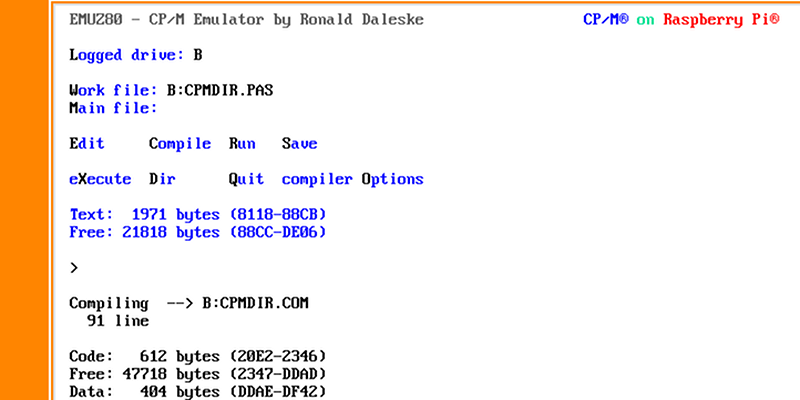
Projects such as EMUZ80 RPI showed how a Raspberry Pi could boot directly into a Z80 CP/M emulator from an SD card. The concept used the Raspberry Pi as a host for the emulator while avoiding a normal Linux boot sequence. That gave the project a wonderful retro spirit: turn it on, get a prompt, and start working.
The Ultibo environment helped make this kind of Raspberry Pi bare-metal application more approachable. Ultibo provides tools and libraries for building applications that run directly on Raspberry Pi hardware. In practical terms, it lets developers create focused single-purpose systems. For a CP/M emulator, that is perfect. CP/M itself came from an era when the operating system was expected to stay out of the way. Running it on a bare-metal Pi respects that philosophy more than launching it from a modern desktop with seventeen tray icons.
How the Z80 Emulator Fits Into the Picture
CP/M expects a compatible 8-bit CPU environment, usually Intel 8080 or Zilog Z80 style. The Raspberry Pi’s ARM processor is far more powerful, but raw power does not solve instruction incompatibility. The Z80 emulator translates the old machine’s behavior into actions the Pi can perform.
A good emulator must handle CPU registers, instruction timing well enough for software compatibility, memory access, input and output ports, and disk operations. For CP/M, storage is especially important. Old software expects drives such as A: and B:, directory listings, executable .COM files, and a certain way of reading and writing records. Modern storage is vastly different, so the emulator creates a bridge between CP/M’s expectations and files or disk images stored on the SD card.
This is why CP/M emulation is more than just CPU imitation. You also need a convincing machine around the CPU. The console has to display characters properly. Keyboard input must feel immediate. Disk images must behave like CP/M disks. If any one part is sloppy, the illusion breaks, and your vintage computing adventure becomes a debugging picnic with ants.
CPMemu, RunCPM, and Other Ways to Join the Party
EMUZ80 RPI is not the only path into CP/M on modern hardware. CPMemu is another interesting project because it supports CP/M 2.2 emulation on Raspberry Pi and Linux systems, with bare-metal use possible on Raspberry Pi through the Circle environment. It includes supporting tools for working with CP/M disk image files, which is extremely useful when you want to move software in and out of the emulated world.
RunCPM takes a different but equally practical approach. It is a portable Z80 CP/M 2.2 emulator written in C and designed to run across many modern platforms. Instead of requiring traditional disk images in every case, it can use host folders in a way that makes managing files easier. For users who mainly want to run vintage CP/M programs without becoming a disk-format monk, that convenience matters.
The Raspberry Pi Pico has also entered the CP/M conversation. CPICOM, for example, brings CP/M-style emulation to the Pico microcontroller. It is not the same as running on a full Raspberry Pi single-board computer, but it proves how small the necessary environment can be. A microcontroller with limited memory and flash can still provide a meaningful CP/M experience. That is both technically impressive and mildly insulting to modern software that needs multiple gigabytes to show a settings menu.
What Can You Do After CP/M Boots?
Once you reach the CP/M prompt, the fun begins. The first command many users try is DIR, which lists files on the current drive. It is the vintage equivalent of opening the fridge even though you already know what is inside. From there, you can run programs, inspect text files, copy files between drives, experiment with BASIC, assemble code, or test classic applications.
Run Classic Productivity Software
WordStar is one of the most famous CP/M applications, and using it today is a fascinating experience. It does not behave like a modern word processor. There are no floating toolbars, no animated assistants, and no “smart” formatting surprises. Instead, it rewards memory, keyboard discipline, and patience. Once you get the hang of it, WordStar feels less primitive than focused.
Explore Programming Languages
CP/M was home to many programming tools, including BASIC, Pascal, assemblers, and C compilers. Running these on a Raspberry Pi CP/M setup is a great way to understand how programmers worked within tight limits. Small memory, simple tools, and direct feedback encouraged efficient thinking. You quickly learn that “just import a massive library” was not a lifestyle option.
Study Operating System Design
Because CP/M is compact, it is easier to reason about than a modern operating system. The relationship between the console command processor, BDOS, BIOS, transient programs, and disk layout is approachable. Students and hobbyists can see how software abstraction helped make early computers useful across different hardware platforms.
Raspberry Pi Boots CP/M vs. Running CP/M Inside Linux
Running CP/M inside Linux is convenient. You can install an emulator, use modern networking, move files easily, and switch back to your normal desktop whenever needed. That is the sensible route. Naturally, retro-computing people often prefer the less sensible route because it has better vibes.
A bare-metal Raspberry Pi CP/M setup feels different. It turns the Pi into a dedicated machine. There is no full Linux system underneath, so the project feels closer to a small appliance or a single-board retro computer. The boot process is cleaner, the purpose is clearer, and the psychological effect is stronger. You are not using a modern computer to look at an old computer. You are making the modern computer behave like the old one from the moment it wakes up.
That distinction may sound emotional rather than technical, but retro-computing is full of emotional engineering. The delay before a prompt, the font, the keyboard response, the lack of distractions, and the simplicity of the environment all shape the experience. Bare-metal CP/M on Raspberry Pi is compelling because it respects those details.
Common Challenges and Practical Tips
Getting CP/M to boot on a Raspberry Pi is not always as simple as copying random files to an SD card and hoping history applauds. Hardware model support matters. Some projects target older Raspberry Pi boards, such as the Model B, A+, or Raspberry Pi 2 Model B. A build designed for one board may not work on another without changes.
Keyboard and display support can also vary. Some setups use USB keyboards and HDMI output. Others may rely on serial terminals. Terminal behavior is important because many CP/M programs assume specific control codes or screen behavior. If your editor looks like it was attacked by punctuation, the terminal configuration may be the villain.
Disk images are another learning curve. CP/M did not use today’s file conventions. You may need tools to create, inspect, or modify CP/M disk images. Utilities such as disk-image managers are extremely helpful because they let you move files between modern systems and CP/M drives without performing ritual sacrifices to the floppy gods.
Why This Project Is More Than Nostalgia
It is tempting to dismiss CP/M on Raspberry Pi as nostalgia with a GPIO header. That would be unfair. This project teaches real computing ideas: portability, abstraction, emulation, hardware independence, boot processes, filesystems, and efficient software design. It also demonstrates how old systems can remain useful as educational tools.
Modern computing often hides the machine from the user. CP/M does the opposite. It gives you a prompt and expects direct instructions. That simplicity can feel refreshing. There are fewer layers between thought and action. When you type a command, the computer either obeys or complains in a way that is usually short, cryptic, and somehow more honest than a modern error dialog.
Experience Notes: Living With Raspberry Pi Boots CP/M
The first time you boot CP/M on a Raspberry Pi, the experience is strangely quiet. Modern computers announce themselves with logos, loading animations, notification sounds, network checks, account sync, and a parade of processes stretching before breakfast. A bare-metal Raspberry Pi CP/M setup feels almost suspiciously direct. You apply power, the board does its small invisible dance with the SD card, and then the prompt appears. No fanfare. No weather widget. No cheerful reminder that your browser has updated for the seventh time this week.
That directness changes how you interact with the machine. You stop expecting the computer to guide you. You start thinking in commands. You type DIR because you need to know what is available. You run a program because you remember its filename, not because an icon is glowing at you. At first, this can feel restrictive. After a while, it becomes relaxing. The computer is not trying to sell you cloud storage. It is waiting.
Working with CP/M also makes file size feel real again. A tiny utility can be useful. A text file can matter. A program does not need a splash screen to be serious. When you move old .COM files into a disk image and run them from the A> prompt, you get a sharp reminder that software used to be written for machines with extremely limited resources. That limitation did not kill creativity. In many cases, it focused it.
The keyboard experience is another surprise. CP/M software often expects you to learn commands instead of discovering them through menus. WordStar, for example, can feel like operating a submarine made of keyboard shortcuts. But once the patterns start to click, the software becomes quick in its own way. It is not friendly in the modern sense, but it is efficient. It rewards attention.
There is also a small thrill in knowing that the Raspberry Pi is wildly overqualified for the job. The ARM processor can emulate an 8-bit machine without breaking a sweat, yet the point is not speed. The point is shape. You are using modern hardware to recreate a historical computing environment with enough accuracy to make old software meaningful. That makes the project feel like a museum exhibit you can type on.
The best part is how approachable the whole idea becomes once you understand the pieces. The Raspberry Pi supplies reliable hardware. The emulator supplies the Z80 world. CP/M supplies the operating system personality. Disk images supply the software library. Put them together and you get a compact retro computer that boots quickly, teaches deeply, and occasionally makes you grin at how much can be done with so little.
Conclusion
Raspberry Pi Boots CP/M is more than a clever retro trick. It is a bridge between personal computing’s early operating-system history and today’s affordable maker hardware. By combining Raspberry Pi hardware, Z80 emulation, CP/M disk behavior, and sometimes bare-metal boot techniques, the project recreates a classic microcomputer experience in a form that is small, reliable, and surprisingly educational.
For retro-computing fans, it is a delightful way to revisit the command-line world of early personal computers. For programmers, it is a compact lesson in emulation and system design. For students, it is a practical demonstration of why abstraction matters. And for everyone else, it is proof that a tiny board booting into a 1970s operating system can still feel exciting in an age of overpowered machines and underwhelming progress bars.
CP/M may be old, but when it boots on a Raspberry Pi, it does not feel dead. It feels focused, understandable, and oddly alive. Sometimes the future is fun because it lets us revisit the past without needing to repair a floppy drive first.