Note: This article is written for Windows users who see the message “An unexpected error is keeping you from copying the file” while moving files through File Explorer, an external drive, OneDrive, a network folder, or another storage location.
Few computer messages are as dramatic as Windows calmly announcing that “an unexpected error” has appeared, as if your laptop has just seen a ghost in the hallway. You were only trying to copy a folder, move a video, back up vacation photos, or transfer a work document. Then Windows folds its arms and says, “Nope.” Helpful? Not exactly. Fixable? Usually, yes.
The error “An unexpected error is keeping you from copying” often appears with an error code, such as 0x80070057, 0x8007003B, 0x800704C9, 0x8007017C, or another mysterious-looking string that seems designed by someone who enjoys crossword puzzles too much. The good news is that the message usually points to a practical problem: a locked file, a permission issue, a damaged file system, a long file path, a cloud sync conflict, low storage space, a network interruption, or a Windows component that needs repair.
This guide explains what the error means and walks you through 10 realistic fixes. No magic wand required. Just a little patience, a few built-in Windows tools, and maybe one deep breath before you rename that 18-folder-deep file called “final-final-real-final-copy-v7.pdf.”
What Does “An Unexpected Error Is Keeping You from Copying” Mean?
This message means Windows attempted to copy one or more files but hit a condition it could not complete. The issue may come from the source file, the destination folder, the storage device, File Explorer, user permissions, security settings, or the network path involved in the transfer.
In plain English, Windows is saying: “I tried to move this thing from here to there, but something in the middle refused to cooperate.” The “something” could be simple, such as a file that is open in another app. It could also be more technical, such as a corrupt system file or a path that exceeds what your destination supports.
Before You Start: Do These Three Quick Checks
Before jumping into deeper troubleshooting, try these fast checks. They solve more copy errors than people expect.
Check the Error Code
If Windows shows an error code, write it down. The message may look vague, but the code often gives you a clue. For example, a network-related code may point toward a shared folder or unstable connection, while a parameter-related code may suggest a file name, drive, or file system problem.
Try Copying One File Instead of the Whole Folder
When a large folder fails, one broken file may be the villain wearing a tiny digital cape. Copy a few files at a time. If one specific file triggers the error, you have narrowed the problem dramatically.
Restart the PC
Yes, it is the classic tech-support sentence. Yes, it is boring. Yes, it still works. Restarting closes locked processes, refreshes File Explorer, resets temporary glitches, and clears stuck background tasks that may be blocking the copy operation.
Fix 1: Restart File Explorer
File Explorer is the tool most people use to copy, move, rename, and organize files in Windows. If File Explorer becomes unstable, the copy process can fail even when the file itself is fine.
How to Restart File Explorer
- Press Ctrl + Shift + Esc to open Task Manager.
- Find Windows Explorer in the Processes tab.
- Right-click it and choose Restart.
- Try copying the file again.
This does not delete your files. It only refreshes the Windows shell, taskbar, desktop, and File Explorer windows. Think of it as asking File Explorer to splash some cold water on its face and behave like a responsible adult.
Fix 2: Clear the Clipboard
Sometimes copy and paste behavior gets weird because the clipboard is overloaded, stuck, or holding data from another app. This is more common when you copy large files, screenshots, rich text, or data between devices.
How to Clear Clipboard Data
- Open Settings.
- Go to System > Clipboard.
- Under Clear clipboard data, select Clear.
You can also press Windows + V to open clipboard history, then clear items from there if clipboard history is enabled. After clearing it, try the copy operation again.
Fix 3: Shorten the File Name or Folder Path
One of the sneakiest causes of this error is a file path that is too long. A path includes the drive letter, every folder name, and the file name itself. For example:
That path may look harmless, but if you keep nesting folders like a digital lasagna, Windows or a cloud service may refuse to copy it.
How to Fix Long Path Problems
- Move the file closer to the root of the drive, such as C:\Temp.
- Rename long folders with shorter names.
- Shorten the file name.
- Avoid special characters that may cause problems in OneDrive, SharePoint, or network locations.
- Try copying again after simplifying the path.
For example, change:
to:
Your computer does not need the whole autobiography of the file in the file name. Save the drama for the document content.
Fix 4: Check Destination Drive Space
If the destination drive is nearly full, Windows may fail during copying. This can happen with USB drives, external hard drives, SD cards, system drives, and cloud-synced folders that still require local cache space.
How to Check Storage Space
- Open File Explorer.
- Select This PC.
- Look at the available space under each drive.
If the drive is almost full, remove unnecessary files or use Windows Storage settings.
How to Free Up Space
- Open Settings.
- Go to System > Storage.
- Use Cleanup recommendations or turn on Storage Sense.
- Empty the Recycle Bin if you are sure you no longer need those files.
After freeing space, try the copy again. As a rule of thumb, keep more free space than the file size you are copying, especially when moving large videos, archives, or project folders.
Fix 5: Make Sure the File Is Not Open or Locked
Windows may block copying when a file is being used by another program. This happens often with Word documents, Excel workbooks, videos, ZIP files, database files, and project files opened by editing software.
What to Do
- Close any app that may be using the file.
- Check the taskbar for open programs.
- Restart the PC if you cannot tell what is locking the file.
- Try copying the file immediately after restart before opening other apps.
If the file is in a shared folder, someone else may have it open. In that case, ask them to close it or copy the file at a different time. Files are not great at multitasking when two people are wrestling over them like the last slice of pizza.
Fix 6: Check Permissions on the File or Folder
If you do not have permission to read the source file or write to the destination folder, Windows may fail with an unexpected copy error. This is common with work computers, school laptops, network drives, old user folders, and files copied from another Windows installation.
How to Review Permissions
- Right-click the file or folder.
- Select Properties.
- Open the Security tab.
- Check whether your account has Read, Write, or Full control, depending on what you need.
If this is your personal computer, you may be able to adjust permissions as an administrator. If it is a work or school device, contact the administrator instead of forcing changes. Permissions exist for a reason, even when they are being as charming as a locked door with no label.
Fix 7: Check OneDrive, SharePoint, or Cloud Sync Problems
Cloud storage adds convenience, but it also adds another layer where copying can fail. OneDrive Files On-Demand, online-only files, sync conflicts, invalid file names, and organization policies can all interfere with copying.
Signs This Is a Cloud Sync Issue
- The file has a cloud icon and is not fully downloaded.
- The folder is inside OneDrive, SharePoint, Dropbox, or Google Drive.
- The error happens only in synced folders.
- The file name includes unusual characters.
- The sync app says “processing changes” or shows a warning icon.
How to Fix It
- Right-click the file and choose Always keep on this device if using OneDrive.
- Wait for the file to download completely.
- Rename files with unsupported characters.
- Pause and resume sync.
- Restart the sync app.
- Try copying the file to a local folder such as Documents or Desktop.
If copying works outside the cloud folder, the issue is probably related to sync status, cloud permissions, file naming rules, or path length limits.
Fix 8: Temporarily Check Windows Security or Controlled Folder Access
Windows Security includes features designed to protect files from suspicious changes. Controlled Folder Access, for example, can block untrusted apps from changing protected folders. That is useful against ransomware, but it can occasionally get in the way of legitimate copy operations.
How to Check Controlled Folder Access
- Open Windows Security.
- Go to Virus & threat protection.
- Select Ransomware protection.
- Review Controlled folder access.
If a trusted app is being blocked, allow it through Controlled Folder Access instead of turning protection off permanently. Do not disable security tools just because a random forum comment says “trust me, bro.” Trust is nice. Malware also enjoys trust.
Fix 9: Repair File System or Drive Errors
If the source or destination drive has file system errors, Windows may stop copying files. This can happen after unsafe removal of a USB drive, sudden power loss, failing storage hardware, or a drive that has not been checked in a long time.
Use Error Checking
- Open File Explorer.
- Right-click the drive and choose Properties.
- Open the Tools tab.
- Under Error checking, select Check.
Use CHKDSK Carefully
You can also use Command Prompt as administrator:
Replace D: with the correct drive letter. Be careful: running disk repair on the wrong drive is not the kind of surprise anyone wants before lunch. If the drive contains important data and is making clicking sounds, disconnect it and consider professional recovery before running repair tools.
Fix 10: Run DISM and System File Checker
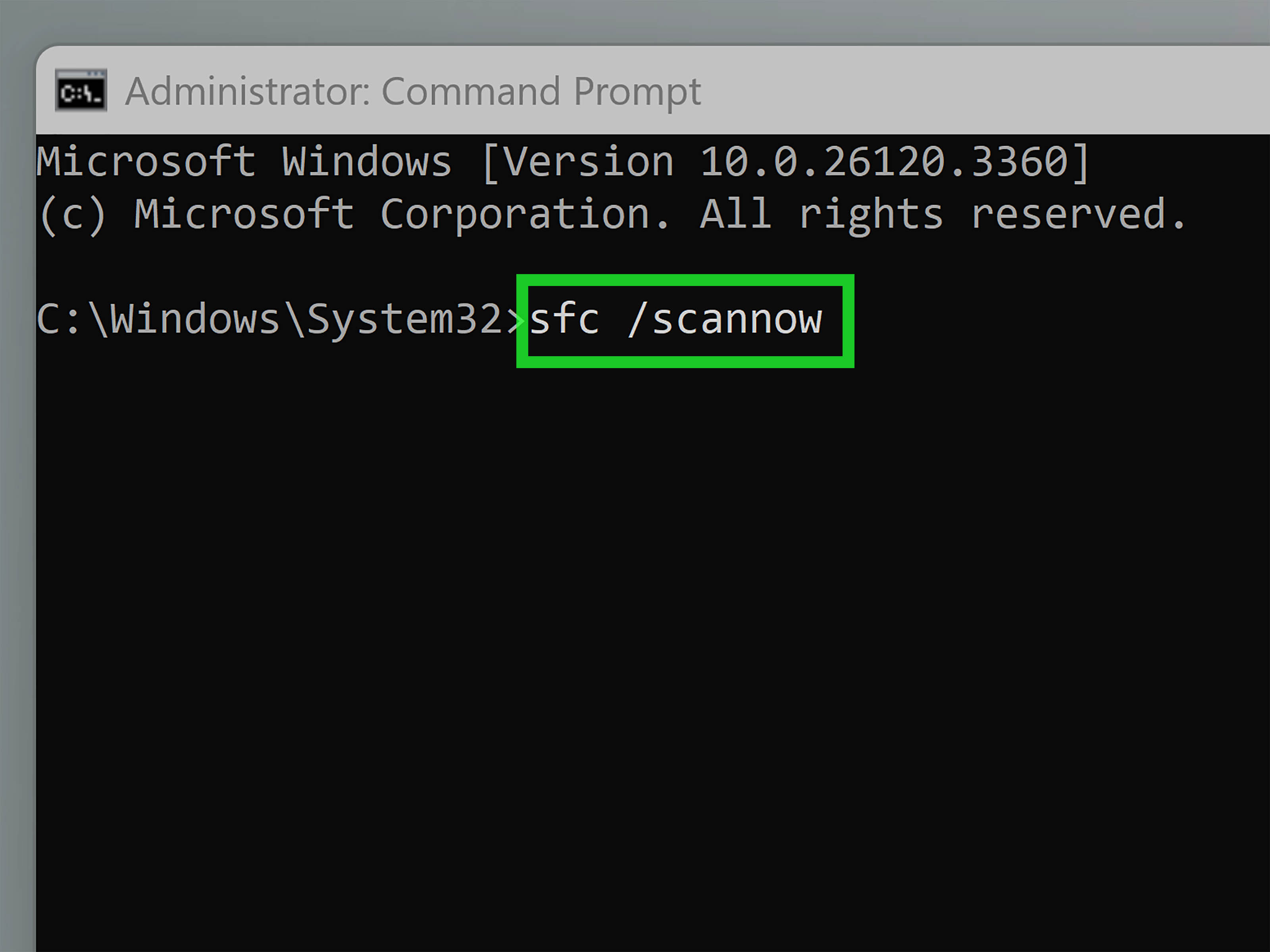
If Windows components are damaged, File Explorer and copy operations may behave unpredictably. Microsoft recommends using DISM before System File Checker when repairing corrupted system files.
How to Run DISM and SFC
- Right-click Start.
- Select Terminal (Admin) or Command Prompt (Admin).
- Run this command:
When it finishes, run:
Wait until the scan reaches 100 percent. If Windows reports that it repaired files, restart your PC and try copying again.
Bonus Fix: Use Robocopy for Stubborn File Transfers
When File Explorer fails but the files are still readable, Robocopy can sometimes complete the transfer more reliably. Robocopy is a built-in Windows command-line tool designed for robust file copying.
Example:
This tells Robocopy to copy from the source folder to the backup folder, retry once, and wait one second between retries. Avoid advanced options such as /MIR unless you fully understand them, because mirror commands can delete files in the destination to match the source.
Common Error Codes Connected to Copying Problems
Error 0x80070057
This often means “the parameter is incorrect.” In copy situations, check the file name, destination drive, file system, available space, and whether the drive is healthy.
Error 0x8007003B
This is commonly associated with network copy problems. If you see it while copying to or from a shared folder, check the connection, VPN, Wi-Fi stability, network permissions, and server availability.
Error 0x8007017C
This can appear with Work Folders or on-demand file access scenarios. Check sync settings and make sure the file is available locally before copying.
Error 0x800704C9
This may indicate that a remote computer refused the network connection. If the file is on a network location, confirm that the server, shared folder, and permissions are working.
How to Prevent the Error in the Future
You cannot prevent every Windows copy error, just like you cannot prevent every printer from choosing violence. But you can reduce the chances.
- Keep Windows updated.
- Avoid extremely long folder paths.
- Use simple file names without unsupported characters.
- Safely eject USB drives before unplugging them.
- Keep enough free space on destination drives.
- Let cloud files finish syncing before moving them.
- Back up important files before major transfers.
- Use a wired connection for large network transfers when possible.
of Real-World Experience: What This Error Usually Feels Like and What Actually Works
In real life, this error rarely appears at a convenient time. It usually shows up when someone is trying to copy tax documents five minutes before a deadline, move wedding photos to an external drive, transfer a school project, or back up a laptop before reinstalling Windows. The emotional pattern is predictable: confusion, mild panic, clicking “Try Again” seventeen times, and then bargaining with the computer like it is a moody vending machine.
The first experience many users report is that the error does not affect every file. A folder with 2,000 files may copy halfway and then stop at one item. That is why copying files in smaller groups is so useful. It turns a giant mystery into a smaller mystery with a name, size, and location. Once you identify the problem file, you can rename it, move it to a shorter path, download it from OneDrive, close the app using it, or skip it temporarily while saving the rest.
Another common situation involves external drives. A USB drive may look normal in File Explorer but still have file system problems. Maybe it was unplugged without ejecting. Maybe it is old. Maybe it has lived in a backpack next to crumbs, coins, and one suspiciously sticky candy wrapper. When copying fails repeatedly on an external drive, checking the drive for errors is not overreacting. It is basic digital hygiene.
Cloud folders create a different kind of confusion. Users often assume every file shown in File Explorer is physically stored on the PC. With Files On-Demand, that is not always true. Some files are placeholders until opened or downloaded. If the internet connection is unstable, the account is not signed in, or the sync client is stuck, Windows may fail to copy what looks like a normal file. The fix is often simple: right-click the file, keep it on the device, wait for the green check, then copy it.
Network folders can be even more theatrical. A file may copy perfectly in the morning and fail in the afternoon because the VPN dropped, Wi-Fi weakened, the server restarted, or permissions changed. If the file copies successfully to your local Desktop but fails when copied to a shared drive, the network path deserves suspicion. In that case, do not waste an hour renaming innocent files. Check the connection, permissions, and destination share.
The most overlooked cause is the long path problem. People create folders inside folders inside folders until the file path becomes a documentary series. Shortening the path is not glamorous, but it works surprisingly often. Move the folder closer to the drive root, rename the file, and try again. It is the computer equivalent of taking a shorter route home.
Finally, there is the “Windows itself is cranky” category. If File Explorer keeps failing across multiple drives, folders, and file types, deeper repair makes sense. Restart Explorer first. Then restart the PC. If the problem continues, run DISM and SFC. These tools are not flashy, but they can repair damaged Windows components that affect everyday tasks. When they work, it feels less like a tech miracle and more like finally tightening the one loose screw that made the whole desk wobble.
Final Thoughts
The message “An unexpected error is keeping you from copying” may sound vague, but the fix is usually logical. Start simple: restart File Explorer, clear the clipboard, close open files, and test one file at a time. Then check the path length, storage space, permissions, cloud sync status, security settings, drive health, and Windows system files.
The key is not to attack every setting at once. Troubleshoot in layers. If the file copies locally but not to a network folder, focus on the network. If one file fails but others copy, focus on that file. If all copy operations fail everywhere, focus on Windows, File Explorer, or the drive itself. Calm steps beat random clicking every time, even if random clicking does provide a brief illusion of productivity.