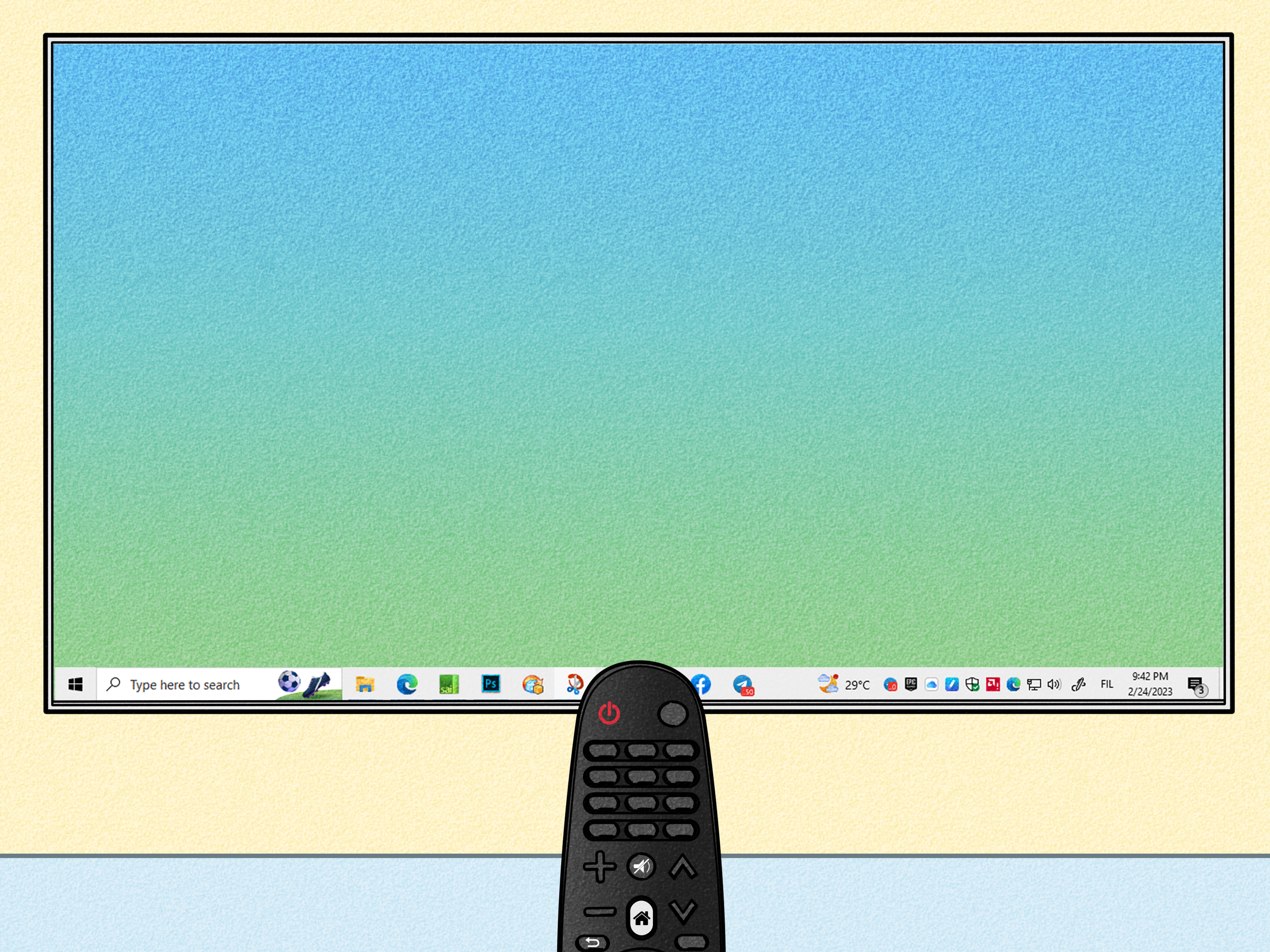
Connecting a PC to an LG Smart TV sounds simple: choose the television, press a button, and enjoy a giant desktop. Sometimes it is that easy. Other times, Windows and the TV behave like two people at a party who refuse to make eye contact.
You have three practical options: wireless Miracast screen mirroring, a wired HDMI connection, or Google Chrome casting when the TV or an attached streaming device supports Google Cast. This guide explains each method, the best display settings, and fixes for lag, blurry text, black screens, missing sound, and connection failures.
Which PC-to-LG-TV Connection Is Best?
| Method | Best For | Main Benefit | Main Drawback |
|---|---|---|---|
| Miracast | Presentations, photos, browsing, casual video | No cable | Possible lag or compatibility issues |
| HDMI | Gaming, 4K video, work, long sessions | Stable, low-latency picture and sound | Requires a cable or adapter |
| Google Cast | Browser tabs and supported streaming sites | Convenient Chrome controls | Not built into every LG TV |
Try Miracast when convenience matters. Choose HDMI when reliability, sharp text, high resolution, or fast response matters more than hiding a cable.
Before You Start
Check the LG TV Menu
LG menu names vary by model year and webOS version. Wireless mirroring may appear as Screen Share, Screen Mirroring, Home Dashboard, or an external-device option. Some models listen for connection requests automatically; others become easier to find after you open the sharing screen.
Check Miracast Support on the PC
Press Windows key + K. If Windows opens the Cast panel and searches for wireless displays, continue with the wireless method. If it says the PC does not support Miracast, update the Wi-Fi and graphics drivers. If the message remains, use HDMI or a compatible wireless display adapter.
A powerful desktop PC can still lack Miracast because wireless projection depends on compatible graphics, Wi-Fi hardware, and drivers. An Ethernet-connected desktop may need an enabled Wi-Fi adapter even though its internet connection already works perfectly.
Decide Between Mirroring and Extending
Duplicate shows the same image on both screens. Extend turns the TV into extra workspace. Second screen only uses the TV while switching off the PC display. You can change these modes at any time with Windows key + P.
Method 1: Mirror a Windows PC to an LG Smart TV Wirelessly
Most Windows-to-LG wireless screen sharing uses Miracast, a feature built into current Windows versions and supported by many LG Smart TVs. You normally do not need a third-party mirroring app.
Step 1: Prepare the LG TV
- Turn on the television and press Home on the LG remote.
- Open Screen Share, Screen Mirroring, or Home Dashboard if your model provides it.
- Leave that screen open while you connect from the PC.
Step 2: Connect from Windows
- Press Windows key + K.
- Wait for the available wireless displays to appear.
- Select the LG TV by name.
- Approve the request on the TV if prompted.
- Press Windows key + P and choose Duplicate, Extend, or Second screen only.
Windows uses the Cast panel for Miracast displays, while LG uses model-dependent Screen Share or mirroring labels. Both devices must support the standard.
How to Disconnect
Press Windows key + K, select the connected television, and choose Disconnect. You can also press Windows key + P and choose PC screen only.
Method 2: Connect the PC to the LG TV with HDMI
HDMI is the dependable option. It carries video and audio through one cable, avoids most wireless interference, and usually offers much lower input lag. Use it for gaming, detailed office work, long movies, video editing, or any event where “the screen vanished again” is not part of the program.
Choose the Correct Cable or Adapter
Use a standard HDMI cable if the computer has an HDMI output. For a laptop with USB-C, confirm that the USB-C port supports video, then use a USB-C-to-HDMI cable or adapter. DisplayPort and Mini DisplayPort can also connect through suitable HDMI adapters.
For 4K at 60Hz, the PC output, adapter, cable, and TV input must all provide enough bandwidth. A 4K 120Hz gaming setup usually requires HDMI 2.1-capable hardware throughout the connection chain.
Connect and Configure the Display
- Connect the PC to an HDMI port on the LG TV.
- Press Input on the LG remote and select that HDMI port.
- Press Windows key + P and choose the desired display mode.
- Open Settings > System > Display and select the LG TV.
- Choose the recommended resolution. A 4K TV normally uses 3840 × 2160.
- Open Advanced display and select a supported refresh rate, such as 60Hz or 120Hz.
Enable LG HDMI Features
On compatible LG models, enable HDMI Ultra HD Deep Color for the connected input when higher-bandwidth modes require it. For gaming, select Game Optimizer or the TV’s game picture mode to reduce processing and input lag. Menu locations vary by model year.
Send Audio to the TV
Click the speaker icon in the Windows taskbar and select the LG TV, HDMI device, or graphics-card audio output. If it is missing, open Settings > System > Sound and check the available output devices.
Method 3: Cast Chrome to the LG TV
Google Chrome can cast a tab or the full desktop to a compatible Google Cast receiver. Selected newer LG TVs support Google Cast, but older models may need a Chromecast, Google TV Streamer, or another compatible device connected by HDMI.
- Connect the PC and Cast receiver to the same network.
- Open Chrome and its main menu.
- Select the casting option, which may appear under Cast, save, and share.
- Choose the current tab or the entire screen.
- Select the LG TV or attached streaming device.
Casting a tab is often smoother than casting the entire desktop because Chrome can optimize supported web content. Google documents both tab and screen casting, while LG limits built-in Google Cast support to selected TV lines rather than every webOS model.
How to Fix Common Connection Problems
The LG TV Does Not Appear in Windows
- Turn on Wi-Fi on the PC, even if it uses Ethernet for internet access.
- Open Screen Share or Home Dashboard on the TV.
- Restart the PC and television.
- Move the PC closer and pause large network downloads.
- Update Wi-Fi and graphics drivers from the PC manufacturer.
- Remove the old pairing in Windows and delete the LG TV’s connection history where available.
Microsoft recommends checking Miracast support, Wi-Fi, the receiving display, restarts, and driver updates. PC manufacturers also emphasize compatible wireless hardware and current Wi-Fi and graphics software.
The HDMI Picture Is Black
Select the correct input, reseat the cable, and try another HDMI port. Set Windows to 1920 × 1080 at 60Hz, then increase the resolution gradually. Temporarily disable HDR. If a different cable works, the original cable may be defective or unable to carry the requested signal.
The Picture Is Blurry
Use the TV’s recommended native resolution. On a 4K screen, increase Windows scaling rather than lowering the resolution. If the LG interface allows it, label the HDMI input as PC to improve text handling on supported models.
There Is Video but No Sound
Select the LG TV or HDMI output in Windows sound settings. With Chrome, try casting a tab instead of the entire desktop. Also check per-app audio settings because Windows can send different applications to different output devices.
The Mouse or Game Feels Delayed
Some delay is normal with wireless mirroring because the image must be encoded, transmitted, and decoded. Use HDMI for gaming or precise mouse work. Enable Game Optimizer and disable unnecessary picture processing.
Streaming Video Shows a Black Rectangle
Some protected services restrict full-screen mirroring. Use the service’s native LG app, cast its supported browser tab, or connect through HDMI. The rest of the desktop may mirror correctly while protected video remains black.
Best Method for Each Situation
- Business presentation: Use Miracast for convenience, but carry an HDMI cable as backup.
- Movies: Prefer the LG app, direct tab casting, or HDMI over full desktop mirroring.
- Gaming: Use HDMI, a supported refresh rate, and Game Optimizer.
- Second monitor: Use HDMI with Extend mode for stable text and dependable workspace.
Privacy Tips Before Screen Sharing
Close private messages, financial documents, password managers, and notification-heavy apps before mirroring. Only approve devices you recognize, and disconnect after using a shared television. Windows notifications have a remarkable talent for appearing during the one presentation in which you claimed to be completely organized.
Real-World Experience: What Usually Works Best
In everyday use, the best connection method is rarely the fanciest one. It is the method that keeps working after everyone stops admiring the setup. Wireless mirroring is excellent when the PC and LG TV are in the same room, both have current drivers, and the task is forgiving. Showing vacation photos, reviewing a website, or presenting a short slide deck usually works well. Press Windows key + K, choose the television, approve the request, and the laptop screen appears several feet wider.
The experience changes when the workload becomes demanding. During a two-hour movie, even a small wireless interruption becomes noticeable. A brief stutter may not ruin the evening, but repeated audio drift or a dropped connection certainly tries. Casting a supported browser tab can be better than full desktop mirroring, while the LG TV’s native streaming app is often better still. The PC can rest instead of compressing and transmitting every changing pixel.
For gaming, HDMI consistently provides the more satisfying result. Wireless projection may look sharp while the desktop is still, yet delay becomes obvious when fast input matters. In an action game, the character may move just late enough to make the player blame the controller, the chair, the lighting, and eventually destiny. A direct HDMI connection, Game Optimizer, and an appropriate refresh rate remove most of that uncertainty.
Desktop PCs create another common surprise. Owners often assume that a powerful graphics card guarantees wireless display support. Then Windows announces that Miracast is unavailable because the machine lacks a compatible Wi-Fi adapter or driver. Adding an adapter may help, but HDMI is often faster and cheaper than turning a stationary tower into a wireless acrobat. If the PC sits near the TV, a well-routed cable is not a defeat. It is infrastructure.
Using an LG TV as a work monitor requires practical adjustments. At native 4K resolution, text can look beautifully sharp but uncomfortably small from across the room. Increasing Windows scaling is usually better than lowering resolution. Extend mode is more useful than Duplicate mode because the TV can hold a video call, dashboard, reference document, or preview while the main monitor remains available for active work.
The most dependable habit is to test the exact setup before an important meeting or event. Confirm that the television name appears, check whether audio follows the picture, and verify that the chosen app allows mirroring. Keep a known-good HDMI cable and the correct USB-C adapter in the laptop bag. Wireless technology is wonderful, but a backup cable has never demanded a firmware update five minutes before a presentation.
Conclusion
To connect a PC to an LG Smart TV wirelessly, open the LG sharing interface when needed, press Windows key + K, and select the TV. Use Windows key + P to duplicate or extend the desktop. Choose HDMI for the most stable picture, reliable sound, low latency, 4K resolution, or high-refresh-rate gaming. Use Chrome casting when the LG TV or an attached device supports Google Cast.
When something fails, check compatibility before changing random settings. Update drivers, restart both devices, verify the selected HDMI input, and test a lower resolution or refresh rate. The ideal connection is not the one with the fewest cables; it is the one that lets you forget the connection exists.