Note: Twitter is now officially called X, but many people still search for “how to post a GIF on Twitter.” This guide uses both names naturally so readers can find the answer fast without needing a social media history lecture and a tiny cup of espresso.
Posting a GIF on Twitter is one of the easiest ways to make a post feel more alive. A good GIF can say “I’m excited,” “I’m confused,” “please stop emailing me in all caps,” or “this product update is actually worth noticing” without forcing your audience to read a paragraph. That is the magic of a looping image: it delivers emotion before the brain has time to scroll away.
The good news is that X still supports animated GIFs in posts, replies, quote posts, and direct messages. The slightly less glamorous news is that there are rules. You can usually add only one animated GIF to a post, animated GIFs cannot be mixed with multiple images in the same post, and file size matters. Think of it like bringing a snack to a movie theater: yes, you can do it, but it has to fit in the bag.
This guide explains three practical ways to post a GIF on Twitter: using the built-in GIF library, uploading your own saved GIF, and sharing from a GIF platform or keyboard app. You will also learn how to fix common problems, choose better GIFs, and avoid posting something that looks like it was compressed inside a potato.
Quick Rules Before You Post a GIF on Twitter
Before jumping into the three methods, it helps to understand the basics. X accepts animated GIFs, but the platform treats them differently from regular photos and videos. A GIF attachment does not count against your post character limit, so you can still write your caption, hashtag, joke, announcement, or spicy one-line observation.
For uploads, animated GIFs can be up to 5 MB on mobile and up to 15 MB on the web. X accepts GIF, JPEG, and PNG files for images, but if you want animation, your file needs to be an actual animated GIF. Also, the animation should loop. If a GIF plays only once and does not loop, X may display it as a static image, which is deeply tragic if your whole joke depends on a dramatic hair flip.
Another key rule: one animated GIF per post. You can post up to four photos in a single post, but animated GIFs are a different animal. You cannot include an animated GIF in a post with multiple images, and you generally cannot combine a GIF with a video in the same post. If you need several moving visuals, consider turning them into a short video instead.
Way 1: Use the Built-In GIF Library on Twitter/X
The fastest way to post a GIF on Twitter is to use the built-in GIF search tool inside the post composer. This method is perfect when you want a reaction GIF, a meme, a celebratory animation, or a tiny looping masterpiece of someone blinking in disbelief.
How to post a GIF from the GIF library on desktop
- Open X.com and sign in to your account.
- Click the post composer box, usually labeled “What is happening?”
- Select the GIF icon in the composer toolbar.
- Browse the displayed categories or type a keyword into the search bar.
- Click the GIF you want to use.
- Add your caption, hashtags, or mention if needed.
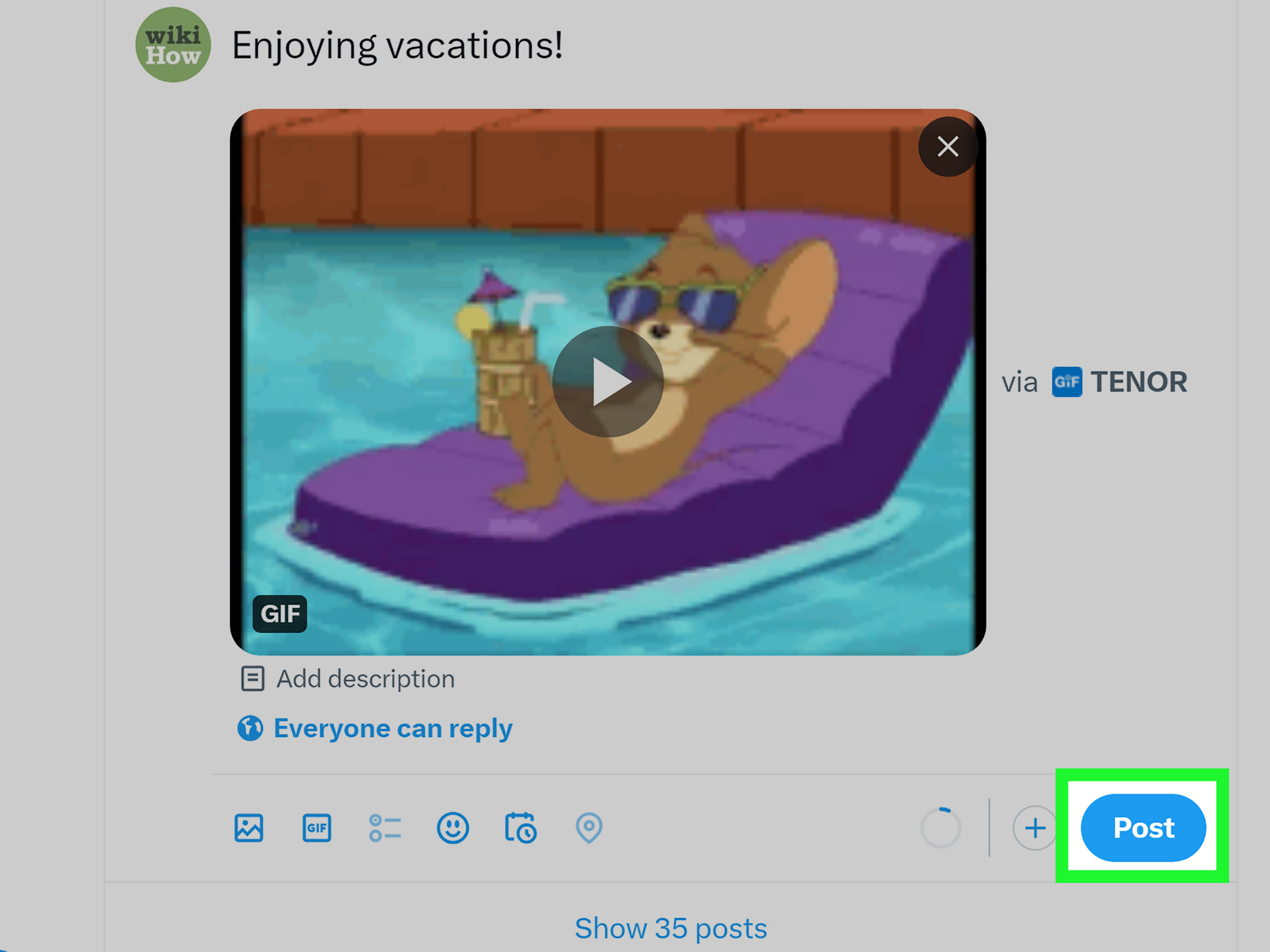
- Click Post.
That is it. No downloading, no uploading, no praying to the Wi-Fi router. The selected GIF attaches directly to your post and will appear inline in the timeline.
How to post a GIF from the GIF library on iPhone or Android
- Open the X app.
- Tap the compose button to create a new post.
- Tap the GIF icon.
- Search for a keyword such as “excited,” “thank you,” “facepalm,” “launch day,” or “coffee.”
- Select the GIF you like.
- Write your post copy.
- Tap Post.
The built-in library works best for common reactions. For example, if your brand is announcing a sale, search “happy dance.” If you are replying to a customer compliment, search “thank you.” If your product team just fixed a bug that has haunted everyone for three months, search “finally” and let the tiny looping celebration begin.
Tips for finding better GIFs in the library
Search with emotions, not just objects. “Excited,” “confused,” “applause,” “mind blown,” and “waiting” usually produce stronger results than generic terms like “office” or “computer.” You can also search by pop culture references, but be careful. A GIF from a movie, celebrity interview, or TV show can add personality, yet it can also confuse people who do not recognize the reference.
For professional accounts, choose GIFs that match the brand voice. A law firm probably should not reply to a serious client question with a raccoon screaming into the void. A snack brand, on the other hand, may have full raccoon privileges.
Way 2: Upload Your Own GIF to Twitter
The second way to post a GIF on Twitter is to upload one from your device. This is the best option when you have a custom GIF, a product animation, a short tutorial loop, a branded reaction, or a design created in tools like Canva, Photoshop, Adobe Express, or a video-to-GIF converter.
How to upload a GIF from your computer
- Go to X.com and open the post composer.
- Click the media/photo icon.
- Select the animated GIF file from your computer.
- Wait for the upload to finish and preview the animation.
- Add your caption, call to action, hashtags, or link.
- Click Post.
Uploading from desktop is useful because the web limit for animated GIFs is typically higher than mobile. If your GIF is larger than what the mobile app accepts, try posting it from a browser. This is the social media equivalent of moving from a tiny purse to a weekend bag.
How to upload a GIF from your phone
- Open the X app on iPhone or Android.
- Tap the compose button.
- Tap the photo/media icon.
- Select the saved GIF from your camera roll or gallery.
- Preview the GIF to make sure it animates correctly.
- Write your caption.
- Tap Post.
If you are using an iPhone, X also allows some iOS Live Photos to be shared as GIFs. When you select a Live Photo, look for the GIF badge and choose it before posting. This is handy when you accidentally capture the perfect two-second moment, such as your dog sneezing like a tiny Victorian gentleman.
Best practices for custom GIF uploads
Keep your GIF short. A looping animation of two to six seconds is usually enough. If it takes longer than that to understand, it may work better as a video. Crop out unnecessary space, reduce dimensions if needed, and remove extra frames to shrink the file. A clean, lightweight GIF loads faster and looks better in the timeline.
For branded GIFs, make the first frame clear. Many users scroll quickly, and some have autoplay settings adjusted. If the opening frame looks messy or blank, your GIF may fail before it gets its little animated legs moving. Use bold contrast, readable text, and a simple visual idea. A GIF should not require a detective board with red string.
Also remember that accessibility matters. If your GIF communicates important information, include that information in the post copy as well. Do not make the animation the only place where key details appear. A GIF can support the message, but the caption should still make sense on its own.
Way 3: Share a GIF from GIPHY, Tenor, or a Keyboard App
The third method is to share a GIF from a dedicated GIF platform or keyboard app. This is useful when you find the perfect GIF outside X or when you already use a GIF keyboard on your phone.
How to share a GIF from GIPHY
- Open GIPHY in your browser or mobile app.
- Find the GIF you want to share.
- Open the GIF detail page.
- Select the share option.
- Choose the Twitter/X icon.
- Add your caption.
- Post it to your profile.
When shared properly through a platform’s Twitter/X share button, the GIF should upload and play inline. This is better than simply pasting a random GIF page link, which may create a link preview instead of a native-looking animated post. Native-looking posts generally feel cleaner and are easier for followers to engage with.
How to use Tenor or a GIF keyboard
GIF keyboards such as Tenor or GIPHY Keyboard make it easy to search for reaction GIFs from your phone. On iOS, X may allow you to copy and paste images, emojis, and GIFs from third-party keyboard apps into posts or direct messages. The usual flow is simple: open the keyboard, search for a GIF, copy it, return to the X composer, and paste it into the text field.
This method is great for casual posting and quick replies. However, if you manage a business account, slow down for three seconds before posting. Make sure the GIF is appropriate, readable, and not accidentally loaded with a meaning you did not intend. The internet is very talented at misunderstanding things at Olympic speed.
When sharing from outside platforms makes sense
Use external GIF platforms when you want variety, branded GIFs, or a specific animation that does not appear in the built-in library. GIPHY and Tenor are especially useful for reaction content, entertainment references, and community-friendly humor. For companies, uploading branded GIFs to a GIF platform can also help teams use consistent visual assets across social channels.
Still, treat copyright and brand safety seriously. Just because a GIF exists online does not automatically mean it is ideal for a commercial campaign. For everyday personal posting, reaction GIFs are common internet language. For ads, sponsored content, or major brand announcements, custom-made GIFs are usually safer and more distinctive.
Common Problems When Posting GIFs on Twitter
The GIF does not animate
If your GIF appears as a still image, the file may not loop, may be corrupted, or may not have uploaded correctly. Try opening the GIF on your device first. If it plays only once, export it again with looping enabled. If it plays normally on your device but not on X, compress it and upload again.
The GIF is too large
Large GIFs are a classic problem because animation can balloon file size quickly. To reduce file size, shorten the duration, crop unnecessary areas, lower the dimensions, reduce the frame rate, or reduce the number of colors. In many cases, a three-second GIF communicates the same message as a ten-second GIF with far less digital baggage.
The GIF looks blurry
Blurry GIFs often come from heavy compression or low-resolution source files. Start with the highest-quality source possible, then export at a reasonable size. Avoid tiny text in GIFs because it often becomes unreadable after platform compression. If your message needs words, put the main message in the caption and let the GIF provide motion and mood.
You cannot find the GIF search button
Sometimes the GIF search option may not appear because of a weak mobile connection, app glitches, or temporary platform issues. Update the app, restart it, switch networks, or upload a saved GIF from your phone instead. The built-in library is convenient, but it is not the only path to animated glory.
Examples of Smart GIF Use on Twitter
For personal posts
If you are posting about finishing a big project, a happy dance GIF works beautifully. If you are reacting to surprising news, a “shocked face” GIF can carry the emotion without writing “I am shocked” like a robot who just discovered weather.
For business accounts
A software company can use a custom GIF to show a new dashboard feature in action. A restaurant can post a looping GIF of cheese stretching from a pizza slice. A fitness brand can show a quick before-and-after movement correction. A bookstore can share a cozy page-turning GIF when announcing a weekend sale. The best business GIFs are not random decorations; they help explain, entertain, or invite action.
For replies and community engagement
GIFs shine in replies because they make responses feel human. A simple “Thank you!” paired with a smiling or applauding GIF can feel warmer than text alone. For customer support, use them carefully. A playful GIF is fine after solving a light issue. It is less fine when someone is angry about a missing order. Read the room; the room has receipts.
How to Choose the Right GIF for Better Engagement
The best GIFs on Twitter are instantly understandable. If someone needs five seconds of context, a college seminar, and three browser tabs to understand the joke, choose another GIF. The timeline moves too fast. Your GIF should land quickly.
Match the GIF to the emotion of the post. For announcements, use celebration or anticipation. For tutorials, use screen-recorded custom GIFs. For humor, use reactions that match the punchline without overpowering it. For serious topics, skip the GIF unless it genuinely adds clarity or warmth.
Also think about mobile viewing. Most people will see your post on a phone, so tiny details may disappear. Use simple motion, clear subjects, and strong framing. If the GIF includes text, keep it large and brief. A GIF with six lines of micro-text is not a GIF; it is an eye exam.
Experience Notes: What Actually Works When Posting GIFs on Twitter
After observing how GIFs perform across everyday posts, brand updates, replies, and promotional content, one pattern becomes obvious: the GIF should never be the whole strategy. It should be the seasoning. A great caption with a relevant GIF feels polished. A random GIF attached to weak copy feels like someone placed a disco ball in a dentist’s office.
The most reliable GIF posts usually start with a clear purpose. Are you trying to make people laugh? Explain a quick feature? Celebrate a milestone? Soften a customer reply? Once the purpose is clear, choosing the right GIF becomes much easier. For example, a small business announcing “We’re open on Sundays now” could use a cheerful door-opening GIF or a custom animation showing the new hours. That works because the motion reinforces the message. A confused celebrity reaction might be funny, but it does not help the reader remember the update.
Custom GIFs often outperform generic reaction GIFs for product or brand communication because they are specific. A looping GIF showing how to use a new app feature can teach more in three seconds than a long paragraph. A before-and-after home improvement GIF can make a service feel tangible. A food brand showing steam rising from a fresh dish can trigger appetite faster than another “Come visit us!” caption. In other words, custom GIFs are not just cute; they can be tiny sales assistants with excellent rhythm.
Reaction GIFs, however, are still excellent for replies and personality. They work because Twitter/X is conversational. People do not always want a brochure; sometimes they want a wink, a nod, or a dramatic “same.” The trick is to choose GIFs that feel natural for the account. A playful creator can post a chaotic GIF and get laughs. A financial advisor may want something calmer, like applause, celebration, or a simple thumbs-up. Consistency builds trust, even when the content loops forever.
Timing also matters. GIFs tend to work well during live events, launches, sports moments, TV conversations, tech announcements, and cultural trends because people are already reacting in real time. A well-timed GIF reply can make an account feel present and human. But do not force it. Posting a GIF into every trend is like wearing a tuxedo to buy cereal: memorable, yes, but not always wise.
One underrated habit is previewing the post before publishing. Check the first frame, caption, spelling, and whether the animation actually plays. If the GIF is custom, test it on mobile and desktop when possible. If the GIF has fast flashing, reconsider it for accessibility and comfort. If the GIF contains text, make sure the caption repeats the essential information.
The final lesson is simple: GIFs work best when they respect attention. They should be quick, clear, emotionally accurate, and easy to understand without sound. Do that, and your Twitter GIF post has a much better chance of earning likes, replies, reposts, and the highest honor on the internet: someone muttering, “Okay, that was good,” before immediately pretending they are not impressed.
Conclusion
Learning how to post a GIF on Twitter is simple once you know the three main options. You can search the built-in GIF library, upload your own custom animated GIF, or share one from a GIF platform or keyboard app. Each method has its place. The built-in library is fastest for reactions, uploads are best for custom content, and external tools are useful when you want more variety.
The real skill is not just posting a GIF; it is choosing one that improves the post. Keep it short, readable, relevant, and properly sized. Use captions that still make sense without the animation. Avoid overusing GIFs in serious conversations. And remember: one perfect GIF can make your post memorable, but seven almost-perfect GIF ideas sitting in your drafts do absolutely nothing. Pick the best one and post it.