Forgetting your Samsung phone password is a very modern kind of panic. One minute you are checking a recipe, a bank alert, or a photo of your dog looking suspiciously guilty; the next minute your Galaxy phone is acting like a tiny steel vault. The big question is simple: Can you unlock a Samsung phone password without losing data?
The honest answer is: sometimes, yes. But it depends on your phone model, Android version, Samsung account settings, backup status, and whether the lock problem is truly a forgotten password or just a temporary recognition glitch. There is no universal, safe, magic button that unlocks every Samsung Galaxy without data loss. If that button existed, phone thieves would be throwing a parade.
Note: This guide is for Samsung phones you own or are legally authorized to access. It does not explain how to hack, bypass Factory Reset Protection, defeat someone else’s lock screen, or use shady “unlocker” tricks. The goal is data-safe recovery, not digital lock-picking in a trench coat.
First, Understand Why Samsung Lock Screens Are Hard to Bypass
Modern Samsung Galaxy phones use Android security, Samsung Knox protections, screen-lock encryption, and account verification to keep personal data safe. Your PIN, password, or pattern is not just a decorative gate. It helps protect encrypted user data on the device. That is why many “unlock Samsung phone without password” tools either do not work, wipe the phone, require conditions that most users did not set up earlier, or make promises that sound better than they behave.
This is also why official recovery methods are strict. Samsung and Google design lock screens to protect photos, messages, banking apps, saved passwords, work files, and private information. Annoying? Absolutely. Necessary? Also absolutely. A secure phone that could be unlocked by anyone with a cable and a YouTube tutorial would be about as protective as a screen door on a submarine.
Quick Answer: Best Ways to Unlock a Samsung Phone Without Losing Data
If you want the shortest useful answer, start with these options in order:
- Use the previous screen lock method if your Galaxy phone supports it and you changed your PIN, password, or pattern within the last 72 hours.
- Use SmartThings Find or Samsung Find remote unlock only if the feature is available in your region, supported by your phone, and was enabled before you got locked out.
- Restart the phone or use Safe Mode if your phone is not recognizing the correct PIN, fingerprint, face unlock, or pattern.
- Use a USB mouse, keyboard, external display, or DeX-style setup if the real issue is a broken screen and you still know the password.
- Recover your data from Samsung Cloud, Google Backup, Google Photos, WhatsApp backup, OneDrive, or Smart Switch backups if a reset becomes unavoidable.
The key phrase is without losing data. If none of the no-wipe methods apply, the realistic path is not “unlock without data loss.” It is “reset the phone and restore the data you previously backed up.” That may sound less glamorous, but it is the truthand truth is cheaper than a suspicious desktop app asking for $39.99 and full device access.
Method 1: Unlock Samsung With a Previous PIN, Password, or Pattern
Some newer Galaxy devices running One UI 6.1 or later support a useful recovery feature: unlocking with a previous screen lock method. This is designed for the classic “I changed my PIN yesterday and now my brain has gone on vacation” situation.
When This Method Works
This option may work if:
- You recently changed your Samsung lock screen PIN, password, or pattern.
- Less than 72 hours have passed since the change.
- Your Galaxy model and software version support the feature.
- You still remember the old PIN, password, or pattern.
How to Try It
- Wake your Samsung phone and attempt to unlock it.
- After several failed attempts, look for a message such as Forgot PIN?, Forgot password?, or Forgot pattern?.
- Tap the option when it appears.
- Enter your previous screen lock method.
- If accepted, create a new PIN, password, or pattern.
- Write the new lock somewhere safepreferably not on a sticky note attached to the phone like a comedy sketch.
This is one of the best Samsung password recovery options because it can unlock the phone without erasing your photos, apps, files, or messages. However, it is time-sensitive. After the recovery window expires, the previous lock information is deleted for security reasons.
Method 2: Use SmartThings Find or Samsung Find Remote Unlock
Older Samsung guides often mention Find My Mobile, while newer Samsung services use names such as SmartThings Find and Samsung Find. Depending on your region, device, settings, and software version, you may see options to locate, ring, lock, erase, extend battery life, or sometimes unlock the device.
Important Reality Check
Remote unlock is not guaranteed on every current Samsung Galaxy phone. In many cases, you may only see options to locate, ring, lock, or erase the device. Do not spend hours following outdated tutorials if your Samsung Find dashboard does not show an unlock option. That missing button is not hiding because it is shy; it may simply not be available for your device.
When Remote Unlock May Work
This method may unlock your Samsung phone without losing data if:
- The phone is turned on.
- The phone is connected to mobile data or Wi-Fi.
- The device is signed in to your Samsung account.
- Remote unlock was enabled before you forgot the password.
- The unlock feature is still supported for your phone and region.
How to Try Samsung Remote Unlock
- On a computer, tablet, or another phone, open the Samsung Find or SmartThings Find website.
- Sign in with the same Samsung account used on the locked Galaxy phone.
- Select the locked device from your device list.
- Look for an Unlock option.
- If it appears, follow the prompts and verify your Samsung account password.
- Once unlocked, immediately set a new screen lock and check your backup settings.
If the unlock option is not available, do not panicbut do not believe random websites claiming they can restore that button with a secret download. Official Samsung account recovery and backup restoration are safer than mystery software with a logo that looks like it was designed during lunch.
Method 3: Restart the Phone if the Correct Password Is Not Working
Sometimes the problem is not that you forgot the Samsung password. Sometimes the phone is being dramatic. If you are certain the PIN, password, or pattern is correct but your Galaxy device refuses it, try a basic restart first.
Why Restarting Helps
A restart can clear temporary glitches affecting fingerprint recognition, face unlock, touch input, keyboard response, or system behavior. It will not erase your data. It also takes less time than bargaining with the lock screen like it is a parking meter.
Steps to Restart
- Press and hold the Side button and Volume Down button together.
- Choose Restart if the power menu appears.
- If the phone is frozen, keep holding the buttons until it restarts.
- After rebooting, carefully enter your PIN, password, or pattern.
One important warning: after a reboot, Android often requires the main PIN, password, or pattern before biometrics work again. So if you rely entirely on fingerprint or face unlock and do not know the actual lock code, restarting may not solve the issue. Still, if the phone was glitching, it is a safe first step.
Method 4: Boot Into Safe Mode if a Third-Party App Is Causing Trouble
If your Samsung phone is not recognizing input correctly, freezing on the lock screen, or behaving strangely after installing an app, Safe Mode can help. Safe Mode temporarily disables third-party apps so you can test whether an app is interfering with normal operation.
How to Enter Safe Mode
- Press and hold the Side button until the power menu appears.
- Touch and hold Power off.
- Tap Safe Mode.
- After the phone restarts, try unlocking it again.
If the phone unlocks in Safe Mode, remove recently installed apps, especially lock screen tools, launchers, automation apps, device cleaners, or anything that promised to “boost performance” with the confidence of a carnival barker. Then restart normally.
Safe Mode is useful when the lock screen problem is caused by software behavior. It will not recover a truly forgotten Samsung PIN. Still, because it does not wipe data, it belongs near the top of your troubleshooting list.
Method 5: Use Biometrics or Extend UnlockIf Already Set Up
If your fingerprint or face unlock is still accepted, use it immediately and then change your lock screen credentials from Settings. This may sound obvious, but people often keep typing the wrong PIN because they forget the fingerprint sensor is still an option.
What to Try
- Try every registered fingerprint, including both thumbs and index fingers.
- Clean the screen and sensor area.
- Remove thick screen protectors if fingerprint reading suddenly fails.
- Try face unlock in good lighting without sunglasses, masks, or extreme angles.
- Check whether Extend Unlock or trusted Bluetooth devices keep the phone unlocked in certain conditions.
There is a catch: Android may still require your main PIN, password, or pattern after restart, after a long inactive period, or when security rules require stronger authentication. Biometrics are convenient, but they are not a permanent replacement for remembering the actual screen lock.
Method 6: If the Screen Is Broken, Use a Mouse, Keyboard, or External Display
Not every “forgot Samsung password” problem is actually a forgotten password. Sometimes the touchscreen is cracked, black, flickering, or ignoring your taps. If you still know the correct PIN or password, your data may be recoverable without a factory reset.
What You May Need
- A USB-C OTG adapter.
- A USB mouse or keyboard.
- A USB-C to HDMI adapter or compatible hub.
- A monitor or TV.
- Samsung Smart Switch on a PC or Mac for backup after access is restored.
How It Works
Connect a mouse or keyboard to the phone using a USB-C adapter. If the display is still visible, use the mouse to click the digits or pattern dots. If the screen is dead but the phone still works, connect it to an external monitor through a compatible USB-C to HDMI adapter. Once you can interact with the phone, unlock it, approve USB access if needed, and back up your data immediately.
This method is excellent for cracked-screen cases. It is not a password bypass. You still need to know the correct lock code. Think of it as replacing your broken front door handle, not sneaking through the chimney.
Method 7: Back Up What You Can Before Taking Bigger Steps
If you regain access even briefly, stop everything and back up your data. Do not check social media first. Do not open a game. Do not spend twenty minutes admiring your wallpaper. Back up the phone while the universe is being kind.
Samsung Backup Options
Samsung users can often back up important content through Samsung Cloud, Smart Switch, Microsoft OneDrive integration, and account sync. Smart Switch is especially useful because it can create a local backup on a computer, including many categories such as contacts, messages, call logs, settings, apps, photos, and videos depending on device and configuration.
Google Backup Options
Google Backup may include apps and app data, call history, contacts, device settings, SMS and MMS messages, and other data depending on your Android version and settings. Google Photos may already contain your photos and videos if backup was enabled. Google Contacts, Gmail, Calendar, Drive, and Keep are usually tied to your Google account, not just the physical phone.
App-Specific Backups
Some apps handle backups separately. WhatsApp may use Google Drive backups. Banking apps may require fresh login. Authenticator apps may need export or cloud sync. Notes, password managers, and work apps may each have their own recovery process. Before resetting a locked Samsung phone, check what is already saved in cloud accounts from another device or computer.
What If You Must Factory Reset?
If no no-data-loss method works, a factory reset may be the only official way to use the phone again. This erases data stored on the device. It does not necessarily erase data already synced to cloud services, saved to an SD card, backed up to a computer, or stored in your online accounts.
Before resetting, make sure you know the Google account and Samsung account previously used on the phone. Google Device Protection, also known as Factory Reset Protection, may require the last synced Google account after a reset. This is a security feature designed to stop stolen phones from being wiped and reused. If you do not know the account credentials, you may need official account recovery or help from Samsung support with proof of purchase.
After Resetting, Restore Your Data
During setup, sign in to your Google account and Samsung account. Choose the most recent backup when prompted. Restore photos from Google Photos or OneDrive, messages from Samsung Cloud or Google backup if available, and app data where supported. Some apps will return exactly as they were; others will require fresh login. That is normal. Phones are clever, but they are not wizards wearing tiny capes.
Methods You Should Avoid
When people search for how to unlock a Samsung phone password without losing data, they often find risky advice. Some of it is outdated. Some of it is exaggerated. Some of it should be treated like gas station sushi: technically available, but not a wise life choice.
Avoid Unknown Unlocker Software
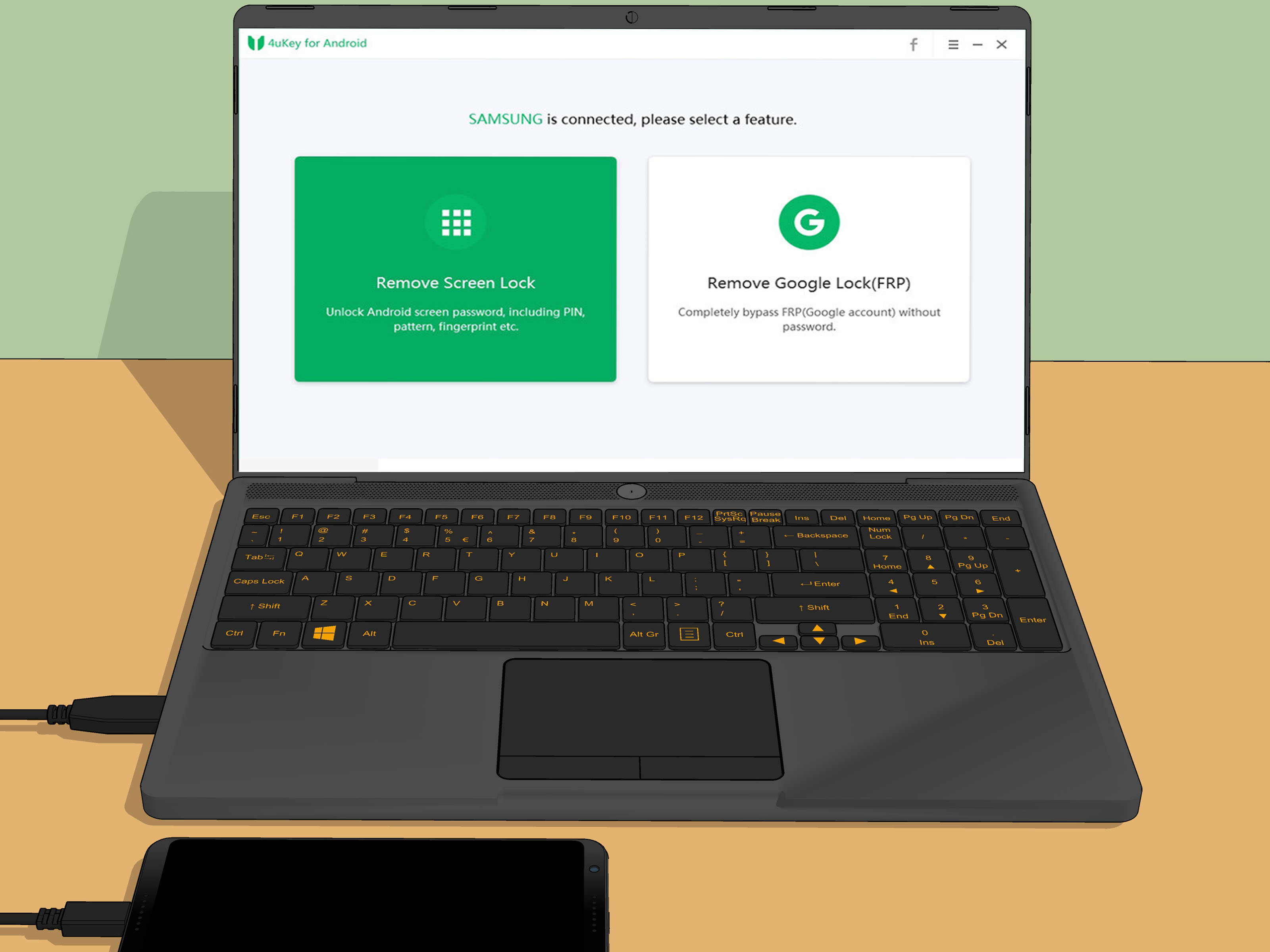
Be careful with desktop tools that promise “100% Samsung unlock without data loss” for every model. Many of these tools wipe data, fail on newer Android versions, require USB debugging that was never enabled, or ask for broad access to your device. If a tool cannot clearly explain requirements, risks, supported models, and whether it erases data, skip it.
Avoid ADB Tricks Unless You Already Prepared the Phone
Some old tutorials mention ADB commands to delete lock files. These methods generally require USB debugging, prior computer authorization, older Android behavior, or rooted devices. For ordinary Samsung Galaxy owners, they are usually not practical and may create more problems than they solve.
Avoid Factory Reset Protection Bypass Videos
Factory Reset Protection bypass content is often unsafe, unethical, unreliable, and against the purpose of device security. If the phone is yours, use proper Google account recovery, Samsung account recovery, carrier support, or an authorized service center.
How to Prevent This From Happening Again
The best time to prepare for a lockout is before you are locked out. The second-best time is immediately after you regain access and before your memory decides to become interpretive dance.
- Use a PIN or password you can remember but others cannot easily guess.
- Store the password in a reputable password manager.
- Keep your Samsung account and Google account recovery information updated.
- Enable automatic Google Backup.
- Enable Samsung Cloud or Smart Switch backups where appropriate.
- Turn on photo and video backup through Google Photos, OneDrive, or another trusted service.
- Record your phone’s IMEI and proof of purchase in a safe place.
- Check Samsung Find or SmartThings Find settings before an emergency happens.
Real-Life Experience: What Usually Happens When People Try to Unlock a Samsung Without Data Loss
In real life, Samsung lockouts usually fall into a few patterns. The first is the “I changed my PIN last night” scenario. This person remembers the old PIN clearly but cannot remember the new one. For them, the previous screen lock recovery feature can be a lifesaver if the phone supports it and the 72-hour window has not expired. This is probably the cleanest win: no reset, no lost photos, no emotional monologue directed at a rectangle.
The second situation is the “my phone knows my fingerprint, but I do not know myself” problem. Many people use fingerprint unlock for months and slowly forget the actual backup PIN. Everything feels fine until the phone restarts, updates, runs out of battery, or asks for the main password for security. Then panic arrives wearing tap shoes. The lesson is simple: biometrics are convenient, but the PIN is still the master key. If you get back in with fingerprint unlock, change the PIN immediately and save it securely.
The third experience involves broken screens. A phone may be perfectly functional inside, but the display is black, cracked, or unresponsive. People assume the data is gone when the real problem is input. In these cases, a USB-C adapter, mouse, keyboard, or external display can make the difference. Once the phone is unlocked, Smart Switch can often back up valuable content to a computer. This is especially helpful for family photos, voice recordings, downloads, and local files that may not be in cloud storage.
The fourth and most frustrating scenario is the no-backup lockout. The user never enabled Samsung Cloud, never used Google Photos, never connected Smart Switch, and does not remember the password. In that case, there may be no safe way to unlock the Samsung phone without losing local data. It feels harsh, but it is the same security that protects the phone from strangers. If a repair shop or website claims otherwise, ask exactly how they will unlock encrypted data without the credential. Vague answers are a warning sign.
The fifth experience is surprisingly common: people recover more data than they expected after a reset. Even when local files are erased, contacts may return from Google Contacts, photos may appear in Google Photos, messages may restore from cloud backup, and apps can be reinstalled from the Play Store. It is not perfect, but it is not always a total disaster. The trick is to check cloud accounts from a computer before assuming everything is gone.
The biggest lesson from these experiences is that “unlock without losing data” is not one method; it is a decision tree. If you recently changed the lock, try the previous lock method. If remote unlock was enabled, try Samsung Find. If the screen is broken, use external input. If the phone is glitching, restart or use Safe Mode. If none of that works, focus on account recovery and backup restoration instead of risky shortcuts. A calm checklist beats frantic clicking every time.
Conclusion
So, can you unlock a Samsung phone password without losing data? Yes, but only under the right conditions. The best no-wipe options are Samsung’s previous screen lock recovery feature, remote unlock through Samsung Find or SmartThings Find when available and previously enabled, Safe Mode for software conflicts, and external input tools for broken-screen situations. If those options do not apply, a factory reset may be unavoidable, and your best recovery path becomes restoring data from Samsung Cloud, Google Backup, Google Photos, Smart Switch, OneDrive, WhatsApp, or other app-specific backups.
The safest strategy is to avoid miracle tools, protect your accounts, keep backups turned on, and set a lock screen you can actually remember. Your future self will thank you. Possibly with fewer panic snacks.