Printing multiple pages per sheet in Adobe Reader is one of those tiny office skills that feels boring until it saves your paper tray, your ink budget, and your sanity five minutes before a meeting. Instead of printing one PDF page on one physical sheet, Adobe Reader lets you shrink and arrange two, four, six, nine, or even more PDF pages on a single sheet of paper. It is perfect for lecture notes, recipes, contracts, drafts, training handouts, travel confirmations, invoices, and any document you want to review without creating a small forest of paper.
The feature is usually called Multiple in the Adobe Acrobat Reader print window. You may still call the app Adobe Reader, while Adobe now commonly brands it as Acrobat Reader. Either way, the process is simple: open your PDF, go to Print, choose the Multiple layout option, select how many pages should appear on each sheet, preview the layout, and print. Easy enough, right? Mostly. The small detailspage order, orientation, duplex printing, borders, scaling, and printer driver settingsare where people accidentally print a tiny PDF ant farm.
This guide walks you through how to print multiple pages per sheet in Adobe Reader in 11 practical steps, with troubleshooting tips, layout examples, and real-world advice so your finished pages look neat instead of like a ransom note assembled by a printer.
What Does “Multiple Pages Per Sheet” Mean?
Printing multiple pages per sheet means placing several pages from your PDF onto one physical piece of paper. For example, if your PDF has eight pages and you choose 4 pages per sheet, Adobe Reader will shrink and arrange four PDF pages on the front of one sheet and the remaining four pages on the next sheet. If your printer supports double-sided printing, you can reduce paper even further by printing on both sides.
This is different from printing a booklet. A booklet layout rearranges pages so they fold into a small book. Multiple pages per sheet keeps the document in reading order and simply places more than one page on each sheet. Think of booklet printing as “make this fold like a brochure,” while multiple-page printing says, “please help me stop feeding the printer like it is a hungry raccoon.”
Why Print Multiple PDF Pages on One Sheet?
There are plenty of smart reasons to use this feature. The most obvious is saving paper, but the benefits go beyond that. A compact PDF printout is easier to carry, faster to mark up, and better for reviewing long documents. Students use it for lecture slides. Office teams use it for meeting packets. Home users use it for tickets, sewing patterns, instruction manuals, school forms, and recipes.
Printing two pages per sheet is usually comfortable for reading. Four pages per sheet works well for slides, outlines, and drafts. Six or nine pages per sheet can be useful for quick review, but it may become too small for dense text. Adobe Reader gives you flexibility, but your eyes still get a vote.
Before You Start: Check These Basics
Before opening the print window, make sure the PDF is readable at a smaller size. If the document already has tiny text, printing nine pages per sheet will not magically make it friendlier. It will only create a page that requires either a magnifying glass or the eyesight of a superhero eagle.
Also check your printer settings. Some printers handle multi-page layouts through Adobe Reader, while others may add their own layout controls in the printer properties or system print dialog. For the cleanest result, choose the layout in Adobe Reader first, then use printer settings only for paper size, color, duplex printing, and quality.
How to Print Multiple Pages Per Sheet in Adobe Reader: 11 Steps
Step 1: Open Your PDF in Adobe Reader
Start by opening your PDF file in Adobe Acrobat Reader. You can double-click the file, right-click and choose Open with, or launch Adobe Reader first and select the PDF from the file menu.
Make sure the document opens correctly and that all pages are visible. If the PDF is password-protected, digitally signed, or restricted by the creator, some printing features may be limited. In most normal PDFs, however, the Multiple option will be available.
Step 2: Go to the Print Command
Click the Print icon in Adobe Reader, choose File > Print, or press Ctrl + P on Windows. On a Mac, press Command + P. This opens the print dialog box, where the magic happens and where printers occasionally reveal their dramatic personalities.
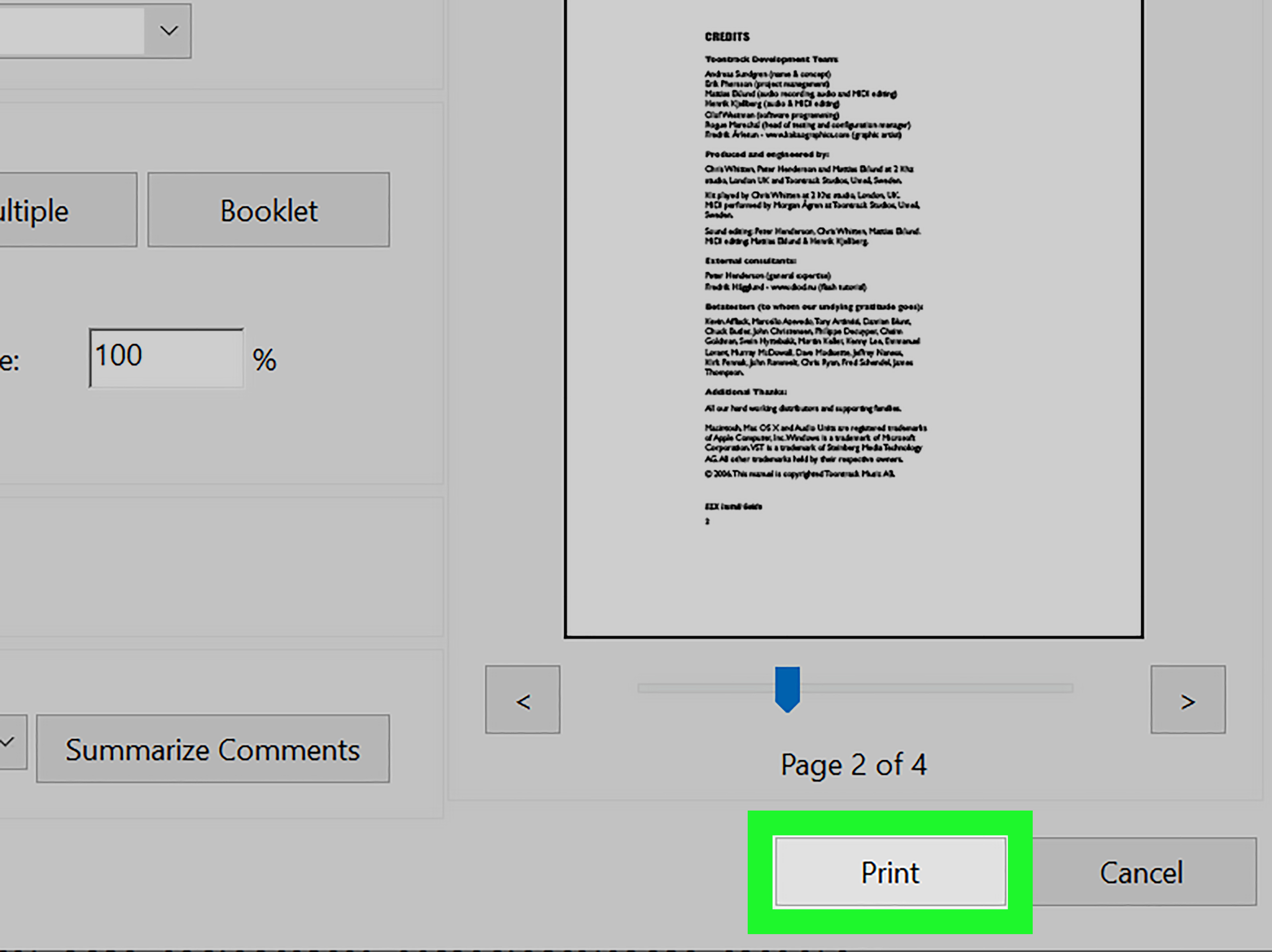
Do not rush through this window. The print preview on the right side is your best friend. It shows how the pages will be arranged before you spend paper, ink, and emotional energy.
Step 3: Select the Correct Printer
At the top of the print window, choose the printer you want to use. If you are saving the layout as another PDF, choose a PDF printer such as Microsoft Print to PDF on Windows or the built-in PDF save option on macOS.
This step matters because different printers support different paper sizes, margins, duplex settings, and borderless printing options. If you choose the wrong printer, the preview may look fine but the final output may not match your plan.
Step 4: Choose the Page Range
Under Pages to Print, decide whether to print all pages, the current page, or a custom page range. For example, you can type 1-8 to print pages one through eight, or 1,3,5-10 to print selected pages.
This is especially useful when printing handouts from a long PDF. You may not need the cover page, legal appendix, blank pages, or the page that only says “This page intentionally left blank,” which is the most suspicious sentence in document history.
Step 5: Select “Multiple” Under Page Sizing & Handling
In the Page Sizing & Handling section, choose Multiple. This tells Adobe Reader that you want more than one PDF page on each physical sheet.
You may see other options such as Size, Poster, and Booklet. For this task, avoid those unless you have a special goal. Size controls scaling for one page per sheet. Poster prints one large page across several sheets. Booklet rearranges pages for folding. Multiple is the correct choice for printing several PDF pages on one sheet.
Step 6: Pick the Number of Pages Per Sheet
Find the Pages per sheet setting. Adobe Reader usually offers common choices such as 2, 4, 6, 9, and 16 pages per sheet. You may also see a custom option that lets you enter your own rows and columns, depending on your version and printer setup.
For most documents, choose based on readability:
- 2 pages per sheet: Best for articles, contracts, reports, and anything with normal body text.
- 4 pages per sheet: Great for slides, notes, drafts, checklists, and short handouts.
- 6 or 9 pages per sheet: Useful for reviewing thumbnails, presentation decks, or visual documents.
- 16 pages per sheet: Best for quick reference only; not ideal for reading dense text.
If you are printing presentation slides, four or six pages per sheet is often the sweet spot. If you are printing a PDF article, two pages per sheet usually keeps the text readable.
Step 7: Choose the Page Order
Next, select the Page order. This controls how Adobe Reader places pages across the sheet. Common options include horizontal, horizontal reversed, vertical, and vertical reversed.
For English documents, Horizontal often feels natural because it places pages from left to right, then top to bottom. For some layouts, especially when using portrait paper with four pages per sheet, Vertical may look cleaner. The best choice depends on how you want readers to scan the page.
Use the preview panel to check the arrangement. If page 2 appears where you expected page 3, change the order before printing. The preview exists so your printer does not get to say, “Surprise!”
Step 8: Set the Page Orientation
Choose Portrait or Landscape orientation. Adobe Reader may also offer an auto-rotate option that chooses the best fit based on page size and layout.
Landscape orientation often works well for printing two pages per sheet because it places pages side by side. Portrait orientation may work better for four pages per sheet if the original PDF pages are narrow or if you want a more traditional handout layout.
Again, trust the preview. If the pages look cramped, try switching orientation. Sometimes one click can turn an unreadable layout into a clean handout.
Step 9: Add Page Borders If Helpful
Adobe Reader may include an option to print a border around each page. This is helpful when printing four or more pages per sheet because it clearly separates one PDF page from another.
Page borders are especially useful for lecture slides, forms, worksheets, and training documents. For clean reports or professional packets, you may prefer no borders. Borders are practical, but they can make a document look busier. Use them when they improve readability.
Step 10: Choose Double-Sided Printing If You Want to Save More Paper
If your printer supports duplex printing, look for Print on both sides of paper or a similar option. This may appear directly in Adobe Reader or inside your printer’s Properties, Preferences, or Printer Settings window.
When using double-sided printing, pay attention to the flip setting. For portrait pages, flip on long edge is usually correct. For landscape pages, flip on short edge may be needed. If the back side prints upside down, the flip edge is usually the culprit. Your printer is not haunted; it is just being literal.
If your printer does not support automatic duplex printing, Adobe Reader may let you print odd pages first, reinsert the paper, and then print the other side. Test with a small page range before committing to a large document.
Step 11: Preview, Print a Test Page, Then Print the Full Document
Before clicking Print, inspect the preview carefully. Check the page order, number of pages per sheet, orientation, margins, and readability. If the document is important, print only the first sheet as a test.
A test print is the cheapest insurance in the printing universe. It catches tiny text, wrong orientation, upside-down duplex settings, and awkward page order before you print 80 pages incorrectly and begin negotiating with the recycle bin.
Once the test page looks right, return to the print window and print the full document.
Best Settings for Common Printing Scenarios
For Lecture Slides
Choose 4 or 6 pages per sheet, use landscape orientation if the slides are wide, and consider page borders. If you plan to take notes by hand, choose fewer pages per sheet so there is room to write.
For Contracts and Legal Documents
Use 2 pages per sheet at most. Legal documents often have small text, footnotes, numbered sections, and signature blocks. Saving paper is nice, but reading clause 14(b)(iii) through a microscope is less nice.
For Recipes and Instructions
Try 2 or 4 pages per sheet. If the PDF includes photos, check that the images remain useful after scaling. For kitchen recipes, readability matters because nobody wants to confuse one tablespoon with one teaspoon during a dramatic flour situation.
For Draft Review
Use 2 pages per sheet with double-sided printing. This creates a compact review copy while keeping text large enough for proofreading, highlighting, and comments.
Troubleshooting: When Multiple Pages Per Sheet Does Not Work
The Multiple Option Is Missing
Make sure you are using Adobe Acrobat Reader or Adobe Acrobat, not a browser PDF viewer. Some browsers also support pages-per-sheet printing, but their controls may appear in different places. If the option is missing, update Adobe Reader and restart the app.
The Preview Looks Right, But the Printout Is Wrong
This can happen when the printer driver overrides Adobe Reader settings. Open the printer Properties or Preferences panel and look for layout settings. If the driver is also set to resize, scale, or arrange pages, it may conflict with Adobe Reader. Use one layout system at a time whenever possible.
The Text Is Too Small
Reduce the number of pages per sheet. For dense PDFs, two pages per sheet is often the practical limit. You can also switch paper orientation or use larger paper if your printer supports it.
The Back Side Prints Upside Down
Change the duplex flip setting. Try switching between long-edge and short-edge binding. Print a two-page test before printing the entire document again.
The Page Order Feels Strange
Change the Page Order option from horizontal to vertical, or vice versa. Use the preview to confirm the reading sequence before printing.
Helpful Tips for Better PDF Handouts
Use high-quality print settings for documents with small text. Draft mode saves ink but can make reduced pages harder to read. If your PDF contains color-coded charts, print in color or make sure grayscale still preserves the meaning. A beautiful red-versus-green chart becomes less beautiful when both colors turn into “mysterious gray soup.”
Also consider margins. Some printers cannot print close to the edge of the paper. Adobe Reader will usually scale the layout to fit printable margins, but very tight PDFs may still look cramped. If the document allows it, choose “fit” or auto-scaling options that keep content inside the printable area.
Finally, save your preferred settings if your printer software allows it. If you often print class slides or meeting packets, a saved preset can turn a 90-second setup into two clicks.
Adobe Reader vs Browser PDF Printing
Modern browsers such as Microsoft Edge, Chrome, and Safari can open and print PDFs. Many include a pages-per-sheet option. However, Adobe Reader usually gives more predictable control for PDF-specific printing, especially when working with page sizing, page order, booklet printing, comments, form fields, and complex PDFs.
If a PDF prints strangely from a browser, open it in Adobe Reader and try again. This is especially useful for forms, scanned documents, layered PDFs, and files with unusual page sizes. Adobe Reader is built for PDF handling, while browsers are built for many things at onceincluding showing you 37 open tabs you promised yourself you would close yesterday.
Can You Print the Same PDF Page Multiple Times on One Sheet?
This is a common question. Printing multiple different pages per sheet is easy in Adobe Reader. Printing the same single page multiple times on one sheet can be trickier. If your PDF has only one page and you choose multiple pages per sheet, Adobe Reader may print only one reduced copy because there are no additional pages to place.
A simple workaround is to duplicate the page inside a PDF editor, create a PDF with repeated pages, and then use the Multiple option. Another option is to use your printer driver or a Mac Preview feature if it offers copies per page. For labels, tickets, flashcards, or coupons, creating a repeated-page PDF first often gives the cleanest result.
Real-World Experience: What I’ve Learned Printing Multiple Pages Per Sheet
After printing many PDFs in compact layouts, one lesson stands above the rest: the preview is not decoration. It is the final boss checkpoint. If the preview looks wrong, the printed page will almost certainly look wrong too. People often click Print too quickly because the setting seems simple. Then the printer calmly produces ten sheets of microscopic text arranged in an order that only a crossword puzzle champion could love.
The best habit is to print one test sheet. This is especially important when printing double-sided, printing for a meeting, or printing from a PDF that mixes portrait and landscape pages. A test sheet shows whether Adobe Reader handled rotation correctly, whether the printer margins cut anything off, and whether the text is readable under normal lighting. Not “I can read it if I squint and believe in myself” readableactually readable.
For long documents, two pages per sheet is usually the most comfortable setting. It saves half the paper without making the document feel cramped. Four pages per sheet is excellent for slides and visual notes, but it can be rough for dense text. Six or nine pages per sheet is useful for quick scanning, but not for serious reading. Sixteen pages per sheet is best treated as a thumbnail contact sheet, not a study guide unless your eyes have premium zoom functionality.
Another practical experience: page order matters more than people expect. Horizontal order is familiar for most English-language documents, but vertical order can make more sense for certain handouts. The right choice depends on how the pages are shaped and how the reader will move through the sheet. If someone has to rotate the paper repeatedly or hunt for page numbers, the layout is not helping.
Double-sided printing is a wonderful paper saver, but it deserves respect. Printers vary in how they flip pages. Long-edge binding usually works for portrait documents, while short-edge binding often works for landscape handouts. When you combine landscape orientation, multiple pages per sheet, and duplex printing, a test page becomes even more important. Otherwise, the back side may print upside down, and suddenly your handout becomes an accidental yoga routine.
I have also learned that printer drivers can be sneaky. Sometimes Adobe Reader is set correctly, but the printer properties are applying their own layout, scaling, or booklet option. When that happens, the final page may be smaller than expected or arranged incorrectly. The fix is usually to let Adobe Reader control the multiple-page layout and keep the printer driver focused on basic choices such as paper size, duplex, color, and quality.
For professional-looking handouts, borders are helpful but not always necessary. I like borders for slides, worksheets, and training pages because they separate each reduced page clearly. For polished reports, I usually leave borders off because the result looks cleaner. If the document has white backgrounds and lots of empty space, borders can prevent the pages from blending together.
One final experience-based tip: name your printed purpose before choosing the layout. Are you reading carefully, reviewing quickly, saving paper, carrying notes, or giving handouts to other people? A personal review copy can be compact. A client handout should be readable and clean. A study packet should leave room for notes. A recipe should survive flour, oil, and mild kitchen panic. The best pages-per-sheet setting is not the smallest one; it is the one that fits the job.
Conclusion
Learning how to print multiple pages per sheet in Adobe Reader is a small skill with a big payoff. It helps you save paper, reduce clutter, create compact handouts, and review long PDFs more efficiently. The key steps are simple: open the PDF, choose Print, select Multiple, pick the number of pages per sheet, set the page order and orientation, preview carefully, and print a test page before committing.
For readable documents, start with two pages per sheet. For slides and visual handouts, try four or six. Use borders when they improve clarity, use duplex printing when you want to save more paper, and always check the preview before printing. Adobe Reader gives you the controls; your job is to stop the printer from turning your PDF into origami homework.