The Steam Deck is a magical little machine: part handheld console, part Linux PC, part “why is my backlog now 400 games deep?” device. But that magic can vanish pretty quickly when you wake it up, open your library, and see the dreaded message: “Steam Deck can’t reach Steam servers.”
The annoying part is that your Wi-Fi may look perfectly fine. The Deck may show a strong signal. Your phone may be streaming videos. Your router may be sitting there innocently blinking like it has never committed a crime in its life. Yet Steam refuses to connect, the Store will not load, Friends & Chat may sign out, cloud saves can stall, and downloads may sit there pretending they are “starting” forever.
The good news: this error is usually fixable without factory resetting your Steam Deck or performing a dramatic farewell ceremony for your microSD card. In most cases, the cause is one of five things: Steam server downtime, a temporary SteamOS networking hiccup, router or Wi-Fi band conflict, DNS trouble, or account/session confusion inside the Steam client.
This guide walks through the fixes in the order you should try them, from quick “one-minute rescue” steps to deeper SteamOS troubleshooting. Keep the tiny screwdriver in the drawer. We are starting with the easy stuff.
What Does “Steam Deck Can’t Reach Steam Servers” Mean?
The message means your Steam Deck is powered on and trying to talk to Steam’s online services, but the connection is failing somewhere between your handheld and Valve’s servers. That does not always mean your internet is completely down. It may mean the Steam client cannot authenticate, Steam servers are having a temporary outage, your DNS server cannot resolve Steam addresses properly, or SteamOS is stuck in a bad network state after sleep, airplane mode, or a recent update.
Common symptoms include:
- The Steam Store or Community pages do not load.
- Friends & Chat shows you as offline or signed out.
- Downloads pause, fail, or never begin.
- Cloud sync refuses to complete.
- Gaming Mode says Steam is unreachable, while Desktop Mode may still browse the web.
- The Deck connects to Wi-Fi but acts like Steam itself is on vacation.
That last one is the big clue. If everything else works except Steam, you should not immediately blame the router. Start by checking whether Steam is down, then work through Steam-specific fixes.
Fix 1: Check Whether Steam Servers Are Down
Before changing settings, rebooting routers, or accusing your Steam Deck of betrayal, check whether Steam itself is having problems. Steam can experience temporary outages, especially during heavy sale traffic, big game launches, or routine maintenance periods. When Steam servers are unavailable, your Deck may be perfectly healthy but unable to authenticate or load online features.
Use another device, such as your phone or laptop, to check whether the Steam Store, Steam Community, or Steam login page works. You can also check popular third-party status trackers or social platforms to see whether many users are reporting connection problems at the same time.
If Steam is down globally, the best fix is not technical wizardry. It is patience, possibly with snacks. Your installed offline games may still work, but online multiplayer, cloud saves, chat, store browsing, and downloads may remain unreliable until service returns.
Fix 2: Restart the Steam Deck Properly
A simple restart is boring. It is also annoyingly effective. SteamOS can occasionally wake from sleep with a confused network session, especially if the Deck changed Wi-Fi networks, used airplane mode, or slept during a download.
To restart:
- Press the Steam button.
- Select Power.
- Choose Restart.
- Wait for the Deck to boot back into Gaming Mode.
- Reconnect to Wi-Fi and open the Store or Library.
If the interface is frozen or the power menu does not respond, hold the power button until the Steam Deck shuts down, then turn it back on. A cold boot clears more temporary state than simply putting the device to sleep and waking it again.
Think of this as asking your Deck to take a tiny nap and wake up as a better person.
Fix 3: Restart Your Router and Modem
If your Steam Deck still cannot reach Steam servers, restart your router and modem. This refreshes the local network, DHCP lease, NAT table, and other invisible networking goblins that occasionally block devices from connecting cleanly.
Use this method:
- Turn off your Steam Deck.
- Unplug your router and modem from power.
- Wait at least 30 seconds.
- Plug the modem back in first, then the router.
- Wait until the network is fully online.
- Turn the Steam Deck back on and reconnect.
If every device in your home is having trouble, the issue is likely your internet service or router. If only the Steam Deck fails, continue with the Deck-specific steps below.
Fix 4: Forget and Reconnect to Wi-Fi
Sometimes the saved Wi-Fi profile on the Steam Deck becomes stale. Maybe the router changed settings, maybe the password was updated, or maybe the Deck simply woke up and chose chaos. Forgetting the network and reconnecting creates a fresh connection profile.
In Gaming Mode:
- Press the Steam button.
- Go to Settings.
- Select Internet.
- Choose your Wi-Fi network.
- Forget or disconnect from it.
- Select the network again and re-enter the password.
After reconnecting, test the Steam Store, your Friends list, and a small download. If those work, the problem was likely a corrupted or outdated connection profile.
Fix 5: Try a Different Wi-Fi Band
The Steam Deck can behave differently on 2.4 GHz, 5 GHz, and 6 GHz networks depending on your router, distance, interference, and Steam Deck model. A strong-looking signal is not always a stable signal. Wi-Fi bars are optimistic little liars.
If your router separates bands, try switching:
- Use 2.4 GHz if you are far from the router or behind walls.
- Use 5 GHz if you are close to the router and want better speed.
- Use 6 GHz only if your router and device support it reliably.
If your router uses one combined network name for all bands, temporarily separate them in your router settings if you are comfortable doing so. Then connect the Deck to each band and test Steam again.
This is especially helpful when the Deck says it is connected but Steam downloads crawl, disconnect, or fail to authenticate.
Fix 6: Test with a Phone Hotspot
A phone hotspot is one of the fastest ways to separate a Steam Deck problem from a home network problem. Turn on the hotspot on your phone, connect the Steam Deck to it, and try opening the Steam Store or signing into Friends & Chat.
If Steam works on the hotspot, your Deck is probably fine. The issue is more likely your router, DNS provider, firewall settings, ISP routing, or Wi-Fi configuration. If Steam still fails on the hotspot, the problem is more likely inside SteamOS, the Steam client, or your account session.
Do not download a giant game over mobile data unless your data plan enjoys suffering. A simple Store page test is enough.
Fix 7: Change DNS Settings on the Steam Deck
DNS issues are one of the most common causes of the “can’t reach Steam servers” error. DNS is the system that translates domain names into server addresses. If your DNS provider is slow, blocked, misconfigured, or having a bad day, Steam may fail even though your Wi-Fi connection looks normal.
To change DNS in Desktop Mode:
- Hold the power button and choose Switch to Desktop.
- Open System Settings.
- Go to Connections.
- Select your active Wi-Fi network.
- Open the IPv4 settings.
- Set DNS manually or choose the option that lets you enter custom DNS servers.
- Try 1.1.1.1 and 1.0.0.1, or 8.8.8.8 and 8.8.4.4.
- Save the settings, return to Gaming Mode, and restart the Deck.
Cloudflare DNS and Google DNS are common choices because they are widely available and usually fast. After changing DNS, test the Steam Store, downloads, cloud sync, and Friends & Chat.
If the error disappears after changing DNS, your previous DNS provider was probably the culprit. Congratulations: you have defeated a problem that sounds boring but ruins everyone’s evening.
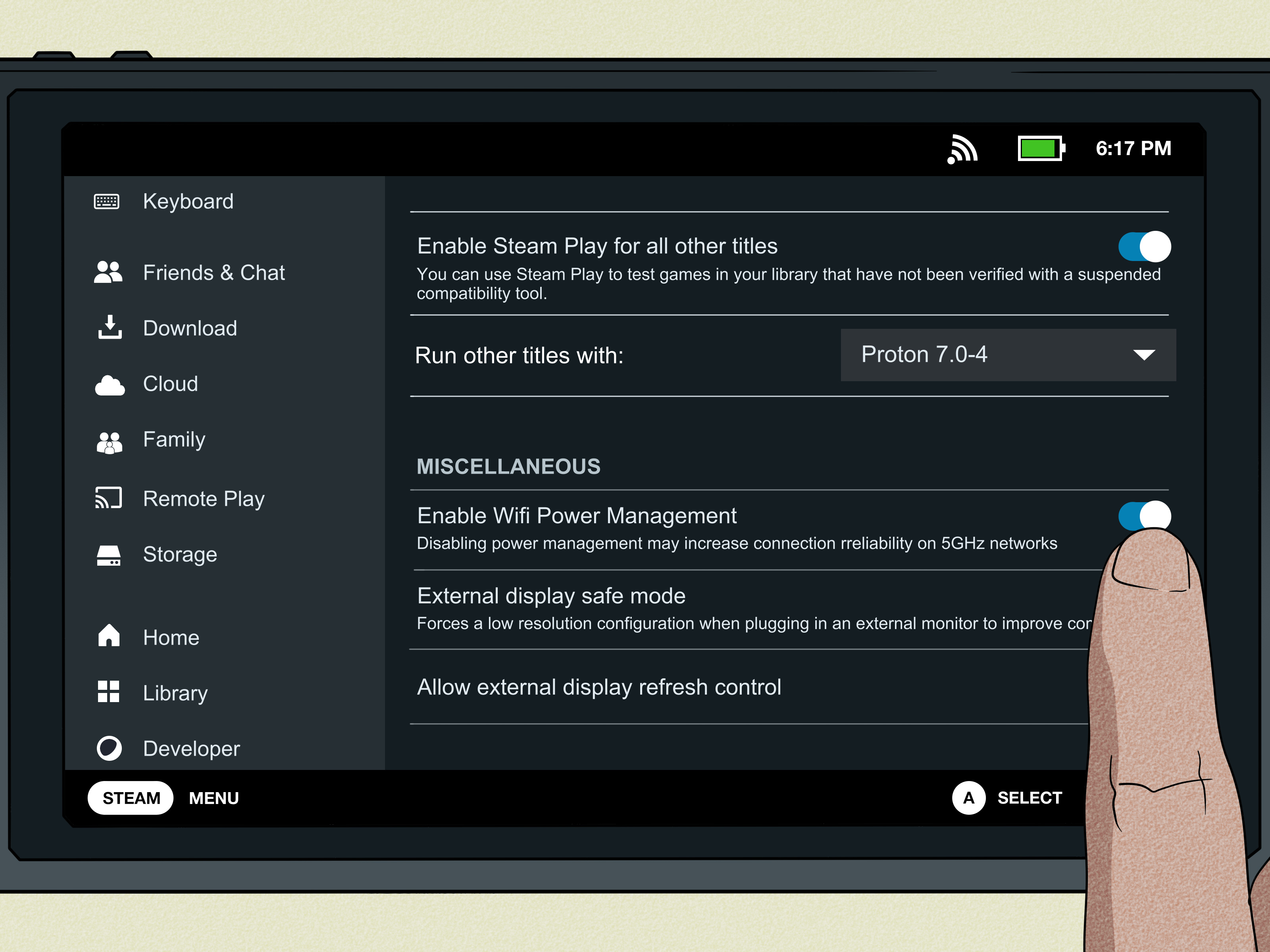
Fix 8: Disable Wi-Fi Power Management
Some Steam Deck users have reported more stable connections after disabling Wi-Fi power management. This setting is designed to save power, but on some networks it may cause drops, slow downloads, or connection problems after waking from sleep.
To try it:
- Press the Steam button.
- Go to Settings.
- Open System.
- Enable Developer Mode.
- Scroll down to the new Developer section.
- Find the Wi-Fi power management option.
- Turn Wi-Fi power management off.
- Restart the Steam Deck.
This fix may slightly affect battery life, but it can improve reliability on certain routers, especially when Steam connects inconsistently or loses contact with servers after sleep.
Fix 9: Update SteamOS and the Steam Client
Valve regularly ships Steam Deck client and SteamOS updates that fix bugs, improve stability, adjust settings, and refine online features. If your Deck is running older software, a known networking issue may already be fixed in a newer update.
To check for updates:
- Press the Steam button.
- Go to Settings.
- Choose System.
- Check Software Updates.
- Install available updates.
- Restart the Steam Deck when prompted.
If the Deck cannot reach Steam servers long enough to update, try using a phone hotspot, another Wi-Fi network, or a USB-C Ethernet adapter. Wired Ethernet through a dock or hub is often more stable for updates because it removes Wi-Fi from the blame list.
Fix 10: Sign Out and Sign Back Into Steam
If the Deck has internet access but Steam services behave oddly, your account session may be stuck. This can happen after password changes, Steam Guard prompts, long offline periods, or client glitches.
Try refreshing your account session:
- Open your profile menu in Gaming Mode.
- Choose the option to change account or sign out.
- Restart the Steam Deck if prompted.
- Sign back in using your password or Steam mobile QR code.
This does not delete your installed games. It simply forces the Steam client to rebuild the login session. If Friends & Chat, Store pages, and cloud sync suddenly work afterward, the issue was probably authentication-related.
Fix 11: Clear Download or Browser Cache
If the Store loads badly, downloads fail, or Steam pages act strangely, cached data may be part of the problem. Steam uses web components for store pages, community pages, and other online features. A broken cache can make Steam look offline even when the connection is alive.
Look in Steam settings for options related to downloads, browser data, or web cache. Clear the relevant cache, restart the Deck, and test again. This is a safe step that usually does not affect installed games.
Use this fix when Steam partially works: for example, your Friends list connects but Store pages fail, or downloads start but repeatedly stop.
Fix 12: Check Router Firewall, VPN, and Parental Controls
Steam needs normal access through your router and firewall to log in, download games, sync cloud saves, and communicate with online services. If your network uses strict firewall rules, parental controls, DNS filtering, school Wi-Fi, hotel Wi-Fi, or a VPN at the router level, Steam traffic may be blocked or redirected.
Try these checks:
- Disable router-level VPN temporarily and test Steam again.
- Turn off strict DNS filtering for the Steam Deck.
- Make sure the Deck is not paused in parental control settings.
- Test another network to confirm whether your home router is the issue.
- Avoid public Wi-Fi networks that require browser login pages unless you complete the login in Desktop Mode.
If the Steam Deck works on a hotspot but not at home, your router settings deserve a very suspicious look.
Fix 13: Use Desktop Mode to Confirm Internet Access
Desktop Mode is useful because it lets you test whether the Steam Deck’s Linux desktop can reach the web outside Gaming Mode. Switch to Desktop Mode, open a browser, and try loading a few normal websites.
If websites do not load, your issue is general internet connectivity. Focus on Wi-Fi, DNS, router settings, and signal quality. If websites load but Steam does not, focus on Steam services, account login, cache, updates, or Steam-specific network rules.
This is a clean troubleshooting split. It keeps you from wasting time fixing the wrong problem, which is the networking equivalent of searching for your glasses while wearing them.
Fix 14: Try Wired Ethernet
If you have a USB-C hub, dock, or adapter with Ethernet, connect the Steam Deck directly to your router. Wired Ethernet bypasses Wi-Fi interference, band steering, weak signal, and many router compatibility quirks.
This is especially useful when:
- You need to install a SteamOS update.
- Downloads fail on Wi-Fi.
- The Deck connects in Desktop Mode but not reliably in Gaming Mode.
- Your router has known issues with certain Wi-Fi bands.
If Ethernet fixes the issue instantly, the Steam servers are not the problem. Your Wi-Fi setup is. You can keep using Ethernet for large downloads, then troubleshoot Wi-Fi later when you are emotionally ready.
Fix 15: Use SteamOS Recovery Only as a Last Resort
Most people should not jump straight to reinstalling SteamOS. That is the troubleshooting version of using a flamethrower to light a birthday candle. However, if the Steam Deck has serious system-level issues, broken updates, repeated network failures across every connection, or corrupted system behavior, SteamOS recovery may help.
Valve provides recovery options that can repair or reinstall SteamOS. Before using recovery tools, back up important data, screenshots, emulator files, non-Steam game files, and anything stored outside normal Steam cloud saves. Reimaging can remove data depending on the option used.
Use recovery only after trying restarts, router resets, DNS changes, updates, account refreshes, hotspot tests, and Ethernet. If the error survives all of that, it is no longer a tiny hiccup. It has earned the serious toolbox.
Common Mistakes to Avoid
Do Not Factory Reset Too Early
A factory reset may fix some issues, but it is often unnecessary for this error. Try DNS, Wi-Fi, account, and update fixes first. Resetting too early wastes time and may remove local files you forgot to back up.
Do Not Assume Strong Wi-Fi Means Stable Wi-Fi
Your Steam Deck can show good signal strength while still suffering from packet loss, router band steering, DNS failure, or interference. Test another band or use Ethernet before declaring the problem mysterious.
Do Not Ignore Steam Server Outages
If many users are reporting Steam problems at the same time, your Deck may be fine. Waiting is not glamorous, but it beats changing ten settings for no reason.
Quick Troubleshooting Checklist
- Check whether Steam services are down.
- Restart the Steam Deck.
- Restart your router and modem.
- Forget and reconnect to Wi-Fi.
- Try 2.4 GHz, 5 GHz, or another network.
- Test with a phone hotspot.
- Change DNS to 1.1.1.1 or 8.8.8.8.
- Disable Wi-Fi power management.
- Update SteamOS and the Steam client.
- Sign out and sign back into Steam.
- Clear Steam cache if pages or downloads act weird.
- Try wired Ethernet.
- Use SteamOS recovery only when everything else fails.
Real-World Experience: What Usually Fixes This Error
In real use, the “Steam Deck can’t reach Steam servers” error often feels random, but the pattern is not as random as it looks. Many users notice it after waking the Deck from sleep, moving between Wi-Fi networks, switching airplane mode on and off, or trying to download a game immediately after a system update. The Steam Deck is excellent at quick resume, but networking after sleep can occasionally act like it woke up with bedhead and no plan.
The fastest practical fix is usually a full restart. Not sleep. Not “turn the screen off and hope.” A real restart. That clears the Steam client session, refreshes the Wi-Fi connection, and forces SteamOS to rebuild the network state. If the issue is temporary, this alone can bring the Store, downloads, and Friends list back within minutes.
When restarting does not help, DNS is the next fix that earns its reputation. A Steam Deck can be connected to Wi-Fi and still fail to reach Steam if DNS resolution is broken or slow. Changing DNS in Desktop Mode to a reliable public DNS provider is one of the most useful medium-depth fixes because it targets the exact situation where the internet “sort of works” but Steam refuses to cooperate. It is not glamorous. Nobody buys a handheld gaming PC dreaming about DNS settings. But when it works, it feels like discovering the secret handshake.
Wi-Fi band switching is another fix that sounds too simple until it saves the evening. Some routers aggressively steer devices between bands. Others behave differently with 5 GHz or newer Wi-Fi standards. If the Deck has trouble on one band, testing another can reveal the problem quickly. A phone hotspot is even better for diagnosis because it answers one big question: is the Deck broken, or is the home network being dramatic?
Disabling Wi-Fi power management is worth trying when the error repeats after sleep or when downloads randomly stall. The tradeoff may be slightly higher battery use, but many players would rather lose a little battery than watch a 90 GB download collapse at 89%. That kind of emotional damage should be illegal.
The most important experience-based advice is to troubleshoot in layers. Do not reinstall SteamOS because the Store failed once. Do not reset your router because Steam had a brief outage. Do not blame your account before testing another network. Move from the least destructive fixes to the most serious ones. A good order is: check Steam status, restart Deck, restart router, test hotspot, change DNS, adjust Wi-Fi settings, update SteamOS, refresh login, then consider recovery.
Also, keep one boring but powerful accessory in mind: a USB-C Ethernet adapter. It is not exciting. It will not make your Deck look cooler. But when Wi-Fi is acting strange and you need to update SteamOS or download a massive game, wired Ethernet is the dependable friend who shows up on time with no drama.
In most cases, this error is not a sign that your Steam Deck is dying. It is usually a connection path problem: Steam servers, DNS, router behavior, Wi-Fi power settings, or a confused Steam session. Work through the fixes calmly, and the Deck usually returns to doing what it does best: making your PC game library portable and your free time mysteriously disappear.
Conclusion
The Steam Deck can’t reach Steam servers error is frustrating because it often appears when everything else seems connected. But the fix is usually straightforward once you troubleshoot in the right order. Start by checking Steam server status, then restart the Deck and router. If the problem continues, test another network, change DNS, disable Wi-Fi power management, update SteamOS, and refresh your Steam login.
Save SteamOS recovery for the rare cases where every network fails and the system behaves badly across the board. Most players will solve the issue long before that point. The Steam Deck is a powerful handheld PC, but sometimes it just needs a cleaner connection, a fresher DNS route, or a firm but loving reboot.