Life360 can be incredibly useful when a family wants peace of mind, location alerts, crash detection, and a simple way to know everyone made it home safely. But sometimes, constant location sharing can feel like wearing a digital name tag that says, “Currently standing near the cereal aisle.” Whether you want privacy during a personal appointment, a surprise party, a quiet walk, or simply a break from real-time tracking, knowing how to pause Life360 the right way matters.
This complete guide explains how to pause Life360 using legitimate settings, what other Circle members may see, how Bubbles work, how phone permissions affect location updates, and how to talk about privacy without turning the family group chat into a courtroom drama. The goal is not to teach sneaky tricks or unsafe workarounds. It is to help users understand Life360 location sharing, manage privacy responsibly, and avoid confusion when the app says “Location Sharing Paused.”
What Does “Pause Life360” Actually Mean?
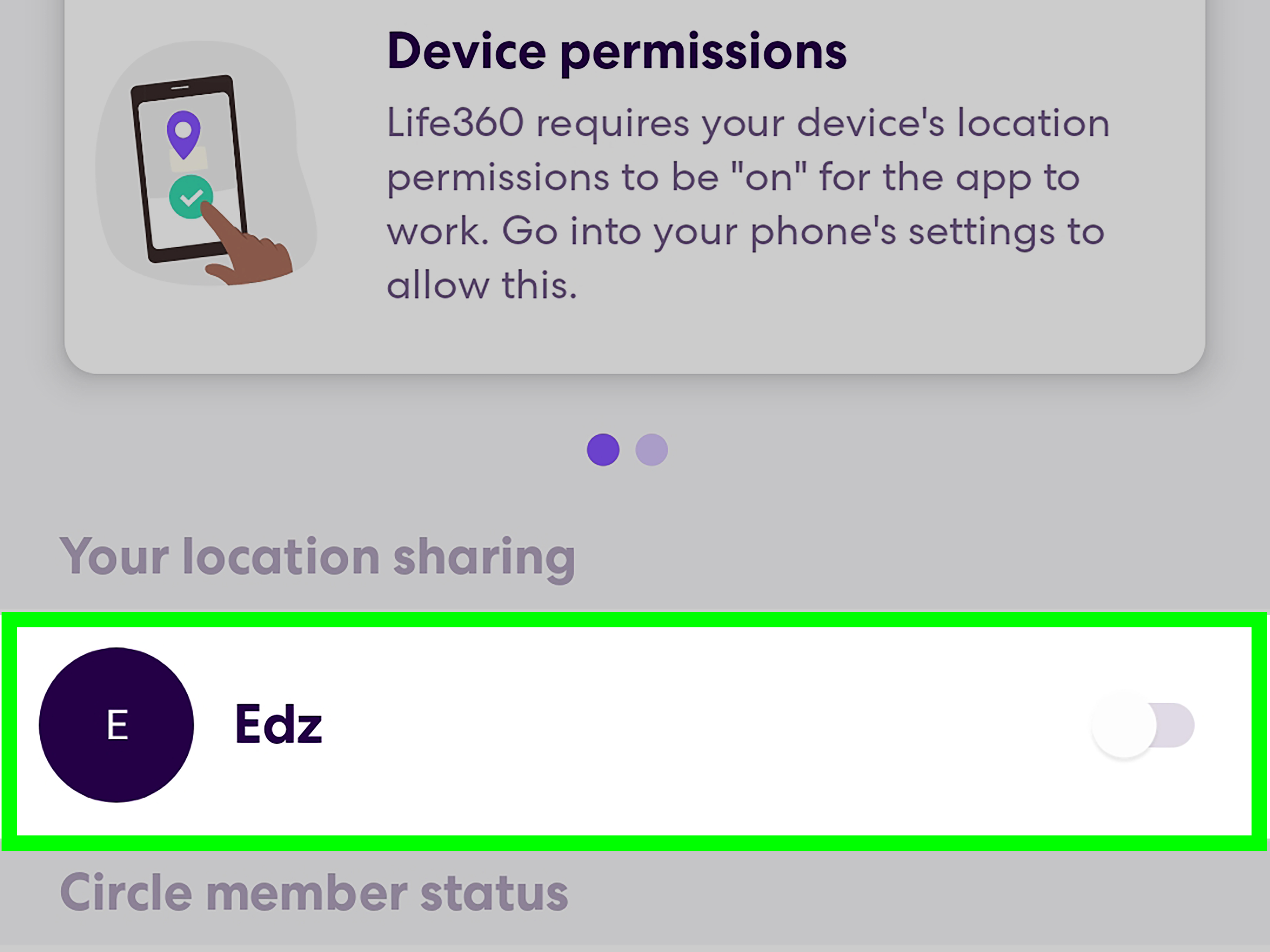
To pause Life360 means to temporarily stop sharing your real-time location with one or more Circles. In the Life360 app, this is usually done through the built-in Location Sharing setting. When location sharing is turned off, Life360 may show a message such as “Location Sharing Paused” to other Circle members.
That part is important: pausing Life360 is not invisible. Life360 is designed for transparency among Circle members, so people in your Circle may be able to tell that your location is no longer updating. If your goal is privacy, the cleanest approach is to use the app’s official controls and communicate your boundaries clearly.
How to Pause Life360 Location Sharing in the App
The most direct way to pause Life360 is through the app’s Location Sharing setting. This is the official method and the one most people should use.
Step-by-step: Pause location sharing
- Open the Life360 app on your phone.
- Tap Settings, usually found in the upper-left area of the app.
- Select the Circle you want to manage, if you belong to more than one.
- Tap Location Sharing.
- Toggle Location Sharing Off.
Once you do this, your location will stop updating for that Circle. Other members may see that your location sharing is paused. This is expected behavior, not a glitch. Think of it like turning off your porch light: people may not know exactly what you are doing, but they can tell the light is not on.
Can You Pause Life360 for Only One Circle?
Yes. If you are part of multiple Circles, you can manage location sharing separately for each one. For example, someone might share their location with immediate family but pause it for a friend group. This is useful because Life360 is not always a one-size-fits-all app. Different groups deserve different privacy settings.
To do this, open Life360, go to Settings, select the Circle you want to change, then adjust Location Sharing for that specific Circle. Always double-check which Circle you are editing before you tap the toggle. Accidentally pausing the wrong Circle is the digital version of sending a text to the wrong group chat: awkward, preventable, and somehow always discovered.
Use Life360 Bubbles for More Privacy Without Going Fully Offline
If you do not want to share your exact location but still want your Circle to know your general area, Life360 Bubbles may be a better option than fully pausing location sharing. A Bubble temporarily shows an approximate area instead of your precise location while keeping some safety and messaging features available.
This feature is especially helpful for families trying to balance independence and safety. For example, a teen at a shopping center, a college student on campus, or an adult running errands may not need to broadcast their exact store, table, or parking spot. A Bubble says, “I’m generally here and okay,” without turning the map into a microscope.
When a Bubble makes sense
- You want privacy for a short period.
- You still want your Circle to know your approximate area.
- You are at a safe location but do not want exact tracking.
- You want a more transparent alternative to turning location sharing off.
Bubbles are not meant to hide emergencies. If a crash or emergency is detected, safety features may override the Bubble. That is part of the point: privacy is useful, but safety still gets a seat at the table.
What Happens When You Turn Off Phone Location Permissions?
Life360 depends on your phone’s location permissions to work properly. On iPhone, app location settings are managed through Settings > Privacy & Security > Location Services. On Android, location permissions are managed through the device’s app permission settings.
If Life360 loses permission to access your location, the app may stop updating accurately. However, changing phone permissions is not the same as using Life360’s in-app pause feature. It can also interfere with Place Alerts, driving features, safety alerts, and other tools your Circle may rely on.
iPhone location permission basics
On iPhone, you can usually choose whether an app can access location always, only while using the app, or not at all. You may also see a Precise Location option, which controls whether an app can use your exact location or only an approximate one.
Android location permission basics
On Android, you can manage app permissions through the phone’s settings. Depending on your device and Android version, you may be able to allow location access all the time, only while using the app, ask every time, or deny access.
For Life360 to work as intended, it generally needs consistent location access. If you change permissions, do it thoughtfully. If your family uses Life360 for safety, it is better to explain your privacy needs than to create a confusing “Why is your dot frozen?” mystery.
Does Airplane Mode Pause Life360?
Airplane Mode can interrupt the phone’s network connections, which may prevent Life360 from updating your live location. However, using Airplane Mode as a privacy tool is unreliable and can also stop calls, messages, emergency communication, and other important services. That makes it a poor everyday solution.
If you need privacy, use the app’s official Location Sharing setting or a Bubble. If you need to save battery, use proper battery settings and charging habits instead of cutting off your phone from the world like it just joined a silent retreat.
Does Turning Off Your Phone Pause Life360?
Turning off your phone can stop real-time location updates because the device is no longer sending new data. But this is not a polished privacy setting. Your Circle may see your last known location, your phone may appear offline, and you may miss calls, messages, or safety alerts.
There are normal reasons a phone turns off: dead battery, travel, poor signal, or a long day of “I forgot my charger.” But if you simply want a privacy break, turning off the phone is a blunt tool. The official Life360 settings are clearer and less likely to cause concern.
Can You Pause Life360 Without Anyone Knowing?
This is one of the most searched questions about Life360, but it deserves a careful answer. Life360 is built around shared safety and transparency, so official privacy controls may be visible to Circle members. Trying to secretly bypass location sharing through spoofing apps, fake GPS tools, or suspicious workarounds can create trust problems, break app functionality, and potentially violate rules or agreements in your household, school, workplace, or device plan.
A better question is: “How can I get more privacy while still being honest?” The answer may be a Bubble, a temporary pause with a quick message, or a family conversation about when location sharing is helpful and when it feels excessive.
How to Talk About Pausing Life360 Without Starting an Argument
Location sharing can be emotional. For one person, it feels like safety. For another, it feels like surveillance. Both feelings can be real at the same time. That is why the best Life360 setup is not just technical; it is relational.
Try a simple script
Here is a calm way to explain a temporary pause:
“I’m going to pause my exact location for a little while because I need some privacy. I’m safe, and I’ll check in if plans change.”
This kind of message works because it does three things: it explains the action, reassures the other person, and offers a safety check-in. No courtroom defense. No dramatic exit. No “you never trust me” speech required.
Best Reasons to Pause Life360 Responsibly
There are many reasonable situations where pausing Life360 or using a Bubble can make sense.
- Personal appointments: Medical visits, counseling, interviews, or private errands may not need exact location sharing.
- Surprises: Planning a birthday dinner or gift pickup is harder when your dot is standing in the bakery.
- Work boundaries: Adults may not want family members checking every stop during a workday.
- College or campus life: Students may want independence while still checking in during travel or late nights.
- Privacy reset: Sometimes families need to review whether location sharing is still working for everyone.
What Parents and Families Should Know
For parents, Life360 can feel like a safety net. For teens, it can feel like a spotlight. The healthiest approach is to agree on expectations before conflict happens. For example, families can decide that location sharing is required during road trips, late-night drives, or unfamiliar events, but exact tracking can be relaxed during normal school, work, or social time.
Families may also agree on check-in rules. Instead of staring at the map all day, a parent might ask for a message when someone arrives, leaves, or changes plans. This keeps safety in place while reducing the feeling of constant monitoring.
Common Problems When Pausing Life360
Life360 still shows my old location
If location sharing is paused or your phone is offline, Life360 may show the last known location. This does not always mean the person is still there. It may simply mean the app has not received new location data.
My Circle says my location is not updating
This can happen because of paused sharing, weak signal, battery restrictions, disabled permissions, app glitches, or an outdated app version. If you want Life360 to work again, check location permissions, battery settings, internet connection, and whether Location Sharing is turned on inside the app.
Life360 drains my battery
Location apps use sensors, network data, and background activity, so some battery use is normal. If battery life is a concern, update the app, keep your operating system current, and review phone settings. Avoid extreme battery restrictions if your family relies on Life360 for safety alerts.
Privacy Tips for Using Life360 Wisely
Life360 works best when everyone understands what is being shared and why. Before using any location-sharing app, review the privacy settings, data-sharing options, Circle members, and notification preferences. Remove people who no longer need access. Keep Circles limited to trusted people. Do not treat location history like entertainment. Nobody wants their Tuesday taco stop analyzed like a crime documentary.
Smart privacy habits
- Review who is in each Life360 Circle.
- Use Bubbles when approximate location is enough.
- Pause location sharing openly when privacy is needed.
- Check app permissions on iPhone or Android regularly.
- Discuss when location alerts are useful and when they are too much.
- Use check-ins as a lower-pressure alternative to constant map watching.
What Not to Do When Pausing Life360
Avoid risky or deceptive tactics such as GPS spoofing, fake-location apps, borrowed phones, or workarounds designed to mislead Circle members. These can cause technical problems, damage trust, and reduce safety in situations where location sharing genuinely matters. They may also violate app terms, device policies, or family agreements.
The better path is simple: use the tools Life360 provides, adjust phone permissions only when you understand the effects, and talk about privacy like a normal human being instead of a secret agent in a hoodie.
Life360 Pause Options Compared
| Option | Best For | What Others May See | Recommended? |
|---|---|---|---|
| Turn off Location Sharing in Life360 | Clear temporary privacy pause | Location Sharing Paused | Yes |
| Use a Bubble | Sharing approximate location | General area instead of exact spot | Yes |
| Change phone location permissions | Managing app-level privacy | Location may stop updating | Use carefully |
| Turn off phone | Emergency battery saving or no phone use | Last known/offline status | Not ideal for privacy |
| GPS spoofing or fake-location tools | Deceptive location masking | Unreliable or misleading results | No |
Personal Experiences and Practical Lessons About Pausing Life360
In real life, the hardest part of pausing Life360 is rarely the button. The button is easy. The relationship around the button is the tricky part. Many families start using Life360 with good intentions: safer driving, easier pickups, quick check-ins, and fewer “Where are you?” texts. Over time, though, the app can quietly become part safety tool, part habit, and part family detective board.
One common experience is the “innocent map check” that turns into over-monitoring. A parent opens Life360 to see whether someone arrived safely, then notices a stop at a coffee shop, then asks why the person was there. The person being tracked feels questioned, even if nothing is wrong. The tracker feels concerned, even if they did not mean to sound suspicious. Suddenly, a map dot has become a family debate moderator, and frankly, the dot did not ask for this job.
Another common situation happens with surprise planning. Someone wants to buy a gift, pick up flowers, visit a friend, or prepare a celebration. Exact location sharing can ruin the surprise before the cake is even frosted. In this case, pausing Life360 with a quick explanation can be perfectly reasonable. A message like “I’m safe, but I’m hiding your birthday surprise location for two hours” keeps the mood light and prevents unnecessary worry.
College students and young adults often have a different challenge. They may still share Life360 with parents for safety, especially when driving long distances or going out at night, but they also want adult privacy. A helpful compromise is to keep location sharing on during travel, late-night rides, or road trips, while using Bubbles or temporary pauses during ordinary personal time. This makes Life360 feel less like a leash and more like a seat belt: available when needed, not controlling every move.
Families also learn that check-ins can reduce tension. Instead of watching the map constantly, Circle members can agree to send short updates: “Arrived,” “Leaving now,” or “Plans changed.” These tiny messages can do a lot of work. They reassure the person who worries, while giving the other person more breathing room. It is amazing how much peace can fit into one two-word text.
The biggest lesson is that pausing Life360 should not be treated as automatically suspicious. Privacy is normal. Safety is normal. The best families make room for both. A healthy Life360 setup includes clear expectations, limited Circle access, respectful alerts, and permission to say, “I need a little privacy right now.” When used with trust, Life360 can help people feel connected. When used without boundaries, it can make people feel watched. The difference is not just in the app settings; it is in the conversation.
Conclusion
Learning how to pause Life360 is really about learning how to manage location sharing responsibly. The official way is to turn off Location Sharing inside the Life360 app for the Circle you choose. If you want privacy without disappearing completely, Bubbles can share an approximate location while keeping important safety features available. Phone-level permissions on iPhone and Android also affect Life360, but they should be adjusted carefully because they can break alerts and real-time updates.
The best approach is honest and simple: use official settings, avoid deceptive tricks, and talk openly about privacy expectations. Life360 can be a helpful family safety tool, but it works best when everyone feels respectednot watched like a pizza delivery driver on a Friday night.