Making an Apple Store appointment should not feel like decoding an ancient scroll written in tiny gray text. Thankfully, Apple gives customers several ways to get in-person help, schedule repairs, shop with a Specialist, join a learning session, or manage an existing reservation. The slightly tricky part is knowing which type of appointment you actually need. A Genius Bar visit is not the same as a shopping session. A repair appointment is different from a Today at Apple class. And if your iPhone is simply refusing to charge, Apple may first ask you a few questions before offering an in-store time slot.
This guide explains how to make an Apple Store appointment step by step, including how to book a Genius Bar appointment online, how to use the Apple Support app, what to bring, how to reschedule, and what to expect when you arrive. Think of it as your friendly map through the polished glass doors of Apple supportminus the awkward moment where you stand by the MacBook table wondering who is supposed to check you in.
What Type of Apple Store Appointment Do You Need?
Before booking anything, decide what you are trying to accomplish. Apple offers several kinds of appointments and sessions, and choosing the right one can save you time.
Genius Bar Appointment
A Genius Bar appointment is best for technical support, hardware problems, repair questions, battery issues, cracked screens, charging trouble, software glitches, Apple Account problems, and device diagnostics. If your iPhone, Mac, iPad, Apple Watch, AirPods, or another Apple product is misbehaving like it had three espressos and no sleep, this is probably the appointment you want.
Apple Repair Appointment
Repair appointments often overlap with Genius Bar support. Apple may direct you to an Apple Store, an Apple Authorized Service Provider, mail-in repair, or another service option depending on the device, issue, location, and parts availability. If your device needs a battery replacement, screen repair, keyboard inspection, or hardware diagnosis, start through Apple Support and follow the repair path.
Shop with a Specialist
If you want buying advice, trade-in guidance, carrier setup help, or a hands-on comparison between an iPhone, iPad, Mac, Apple Watch, or Apple Vision product, look for a shopping session. This is not a repair appointment. It is more like having a smart friend explain the difference between two devices without saying, “Well, technically…” fifteen times.
Today at Apple Session
Today at Apple sessions are free educational events held in Apple Stores. These can cover iPhone basics, photography, video, productivity, accessibility, drawing, music, and creative skills. Book one if you want to learn, not if your MacBook sounds like a tiny airplane.
How to Make an Apple Store Appointment Online
The most common way to make an Apple Store appointment is through Apple’s support website. The exact screens may vary depending on your product, location, and issue, but the general process is straightforward.
Step 1: Go to Apple Support
Start at Apple Support or the Genius Bar reservation page. Apple will ask you to choose a product or describe the issue. You may be prompted to sign in with your Apple Account so Apple can show your registered devices, warranty status, AppleCare coverage, repair history, and available support options.
Step 2: Select Your Device
Choose the device that needs help. If your iPhone is linked to your Apple Account, it may appear automatically. If not, you can usually select the product category manually, such as iPhone, Mac, iPad, Apple Watch, AirPods, Apple TV, or Apple Account.
Step 3: Choose the Problem Category
Apple will ask what is wrong. Common categories include repairs and physical damage, battery and charging, display issues, device performance, Apple Account access, subscriptions, apps, or connectivity. Be as accurate as possible. Choosing “battery and charging” for a device that will not power on is more helpful than selecting a vague category and hoping the website reads your mind.
Step 4: Review Apple’s Recommended Support Options
Apple may suggest troubleshooting articles, chat support, phone support, mail-in service, an Apple Authorized Service Provider, or a Genius Bar reservation. This is normal. Apple tries to route simple issues to faster solutions before sending everyone into a store. If an in-person appointment is available for your issue, choose the option that says something like “Bring in for Repair,” “Make a Reservation,” or “Schedule a Genius Bar appointment.”
Step 5: Enter Your Location
Type your city, ZIP code, or allow location access. Apple will display nearby Apple Stores and Apple Authorized Service Providers. In busy areas, the closest store may not have the soonest appointment. If your schedule is flexible, check several nearby locations. Sometimes driving an extra fifteen minutes saves three days of waiting. It is the rare math problem that comes with a parking garage.
Step 6: Pick a Date and Time
Select the time slot that works best for you. Appointment availability can change quickly, especially around product launches, holidays, weekends, and after major software updates. Early morning appointments are often calmer, while late afternoon can be busier because everyone suddenly remembers their phone is broken after lunch.
Step 7: Confirm the Appointment
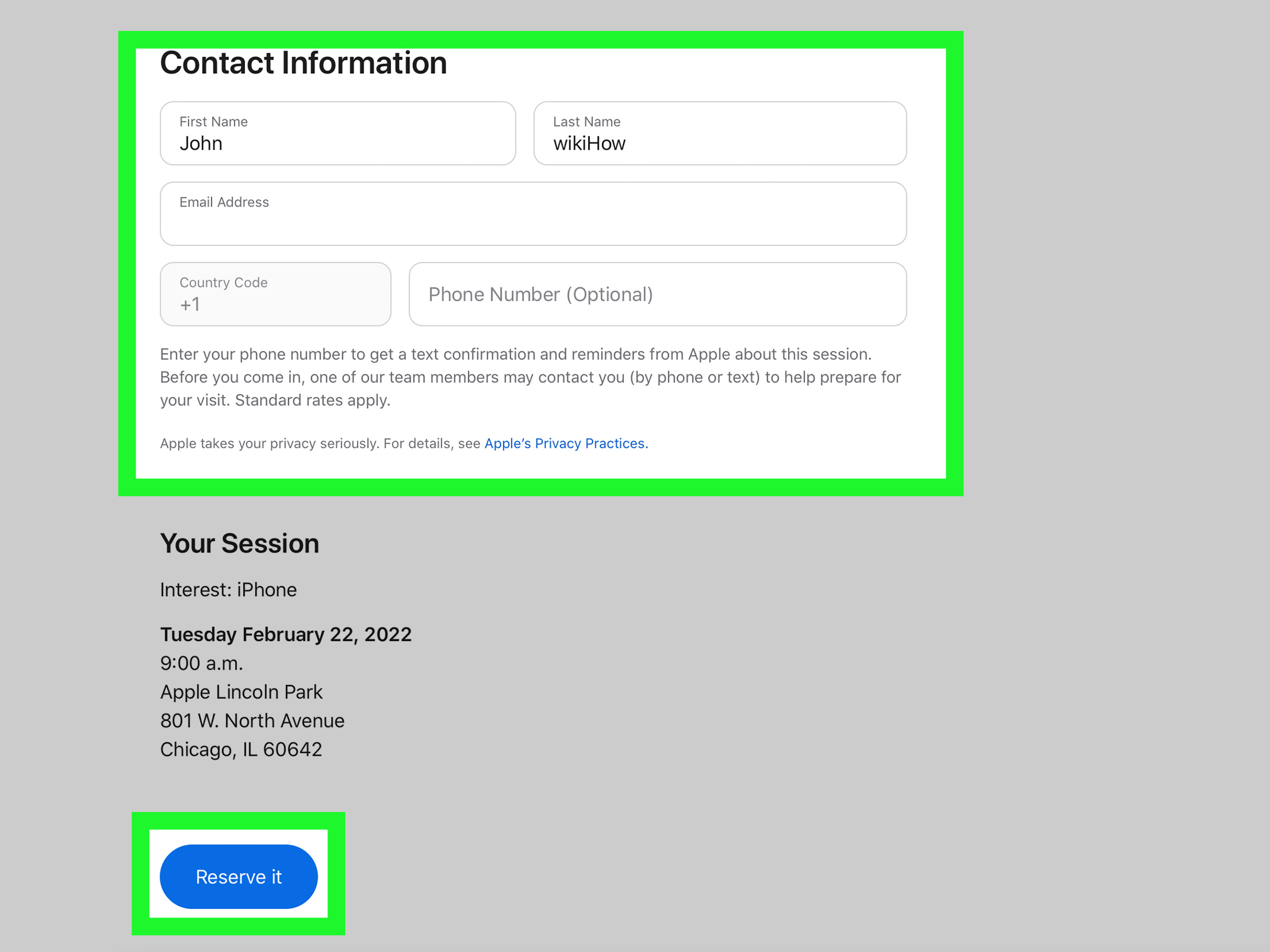
Review the appointment details carefully: store location, date, time, device, issue, and contact information. Confirm the booking and save the confirmation email or message. You may also be able to view the reservation later through My Support or the Apple Support app.
How to Make an Apple Store Appointment Using the Apple Support App
The Apple Support app is often the easiest option for iPhone and iPad users. It gives personalized support for products linked to your Apple Account and can guide you toward chat, phone support, repair options, or in-person service.
Step-by-Step App Method
Open the Apple Support app. If you do not have it installed, download it from the App Store. Sign in with your Apple Account if prompted. Choose the device that needs help, then select the issue category. The app may suggest troubleshooting steps first. If in-person service is available, choose the repair or reservation option, select a store or service provider, pick a date and time, and confirm.
The app is especially useful because it keeps the process tied to your actual device. Instead of typing your serial number while squinting like a detective in a dimly lit movie, you can usually tap the product from your list. The app can also help you manage your reservation afterward.
How to Make a Shopping Appointment at an Apple Store
If your goal is to buy something, compare models, ask about financing, understand trade-in value, or get help choosing between devices, book a “Shop with a Specialist” session. This appointment is designed for sales guidance, not technical repair.
To schedule one, visit Apple’s retail shopping session page, choose the product area you are interested in, select a nearby Apple Store, and reserve a time. You can ask questions about storage, color, carrier options, AppleCare, accessories, or which Mac makes sense for your work. Bring your current device if you plan to trade it in, and know your budget before you arrive. Apple Specialists are helpful, but they are not magicians who can make “unlimited power, tiny price, and available today” appear from behind an iPad stand.
How to Book a Today at Apple Session
For learning sessions, visit Today at Apple and search by location, topic, or store. Choose a session, review the details, and reserve your spot. These sessions are useful for beginners, families, creators, students, and anyone who bought a powerful device and currently uses it mainly to check the weather.
Examples include iPhone photography, getting started with iPad, Apple Watch basics, creative workshops, accessibility features, and productivity sessions. Some sessions are open to walk-ins, but reserving a spot is smarter if the store is busy.
How to Reschedule or Cancel an Apple Store Appointment
Plans change. Batteries die. Traffic exists because apparently society needed one more villain. If you need to reschedule or cancel an Apple Store appointment, check your confirmation email or sign in to My Support. You may also manage reservations through the Apple Support app.
Look for options to change, cancel, or view appointment details. If you are running late, it is better to reschedule than to arrive much later and hope the store can squeeze you in. Some locations may still try to help, but appointment slots are limited and technicians usually work from a schedule.
What to Bring to Your Apple Store Appointment
Arriving prepared can make the appointment faster and smoother. For most Genius Bar or repair appointments, bring the device that needs help and any relevant accessories. If your iPad has an Apple Pencil issue, bring both. If your Mac has charging trouble, bring the power adapter and cable. If your AirPods case is acting suspicious, bring the case too. Apple cannot diagnose the accessory you left on your kitchen counter, no matter how emotionally connected you are to it.
Bring Your Apple Account Information
You may need your Apple Account and password for certain services, reservations, or repair steps. Make sure you can sign in before you arrive. If you forgot your password, try resetting it in advance.
Back Up Your Data
Back up your iPhone, iPad, or Mac before service. Some repairs may require diagnostics, software restoration, or replacement. A backup protects photos, messages, app data, documents, settings, and other important information. For iPhone and iPad, use iCloud Backup or a computer backup. For Mac, use Time Machine or another reliable backup method.
Update Your Software
If your device still works, install available software updates before the appointment. Updates can fix bugs, improve performance, and occasionally solve the problem before you reach the store. That may sound annoying, but “my phone fixed itself” is one of the better plot twists in modern life.
Turn Off Find My if Required
For some service situations, Apple may ask you to turn off Find My. This helps prevent unauthorized service and removes Activation Lock barriers during repair. Do not turn off security features randomly without understanding why; follow Apple’s instructions for your specific device and repair type.
Bring Proof of Purchase if Needed
If ownership, warranty, or coverage is unclear, a receipt may help. This is especially useful for devices bought from third-party retailers, gifts, business purchases, or products not appearing under your Apple Account.
What Happens During a Genius Bar Appointment?
When you arrive at the Apple Store, check in with a Specialist. Stores often have a greeter near the entrance or a check-in area. Give your name and appointment time. You may be asked to wait until a technician is ready.
During the appointment, explain the issue clearly. Mention when it started, whether it happens all the time or occasionally, what troubleshooting you already tried, and whether there was physical damage or liquid exposure. This is not the time to say, “It just does the thing.” The more specific you are, the faster the technician can help.
The technician may inspect the device, run diagnostics, review warranty or AppleCare coverage, explain repair options, provide an estimated cost, or suggest software steps. Some issues can be resolved during the visit. Others may require parts, depot repair, replacement, or a follow-up.
Can You Walk Into an Apple Store Without an Appointment?
Yes, you can walk into many Apple Stores without an appointment, but it is not the best strategy for technical support. Apple recommends making a Genius Bar reservation so a technician is available. Walk-ins may be helped if there is availability, but you could face a long wait or be asked to schedule a later time.
For quick shopping, accessory browsing, pickup orders, and general questions, walking in may be fine. For repairs, diagnostics, battery replacement, display issues, and account recovery, book ahead. Your future self will thank you, probably while holding a functioning phone.
Common Problems When Booking an Apple Store Appointment
No Genius Bar Times Are Available
If you do not see available times, try a different Apple Store, broaden your location search, check again later, or consider an Apple Authorized Service Provider. Appointment slots can open when other customers cancel or reschedule.
The Website Only Offers Chat or Phone Support
Some issue categories may not immediately show an in-person option. Try describing the problem more specifically, choose the closest hardware-related category, or start with Apple Support chat or phone. An Apple Advisor may help determine whether in-person service is necessary.
You Cannot Sign In
If you cannot sign in to your Apple Account, use Apple’s account recovery tools before the appointment. For device repairs, account access may be important, especially if Find My must be turned off.
You Booked the Wrong Appointment Type
If you scheduled a shopping session but need repair, cancel and rebook through Apple Support. If you booked a Genius Bar visit but really want buying advice, a Specialist may still point you in the right direction, but the appointment may not be ideal.
Tips for a Better Apple Store Appointment
Make your appointment as early as possible if the problem affects your daily routine. Choose a quieter time if you dislike crowds. Back up your device before you leave home. Write down your symptoms. Bring accessories. Charge the device if it can still charge. Remove cases or screen protectors only if they block inspection, but bring them if they relate to the issue. If your problem happens randomly, take screenshots, videos, or notes so the technician can see what you mean.
Also, be honest about damage. If the phone took a swim, say so. Technicians have seen everything. Your iPhone did not “mysteriously become damp from the atmosphere” after spending ten minutes in a pool bag next to a leaky water bottle. Clear details lead to clearer options.
Experience Notes: What Booking an Apple Store Appointment Is Really Like
The appointment process usually feels easiest when you start with the exact problem instead of the exact destination. Many people begin by thinking, “I need the Genius Bar,” but Apple’s system works more like, “Tell us what is wrong, and we will show the best path.” That can be mildly frustrating if you simply want a calendar slot, but it makes sense. Some problems can be fixed with a software update, a password reset, a settings change, or remote support. Not every tech hiccup deserves a field trip to the mall.
In real-world customer scenarios, the Apple Support app often feels faster than the website, especially for iPhone users. The device list is already there, the issue categories are mobile-friendly, and reservation details are easier to find later. The web method is still excellent, particularly on a Mac or PC, but the app reduces the “Where is my serial number?” scavenger hunt.
The most common booking surprise is that Apple may show Apple Authorized Service Providers alongside Apple Stores. This is not a mistake. Authorized providers can perform Apple-certified repairs and may have earlier appointment times. If your nearest Apple Store is booked for days, a nearby authorized provider may be the practical hero of the story. Just make sure you are choosing an Apple-authorized option if warranty or AppleCare coverage matters.
Another practical lesson: appointment times are not always the same as instant service times. A 2:20 p.m. reservation means check in around that time, not that your screen repair will be completed by 2:23 while you browse watch bands. Some visits are quick. Others require diagnostics, parts checks, repair intake, or follow-up. Bring patience, especially on weekends.
Preparation makes a noticeable difference. Customers who arrive with a recent backup, charged device, password access, and accessories usually move through the appointment more smoothly. Customers who arrive with a dead phone, no charger, forgotten password, and the phrase “I think my cousin set it up in 2019” may still get helpbut the appointment becomes more complicated.
For shopping appointments, the best experience comes from knowing your priorities. Do you care most about camera quality, battery life, portability, storage, gaming, video editing, business use, schoolwork, or price? A Specialist can explain models clearly, but your needs steer the conversation. “I want the best Mac” is broad. “I edit 4K video, travel weekly, and need good battery life” is useful.
Finally, the store experience is usually more efficient when you treat the appointment like a doctor visit for your device. Describe the symptoms, when they started, what makes them worse, and what you already tried. “It freezes every time I open Maps after updating” is much better than “It is haunted.” Although, to be fair, some Bluetooth issues do feel supernatural.
Conclusion
Making an Apple Store appointment is simple once you choose the right path. Use Apple Support or the Apple Support app for Genius Bar reservations, technical help, and repair options. Use Shop with a Specialist for buying advice. Use Today at Apple for learning sessions. Before you go, back up your device, update software, bring accessories, know your Apple Account information, and save your confirmation details.
The smartest approach is to book ahead, arrive prepared, and explain the issue clearly. Apple Stores can be busy, but a good appointment turns a stressful device problem into a manageable plan. Whether your iPhone needs a battery check, your Mac needs diagnostics, or you simply need help choosing the right iPad, the right reservation gets you to the right expert fasterand with fewer dramatic sighs in the food court.