Your iPad is plugged in, the cable is connected, and yet the screen says “Not Charging.” Wonderful. Nothing says modern convenience like a tablet refusing electricity like it has taken a personal vow of battery poverty. The good news? In many cases, an iPad that says not charging is not dead, broken, cursed, or secretly judging your charger collection. It is usually dealing with one of a few common issues: a weak power source, a tired cable, a dirty charging port, temperature problems, or a temporary software glitch.
This guide explains how to fix an iPad when it says not charging using nine quick, practical methods. The steps are arranged from easiest to more advanced, so you can troubleshoot without immediately sprinting to a repair shop. Whether you use an iPad with a Lightning connector or a newer USB-C iPad, these fixes can help you figure out what is wrong and get your battery percentage moving in the right direction again.
Why Does My iPad Say “Not Charging”?
An iPad may show “Not Charging” when it is connected to a power source that does not provide enough power. This often happens when charging from an older computer USB port, a low-watt phone charger, a damaged cable, or a weak hub. Your iPad needs more power than an iPhone, so the tiny old adapter in your drawer may not be the hero you hoped it would be.
However, power is not the only possible cause. The iPad may also refuse to charge properly if the charging port is packed with lint, the cable is frayed, the adapter is faulty, the device is too hot or too cold, or iPadOS is stuck in a software hiccup. In rare cases, the battery, charging port, or internal charging circuit may need professional repair.
Quick Safety Check Before You Start
Before trying the fixes below, inspect your setup. If the cable is cracked, melted, bent, or unusually hot, stop using it. If the charger smells burned, sparks, buzzes, or gets extremely warm, unplug it immediately. Saving an iPad is great; accidentally auditioning for a fire safety video is not.
Also avoid forcing anything into the charging port. Lightning and USB-C ports contain delicate contacts. A gentle cleaning can help, but metal pins, wet tools, and aggressive scraping can turn a simple charging issue into an expensive repair bill.
1. Use a Wall Outlet Instead of a Computer USB Port
The first fix is simple: plug your iPad into a wall outlet using a proper power adapter. Many computer USB ports, especially on older laptops, keyboards, monitors, and hubs, do not provide enough power to charge an iPad while the screen is on. The iPad may still receive a tiny trickle of power, but not enough to show normal charging.
How to test it
Disconnect the iPad from your computer and plug it directly into a wall outlet. Use the charging cable that came with your iPad if you still have it. Leave the iPad connected for at least 20 to 30 minutes, especially if the battery is very low.
If the “Not Charging” message disappears, the problem was likely the power source. For everyday charging, a wall adapter is usually more reliable than a computer port. If you must charge from a computer, make sure the computer is awake, plugged into power, and not in sleep mode.
2. Try a Different Charging Cable
Charging cables live a hard life. They get bent behind nightstands, crushed in backpacks, borrowed by mysterious family members, and occasionally chewed by pets with expensive taste. A cable can look mostly fine on the outside and still fail internally.
What to look for
Check both ends of the cable for bent pins, discoloration, loose connectors, cracks, or fraying. On Lightning cables, inspect the gold contacts. On USB-C cables, check whether the connector sits firmly in the iPad. A loose connection can cause intermittent charging or the dreaded “Not Charging” message.
Test with a known-good cable, preferably one from Apple or a reputable certified brand. If your iPad starts charging immediately with the replacement cable, congratulations: the cable was the villain, and you solved the mystery without needing a tiny detective hat.
3. Use the Right Power Adapter
Not all chargers are created equal. A small 5W iPhone charger may technically connect to an older iPad, but it can be painfully slow and may not provide enough power if the iPad is awake, running apps, or using the display. Many iPads ship with or support higher-wattage adapters, such as 10W, 12W, 18W, or 20W chargers, depending on the model.
Best practice
Use the adapter that came with your iPad or a compatible Apple or safety-certified USB power adapter. For newer USB-C iPads, a USB-C power adapter with sufficient wattage is ideal. Some higher-wattage USB-C adapters, including certain MacBook adapters, can also charge compatible iPads safely and may charge them faster.
Avoid extremely cheap, no-name chargers. They may not regulate power properly, and poor-quality charging accessories can cause slow charging, heat, connection errors, or worse. Your iPad deserves better than a suspicious charger that came free with a novelty flashlight.
4. Clean the Charging Port Carefully
A dirty charging port is one of the most common reasons an iPad will not charge correctly. Dust, lint, crumbs, pet hair, and pocket debris can collect inside the Lightning or USB-C port. Over time, the charging cable may stop seating fully, even if it looks plugged in from the outside.
How to clean it safely
First, turn off your iPad. Then use a bright light to inspect the charging port. If you see debris, gently remove it with a soft, dry, non-metal tool. A wooden toothpick can work if used carefully, but do not scrape aggressively. You can also use a soft, dry brush around the port opening.
Do not pour liquid into the port. Do not use metal paper clips, needles, safety pins, or anything sharp and conductive. Also avoid blowing into the port with your mouth, because moisture from your breath can create new problems. After cleaning, reconnect the cable and check whether it clicks or seats more firmly.
5. Let the iPad Cool Down or Warm Up
Temperature can affect charging. If your iPad is too hot or too cold, charging may slow down or stop temporarily. This can happen after gaming, video editing, streaming in direct sunlight, leaving the iPad in a hot car, or using it in cold weather.
What to do
If the iPad feels hot, unplug it, remove the case, close demanding apps, and move it to a cooler place away from direct sunlight. Do not put it in a refrigerator or freezer. That may sound efficient, but condensation and electronics are not friends.
If the iPad is cold, bring it back to room temperature before charging. Once the device returns to a normal operating range, plug it in again. Temperature-related charging issues often resolve on their own after the iPad stabilizes.
6. Restart or Force Restart the iPad
Sometimes the iPad is receiving power, but iPadOS is not reporting the charging status correctly. A restart can clear temporary glitches, reset background processes, and refresh the connection between the battery system and software.
Restart an iPad with Face ID or no Home button
Press and hold the top button and either volume button until the power-off slider appears. Drag the slider, wait about 30 seconds, then press and hold the top button again until the Apple logo appears.
Restart an iPad with a Home button
Press and hold the top button until the power-off slider appears. Drag the slider, wait about 30 seconds, then press and hold the top button again to turn the iPad back on.
Force restart if the iPad is frozen
On iPads without a Home button, press and quickly release the volume button closest to the top button, press and quickly release the other volume button, then press and hold the top button until the Apple logo appears. On iPads with a Home button, hold the Home button and the top or side button together until the Apple logo appears.
7. Stop Using the iPad While It Charges
If your iPad is connected to a weak charger while you are gaming, streaming, drawing, video calling, or editing photos, it may use power faster than it receives power. The result can look like “Not Charging,” slow charging, or a battery percentage that refuses to increase.
Make charging easier
Lock the screen and leave the iPad alone for 20 minutes. For faster results, turn on Airplane Mode, lower screen brightness, close power-hungry apps, and disconnect accessories such as external drives, hubs, keyboards, or displays. Accessories can draw power from the iPad, especially on USB-C models.
This fix is especially useful when you are using a lower-watt adapter. The iPad may not be broken at all; it may simply be trying to charge while running a small digital circus in the background.
8. Update iPadOS
Software updates can fix bugs, improve power management, and resolve odd behavior. If your iPad charges inconsistently, randomly shows “Not Charging,” or acts strangely after a recent app or system change, check for an iPadOS update.
How to update
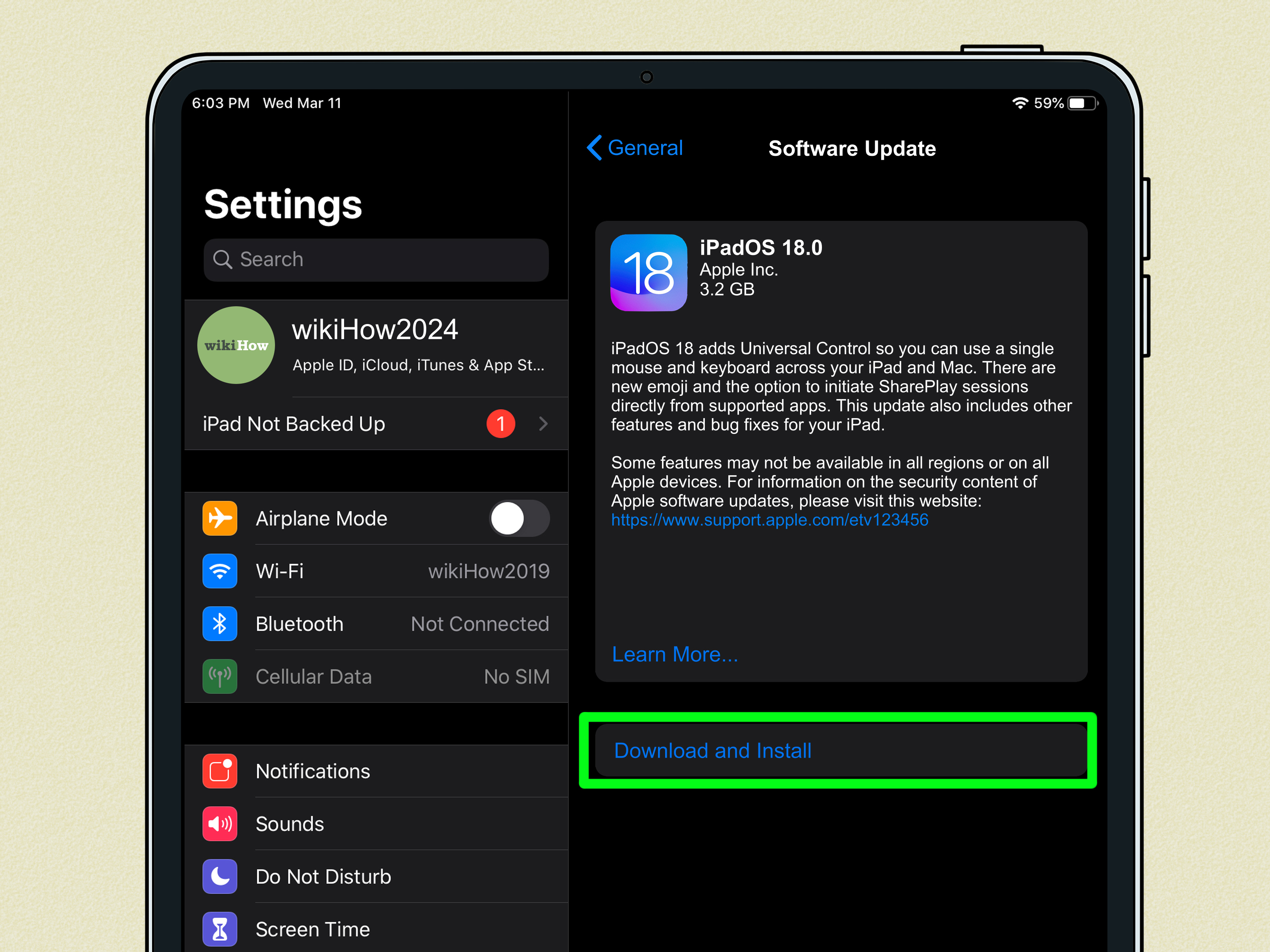
Open Settings, tap General, then tap Software Update. If an update is available, install it. Make sure your iPad has enough battery or keep it connected to a reliable charger during the update.
If the iPad is too low on battery to update, charge it using a known-good cable and wall adapter first. If it still will not charge enough to update, you may need to connect it to a Mac or PC and try updating through Finder or Apple Devices/iTunes, depending on your computer setup.
9. Check for Hardware Damage and Get Service
If none of the quick fixes work, the issue may be hardware-related. Possible causes include a damaged charging port, worn battery, faulty adapter, damaged cable, liquid exposure, or an internal charging component failure.
Signs you may need repair
- The cable only works when held at a certain angle.
- The charging port feels loose or wobbly.
- The iPad gets unusually hot while plugged in.
- The battery stays at 1% or does not increase after hours of charging.
- Multiple known-good cables and adapters fail.
- The iPad recently got wet, dropped, or bent.
At this point, contact Apple Support, visit an Apple Store, or go to an Apple Authorized Service Provider. A technician can inspect the port, test the battery, and determine whether the iPad needs a battery service, charging port repair, or another fix.
Extra Troubleshooting Tips for USB-C iPads
Newer iPad models with USB-C ports can charge, connect to displays, transfer files, and power accessories. That flexibility is useful, but it also means your charging setup may be more complicated. If your USB-C iPad says not charging, unplug docks, hubs, external drives, card readers, and displays. Then connect the iPad directly to a wall adapter with a simple USB-C cable.
Also remember that not every USB-C cable is built for the same purpose. Some are mainly for charging, some are mainly for data, and some support higher power or faster transfer speeds. A cheap USB-C cable may charge a phone but struggle with an iPad. When troubleshooting, simplify the setup: one iPad, one trusted cable, one reliable wall adapter, one wall outlet. The fewer suspects in the room, the easier the case is to solve.
What Not to Do When Your iPad Says Not Charging
Do not repeatedly jam the cable into the port. Do not use metal tools to dig around inside the connector. Do not use wet cleaning methods. Do not ignore extreme heat. Do not keep trying random bargain-bin chargers if your iPad behaves strangely with them. And please, do not “test” the iPad by bending the cable until it works. That is not troubleshooting; that is cable yoga, and it usually ends badly.
The smartest approach is methodical. Test the power outlet, cable, adapter, port, temperature, software, and usage conditions one at a time. This helps you identify the actual cause instead of replacing three accessories and blaming the moon.
Conclusion
When an iPad says “Not Charging,” start with the basics: use a wall outlet, try a different cable, switch to a proper power adapter, and clean the charging port carefully. Then check temperature, restart the device, stop using it while it charges, and update iPadOS. If none of those steps work, the iPad may need professional service.
Most iPad charging problems are fixable without drama. A better charger, cleaner port, cooler device, or simple restart may be all it takes. And if the issue turns out to be hardware, you will at least know you tested the easy fixes first. That is good troubleshooting, good device care, and good emotional support for anyone staring at 3% battery with a deadline approaching.
Real-World Experience: What Usually Works When an iPad Says Not Charging
In real-world use, the most common “Not Charging” situations are surprisingly ordinary. One classic example is the family iPad that lives on the couch, travels between the kitchen, bedroom, and car, and charges from whatever cable happens to be nearby. After months of use, the cable starts to loosen, the port collects lint, and someone plugs it into an old phone adapter. The screen says “Not Charging,” and everyone assumes the iPad is broken. In reality, the poor thing is just being fed electricity through the technological equivalent of a drinking straw.
The first thing I would do in that situation is simplify everything. I would remove the case, disconnect all accessories, and plug the iPad directly into a wall outlet using a trusted adapter and cable. Then I would leave it alone. Not “check it every 14 seconds” alone, but truly alone for at least 20 minutes. A very low battery can take time before the charging icon appears normally, especially if the device has been fully drained.
The second thing I would check is the cable fit. A healthy charging connection should feel secure. If the connector wiggles, falls out, or only charges when angled like it is trying to pick up radio signals from space, the port or cable needs attention. Many people discover a compacted layer of lint inside the port. It can be so pressed down that it looks like part of the device. Once removed gently, the cable suddenly clicks in again and charging returns. It feels like magic, but it is really just cleaning.
Another common experience involves heat. An iPad used for gaming, streaming, navigation, or video calls can get warm, especially inside a thick case. If it is also charging, the device may slow or pause charging to protect itself. In this case, the fix is not complicated: unplug it, take off the case, move it out of sunlight, and let it cool. People often overlook this because the iPad may not feel dangerously hot. But even moderate heat can affect charging behavior.
There is also the “wrong charger” problem. Many households have a drawer full of adapters from old phones, earbuds, speakers, and mystery gadgets no one remembers buying. Some of those adapters simply do not deliver enough power for an iPad. They may work overnight if the iPad is asleep, but they struggle when the screen is on. Using a proper iPad-compatible adapter often fixes the issue instantly.
Finally, if you have tried multiple cables, multiple adapters, different outlets, a restart, cleaning, cooling, and a software update, do not keep fighting the same battle forever. A charging port can wear out. A battery can age. Internal components can fail. At that stage, a professional diagnosis is the fastest path forward. The key lesson is this: troubleshoot from the outside in. Start with the simple accessories and environment before assuming the iPad itself has failed.