Windows is wonderfully helpful until it becomes a little too helpful. Type regedit, cmd, %temp%, msconfig, or some mysterious command you found during a late-night troubleshooting adventure into the Run box, and Windows may remember it. The next time you press Windows + R, your past commands can appear like tiny digital footprints. Useful? Sometimes. Embarrassing? Occasionally. Unwanted? Absolutely fixable.
This guide explains how to delete Run history in Windows using a clear 15-step method. It works for Windows 10 and Windows 11, and it focuses on the real place where the Run dialog stores its history: the Windows Registry, specifically the RunMRU key. We will also cover privacy settings, common mistakes, safety tips, and practical examples so you can clear your Run command history without turning your PC into a very expensive paperweight.
What Is Run History in Windows?
The Run dialog is the small command box that opens when you press Windows + R. It lets you quickly launch system tools, folders, apps, and commands. For example, you can type appwiz.cpl to open Programs and Features, control to open Control Panel, or services.msc to open Windows Services.
Run history is the list of previously typed commands that appears in the Run box dropdown. Windows stores this list so you can reuse commands quickly. That convenience is great when you regularly open the same tools, but it may not be ideal on a shared computer, work laptop, family PC, or any machine where you prefer a cleaner privacy trail.
Why You Might Want to Clear Run Command History
Deleting Run history is not just about hiding evidence that you typed mspaint at 2 a.m. because inspiration struck. There are practical reasons to clear it:
- Privacy: Your Run history may reveal folders, system tools, websites, network paths, or troubleshooting commands you used.
- Decluttering: Old commands can make the dropdown messy and harder to use.
- Shared computer safety: Other users may see commands you entered if they use the same Windows account.
- Troubleshooting: Clearing the list can help reset Run suggestions when they behave oddly.
- Professional cleanup: If you are preparing a work device for another user, clearing personal traces is a smart habit.
Before You Start: A Quick Safety Note
The main method in this article uses Registry Editor. The Windows Registry is where Windows stores many important system and user settings. Editing the wrong key can cause problems, so do not wander around deleting random entries like you are cleaning out an old junk drawer. We are only touching one specific key: RunMRU.
Before making changes, export a backup of the key. This gives you a quick way to restore it if something unexpected happens. The process is simple, and it is included in the 15 steps below.
How to Delete Run History in Windows: 15 Steps
Step 1: Open the Run Dialog
Press Windows + R on your keyboard. This opens the Run dialog box. You may already see a previous command in the field or a dropdown list of old entries.
Step 2: Launch Registry Editor
Type regedit into the Run box and press Enter. This opens Registry Editor, the built-in Windows tool used to view and edit registry keys.
Step 3: Approve the User Account Control Prompt
If Windows asks, “Do you want to allow this app to make changes to your device?” choose Yes. Registry Editor needs permission to open. If you are on a managed work computer, you may need administrator approval.
Step 4: Go to the RunMRU Registry Location
In Registry Editor, use the address bar at the top and paste this path:
Then press Enter. This takes you directly to the registry key where Windows stores Run dialog history for the current user account.
Step 5: Confirm You Are in the Correct Key
Look at the left panel and make sure the selected folder is RunMRU. The right panel should show values such as MRUList and lettered entries like a, b, or c. Those lettered values usually contain your previous Run commands.
Step 6: Back Up the RunMRU Key
Right-click RunMRU in the left panel and choose Export. Save the file somewhere easy to find, such as your Desktop, and name it something clear like RunMRU-backup.reg. This backup is your undo button.
Step 7: Review the Run History Entries
In the right panel, look at the entries. The commands you previously typed into Run are usually stored as lettered values. For example, one value may contain %temp%, another may contain cmd, and another may contain control.
Step 8: Select the History Values
Select the lettered entries you want to remove. To delete the full Run history, select the lettered values and MRUList. Do not delete the (Default) value. It is normal and should stay there.
Step 9: Delete the Selected Values
Right-click the selected values and choose Delete. Windows will ask you to confirm. Choose Yes. Congratulations: you have just removed the stored Run command history from the registry.
Step 10: Close Registry Editor
After deleting the entries, close Registry Editor. You do not need to save anything manually; Registry changes are applied as you make them.
Step 11: Restart Windows Explorer or Sign Out
Sometimes the Run box may continue showing old entries until Windows refreshes the interface. The easiest fix is to sign out and sign back in. You can also restart your PC. Advanced users may restart Windows Explorer from Task Manager, but signing out is simpler and safer for most people.
Step 12: Test the Run Dialog Again
Press Windows + R again. Click the dropdown arrow in the Run box. The previous command list should now be gone. If you type a new command, Windows may begin building a new history from that point forward.
Step 13: Turn Off App Launch Tracking
If you want Windows to reduce app-launch-based suggestions, open Settings. In Windows 11, go to Privacy & security, then General or Recommendations & offers, depending on your build. Turn off the option related to improving Start and search results by tracking app launches. In Windows 10, go to Settings > Privacy > General and turn off the similar app launch tracking setting.
Step 14: Clear Windows Activity History
Run history is different from Windows Activity History, but clearing both can help with privacy cleanup. In Windows 11, open Settings > Privacy & security > Activity history, then use the option to clear activity history for your account if it appears on your system.
Step 15: Keep Future Run History Cleaner
After clearing Run history, build better habits. Avoid typing sensitive file paths into Run on shared accounts. Use private user accounts when possible. If you regularly troubleshoot PCs, clear the Run history after finishing. Think of it as wiping crumbs off the counter after making a sandwich: not dramatic, just civilized.
Alternative Method: Delete the Entire RunMRU Key
Some users prefer to delete the whole RunMRU key instead of deleting individual values. This can work because Windows may recreate the key when needed. However, deleting only the values inside the key is usually cleaner and less dramatic. The goal is to remove the command history, not to perform registry karate.
If you do delete the full RunMRU key, make sure you export a backup first. Then restart Windows Explorer, sign out, or restart your PC. The Run history should disappear after Windows refreshes the user interface.
What Not to Delete
When working inside Registry Editor, avoid deleting anything outside the RunMRU key. Do not delete random Explorer keys, Windows keys, or CurrentVersion folders. These areas control many parts of the Windows interface and user experience. If the registry were a kitchen, RunMRU would be one labeled spice jar. Do not throw away the refrigerator because you dislike oregano.
Does Clearing Run History Delete Programs or Files?
No. Deleting Run history only removes the saved list of commands that appeared in the Run dialog. It does not uninstall programs, delete files, remove apps, clear browser history, or erase system logs. For example, if you delete cmd from Run history, Command Prompt still exists. If you delete %temp% from Run history, your Temp folder still exists.
Run History vs. Search History vs. File Explorer History
One common mistake is assuming all Windows history is stored in one place. It is not. Windows has several separate history areas:
- Run history: Stored in the RunMRU registry key.
- File Explorer history: Includes recent files and frequently used folders.
- Start menu recommendations: May show recently opened files, apps, or suggestions.
- Search history: Related to Windows Search and sometimes Microsoft account settings.
- Command Prompt history: Usually exists only in the current Command Prompt session unless saved by other tools.
- PowerShell history: Can be stored separately depending on your PowerShell version and settings.
So, if your goal is a complete privacy cleanup, clearing Run history is only one part of the job. It is an important part, but it is not the entire house-cleaning operation.
How to Clear File Explorer Recent History Too
If you also want to clean File Explorer history, open File Explorer, click the three-dot menu or Options, and look for the privacy section under Folder Options. From there, you can clear File Explorer history. You can also disable recent files and frequently used folders if you do not want them appearing in Quick Access or Home.
How to Hide Recently Opened Items in Windows 11
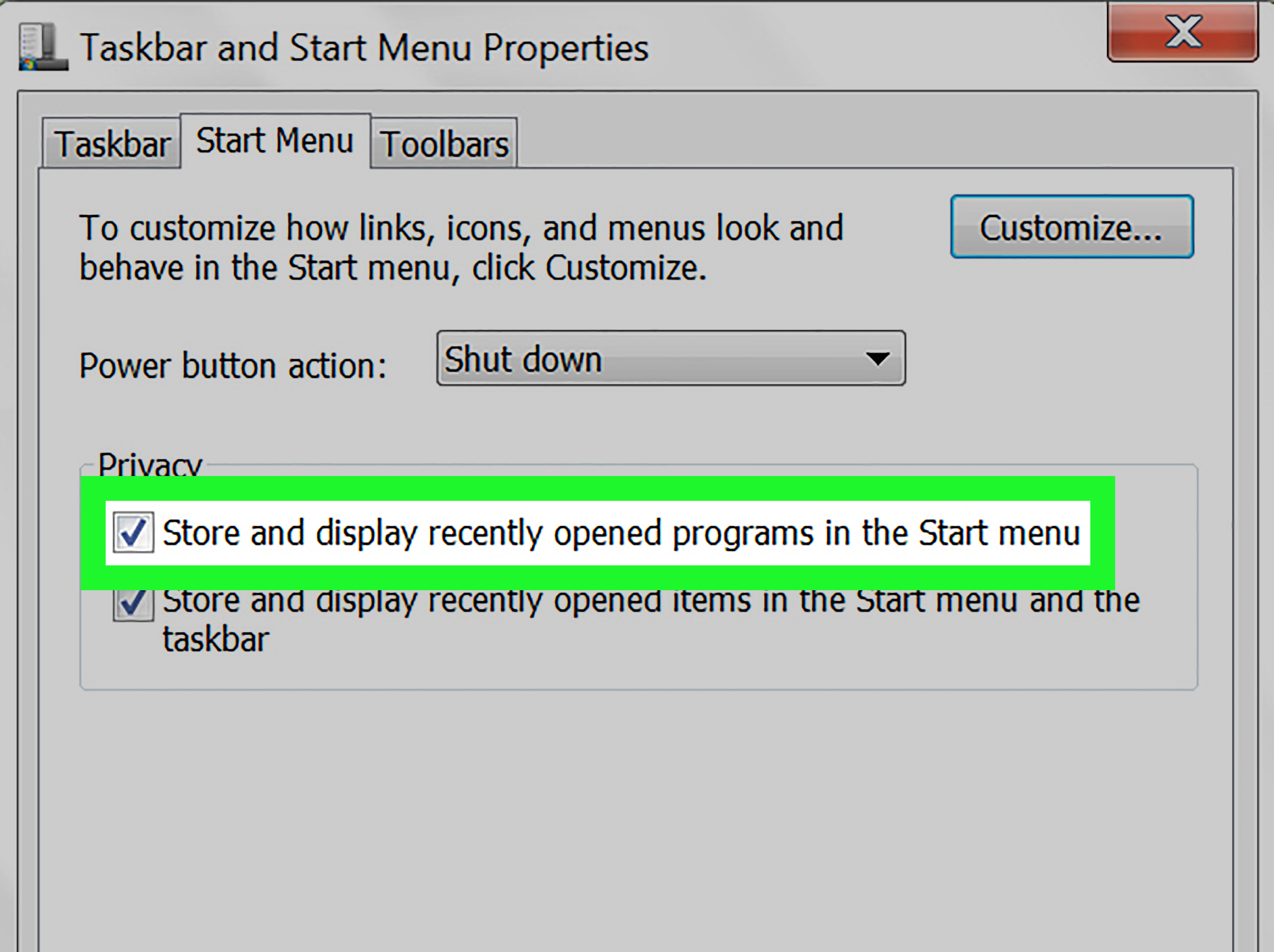
In Windows 11, open Settings > Personalization > Start. You can turn off options that show recently added apps, most used apps, and recently opened items in Start, Jump Lists, and File Explorer. These settings do not replace clearing RunMRU, but they help reduce the number of places where Windows displays recent activity.
Common Problems and Fixes
The Run History Still Appears
If old entries still appear after deleting RunMRU values, sign out and sign back in. If that does not work, restart your PC. Windows sometimes caches interface data until the user session refreshes.
The RunMRU Key Is Missing
If you do not see the RunMRU key, your Run history may already be empty, or Windows may not have created the key yet for that account. Open Run, type a harmless command like notepad, press Enter, and then check again.
Registry Editor Is Blocked
On school or work devices, Registry Editor may be disabled by policy. In that case, contact your administrator. Trying to bypass organizational restrictions is not recommended and may violate workplace rules.
History Comes Back After New Commands
That is normal. Clearing Run history removes existing entries. It does not permanently stop Windows from saving future Run commands unless related tracking behavior is disabled or restricted. If you continue using Run, new commands may appear again.
Best Practices for Privacy on Shared Windows PCs
If multiple people use the same computer, each person should have a separate Windows account. That is the cleanest way to separate Run history, files, app settings, browser profiles, and personal preferences. Clearing Run history helps, but separate accounts are better for long-term privacy.
Also consider locking your screen when you step away, avoiding administrator accounts for everyday use, clearing File Explorer history, and reviewing Start menu recommendation settings. Windows privacy is not about one magic switch. It is more like adjusting several small knobs until the machine behaves the way you want.
Practical Examples of Run Commands You May Want to Clear
Here are common Run commands that users often prefer to remove from history:
- %temp% opens the temporary files folder.
- cmd opens Command Prompt.
- powershell opens PowerShell.
- regedit opens Registry Editor.
- msconfig opens System Configuration.
- services.msc opens Services.
- appwiz.cpl opens Programs and Features.
- control opens Control Panel.
- shell:startup opens the Startup folder.
- \\server\folder opens a network location.
None of these commands are bad. In fact, many are useful. But if someone else uses your account, the list may reveal what you were doing. Sometimes you just want your computer to stop narrating your life choices.
Is It Safe to Clear Run History?
Yes, clearing Run history is safe when you only remove the RunMRU history values. You are not deleting Windows components or disabling core features. You are simply removing a list of previously entered Run commands. The risk comes from editing the wrong registry area, which is why the backup step matters.
For most users, the safest approach is: open the exact RunMRU path, export a backup, delete the command values, close Registry Editor, and restart the session. Keep it boring. Boring is good when editing the registry.
Extra Experience-Based Tips for Deleting Run History in Windows
After helping many Windows users clean up small privacy traces, one pattern becomes obvious: most people do not realize how many different “recent activity” lists Windows keeps. They clear browser history and assume everything is gone, then press Windows + R and see old commands smiling back at them like, “Miss me?” That is why Run history deserves its own guide.
In real use, the Run box is popular because it is fast. Power users open it dozens of times a week. IT support staff use it constantly. Students use it to open system tools. Office workers use it when following troubleshooting instructions. The downside is that Run history can become a mini diary of technical activity. If you typed a network path, a local folder path, or a command related to system repair, that entry may remain visible to anyone using the same Windows profile.
One useful habit is to clear Run history after sensitive troubleshooting. For example, suppose you helped a friend remove unwanted startup programs and used commands like msconfig, regedit, and shell:startup. After finishing, clearing Run history prevents the next user from poking around those same tools out of curiosity. Curiosity is wonderful in museums and science class. It is less wonderful when someone opens Registry Editor because they saw it in a dropdown menu.
Another practical tip is to avoid using Run for private folder paths on shared computers. If you need to open a personal folder, use File Explorer from your own account. If you must use Run, clear the history afterward. This is especially important for network locations because a saved path may reveal department names, project folders, client names, or internal server structures.
For home users, the most common reason to delete Run history is simple tidiness. The dropdown gets cluttered with commands used once and never needed again. Clearing it makes the Run box feel fresh. It is like resetting your desk after a long week, except there are fewer coffee rings and no mystery receipts.
For work users, the bigger issue is policy. If your device is managed by an employer, be careful with registry edits. Clearing your personal Run history is usually harmless, but some organizations restrict Registry Editor for security reasons. When in doubt, ask IT. A two-minute question can prevent a two-hour repair ticket with the subject line “I may have deleted something important.”
Finally, remember that privacy cleanup works best as a routine. Clear Run history, review Start menu recommendations, clear File Explorer recent items, and use separate user accounts. These small steps make Windows feel less nosy and more personal. Your PC does not need to remember every command you have ever typed. Sometimes, like a polite friend, it should simply forget.
Conclusion
Learning how to delete Run history in Windows is a simple but useful privacy skill. The key is knowing where Windows stores the list: the RunMRU registry key under the current user profile. Once you back up that key, delete the saved command values, and refresh your Windows session, the Run dropdown should be clean again.
Clearing Run history will not erase every trace of computer activity, but it removes one visible list that many people forget about. For stronger privacy, combine it with File Explorer cleanup, Start menu recommendation settings, Activity History controls, and separate user accounts. In other words, do not just sweep one corner of the room and call the whole house spotless. But yes, this corner is now looking much better.