Note: Clean HTML body only, with no source links, ready for web publishing.
Few things are more annoying than opening Facebook Marketplace, ready to sell that treadmill-turned-clothes-rack, only to discover the icon is missing, your listings are stuck, or Facebook suddenly acts like you have never heard of buying and selling in your life. One day you are browsing used couches like a champ; the next day Marketplace is behaving like a haunted garage sale.
The good news is that most Facebook Marketplace problems fall into a few familiar buckets: account eligibility issues, app glitches, browser cache weirdness, policy restrictions, listing rejections, or temporary platform hiccups. In plain English, the problem is usually fixable. You just need to know whether to refresh your browser, verify your age, clean out your cache, stop posting that questionable “designer” handbag, or simply wait for Facebook to get its act together.
This guide walks through the most common reasons Facebook Marketplace is not working, how to troubleshoot each one, and when it is time to stop poking buttons and submit a report instead. No fluff, no robotic nonsense, and no “have you tried believing in yourself?” tech support energy.
What “Not Working” Usually Looks Like
Before you try to fix Marketplace, figure out what kind of broken you are dealing with. That matters because a missing icon is not the same problem as a rejected listing, and a loading error is not the same problem as a suspended account.
- The Marketplace icon is missing from the Facebook app or website
- You see a message saying Marketplace is not available to you
- Listings will not load, publish, renew, or appear in search
- Your access is limited, at risk, or suspended
- Messages, photos, or categories inside Marketplace are glitching
- You cannot complete an order or contact a buyer or seller
Once you know which mess you are dealing with, the fix becomes a lot less mysterious.
Start With the Fastest Fixes First
1. Refresh, close, and reopen Facebook
Yes, this is basic. Yes, it still works. Refresh the page if you are on desktop. If you are using the app, force close it and open it again. Temporary loading bugs can make Marketplace disappear, freeze, or show blank screens. Sometimes Facebook just needs a tiny nap.
2. Log out and log back in
If Marketplace is acting strange but the rest of Facebook seems normal, sign out of your account and sign back in. This can refresh your session and clear minor account-side hiccups. It is the digital version of turning around, walking back into the room, and pretending nothing weird happened.
3. Update the Facebook app or your browser
An outdated app can cause missing features, broken buttons, failed uploads, or sections that refuse to load. Head to the App Store or Google Play and check for updates. On desktop, make sure your browser is current too. Old software and Facebook do not always get along, and Marketplace is usually the first to start drama.
4. Clear cache and cookies
If you use Facebook in a browser, clear your cache and cookies. Corrupted temporary data can interfere with Marketplace pages, login status, and category loading. If you use the mobile app, clear the app cache on Android, or offload and reinstall the app on iPhone if needed. No, clearing cache does not delete your account or erase your listings. It just tells Facebook to stop relying on stale crumbs.
5. Try a different browser, device, or internet connection
If Marketplace is broken on Chrome, try Safari, Edge, or Firefox. If it fails on your phone, test it on desktop. If it fails on Wi-Fi, try mobile data, or vice versa. This helps you figure out whether the issue is tied to your account or to one specific device, browser, or network.
6. Check whether Facebook itself is having a bad day
Sometimes the problem is not you. If Facebook, Messenger, or Instagram all seem weird at the same time, the issue may be on Meta’s side. In that case, troubleshooting every device in your house will only earn you frustration and possibly a new eye twitch. When the platform is having an outage or partial disruption, waiting is often the smartest move.
Why Marketplace May Be Missing Entirely
You may not meet Marketplace eligibility rules
Facebook Marketplace is generally available only to adults in supported countries using active Facebook accounts. In the United States, that means you need to be at least 18. If you are underage, using an unsupported location, or your account is not considered active enough, Marketplace may not appear at all.
This is one reason the “Marketplace icon vanished” problem can be confusing. It does not always mean the feature is broken. Sometimes it means Facebook has decided your account does not currently qualify for access.
Your account may be too new or not fully established
New accounts sometimes do not get immediate access to Marketplace. Facebook does not hand the keys to every brand-new profile the minute it joins the platform, and that makes sense. If scammers could create a fresh account at breakfast and start posting fake car ads by lunch, Marketplace would become the Wild West with worse grammar.
If your account is brand new, use Facebook normally for a while, complete your profile, follow the rules, and give the system time to recognize your account as legitimate.
You may need to confirm your age
If Facebook asks you to confirm your age, do not ignore it. Age verification can affect access to features, including Marketplace. If Facebook thinks your birthday details are inconsistent or needs proof of age, you may need to submit verification before Marketplace returns.
Your location may be causing problems
Marketplace is not available everywhere. If you recently traveled, changed regions, used a VPN, or have inconsistent location settings, Facebook may temporarily show the wrong availability. Check your location permissions, account details, and device settings if the feature disappeared after travel or after switching networks.
What to Do If Marketplace Says It Is “Not Available to You”
This message usually points to one of three issues: eligibility, account integrity, or restrictions triggered by Facebook’s systems. Start with the basics:
- Make sure you are using your main Facebook profile, not an alternate or brand-new account.
- Confirm your age and country settings are accurate.
- Update the app and clear cache or cookies.
- Try accessing Marketplace from the website as well as the app.
- Review whether your account has any warnings, verification prompts, or unusual activity notices.
If the message still appears after that, the problem may be account-related rather than technical.
When Your Listings Will Not Publish or Keep Getting Rejected
Check the item itself
Sometimes the issue is not Marketplace. It is the thing you are trying to sell. Facebook has Commerce Policies, and certain items are restricted or prohibited. Counterfeit goods, misleading listings, unsafe products, adult items, weapons, animals, and a bunch of other categories can get rejected fast.
Even if the item itself is allowed, your listing can still get flagged if the photos are misleading, the title is spammy, the description is incomplete, or the pricing looks suspicious. A listing that says “Brand New iPhone!!! $40!!! Serious buyers only!!!” has a strong “please investigate me” vibe.
Clean up the listing details
If your post is rejected, review the photos, title, description, category, and price. Use clear images, honest wording, and a category that actually matches the item. Avoid stuffing keywords, using all caps, or copying the same listing over and over in different places. Repetitive posting can look spammy and increase the chance of enforcement.
Request a review if you think Facebook got it wrong
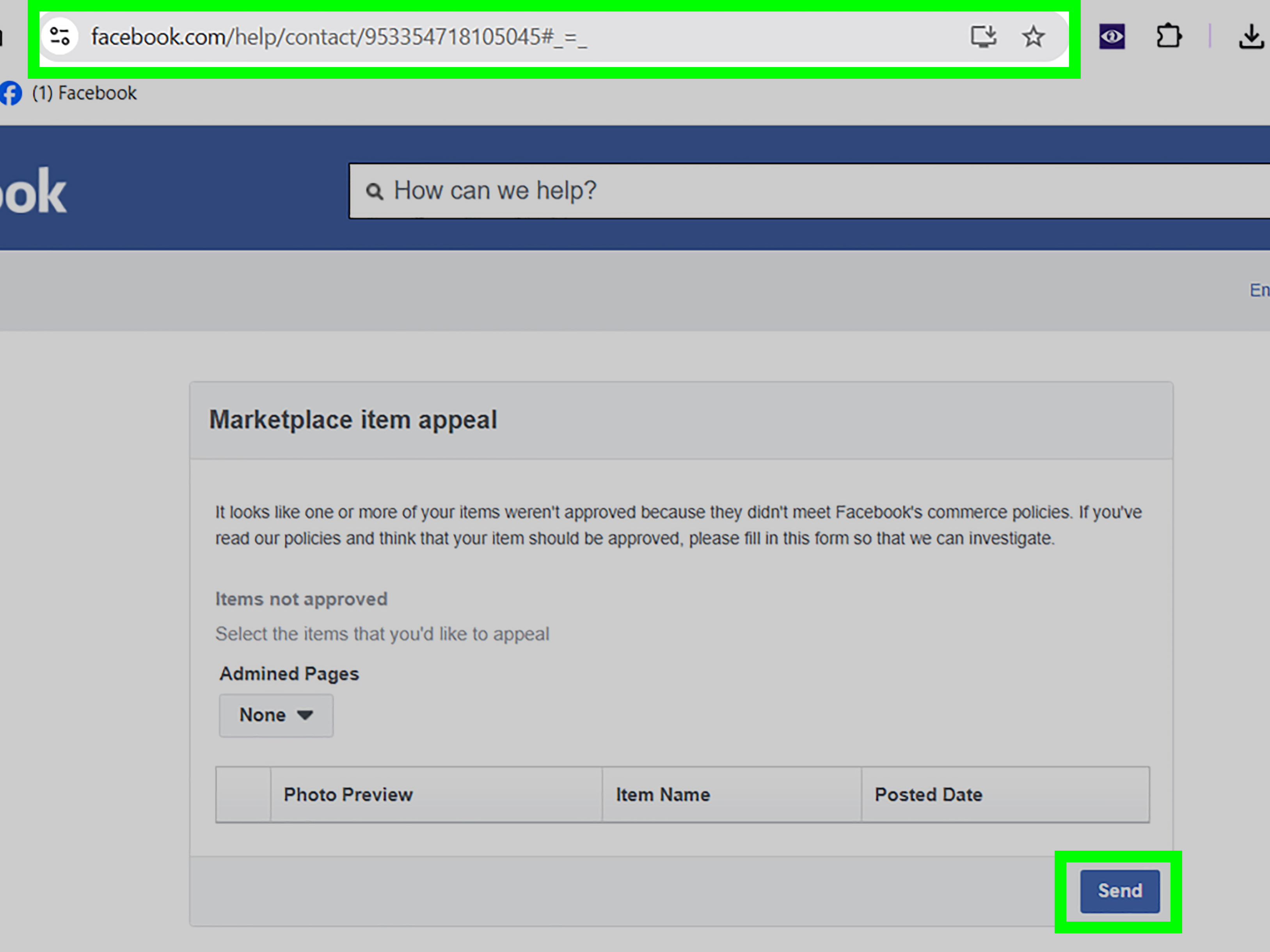
Facebook does allow users to request a review for some rejected listings. If your item follows the rules and still got blocked, appeal it through the listing or support flow. Keep your correction simple and factual. This is not the moment for a dramatic speech about how your lamp deserves freedom.
If Your Marketplace Access Is Limited, At Risk, or Suspended
Facebook may warn, limit, or suspend Marketplace access if it believes you broke Commerce Policies or engaged in suspicious behavior. That can happen because of prohibited items, repeated rejected listings, spammy posting patterns, misleading descriptions, or activity that triggers fraud filters.
If you get an access warning, do not ignore it and keep listing more items. That is like hearing your car make a horrible grinding noise and deciding the solution is a road trip.
Instead:
- Review recent listings for anything that may violate policy
- Delete or edit questionable posts
- Stop duplicating listings unnecessarily
- Check for account alerts, verification requests, or policy notices
- Submit an appeal or review request if available
Also remember that suspicious behavior is not always about the product. Using automation, sending too many identical messages, rapidly creating listings, or changing account details too often can make the system nervous.
When the App Works but Marketplace Pages Still Glitch
Images will not load
If photos inside listings refuse to load, the issue may be your connection, cached data, or a temporary server-side problem. Test another category or listing. If every photo is broken, clear cache, switch networks, and try again later.
Messages are missing or delayed
Marketplace often relies on Messenger for communication. If conversations are not showing up, make sure Messenger is working properly too. Update the app, check notification and data permissions, and open the thread directly in Messenger if needed.
Categories or search results are blank
This can happen when Facebook is serving stale data, your browser is acting up, or the app is not fully updated. Refresh, clear cache, try another device, and test whether the same search works in a browser instead of the app.
Order and Payment Problems Need a Different Approach
If your issue is tied to a shipped order, payment, or purchase dispute, regular troubleshooting may not be enough. In those cases, contact the seller first through Facebook or Messenger and use any available Marketplace help options tied to the order. Some eligible purchases may fall under Facebook’s purchase-related protections, but local cash transactions do not work the same way.
In other words, if you handed someone cash in a parking lot for a “lightly used” blender that sounds like a helicopter, the resolution path is a lot different than a shipped purchase processed through Facebook’s systems.
How to Report a Broken Marketplace Feature
If Marketplace seems genuinely broken and basic troubleshooting does not help, report the issue through Facebook’s “something isn’t working” flow. This is the right move when buttons do nothing, pages fail consistently, listings vanish for no clear reason, or the feature misbehaves across devices.
Be specific in your report. Include what happened, what device you used, and what you already tried. “Marketplace broken pls fix” is emotionally valid, but not exactly a masterpiece of technical detail.
How to Avoid Making the Problem Worse
Here is where troubleshooting overlaps with safety. Some Marketplace issues are really trust issues in disguise.
- Do not move conversations off Facebook too quickly
- Do not click weird payment or verification links
- Do not share one-time verification codes sent to your phone
- Do not accept overpayment stories, fake shipping arrangements, or urgent pressure tactics
- Do not keep reposting blocked items hoping Facebook suddenly changes its mind
The Federal Trade Commission and Better Business Bureau have both warned that scammers use online marketplaces to push fake payments, fake verification requests, phishing links, and “I accidentally paid too much” stories. So if your Marketplace issue started right after a suspicious message from a buyer, there may be a scam angle hiding inside the technical problem.
A Simple Recovery Checklist
- Check whether Facebook is experiencing a broader issue.
- Refresh, close, and reopen the app or page.
- Log out and back in.
- Update the Facebook app or your web browser.
- Clear cache and cookies.
- Try a different browser, device, or network.
- Confirm your age, location, and account eligibility.
- Review recent listings for policy problems.
- Request a review for rejected listings if appropriate.
- Report the problem to Facebook if nothing else works.
Final Thoughts
When Facebook Marketplace stops working, the fix is usually less dramatic than it feels in the moment. Most problems come down to one of three things: your device needs a cleanup, your account needs verification, or Facebook thinks one of your listings or behaviors crossed a line. The trick is to troubleshoot in the right order instead of randomly mashing buttons like you are trying to beat a video game boss.
Start with the simple stuff. Refresh. Update. Clear cache. Switch devices. Then move to account checks, listing reviews, and support reports. If Marketplace is truly broken on Facebook’s side, patience may be your best tool. And if the issue involves a buyer who wants your phone number, a six-digit code, and your eternal trust, congratulations: you found the scam before it found your wallet.
Experiences Related to “Facebook Marketplace Not Working? A Troubleshooting Guide”
One of the most common real-world experiences people have with Facebook Marketplace is the sudden disappearance of the Marketplace icon after years of normal use. A person might open Facebook one morning expecting to check on a sofa listing, only to discover the icon is gone from the app menu like it packed a suitcase overnight. In many cases, the fix turns out to be boring but effective: update the app, clear cache, log out, or access Marketplace through a browser first. The dramatic conclusion people jump to is usually “Facebook banned me forever,” while the actual answer is often “your app is crusty.”
Another very common experience is the rejected listing that feels completely unfair. Someone tries to sell perfume, supplements, tickets, a collectible item, or branded merchandise, and Marketplace blocks the post. The seller stares at the screen in disbelief because they have seen similar items listed by others. What they learn, often the hard way, is that Facebook’s enforcement can feel inconsistent, but that does not mean there are no rules. A category can be sensitive, a phrase can trigger review, or the item may brush up against policy even if other listings slipped through. People usually have better luck after rewriting the title, simplifying the description, and removing anything that looks misleading.
There is also the “everything works except this one weird thing” experience. For example, a user can browse Marketplace just fine, but messages do not load. Or photos appear on desktop but not on mobile. Or listings publish, yet do not show up in search right away. These cases are especially frustrating because they make users feel half-cursed. In practice, these glitches often point to device-specific issues, Messenger sync problems, or temporary delays rather than a full account restriction.
Then there is the suspicious-buyer experience, which often begins with someone responding to a listing instantly and sounding strangely robotic. They may ask for a phone number, offer to pay in a bizarre way, or send a link that supposedly “confirms” the payment. Many sellers first assume Marketplace is malfunctioning because the conversation feels off or the payment never appears. Later they realize the problem was not a broken feature at all. It was a scam wearing a cheap fake mustache.
Finally, many users describe the emotional roller coaster of thinking they did something horribly wrong, only to find out Facebook was having a platform-wide issue or their account needed a simple verification step. That is why a good troubleshooting guide matters. It saves time, lowers panic, and keeps people from making the situation worse by deleting good listings, creating extra accounts, or sending personal information to strangers. Marketplace problems can be annoying, but they are often fixable once you stop guessing and start troubleshooting methodically.