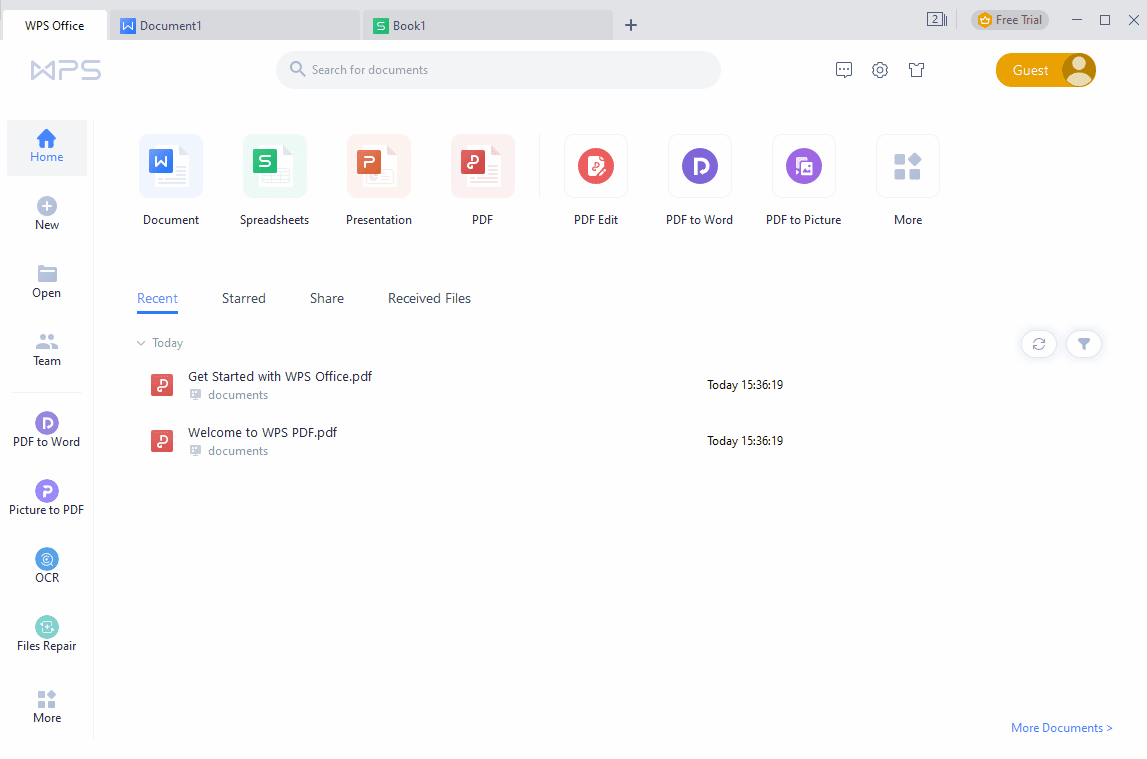
If Microsoft Office is the fancy downtown steakhouse, WPS Office is the surprisingly good neighborhood spot that serves 90% of what you want… for the price of a side salad. It’s an all-in-one productivity suite that aims to feel instantly familiar to Word/Excel/PowerPoint users, while sweetening the deal with built-in PDF tools, a template library, and (increasingly) AI features.
This WPS Office review covers what you actually get in 2026: what’s great, what’s annoying, and where the “free” label is generous versus where it comes with strings (and sometimes ads) attached. Spoiler: for a lot of people, WPS is a legitimate everyday Office alternativeespecially if your work is documents, slides, and spreadsheets, not heavy-duty macros and corporate add-ins.
What Is WPS Office?
WPS Office (historically associated with Kingsoft/WPS Software) is a cross-platform office suite with the “big three” appsword processing, spreadsheets, and presentationsplus a PDF toolset. It’s available on desktop and mobile, and it’s designed to open and save common Microsoft Office formats without turning your formatting into modern art.
Quick Snapshot
- Apps: Writer (docs), Spreadsheets, Presentation, PDF tools (varies by plan)
- Platforms: Windows, macOS, Linux (availability may vary), Android, iOS, and web options
- Best for: Students, freelancers, small teams, and anyone who wants Office-like compatibility on a budget
- Watch-outs: Ads in the free tier, some PDF/advanced features gated behind premium, privacy/telemetry considerations
Interface & Usability: “Office-Like” in the Best Way
WPS Office’s biggest flex is that you don’t need a weekend retreat to learn it. The layout is intentionally familiar ribbon-style toolbars and logical groupingso if you’ve used modern Microsoft Office, you can generally find what you need without playing hide-and-seek with menus.
One standout feature people often love is the tabbed document interface. Instead of juggling a dozen separate windows like it’s 2009, you can keep multiple files in one workspace and flip between them like browser tabs. It’s a small thing, but it makes everyday work feel faster.
WPS also leans into comfort featuressome reviews have noted options like an eye-protection reading mode and interface customization, which is great for anyone who stares at documents long enough to start reading their grocery list in Calibri.
Core Apps: Writer, Spreadsheets, Presentation
WPS Writer (Word Processing)
WPS Writer handles the usual essentials: formatting, styles, tables, headers/footers, and common layout needs. Where it shines is “send-and-receive” compatibilityopening DOCX files from Microsoft Office and sending them back without obvious formatting explosions.
A practical example: if you get a multi-page DOCX with headings, bullet lists, and a table or two (a resume, school paper, or a simple contract draft), Writer is typically smooth. It’s also a friendly environment for quick editsfixing copy, adding comments, or cleaning up layoutwithout requiring a subscription the size of a car payment.
The caution flag: if your documents depend on specialized Office add-ins, complex mail merges, or strict corporate templates with advanced automation, you should test your exact files first. WPS often gets you close, but “close” can be the difference between “approved” and “why is our letterhead doing that?”
WPS Spreadsheets (Excel-Style Work)
For most spreadsheet lifebudgets, trackers, simple dashboards, charts, and everyday formulasWPS Spreadsheets is comfortable. It’s designed for people who want an Excel-like workflow without paying Excel-like rent.
If you’re building a personal budget, a small business expense tracker, or a class assignment with formulas and charts, you’ll likely be fine. Where you should be more cautious is advanced Excel automation: complex VBA macros, niche Power Query setups, and enterprise-grade spreadsheet models can be hit-or-miss across any Office alternative.
WPS Presentation (PowerPoint-Style Slides)
Presentations are where “compatibility” really mattersbecause nobody wants to show up with slides that shifted fonts, broke animations, and turned your neat layout into a ransom note.
WPS Presentation aims to keep PowerPoint files looking right and offers the typical toolkit: themes, transitions, animations, shapes, images, charts, and presenter-friendly basics. For students, trainers, and small teams, it checks the boxes that matter.
PDF Tools: The Secret Sauce (Depending on Your Plan)
WPS has long positioned itself as “Office suite + PDF helper” rather than “Office suite only.” Even the free tier is often marketed with basic PDF features and a PDF reader, while paid tiers push deeper PDF editing, conversion, and related tools.
Translation: if your day includes PDFs (forms, contracts, receipts, school handouts), WPS can reduce the number of apps you need installed. Instead of bouncing between a doc editor and a separate PDF reader/editor, you can stay inside one ecosystem.
The tradeoff is that premium PDF featureslike more advanced editing and conversionare frequently a paid benefit. If PDF work is your main reason for switching, check the current plan details to confirm exactly what’s included.
AI Features: Helpful, Not Telepathic
WPS has been adding AI aggressivelythink “writing assistance,” “summarize this,” “rewrite more professional,” and “Chat with a PDF” style features. On mobile, the listing highlights AI-generated content, rewriting, ChatPDF-style interactions, and AI-powered OCR workflows.
In real life, AI can be useful in three common moments:
- Speed-writing: rough drafts, outlines, meeting summaries, cover letters, and short blurbs
- Polish passes: tighten phrasing, reduce repetition, adjust tone (friendly → formal)
- PDF triage: summarize long PDFs and pull key points quickly
The honest downside: AI features are often tied to specific subscriptions or usage limits. If you want AI primarily, compare WPS’s “AI” offerings carefully against what you can already get from tools you may use (Microsoft, Google, or standalone AI writing apps).
Cloud & Cross-Device Workflow
WPS leans hard into “start on your phone, finish on your laptop” productivity. The free plan is commonly presented with a small amount of cloud space, while premium tiers add more cloud storage and additional collaboration or conversion tools.
Mobile features are a big part of the pitch: scanning documents to PDF, quick edits, and easy sharing. The Android listing also highlights saving to third-party cloud services (like Dropbox, Google Drive, Box, Evernote, and OneDrive) and syncing via WPS Cloud.
If you’re a student shuttling between laptop and phone, or a freelancer who edits on the go, WPS’s cross-device approach can feel more “real-world useful” than some desktop-only alternatives.
Performance & Compatibility
A recurring theme in reputable reviews is that WPS feels “Office-like” and generally handles Microsoft formats well. That matters because file exchange is where alternatives often fail: you can write a perfect document, but if your client’s Word opens it like a haunted house, you lose time fixing ghosts.
WPS tends to do well with everyday Office files (DOCX, XLSX, PPTX). The more complex the filecustom fonts, layered formatting, advanced charts, fancy transitionsthe more you should test. That’s not a WPS-only issue; it’s the universal tax paid by anyone who steps outside Microsoft’s ecosystem.
Pricing: Free, Premium, and the Real Cost of “Free”
WPS Office is usually offered in a freemium model:
- Free tier (often called “Standard”): core document/spreadsheet/presentation features, basic PDF access, limited templates, and some cloud storage.
- Premium/Pro tiers: typically remove ads, expand PDF features (editing/conversion), increase cloud storage, and may unlock more templates and advanced tools.
- AI add-ons or AI-centric tiers: AI writing, AI PDF chat, AI spell/translation features, and related tools.
Exact pricing changes by region and promotion, but third-party listings commonly show WPS Premium around the “less-than-a-fancy-coffee-per-month” range when billed annually. If you’re comparing to Microsoft 365, WPS often wins on priceespecially if you don’t need Outlook, Teams, enterprise admin controls, or deep Microsoft ecosystem integration.
The real “cost” of the free version is usually advertising and feature gating. If ads drive you up the wall (or you’re setting up a device for a parent who will tap any pop-up that looks official), premium can be worth it just for peace of mind.
Privacy & Ads: The Part You Should Read Twice
Any modern productivity suite is also a data and platform business. WPS’s published privacy materials describe collecting certain usage/diagnostic information (like interface interactions and crash reports) to improve stability and experience. For cloud documents, WPS also describes storing files on a third-party server and not reading document content (as stated in its GDPR-focused disclosure).
The bigger day-to-day issue for many users is ads in the free tier. Some reviews describe them as occasional and dismissible, while others have criticized the overall ad experienceespecially on mobilewhere ad quality matters because a “too convincing” ad can look like a system alert to less tech-savvy users.
If you’re using WPS in a family setting, or on a work phone where you want fewer distractions, premium can be a straightforward “pay to remove friction” upgrade.
Pros & Cons
What WPS Office Does Really Well
- Familiar interface: easy transition from Microsoft Office
- Strong everyday compatibility: handles common Office formats well
- All-in-one convenience: docs + sheets + slides + PDF tools in one place
- Tabbed documents: underrated productivity boost
- Great value: free tier is legitimately useful; premium is often budget-friendly
- Mobile-friendly: scanning, editing, sharing, and cloud sync are major strengths
Where It Can Frustrate You
- Ads in the free version: can feel intrusive depending on platform and usage
- PDF features can be paywalled: advanced editing/conversion often requires premium
- Advanced Excel workflows may vary: macros/add-ins/enterprise models should be tested
- Privacy considerations: like any suite with cloud/telemetry, it’s worth reviewing settings and policies
WPS Office vs Microsoft 365 vs Google Docs vs LibreOffice
Choose WPS Office if…
- You want an Office-like experience without paying Microsoft 365 prices.
- You work with a lot of DOCX/XLSX/PPTX files and need decent compatibility.
- You like the idea of built-in PDF tools and mobile scanning/editing.
- You prefer a traditional desktop-suite feel over an always-in-the-browser workflow.
Choose Microsoft 365 if…
- You rely on advanced Office features, enterprise compliance, or deep integrations (Teams/Outlook/SharePoint).
- You collaborate heavily in corporate environments where Microsoft is the default.
- You need top-tier compatibility with complex files, macros, and specialized add-ins.
Choose Google Docs if…
- Real-time collaboration is your main priority and most work happens in the browser.
- You prefer “share a link and edit together” over desktop-suite workflows.
Choose LibreOffice if…
- You want open-source, offline-first productivity and don’t mind a different interface.
- You’re less dependent on perfect Microsoft-format fidelity for complex documents.
Who Is WPS Office Best For?
- Students: essays, slides, and spreadsheets without subscription pressure
- Freelancers: proposals, invoices, client-ready docs, and PDF handling
- Small businesses: everyday productivity with lower costs
- Mobile-first users: scanning, quick edits, and cross-device workflows
- Budget-conscious households: a practical “Office without the bill” option
Real-World Experience: A Month Living with WPS Office (About )
Here’s what a “real month” with WPS Office typically feels like when you’re using it for normal human tasksnot corporate compliance audits or spreadsheet sorcery. Week one usually starts with mild suspicion: you install it, open a DOCX, and wait for the part where everything breaks. And then… it doesn’t. The document opens, fonts mostly behave, spacing doesn’t explode, and you think, “Okay, WPS. I see you.”
In week two, you end up appreciating the little workflow wins. The tabbed interface becomes your new normalresume in one tab, a class outline in another, and a budget sheet in a third. It’s the kind of feature that seems minor until you go back to window-juggling and remember how unnecessary that stress was. If you bounce between tasks a lot, tabs are weirdly soothing.
Week three is where WPS’s personality shows up: PDF work. Maybe you scan a receipt, mark up a PDF handout, or merge a couple documents for a quick submission. Having PDF tools inside the same suite is convenientespecially on mobile, where “download three apps to do one thing” is basically a modern curse. If your life includes forms and documents that arrive as PDFs (which is… most of adulthood), WPS can feel like a Swiss Army knife that actually has the blade you need.
Then week four introduces the classic freemium plot twist: ads and gated features. You’re on a roll, you try a premium PDF conversion or a template-heavy workflow, and suddenly you’re reminded that “free” often means “free… with an asterisk.” On desktop, this might feel like a mild nuisance. On mobile, it can be more distracting, and it’s also where you want cleaner guardrailsbecause ads that look like system alerts are the kind of thing that can confuse less techy users.
If you experiment with AI features, the experience is usually split: sometimes it’s genuinely helpful (summaries, rewrites, quick outlines), and sometimes it’s “fine, but not magical.” The best use is treating AI like a first-draft intern: fast, enthusiastic, occasionally wrong, and in need of supervision. For brainstorming or polishing, it can save time; for anything high-stakes, you still want your own judgment in the driver’s seat.
By the end of the month, most users land on one of two conclusions: (1) “I can live with the free tier and its quirks,” or (2) “Paying a modest yearly fee to remove ads and unlock the best PDF tools is worth it.” Either way, WPS Office often earns a spot as a practical daily driverespecially for people who want Microsoft-style documents without Microsoft-style pricing.
Conclusion
WPS Office is one of the most convincing Microsoft Office alternatives for everyday work: familiar interface, solid file compatibility, useful PDF tools, and strong mobile support. The free version can absolutely handle real tasks, but it may come with ads and feature gates that push power users toward premium. If you want an Office-like suite that’s generally easy to learn, friendly on the wallet, and surprisingly capable across devices, WPS Office is an option worth taking seriouslyjust make sure the plan you choose matches how much you rely on PDF and AI features.