The Steam Deck is small enough to toss in a backpack, powerful enough to run big PC games, and weird enough to make you occasionally ask, “Why is this game launching at the resolution of a postage stamp?” That is the charm and chaos of handheld PC gaming. Unlike a fixed console, the Steam Deck is a Linux-based gaming computer wearing a console costume, which means resolution settings can live in several places: SteamOS, the game’s own menu, launch options, Desktop Mode, emulator settings, and sometimes the secret underground cave where old PC ports hide their configuration files.
This Steam Deck graphics guide explains how to force change resolution in Gaming Mode, docked mode, Desktop Mode, and individual games. It also covers when to use 1280×800, when 1280×720 is smarter, how external monitors behave, how FSR scaling fits into the picture, and what to do when a game ignores your settings like a cat ignoring its name.
Why Resolution Matters on Steam Deck
Resolution controls how many pixels a game renders. More pixels usually mean sharper image quality, but also more work for the Steam Deck’s APU. Fewer pixels can improve frame rate and battery life, though the image may look softer. On a desktop gaming PC, the answer is often “turn it up and let the graphics card sweat.” On Steam Deck, the smarter answer is “pick the resolution that looks good enough while keeping performance smooth.”
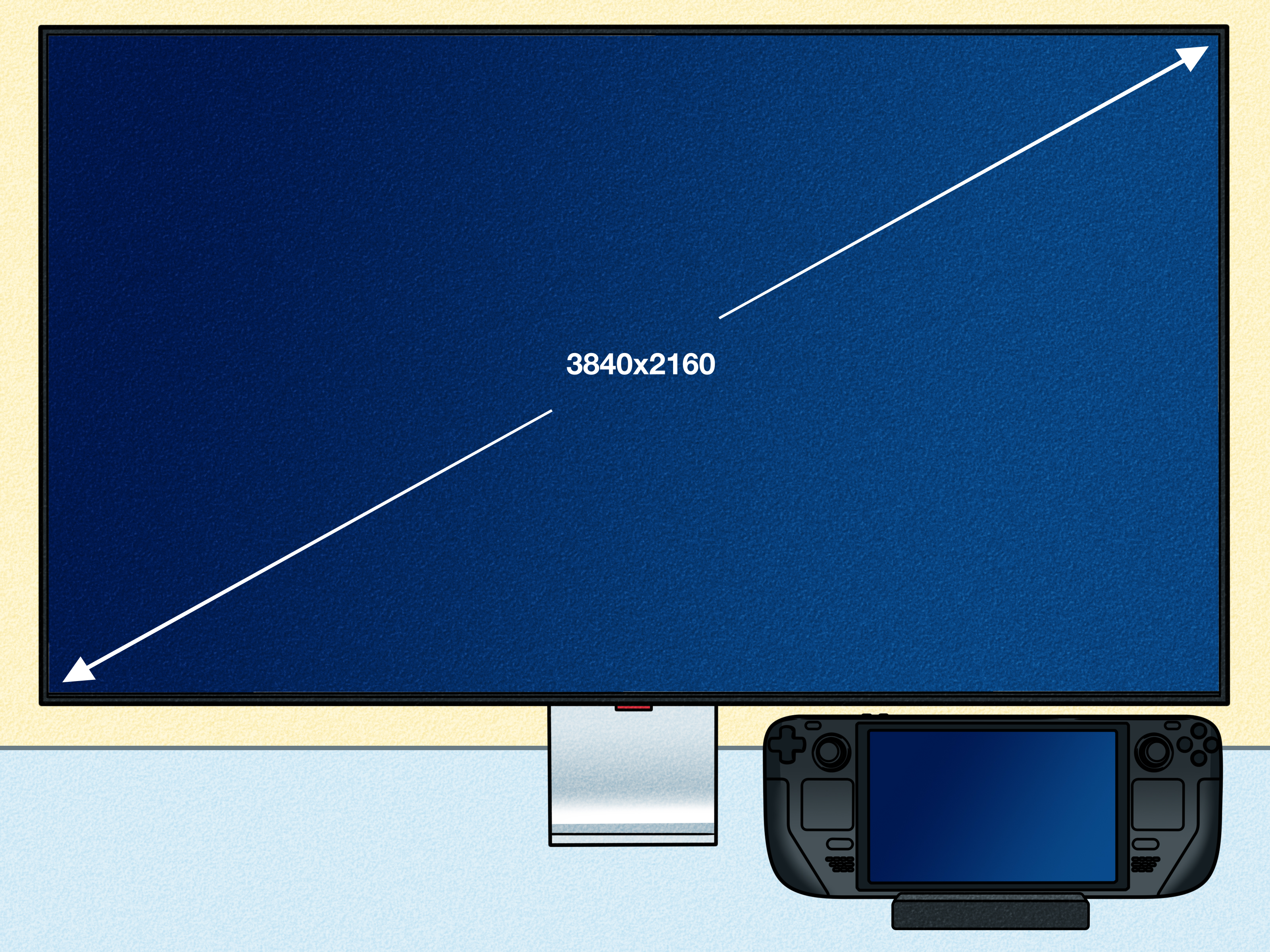
The built-in Steam Deck display uses a 16:10 aspect ratio and a native resolution of 1280×800. That is close to 720p, but with extra vertical space. Many games also support 1280×720, which is a 16:9 resolution. A 16:9 game at 1280×720 may show small black bars on the Deck’s screen, but it can also behave better in titles designed mainly for TVs and monitors.
Forcing a custom resolution is useful when a game launches too low, refuses to show higher options, looks blurry on a docked TV, displays the wrong aspect ratio, or needs a lower render resolution for better performance. It is also helpful for older games, emulators, non-Steam games, and titles that do not automatically detect the Deck’s screen correctly.
The Quick Answer: How to Force Change Resolution on Steam Deck
The easiest way to force a resolution is through the game’s Steam Properties menu. This method works in Gaming Mode and applies per game, which is perfect because every game has its own personality. Some are polite. Some are divas. Some think 800×600 is still fashionable.
Force Resolution in Gaming Mode
- Turn on your Steam Deck and open your Library.
- Select the game you want to change.
- Press the gear icon or open the game’s options menu.
- Choose Properties.
- Go to the General tab.
- Find Game Resolution.
- Select the resolution you want, such as 1280×800, 1280×720, 1920×1080, or another available option.
- If available, enable Set resolution for internal and external display when you want the forced resolution to apply even on the built-in screen.
- Launch the game and check the in-game graphics menu to confirm the selected resolution appears.
This setting does not always force the game to render at that resolution automatically. Instead, it usually changes the resolution options SteamOS exposes to the game. After setting it in Steam, you may still need to open the game’s own video settings and select the resolution there. Think of SteamOS as opening the door; the game still has to walk through it.
Best Steam Deck Resolutions to Use
There is no single best resolution for every game. A pixel-art platformer, a modern open-world RPG, and a strategy game with tiny text all need different treatment. Still, these common choices are a good starting point.
1280×800: Best Native Handheld Resolution
Use 1280×800 when you want the cleanest image on the Steam Deck’s built-in screen. It matches the Deck’s native 16:10 display, fills the screen properly, and usually gives the sharpest handheld experience. This is the best option for many indie games, older 3D games, 2D games, and well-optimized modern titles.
1280×720: Best Compatibility Resolution
Use 1280×720 when a game behaves better at standard 16:9. Many PC games were designed around 16:9 monitors, so 720p can prevent stretched menus, strange cutscenes, or interface problems. You may see small black bars, but the trade-off is often worth it.
1152×720 or 1024×640: Good Performance Options
Lower resolutions can help demanding games maintain smoother frame rates. If a game struggles at 1280×800, try 1152×720, 1024×640, or another lower 16:10-friendly option. Pairing a lower resolution with SteamOS scaling can make the game look acceptable while reducing GPU load.
1920×1080: Best for Docked Play on a TV or Monitor
When using the Steam Deck with an external 1080p display, forcing 1920×1080 may make menus, text, and UI elements look sharper. However, rendering at 1080p is much heavier than 800p. Lightweight games may run beautifully at 1080p, but modern AAA games may need lower settings, FSR, or a return to 720p/800p for stable performance.
4K: Use Carefully
The Steam Deck can output to high-resolution external displays, but output is not the same as comfortable game rendering. Simple games, visual novels, retro titles, cloud streaming apps, and media playback can look great on a 4K screen. A demanding 3D game rendered natively at 4K on Steam Deck, however, is usually asking too much. That is not “optimizing.” That is asking a toaster to become a pizza oven.
How to Force a Higher Resolution for Docked Mode
Docked mode is where resolution confusion becomes most obvious. You connect the Deck to a TV, launch a game, and expect glorious living-room sharpness. Instead, the game may still render near handheld resolution. This happens because SteamOS often treats game resolution separately from the external display’s output resolution.
To force a higher docked resolution, open the game’s Properties, go to General, and set Game Resolution to the resolution you want for that display. For a 1080p TV, choose 1920×1080. For a 1440p monitor, choose 2560×1440 only if the game is light enough or you are comfortable lowering graphics settings. For a 4K TV, consider whether the game truly needs native 4K or whether 1080p with scaling is the better experience.
After launching the game, open the in-game display menu and select the same resolution. Some games will not switch until you restart them. Others may require toggling fullscreen, borderless fullscreen, or windowed mode. If the image looks stretched, check the aspect ratio setting and try 16:9 for external displays.
How to Force a Lower Resolution for Better Performance
Forcing a lower resolution is one of the most reliable ways to improve performance on Steam Deck. It reduces the number of pixels the GPU must render, which can help increase frame rate, reduce stutter, lower heat, and extend battery life. This is especially useful in open-world games, newer AAA titles, and games with heavy lighting effects.
Start by setting the game resolution to something below native, such as 1152×720 or 1024×640. Then launch the game and select that resolution in the game’s graphics menu. If the image becomes too soft, open the Steam Deck’s Quick Access Menu, go to the performance or scaling options, and try a sharper scaling filter. FSR can help when the game is running below the screen’s native resolution and being scaled up.
A good practical formula is simple: use 1280×800 for lighter games, 1280×720 for compatibility, and a lower resolution with upscaling for demanding games. Do not chase maximum pixels just because the option exists. The Steam Deck is a handheld; comfort, smoothness, and battery life matter as much as sharpness.
Understanding SteamOS Scaling and FSR
Resolution and scaling are related, but they are not the same thing. Resolution is what the game renders. Scaling is how SteamOS stretches or processes that image to fit the screen. If a game renders at 1024×640 and the Deck displays it at 1280×800, scaling decides how that lower-resolution image is enlarged.
SteamOS offers scaling options through the Quick Access Menu. Depending on your current SteamOS version, you may see options such as Linear, Nearest, Integer, Fill, Fit, Stretch, or FSR-related sharpening behavior. The exact labels can change over time, but the principle stays the same: lower in-game resolution plus good scaling can produce better performance while keeping image quality acceptable.
FSR is most useful when the game is rendering below the display’s native resolution. If you set the game to 1280×800 on the built-in screen, there is little or nothing for system-level FSR to upscale. If you set the game to 1024×640, then scaling has work to do. For best results, avoid using both a game’s internal upscaler and SteamOS FSR at the same time unless you have tested the combination. Double upscaling can sometimes make the image look crunchy, and not in the fun snack way.
Using Launch Options to Force Resolution
Some PC games respond to launch options. This is especially common with older engines. In Steam, open the game’s Properties, go to General, and find Launch Options. You can try resolution commands such as:
or:
Not every game supports the same commands. Source and GoldSrc games often recognize width and height launch options, while Unity, Unreal Engine, and older PC titles may use different parameters. If a launch option does nothing, remove it and use the SteamOS Game Resolution menu or the in-game settings instead.
For games that crash after a bad display setting, launch options can also help reset video behavior. Options like windowed mode or safe mode may allow you to get back into the menu and choose a working resolution. This is useful when a game opens to a black screen because it remembered a monitor you no longer use.
Changing Resolution in Desktop Mode
Desktop Mode gives you a more traditional Linux PC environment. It is useful when you are adjusting external monitors, running non-Steam apps, configuring emulators, or dealing with games that need manual file edits.
- Hold the power button.
- Select Switch to Desktop.
- Open System Settings.
- Go to Display and Monitor.
- Select the built-in display or external monitor.
- Choose the resolution and refresh rate you want.
- Apply the setting and test it.
Desktop Mode display settings are most helpful for the desktop environment and external displays. They do not always control the render resolution of games launched in Gaming Mode. If your goal is to force one Steam game to expose 1080p, use the per-game Properties menu in Gaming Mode. If your goal is to make a monitor behave correctly in Desktop Mode, use KDE’s display settings.
Forcing Resolution in Non-Steam Games
Non-Steam games can be trickier because they may not integrate as neatly with SteamOS. Add the game to Steam, open its shortcut Properties, and set the desired Game Resolution just as you would with a Steam game. Then check the game’s own display menu.
If the game uses a launcher, the launcher may be the real problem. Some launchers open at a strange size, hide the Play button, or ignore controller input. Try setting the shortcut to a higher resolution, using windowed mode, or launching the game once in Desktop Mode to configure graphics settings before returning to Gaming Mode.
For emulators, change resolution inside the emulator itself. For example, a retro emulator may use integer scaling, internal render resolution, aspect ratio correction, and shader settings. A console emulator may let you set native resolution, 2x resolution, 3x resolution, or widescreen hacks. These are separate from the Steam Deck’s system resolution, so adjust them carefully.
Common Problems and Fixes
The Game Still Does Not Show My Forced Resolution
Restart the game after changing the Steam Properties resolution. Some games read available resolutions only at launch. If that fails, switch between fullscreen, borderless, and windowed modes inside the game. Also check whether the game has a separate display selector if you are docked.
The Image Is Stretched
You probably have an aspect ratio mismatch. Use 1280×800 for the built-in 16:10 screen and 1280×720 or 1920×1080 for standard 16:9 displays. In SteamOS scaling options, avoid Stretch unless you truly want the image to fill the screen at any cost. Stretching can make characters look like they skipped leg day for six years.
The Game Looks Blurry
Check whether the game is rendering below native resolution. If performance is fine, increase the resolution to 1280×800. If you need the lower resolution for speed, try a sharper scaling option or adjust in-game sharpening. Also disable heavy motion blur, film grain, and depth of field if they make the image look muddy on the small screen.
The Game Runs Worse After Forcing 1080p
This is expected in demanding games. 1080p contains far more pixels than 800p, and the Deck has to work harder. Lower shadows, ambient occlusion, reflections, volumetrics, and anti-aliasing. If performance is still poor, go back to 720p or 800p and let the external display scale the image.
The TV Shows a Black Screen
Try a lower external display resolution or refresh rate. Some docks, cables, TVs, and capture devices are picky. Start with 1920×1080 at 60Hz, then increase from there. Also make sure your USB-C hub or dock supports the resolution and refresh rate you are trying to use.
Recommended Steam Deck Graphics Settings by Game Type
Indie and 2D Games
Use 1280×800 when supported. Pixel-art games may look best with integer scaling or nearest-neighbor scaling, depending on the title. Avoid unnecessary upscaling filters that blur crisp artwork.
Older 3D Games
Try 1280×800 first. Many older games run well at native resolution and can even handle higher settings. If the interface is tiny, test 1280×720 or increase UI scale if the game offers it.
Modern AAA Games
Use 1280×720, 1152×720, or 1024×640 depending on performance. Lower heavy visual settings before lowering textures, because texture quality often affects memory more than raw frame rate. Use FSR or the game’s built-in upscaler when available.
Strategy and Simulation Games
Prioritize text clarity. Start at 1280×800 and increase UI scaling if possible. If docked, 1080p may be worthwhile because menus and small icons benefit from extra pixels. Performance matters, but readability matters more when half the game is tiny numbers judging your leadership skills.
Emulated Games
Use the emulator’s internal resolution settings. For older consoles, native or 2x internal resolution may be enough. For newer systems, increasing internal resolution can be expensive, so test one step at a time.
Practical Experience: What Actually Works Best
After spending time with Steam Deck resolution settings, the biggest lesson is that the “best” setting is rarely the highest one. The Deck’s 1280×800 screen is small, sharp enough, and forgiving. A game that looks slightly softer but runs at a steady frame rate usually feels better than a razor-sharp slideshow. Smooth motion beats pixel-count bragging almost every time.
For handheld play, 1280×800 is the first setting worth trying. It fills the screen and gives the cleanest image. In many games, especially indie titles and older PC releases, that is all you need. The game looks good, the fan stays reasonable, and the battery does not vanish like it saw a ghost. But in newer games, native resolution can be too ambitious. Dropping to 1280×720 or 1152×720 often gives the Deck just enough breathing room to feel smoother.
The most useful habit is changing one thing at a time. Do not lower resolution, enable FSR, reduce shadows, change refresh rate, cap frame rate, and rewrite your whole graphics menu in one heroic panic. Make one change, test the same scene, and decide whether it helped. A busy city, rainy area, boss fight, or open landscape makes a better test than standing alone in a quiet menu pretending everything is fine.
Docked play needs a different mindset. A 1080p TV can make the Deck look more like a traditional console, but it also exposes weak settings quickly. Some games look excellent at 1080p, especially lighter titles, side-scrollers, RPGs, and older releases. Big modern games may technically run at 1080p but feel worse than they did handheld. In those cases, setting the game to 720p or 800p and letting the TV scale it can be the better choice. It may not win a screenshot contest, but it wins the couch test.
Another real-world lesson: in-game resolution settings and SteamOS resolution settings should agree whenever possible. If Steam Properties says 1920×1080 but the game menu says 1280×720, you may not be getting what you expect. Always check the game’s own display menu after forcing a resolution through Steam. Some games will immediately expose new options. Others need a restart. A few will ignore you completely, because old PC games have the emotional range of a locked filing cabinet.
FSR and scaling are helpful, but they are not magic glitter. They work best when used with a sensible lower resolution, not when asked to rescue a terrible image. If a game is too blurry at 960×600, try 1024×640 or 1152×720 before blaming the upscaler. Sharpening can improve clarity, but too much sharpening creates shimmering edges and noisy textures. The goal is not to make every blade of grass file a tax return. The goal is to make the game readable, responsive, and pleasant.
For battery life, lowering resolution can be just as important as lowering graphics quality. A game capped at 40 FPS with a modest resolution often feels excellent on Steam Deck. Many players focus only on texture quality or presets, but resolution directly affects GPU workload. If the Deck is hot, loud, or draining fast, try a lower resolution before giving up on the game.
The final experience-based recommendation is to save per-game profiles mentally, even if you do not write them down. Competitive or fast-action games benefit from lower resolution and stable frame pacing. Slow RPGs and story games can tolerate lower frame rates if the image is pretty. Strategy games need readable text above all. Retro games need correct aspect ratio. Docked games need realistic expectations. Once you start treating resolution as a tool instead of a trophy, the Steam Deck becomes much easier to tune.
Conclusion
Forcing a resolution on Steam Deck is not difficult once you know where the setting lives. The main path is simple: open the game’s Properties, go to General, choose Game Resolution, then confirm the setting inside the game. Use 1280×800 for the best native handheld image, 1280×720 for broad compatibility, lower resolutions for performance, and 1080p or higher only when docked games can handle the extra workload.
The Steam Deck is flexible because it is a PC, and occasionally annoying because it is a PC. That flexibility is also its superpower. With the right resolution, scaling, and graphics settings, you can make games sharper, smoother, more readable, or more battery-friendly. You do not need to max everything out. You just need to make the game feel good in your hands, on your screen, and during the exact moment when the boss fight starts and your battery icon begins silently judging you.
Note: This article was created for web publishing and is based on current Steam Deck resolution behavior, SteamOS graphics practices, Valve Steam Deck specifications, and real-world handheld and docked usage patterns.