Translating a PDF sounds like it should be as easy as clicking a button, drinking coffee, and watching the magic happen. Sometimes it is. Other times, your PDF behaves like a locked treasure chest designed by a very serious office printer from 2006. The text refuses to copy. The layout falls apart. The scanned pages look nice, but the translation tool stares at them like they are ancient cave paintings.
The good news is that learning how to translate a PDF is not difficult once you know what kind of PDF you have and which method fits your situation. A simple text-based PDF can often be translated online in minutes. A scanned PDF needs OCR, which stands for optical character recognition, before translation can work properly. A business proposal, legal document, academic paper, product manual, or travel document may require extra care so the meaning, formatting, and privacy stay intact.
This guide explains the easiest ways to translate PDF files, including free tools, professional options, scanned document workflows, formatting tips, and real-world examples. By the end, you will know how to turn a PDF in another language into something you can actually read, share, edit, and understand without wrestling your laptop in public.
What Does It Mean to Translate a PDF?
To translate a PDF means converting the written content inside a PDF file from one language into another. For example, you might translate a Spanish rental agreement into English, a French product catalog into German, or a Japanese research paper into American English. The challenge is that a PDF is not always a simple text document. It is designed to preserve the appearance of a file, which is wonderful for sharing but occasionally stubborn for editing and translation.
Some PDFs contain real selectable text. You can highlight the words, copy them, and paste them elsewhere. These are usually easier to translate. Other PDFs are scanned images, meaning the pages are basically pictures of text. Translation tools cannot understand those words until OCR software recognizes the characters and converts them into editable text.
There are also complex PDFs with tables, charts, columns, footnotes, images, headers, stamps, and forms. These can be translated, but the result may need manual cleanup. A translation tool may understand the words beautifully while accidentally turning your neat two-column brochure into a digital lasagna. That is why choosing the right method matters.
Before You Translate: Identify Your PDF Type
Before uploading your file anywhere, open the PDF and try to highlight a sentence. If you can select the text, you probably have a text-based PDF. If you cannot highlight anything, or the whole page selects like one big image, you likely have a scanned PDF.
Text-Based PDF
A text-based PDF is the easiest type to translate. You can use Google Translate, Google Docs, Microsoft Word, DeepL, Adobe Acrobat, Smallpdf, iLovePDF, Canva, or another PDF translator. Many tools can translate the whole file while trying to preserve the original layout.
Scanned PDF
A scanned PDF needs OCR before translation. OCR reads the image of the text and turns it into searchable, selectable words. Once the OCR step is complete, you can translate the recognized text or export it to Word for easier editing.
Image-Heavy or Design-Heavy PDF
A design-heavy PDF, such as a brochure, menu, resume, presentation, or catalog, may need a layout-friendly tool. Canva, Adobe Acrobat, DeepL, iLovePDF, and similar platforms can be useful because they focus not only on translation but also on keeping the document visually usable.
Method 1: Translate a PDF with Google Translate
Google Translate is one of the fastest ways to translate a PDF, especially when you need a quick understanding of the document. It is convenient for school handouts, instructions, articles, forms, and general documents that do not require perfect formatting.
How to Do It
- Open Google Translate in your browser.
- Choose the “Documents” option.
- Upload your PDF file.
- Select the source language or let the tool detect it automatically.
- Choose your target language.
- Click translate and review the result.
This method is best when speed matters more than design. If you only need to understand what a document says, Google Translate can be very useful. However, if you need the translated PDF to look exactly like the original, you may need a dedicated PDF translator or a manual formatting step afterward.
Method 2: Translate a PDF with Google Docs
Google Docs is another practical option, especially if you want an editable translated document. The basic idea is simple: upload the PDF to Google Drive, open it with Google Docs, let Google convert it into editable text, and then use the built-in “Translate document” feature.
Step-by-Step Instructions
- Upload your PDF to Google Drive.
- Right-click the file and choose “Open with Google Docs.”
- Wait for Google Docs to convert the PDF into an editable document.
- Go to “Tools” and choose “Translate document.”
- Select the target language.
- Save the translated copy.
This works well for simple PDFs, essays, letters, reports, and documents with basic formatting. The downside is that complex layouts may change during conversion. Tables may shift, images may move, and page breaks may behave like they have recently discovered personal freedom.
If the translated text matters more than the original design, Google Docs is a strong free option. If you need a polished final PDF, you may want to edit the translated document and export it again as a PDF after reviewing the formatting.
Method 3: Use Microsoft Word or Microsoft Translator
Microsoft Word can open many PDF files and convert them into editable Word documents. Once the content is in Word, you can use the built-in translation features to translate selected text or the entire document. Microsoft Translator and document translation services can also support PDF translation while helping preserve formatting.
Best For
This method is especially useful if you already work in Microsoft Office. It is a good choice for business documents, internal reports, contracts that need review, training materials, and files that must be edited after translation.
Basic Workflow
- Open Microsoft Word.
- Open the PDF file and allow Word to convert it.
- Review the converted text for errors.
- Use the “Review” tab and choose a translation option.
- Edit the translated document as needed.
- Export the final version as a PDF.
For clean, text-based PDFs, this method can be smooth. For scanned files, you may still need OCR. For legal, medical, financial, or official documents, machine translation should be reviewed by a qualified human translator before anyone signs, submits, or relies on it.
Method 4: Use Adobe Acrobat for PDF Translation and OCR
Adobe Acrobat is one of the most recognized tools for working with PDFs. It is especially helpful when you need OCR, editing, exporting, commenting, or a more controlled PDF workflow. If your file is scanned, Acrobat can recognize the text and turn it into searchable, editable content. After that, you can translate the extracted text or use available translation features depending on your Acrobat version and plan.
Why Adobe Acrobat Helps
Adobe Acrobat is useful because PDF is its home territory. It can handle OCR, export PDF content to Word, preserve document structure better than many basic tools, and help you create a finished PDF after translation. For scanned contracts, old manuals, forms, or official-looking documents, Acrobat can save a lot of cleanup time.
Simple Acrobat Workflow
- Open the PDF in Adobe Acrobat.
- If it is scanned, run OCR to recognize the text.
- Export the file to Word or another editable format if needed.
- Translate the document using your preferred translation tool.
- Review the translation carefully.
- Save or export the final file as a PDF.
This method is ideal for users who need better accuracy in text extraction. Translation quality still depends on the translation engine and the clarity of the original document, but OCR is often the missing first step when a scanned PDF refuses to cooperate.
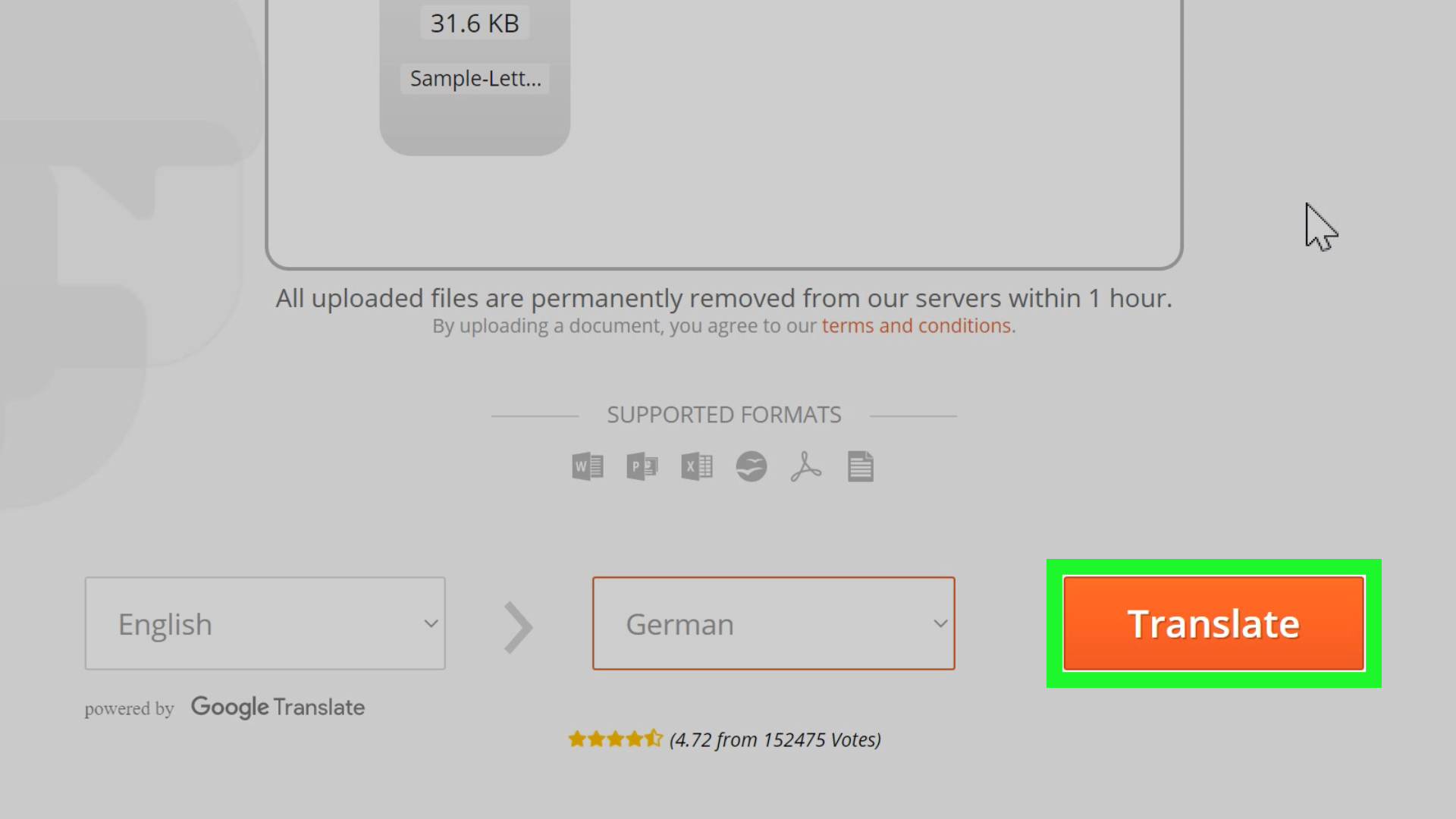
Method 5: Use Dedicated Online PDF Translators
Dedicated PDF translation tools are built for one main job: upload a PDF, choose a language, and download a translated version. Tools such as DeepL, Smallpdf, iLovePDF, Canva, Reverso, and similar platforms can be helpful because many of them focus on preserving layout, translating full documents, supporting multiple file formats, or handling OCR for scanned documents.
When Online PDF Translators Make Sense
Use an online PDF translator when you want a fast result and do not want to manually copy and paste text. This is great for product instructions, travel documents, class materials, business presentations, restaurant menus, brochures, and general reports.
Typical Steps
- Choose a trusted PDF translation tool.
- Upload your PDF file.
- Select the original language if required.
- Choose the target language.
- Start the translation.
- Download the translated file.
- Proofread the final document.
Some tools offer free limits, while others require a subscription for large files, OCR, batch translation, or layout preservation. Always check file size limits, privacy policies, and whether the tool keeps formatting before uploading sensitive documents.
How to Translate a Scanned PDF
Scanned PDFs are the main reason people think PDF translation is harder than assembling flat-pack furniture without the tiny wrench. The translation tool cannot read the text because the text is trapped inside an image. OCR is the key.
Scanned PDF Workflow
- Open the PDF and confirm that the text is not selectable.
- Use an OCR tool such as Adobe Acrobat OCR, Google Docs conversion, iLovePDF OCR, Smallpdf OCR, or another trusted OCR platform.
- Choose the correct source language before running OCR if the tool asks.
- Review the recognized text for mistakes.
- Translate the OCR text or export it to Word.
- Proofread and save the translated file as a PDF.
OCR accuracy depends on scan quality. Clear, straight, high-resolution pages work best. Blurry photos, handwritten notes, tiny fonts, watermarks, shadows, and crooked scans can cause errors. If OCR turns “modern design” into “mopdern desiqn,” do not blame the translator yet. Clean up the scan first.
How to Keep PDF Formatting After Translation
One of the biggest frustrations in PDF translation is formatting. The translated text may be longer or shorter than the original. For example, English often uses fewer characters than German in some contexts, while Spanish or French may take more space depending on the sentence. This can make text boxes overflow, tables stretch, and headings wrap awkwardly.
Tips to Preserve Layout
- Use a PDF translator that specifically supports layout preservation.
- Translate the entire document instead of copying sections one by one.
- Use OCR before translation if the file is scanned.
- Export to Word when you need deeper editing control.
- Check tables, charts, footnotes, headers, and page numbers after translation.
- Use shorter phrasing when text boxes become too crowded.
- Save a copy of the original file before making changes.
For professional documents, formatting is not decoration. It affects readability, trust, and sometimes meaning. A translated safety manual with broken bullet points is not just ugly; it can be confusing. A translated invoice with shifted numbers can become a very exciting problem that nobody wanted.
How Accurate Are PDF Translation Tools?
PDF translation tools have improved dramatically, especially with AI-powered translation engines. They are excellent for understanding general meaning, translating everyday documents, summarizing long PDFs, and creating first drafts. However, they are not perfect.
Machine translation may struggle with slang, idioms, legal wording, medical terminology, technical manuals, cultural references, jokes, poetry, and sentences that were confusing in the original language. It may also miss context when a word has multiple meanings. For example, “charge” can mean a fee, an accusation, an electrical action, or running toward something like a dramatic movie scene.
For casual use, an AI PDF translator is usually enough. For important use, review the translation carefully. For official documents, hire a professional translator or certified translation service. A machine can help you move quickly, but a human reviewer can catch the subtle errors that matter.
Privacy and Security: Be Careful What You Upload
Before using any online PDF translator, think about what is inside the document. A restaurant menu? Probably fine. A public product brochure? Also fine. A private tax return, medical record, employee contract, legal dispute, passport scan, or confidential business plan? Slow down.
Read the privacy policy of the tool before uploading sensitive files. Look for details about encryption, file deletion, data retention, account requirements, and whether uploaded documents may be used to improve the service. If your organization has security rules, follow them. For confidential files, offline tools or enterprise-grade services may be safer than free public upload tools.
Best Method by Situation
For Quick Understanding
Use Google Translate or a simple online PDF translator. This is best when you only need to know what the document says.
For Editable Translation
Use Google Docs or Microsoft Word. Convert the PDF into an editable document, translate it, clean up the layout, and export it back to PDF.
For Scanned PDFs
Use OCR first. Adobe Acrobat, iLovePDF, Smallpdf, and other OCR tools can help make scanned text selectable before translation.
For Business or Design Documents
Use a tool that preserves layout, such as DeepL document translation, Adobe Acrobat, Canva, iLovePDF, or Smallpdf. Always proofread the final file before sending it.
For Official or Legal Documents
Use professional human translation. Machine translation can help you preview the content, but official documents need expert review and sometimes certification.
Common Mistakes to Avoid
The first mistake is translating a scanned PDF without OCR. If the tool produces nonsense, the issue may be that it never saw real text in the first place. Run OCR and try again.
The second mistake is trusting the first output without review. Even a polished translation can contain small errors. Check names, dates, numbers, addresses, units, currencies, and technical terms.
The third mistake is ignoring formatting. A translated document should be readable, not just technically translated. Review headings, spacing, tables, images, captions, and page order.
The fourth mistake is uploading confidential files to random websites. Free tools are convenient, but sensitive documents need careful handling. Use trusted services and understand how your files are processed.
The fifth mistake is expecting one tool to be perfect for every file. A short text-based PDF and a 70-page scanned manual need different workflows. Choose the method based on the document, not just the first tool that appears in search results.
Example Workflow: Translating a Product Manual
Imagine you have a 25-page product manual in German and need an English version for your team. First, check whether the text is selectable. If it is, upload the PDF to a layout-friendly translator such as DeepL, Adobe Acrobat, Smallpdf, or iLovePDF. Translate the full document, download the result, and review the formatting.
Next, compare important sections with the original: safety instructions, specifications, installation steps, warnings, and warranty details. Pay attention to measurements and product names. If the manual contains diagrams, make sure captions still match the images. Finally, export the cleaned version as a PDF and keep the original file for reference.
Example Workflow: Translating a Scanned School Handout
Now imagine a teacher sends a scanned history handout in French, and you need it in English. Since it is scanned, start with OCR. Upload it to an OCR tool, choose French as the source language if available, and create selectable text. Then translate the text using Google Docs, Google Translate, Microsoft Word, or another tool.
After translation, review names, places, and historical terms. OCR may misread accented letters or old fonts, so compare suspicious sentences with the original scan. Save the final version as a PDF if you need to share it with classmates or colleagues.
Experience-Based Tips for Translating PDFs Smoothly
After working with different types of PDFs, one lesson becomes obvious: the quality of the original file controls the quality of the translation. A clean, searchable PDF is like a well-organized kitchen. Everything is where it should be, and the translation tool can start cooking immediately. A blurry scanned PDF, on the other hand, is like asking a chef to prepare dinner in the dark while wearing mittens. Possible? Maybe. Fun? Absolutely not.
The best experience usually starts with preparation. Before translating, rename the file clearly, save a backup copy, and open the PDF to inspect it. Check whether the text is selectable. Look at the page order. Make sure the file is not password-protected. If the PDF contains forms, signatures, stamps, or handwritten notes, decide whether those parts need translation too. This small review can prevent a lot of confusion later.
For short documents, online PDF translators are wonderfully convenient. A two-page instruction sheet, a travel confirmation, or a simple article can often be translated in minutes. The result may not be literary art, but it is usually good enough to understand the message. For these cases, speed is the big win. You upload, translate, download, and move on with your life like a responsible adult who definitely did not wait until the last minute.
For longer documents, patience matters. Large PDFs may contain repeated headers, footers, tables, charts, and references. A translation tool might handle the main paragraphs well but stumble over captions or multi-column layouts. In my experience, the smartest approach is to translate first, then review by section. Do not try to fix everything at once. Start with headings, then body text, then tables, then images and captions. This keeps the cleanup process manageable.
Scanned PDFs require the most attention. OCR can feel magical when it works, but it is not immune to messy scans. If the original page is tilted, dark, low-resolution, or full of handwritten comments, OCR errors become more likely. A practical trick is to improve the scan before running OCR. Use a clearer image, crop the page edges, increase contrast if possible, and avoid shadows. The translation will only be as good as the text the OCR tool extracts.
Another useful habit is creating a glossary for repeated terms. This is especially helpful for business, legal, academic, technical, or medical-style documents. If a product name, department title, ingredient, feature, or technical phrase appears many times, decide how it should be translated before editing the whole file. Consistent terminology makes the final PDF look professional and prevents the same word from wearing three different costumes across one document.
Finally, always proofread the translated PDF in its final format. A translation that looks fine in Word may look crowded after being exported back to PDF. Check page breaks, bullet points, tables, line spacing, and special characters. Open the final PDF on both desktop and mobile if readers may use different devices. The goal is not just to translate a PDF, but to create a document that people can actually read without squinting, guessing, or sending you a polite message that begins with, “Sorry, but page four looks strange.”
Conclusion
Translating a PDF is easy when you match the method to the file. For simple text-based PDFs, Google Translate, Google Docs, Microsoft Word, or online PDF translators can work quickly. For scanned PDFs, OCR is the essential first step. For professional documents, layout preservation, privacy, and human review become more important.
The best workflow is simple: inspect the PDF, choose the right tool, translate the document, review the output, fix formatting, and save the final version. Whether you are translating a school handout, business report, product guide, travel document, or scanned archive, the right process can turn a stubborn PDF into a clear, readable document in another language.