Someone just sent you a hilarious video on Facebook Messenger. Maybe it is your dog doing something suspiciously human, your toddler discovering spaghetti, or a work clip you absolutely need before your boss asks, “Did you save that?” Good news: saving Facebook Messenger videos to the Camera Roll is usually simple. Bad news: Messenger likes to hide the button like it is part of a digital treasure hunt.
This guide explains how to save Facebook Messenger videos to your Camera Roll on iPhone, how to save them to your Gallery on Android, why some videos cannot be downloaded, and what to do when the Save button has apparently gone on vacation. The steps are written for everyday users, not tech wizards with three monitors and a command-line tattoo.
Before we begin, here is the most important rule: videos uploaded directly into Messenger are usually easier to save than Facebook videos, Reels, Stories, or links shared through Messenger. If someone recorded a video on their phone and sent it as a Messenger attachment, you can often save it directly. If they sent a Facebook post or Reel link, Messenger may only let you open it, react to it, or save it inside Facebooknot download it to your phone.
Can You Save Facebook Messenger Videos to the Camera Roll?
Yes, in many cases you can save Messenger videos to the Camera Roll or Gallery. The exact steps depend on your phone, your Messenger app version, the type of video, and your app permissions.
On an iPhone, saved videos normally appear in the Photos app, which many people still casually call the Camera Roll. On Android, saved videos may appear in Google Photos, Samsung Gallery, another gallery app, or a folder such as Downloads, Movies, Messenger, or Facebook. Android likes options. Sometimes too many options.
Videos You Can Usually Save
You can usually save videos that were uploaded directly in a Messenger chat. These are video files sent from someone’s phone, tablet, or computer. For example, if your friend taps the media button in Messenger and sends a video from their phone, Messenger often treats it like a downloadable file.
Videos You May Not Be Able to Save Directly
You may not see a direct download option for Facebook Reels, Facebook Watch videos, Stories, or posts shared as links inside Messenger. In those cases, the video is not really “inside” Messenger as a downloadable file. It is more like Messenger is pointing you toward content hosted elsewhere on Facebook. That is why the Save button may be missing.
How to Save Facebook Messenger Videos to Camera Roll on iPhone
Saving a Messenger video on iPhone is usually a matter of opening the video, tapping the right menu, and letting Messenger write the file to the Photos app. Here is the step-by-step version.
Step 1: Open the Messenger App
Open Facebook Messenger on your iPhone. Make sure you are signed in to the correct account, especially if you manage multiple Facebook profiles or business conversations. Nothing is more annoying than searching for a video in the wrong inbox while questioning your memory and possibly your entire life.
Step 2: Open the Chat With the Video
Go to the conversation that contains the video. If the chat is old, use Messenger search to find the person, group, or keyword. You can also open the chat details and look for shared media, files, and links if you do not want to scroll through 800 “LOL” messages to find one clip.
Step 3: Tap the Video
Tap the video to open it. In some Messenger versions, you may need to let the video fully load before the save option appears. If the clip is large, use Wi-Fi and give it a moment. Videos are not always slow because your phone hates you; sometimes they are simply large files.
Step 4: Tap the Three Dots, Share Icon, or More Button
Look for a three-dot menu, share icon, or “More” option. Messenger’s design changes from time to time, so the button may not be in the exact same place for every user. It is usually near the top or bottom of the screen while the video is open.
Step 5: Tap Save or Save Video
Choose “Save,” “Save Video,” or a similar option. Once selected, Messenger should save the video to the Photos app. Open Photos and check your Recents album. If you saved the video today, it should usually appear near the top.
Alternative iPhone Method: Long-Press the Video
In some versions of Messenger, you can press and hold the video thumbnail directly inside the chat. A small menu may appear with options such as Reply, Forward, Remove, More, or Save. Tap Save if it appears. This method is especially handy when you do not want to open the video full-screen.
How to Save Facebook Messenger Videos to Gallery on Android
Android users follow a similar process, but the saved video location can vary depending on your phone brand and gallery app. A Samsung Galaxy, Google Pixel, Motorola, and OnePlus phone may all behave slightly differently.
Step 1: Open Messenger
Open the Messenger app on your Android phone. Make sure the app is updated, because older versions may have different menus or bugs that affect downloads.
Step 2: Find the Conversation
Open the chat containing the video. If you are dealing with a group chat, prepare yourself emotionally. Group chats are where videos go to multiply, disappear, and get buried under 47 unrelated memes.
Step 3: Open or Long-Press the Video
Tap the video to open it, or long-press the video preview in the chat. Depending on your Messenger version, either action may reveal a save or download option.
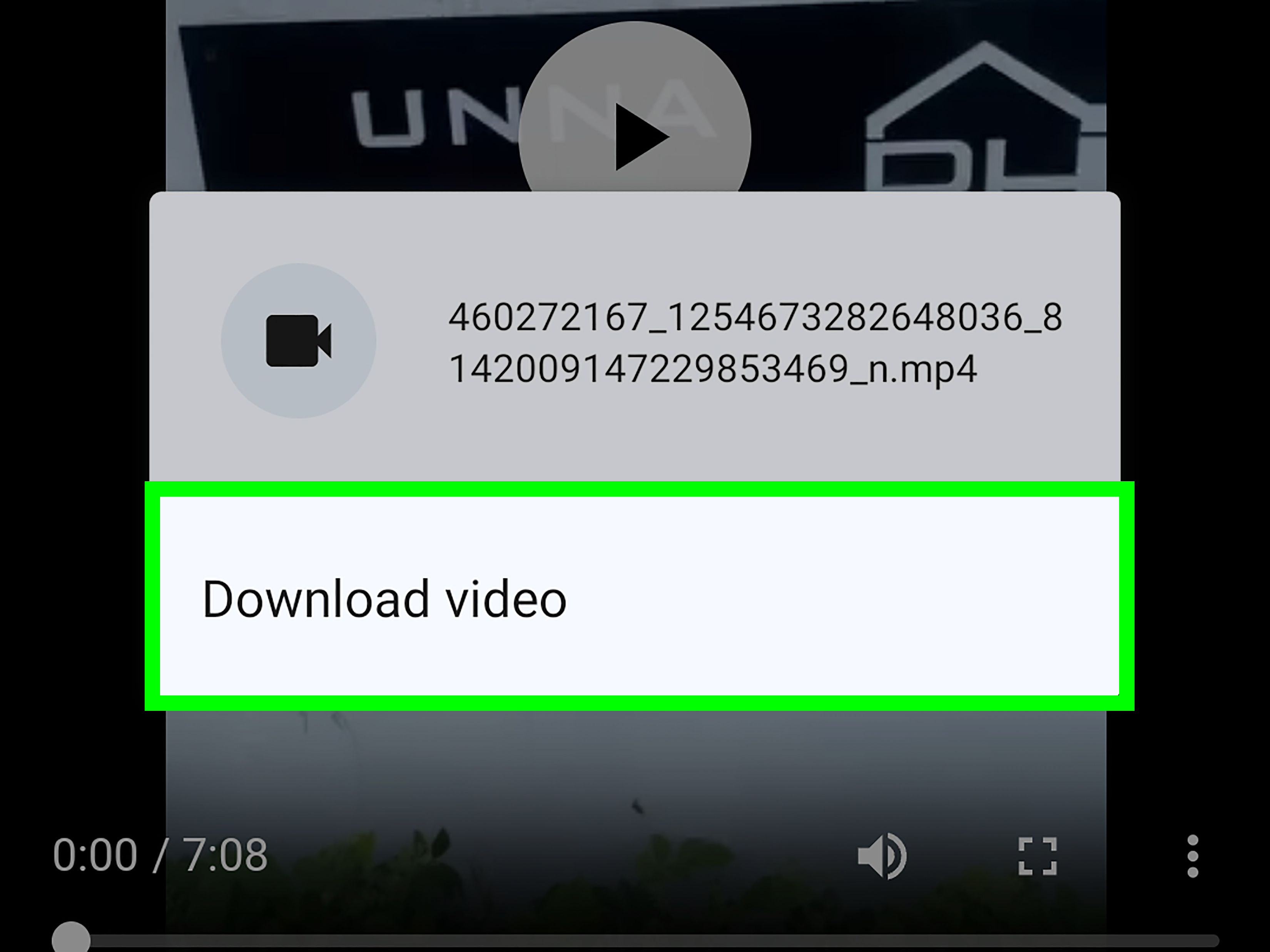
Step 4: Tap Save, Download, or Save Video
Choose the option that saves the file to your device. On Android, the label may be “Save,” “Download,” or “Save Video.” Once complete, the video may appear in your Gallery, Google Photos, or a device folder.
Step 5: Check Google Photos, Gallery, or Files
If the video does not appear in your main gallery, open Google Photos and check Collections or “On this device.” You can also open your phone’s file manager, such as Files by Google or Samsung My Files, and check Downloads, Movies, Messenger, Facebook, or internal storage folders.
Why the Save Button Is Missing in Messenger
The most common complaint is simple: “I opened the video, but there is no Save button.” This does not always mean you did something wrong. Messenger may hide or remove the option depending on the type of content.
The Video Was Shared From Facebook
If someone sent a Facebook Reel, Watch video, Story, or post link through Messenger, it may not be downloadable from Messenger. You are viewing shared Facebook content, not a video file that lives in the chat. In this case, you may be able to save the post inside Facebook, but not save the video to your Camera Roll.
The Video Is View-Once or Temporary
Messenger supports media that can be viewed once or kept in chat depending on how it was sent. If a video was sent as temporary or view-once content, you should not expect a normal save option. The whole point of that format is limited viewing.
The App Needs Permission
Messenger may need permission to access Photos, Videos, or storage features on your device. If permission was denied, saving can fail or the saved item may not appear where expected.
The Video Has Not Fully Loaded
If the video is still buffering, Messenger may not show download options yet. Let the video load completely, then reopen the menu. This is especially common with long clips, weak Wi-Fi, or mobile data that is moving at “snail wearing ankle weights” speed.
How to Allow Messenger to Save Videos on iPhone
If Messenger cannot save videos to your Camera Roll, check your iPhone permissions.
Update Photo Permissions
Open Settings on your iPhone, scroll to Messenger, and check Photos permissions. Depending on your iOS version, you may see options such as None, Add Photos Only, Limited Access, or Full Access. To save videos from Messenger to Photos, Messenger needs enough access to add media to your library.
Check Privacy and Security Settings
You can also go to Settings, then Privacy & Security, then Photos. Find Messenger and review its access. If you previously tapped “Don’t Allow,” that decision may still be blocking saves.
Restart Messenger
After changing permissions, close Messenger completely and reopen it. Then try saving the video again. Apps sometimes need a fresh start before they remember they have permission to do things.
How to Allow Messenger to Save Videos on Android
Android permission settings vary slightly by brand, but the general path is similar.
Check App Permissions
Open Settings, then Apps, then Messenger. Tap Permissions and check Photos and videos, Files and media, or Storage, depending on your Android version. Allow the permission Messenger needs to save media.
Review Permission Manager
You can also open Settings, then Security & Privacy, then Privacy, then Permission Manager. Choose Photos and videos or Files and media, find Messenger, and adjust the permission.
Look in Device Folders
Even when the save works, Android may place the video in a folder that your main gallery does not show immediately. Open Google Photos, tap Collections, then check “On this device.” If you use a Samsung phone, open My Files and look through Downloads, Videos, Movies, and internal storage.
How to Find Saved Messenger Videos After Downloading
Sometimes the real challenge is not saving the video. It is finding the video afterward. The phone says it saved. Messenger acts proud of itself. Then you open your gallery and see nothing but screenshots from 2021 and a blurry photo of lunch.
On iPhone
Open the Photos app and check Recents. If you do not see the video, use the search feature in Photos and try searching by date, video, or Messenger-related albums if available. Also check whether iCloud Photos is syncing slowly. A newly saved video should usually appear locally right away, but cloud syncing may affect when it appears across devices.
On Android
Open Google Photos and check Collections, then “On this device.” Look for folders connected to Messenger, Facebook, Downloads, Movies, or Videos. If you use Samsung Gallery, also open Samsung My Files and search for recent video files.
What to Do If a Messenger Video Will Not Save
If the normal method fails, do not panic. Try these fixes before blaming the phone, the app, or Mercury retrograde.
Update Messenger
Open the App Store or Google Play Store and update Messenger. App updates often fix media bugs, permission issues, and interface changes.
Free Up Storage Space
If your phone is nearly full, the save may fail. Delete unnecessary files, old downloads, duplicate videos, and apps you have not opened since a very ambitious New Year’s resolution.
Try Wi-Fi Instead of Mobile Data
Large videos may fail to download over weak mobile data. Connect to a stable Wi-Fi network, reopen Messenger, and try again.
Ask the Sender to Resend the Video as a File
If the video was shared as a Facebook link, ask the sender to upload the original video directly into Messenger. This often makes it downloadable because Messenger receives the actual media file instead of a link.
Use Screen Recording Carefully
If you cannot download a personal video but have permission to keep it, screen recording may work as a backup. On iPhone, use the built-in Screen Recording tool from Control Center. On Android, use the built-in screen recorder if your phone includes one. Only record videos you have the right to save, especially if they include other people, private moments, music, or copyrighted content.
Privacy and Etiquette: Save Videos Like a Decent Human
Saving a video is easy. Using it responsibly is the part that requires good judgment. If someone sends you a private family clip, school video, work recording, or personal moment, do not repost it without permission. Messenger makes sharing feel casual, but saved videos can leave the original conversation quickly.
For work, school, or business use, label saved videos clearly so you do not lose track of them. For personal videos, consider creating albums like Family, Travel, Pets, or Projects. Your future self will thank you when you are not digging through 12,000 camera roll items looking for “that one video from the picnic.”
Best Practices for Saving Messenger Videos
Save Important Videos Immediately
If a video matters, save it as soon as you receive it. People delete chats, remove messages, change privacy settings, or lose access to accounts. Do not assume a video will be available forever.
Back Up Your Camera Roll
Use iCloud Photos, Google Photos, or another backup method if the video is important. Saving a video to your phone is helpful; backing it up is smarter. Phones are wonderful little computers, but they are also experts at falling into water, disappearing under couch cushions, and choosing the worst possible time to break.
Create Albums for Saved Videos
After saving a Messenger video, move it into an album. On iPhone, open Photos, select the video, tap Add to Album, and choose or create an album. On Android, use Google Photos or your gallery app to organize it.
Rename or Move Files on Android
Android users can use a file manager to rename videos, move them into folders, or copy them to cloud storage. This is especially useful for work files, school clips, product videos, or customer-submitted media.
Real-World Experience: What Actually Happens When You Save Messenger Videos
In real life, saving Facebook Messenger videos is rarely as perfectly smooth as a polished tutorial makes it sound. The official steps may be simple, but phones have personalities. Some are cooperative. Some behave like tiny pocket-sized drama queens.
One common experience is saving a video on iPhone and expecting it to appear instantly in Photos. Most of the time, it does. You tap Save, open Photos, and there it is in Recents, ready to watch, edit, or send elsewhere. But occasionally, the video seems missing. In many cases, it is not actually gone. It may take a few seconds to appear, especially if the file is large or the phone is busy syncing with iCloud. The best habit is to wait briefly, close and reopen Photos, then check Recents again.
On Android, the experience can be more flexible but also more confusing. A Messenger video may save successfully, yet not appear in the main gallery view. This often happens because the file lands in a device folder that Google Photos or the gallery app does not display front and center. Users often discover the video by opening Collections, checking “On this device,” or searching inside a file manager. Once you understand that Android separates folders more visibly than iPhone, the mystery becomes much less mysterious.
Another real-world issue is the difference between a real uploaded video and a shared Facebook link. Many users think every video in Messenger is downloadable, but that is not how the app works. If your cousin sends a video directly from their phone, you may get a Save option. If they send a Reel, you may only get options to open it, react, forward it, or save it within Facebook. That distinction explains most “Why can’t I save this?” moments.
Storage space also matters more than people expect. When a phone has almost no free space, video downloads can fail quietly or behave strangely. If Messenger refuses to save a large clip, check storage before trying complicated fixes. Deleting a few old videos, clearing unused apps, or moving files to cloud storage can solve the problem faster than reinstalling everything.
From a practical standpoint, the best workflow is simple: open the Messenger video, save it, immediately check Photos or Gallery, then move it into an album if it matters. For family memories, create a Family Videos album. For work clips, create a Work Media album. For pet videos, create an album called “Evidence That My Dog Is Weird.” Organization sounds boring until the day you need one specific clip and find it in ten seconds instead of twenty minutes.
The biggest lesson is this: save important Messenger videos early. Do not wait three months and assume the clip will still be sitting there politely. Chats change, accounts change, messages disappear, and apps update. If the video is meaningful, funny, useful, or legally important for work or records, save it and back it up. Your Camera Roll is not just a storage space; it is your personal “I might need this later” vault.
Conclusion
Learning how to save Facebook Messenger videos to the Camera Roll is easy once you understand the difference between direct video files and shared Facebook content. On iPhone, open the video, tap the menu, and choose Save or Save Video. On Android, open or long-press the video, tap Save or Download, then check Gallery, Google Photos, or your device folders.
If the Save button is missing, the video may be a Facebook Reel, Story, post, view-once message, or content that Messenger does not allow you to download directly. Check permissions, update the app, free up storage, and ask the sender to upload the original file if needed. With a few smart habits, you can keep your favorite Messenger videos safe, organized, and ready whenever you need them.