Texting is efficient, emojis are expressive, and GIFs are basically modern cave paintings with Wi-Fi. But sometimes, the best way to say “I’m thinking of you” is not with a perfectly polished sentence. It is with a wobbly hand-drawn heart, a dramatic lightning-like scribble, or a tiny animated flower that looks like it was created by a sleepy raccoon with artistic ambition.
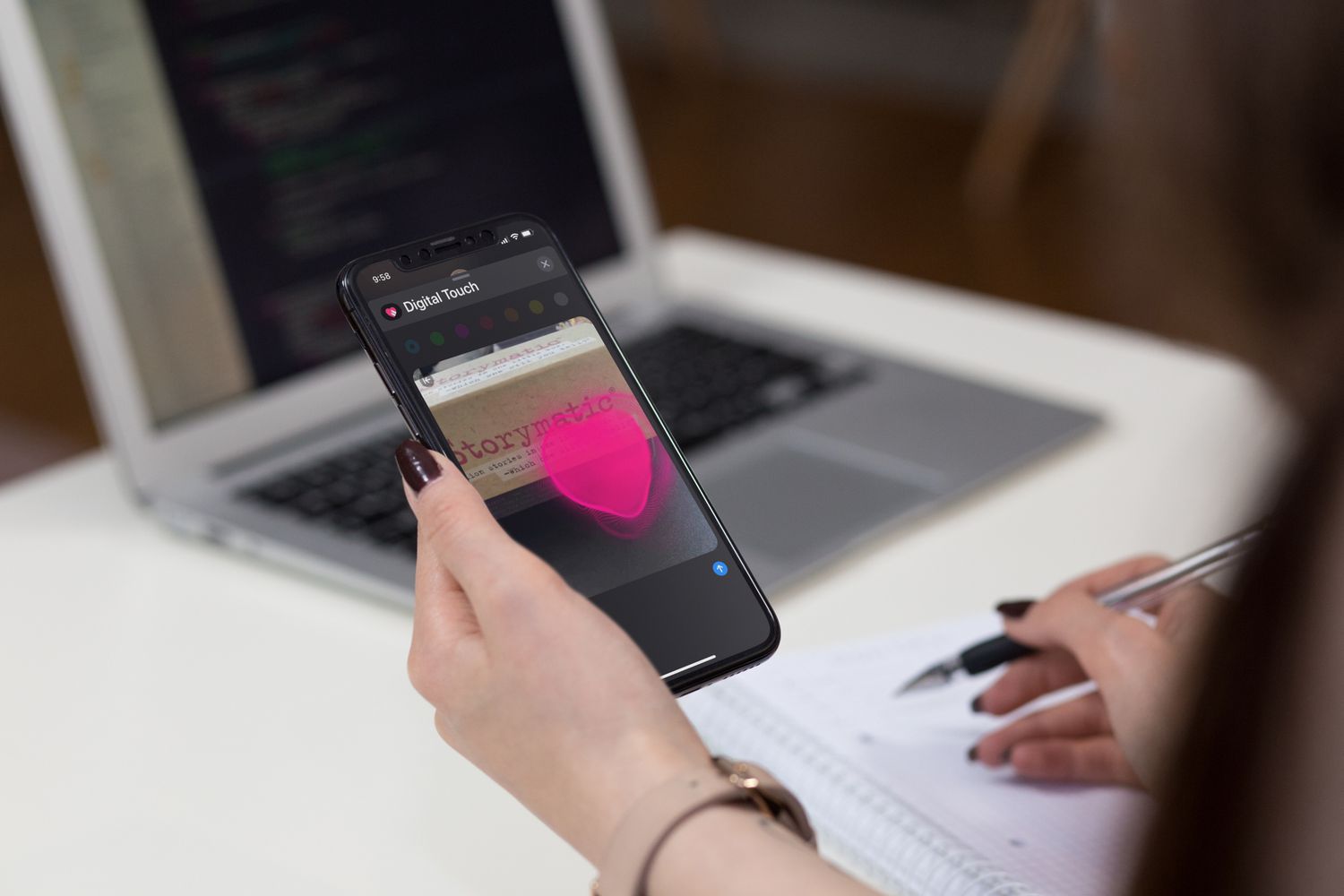
That is where Digital Touch on iMessage comes in. Built into Apple’s Messages app, Digital Touch lets you draw animated sketches, send colorful taps, add little effects to photos or videos, and share gestures like a kiss, heartbeat, fireball, or broken heart. It is one of those iPhone features many people forget exists until they accidentally open it and think, “Wait, has this been here the whole time?” Yes. Yes, it has.
This guide explains how to draw on iMessage with Digital Touch, how to send sketches, how to use gesture effects, how to draw on photos and videos, and how to make your messages feel more personal without needing a design degree, a stylus, or the steady hand of a courtroom sketch artist.
What Is Digital Touch on iMessage?
Digital Touch is a creative feature inside Apple’s Messages app that lets you send animated drawings and touch-based effects through iMessage. Instead of sending a static image, your sketch appears as a short animation, replaying the strokes you made with your finger. It feels more alive than a regular picture because the recipient sees the drawing unfold in motion.
You can use Digital Touch to send:
- Animated sketches drawn with one finger
- Colorful tap bursts
- A kiss effect
- A heartbeat animation
- A broken heart effect
- A fireball-style gesture
- Drawings placed over a photo or video
Digital Touch works best inside iMessage conversations, meaning both people should be using Apple devices with iMessage enabled. If you are messaging someone on Android through SMS, MMS, or RCS, the feature may not behave the same way. In simple terms: Digital Touch is happiest when it stays in Apple’s blue-bubble neighborhood.
How to Open Digital Touch in iMessage
Apple has changed the Messages interface over the years, so the location of Digital Touch may look slightly different depending on your iOS version. On newer iPhones, the feature is usually tucked inside the Plus button menu in a conversation.
Step-by-Step Instructions
- Open the Messages app on your iPhone.
- Start a new iMessage or open an existing conversation.
- Tap the Plus button next to the message field.
- Swipe up if you do not immediately see all available apps.
- Tap Digital Touch. The icon usually looks like a heart with two fingers.
- A dark drawing canvas will appear. This is your tiny stage. Try not to give it stage fright.
Once Digital Touch is open, you can draw with your finger, change colors, send gestures, or add effects to a photo or video. The interface is intentionally simple, which is good news if your usual drawing experience involves making stick figures that look emotionally exhausted.
How to Draw a Sketch on iMessage With Digital Touch
The main Digital Touch feature is the animated sketch. This is the easiest way to draw on iMessage and send something more personal than a typed message.
How to Send an Animated Drawing
- Open Digital Touch from the Messages Plus menu.
- Tap the color dot to choose a drawing color.
- Use one finger to draw on the canvas.
- Change colors if you want to add another detail.
- Tap the Send button when you are happy with your sketch.
- Tap the delete button if your masterpiece looks more like a spaghetti accident.
Your drawing is sent as an animation. The recipient sees the strokes appear in the order you made them. This makes Digital Touch sketches feel more personal than sending a normal image because the motion shows your timing, pauses, and tiny imperfections. Those little imperfections are the charm. A perfect heart is nice, but a slightly crooked heart says, “I cared enough to draw this with my thumb while standing in line for coffee.”
How to Change Colors in Digital Touch
Digital Touch lets you change your drawing color before or during your sketch. Tap the color dot, choose a new color, and continue drawing. This is useful when you want to create a simple flower, a sun, a birthday balloon, a little arrow, or a cartoon face with suspiciously uneven eyes.
Simple Color Ideas
- Use red for hearts, kisses, and dramatic “I miss you” doodles.
- Use yellow or orange for suns, stars, and fireball-style energy.
- Use blue for waves, rain clouds, or calm goodnight sketches.
- Use green for leaves, vines, check marks, or “yes, I remembered the groceries” art.
- Use multiple colors for birthday candles, flowers, or quick mini-cartoons.
You do not need to overthink the colors. Digital Touch sketches are meant to be quick and expressive. The goal is not museum-level precision. The goal is to make the recipient smile before they even have time to type “lol.”
Digital Touch Gesture Effects You Can Send
Digital Touch is not only for drawing. It also includes several gesture-based effects. These effects are triggered by tapping or pressing the canvas with one or two fingers.
Tap Effect
Tap the canvas with one finger to create a colorful burst. This is great for quick excitement, emphasis, or playful punctuation. For example, if someone texts, “I got the job,” you can send a few colorful taps instead of typing seventeen exclamation marks like a caffeinated sports announcer.
Fireball Effect
Touch and hold with one finger to send a fireball effect. This works well for dramatic reactions, jokes, hype messages, or “that was spicy” moments. It is basically the digital equivalent of raising one eyebrow and adding background flames.
Kiss Effect
Tap with two fingers to send a kiss. It is quick, simple, and much less awkward than trying to draw lips freehand. Freehand lips can go wrong very quickly. Digital Touch is protecting your dignity here.
Heartbeat Effect
Touch and hold with two fingers to send a heartbeat. This effect is often used for romantic, affectionate, or emotional messages. It can feel more personal than a heart emoji because it appears as an animated pulse.
Broken Heart Effect
Touch and hold with two fingers until the heartbeat appears, then drag down to create a broken heart. Use this carefully. It can be funny when someone says they ate the last slice of pizza. It can be less funny during an actual argument. Digital Touch has range, but your judgment still needs to show up for work.
How to Draw on a Photo or Video in iMessage
One of the best Digital Touch tricks is drawing directly over a photo or video before sending it. This is useful when you want to point something out, add a funny caption-like doodle, circle a detail, or turn an ordinary selfie into a limited-edition work of chaos.
How to Add Digital Touch to a Photo or Video
- Open an iMessage conversation.
- Tap the Plus button and open Digital Touch.
- Tap the camera icon inside the Digital Touch panel.
- Take a new photo or record a short video.
- Draw or add a Digital Touch effect over the image or video.
- Send it when the preview looks right.
This is different from using Markup on a photo. Markup is better for more practical annotations, like circling something in a screenshot or adding text and shapes. Digital Touch is more playful and animated. Think of Markup as the organized office manager and Digital Touch as the friend who writes “LOOK AT THIS” with a neon arrow.
Digital Touch vs. Handwritten Messages
Many iPhone users confuse Digital Touch with handwritten messages in iMessage. They are related in spirit, but they are not exactly the same.
Digital Touch
Digital Touch is opened from the Messages app menu. It lets you send animated sketches, taps, kisses, heartbeats, and effects on photos or videos. It uses a dark canvas and is built for quick visual reactions.
Handwritten Messages
Handwritten messages usually appear when you rotate your iPhone into landscape mode while typing in Messages. This feature lets you write a longer handwritten note, such as “Happy Birthday,” “Thank you,” or “I’m sorry I forgot the password again.” The handwritten message is more like animated handwriting, while Digital Touch is more like animated doodling.
If you want to draw a quick heart, flower, face, arrow, or burst of color, use Digital Touch. If you want to write a longer handwritten sentence, rotate your iPhone and use the handwriting canvas.
Creative Ideas for Drawing on iMessage
Digital Touch is more fun when you stop trying to draw perfectly and start using it like visual conversation seasoning. You are not illustrating a children’s book. You are adding a tiny spark to a message.
Birthday Messages
Draw a balloon, candle, cake slice, or messy confetti dots. Add a few colorful taps around the sketch to make it feel more festive. A hand-drawn birthday message feels warmer than a generic “HBD,” which sounds like something typed by a toaster.
Good Morning or Good Night Notes
Draw a sun, moon, star, cloud, or little sleepy face. A simple goodnight moon sketch can feel surprisingly thoughtful, especially when it animates across the screen.
Inside Jokes
Digital Touch is perfect for inside jokes because the drawings do not have to make sense to anyone else. Sketch a tiny potato, a weird crown, a dramatic arrow, or whatever symbol belongs to your friendship’s private mythology.
Directions and Quick Explanations
Need to explain where something is in a photo? Use a quick arrow or circle. Digital Touch is not a full editing suite, but for “look here” moments, it works beautifully.
Romantic Messages
Send a tiny heart, a kiss effect, or a heartbeat. Keep it simple. Digital Touch is charming because it feels spontaneous. Overproducing it can make the message feel less like affection and more like a school project with emotional lighting.
Troubleshooting: Why Digital Touch May Not Be Working
If you cannot find Digital Touch or your drawing does not send correctly, there are a few common reasons.
You Are Not in an iMessage Conversation
Digital Touch is designed for iMessage. If the conversation is not using iMessage, the feature may be unavailable or may not send as expected. Look for the blue message bubbles that indicate iMessage is active.
The Digital Touch App Is Hidden Lower in the Menu
On newer iOS versions, iMessage apps are grouped behind the Plus button. If you do not see Digital Touch right away, swipe up in the app list. You can also rearrange iMessage apps so the ones you use often are easier to reach.
Your iPhone Needs an Update
If your Messages interface looks different or features are missing, check for an iOS update. Apple occasionally changes the Messages layout, improves app behavior, and reorganizes menus.
The Recipient Is Not Using an Apple Device
Digital Touch works best between Apple users. If the other person is using Android or another platform, your Digital Touch message may not appear in the intended animated format.
Best Practices for Better Digital Touch Drawings
The secret to a good Digital Touch drawing is simplicity. The canvas is small, your finger is not a precision instrument, and your thumb may have the artistic accuracy of a biscuit. That is normal.
- Draw slowly: The recipient sees the animation, so slower lines often look smoother.
- Use fewer details: Simple shapes read better on a small screen.
- Change colors intentionally: Two or three colors are usually enough.
- Practice common shapes: Hearts, stars, arrows, flowers, and smiley faces are useful.
- Use gestures for emotion: A heartbeat or kiss can say more than a complicated sketch.
- Do not chase perfection: A slightly messy drawing often feels more human.
Experience: What It Feels Like to Use Digital Touch in Real Conversations
Using Digital Touch in iMessage feels different from sending a normal text because it adds a little performance to the message. A typed “happy birthday” is fine. A hand-drawn balloon that wiggles onto the screen feels like you took an extra five seconds to make the person feel noticed. That small effort matters. In a world where most messages are fast, polished, and forgettable, a quick animated doodle has a weirdly powerful human touch.
The best experience comes when you use Digital Touch casually. Do not wait for a grand occasion. Send a tiny sun when someone says they are tired in the morning. Draw a terrible coffee cup when a friend says they need caffeine. Send colorful taps when someone shares good news. These little reactions make a conversation feel more alive because they break the rhythm of plain text. It is like tossing a paper airplane into the middle of a meeting, except socially acceptable and much less likely to annoy Human Resources.
Digital Touch is also excellent for low-pressure creativity. Many people avoid drawing because they think they are “bad at art.” But Digital Touch almost rewards bad art. A crooked heart looks sweet. A messy star looks funny. A cat that accidentally looks like a haunted toaster becomes a conversation piece. The feature is not about technical skill. It is about personality. The drawing says, “I made this for you right now,” and that immediacy is the whole charm.
In family chats, Digital Touch can be especially fun. A parent can send a quick heart to a child. A sibling can draw a sarcastic trophy after winning an argument. Grandparents who enjoy simple iPhone tricks may like sending taps or hearts once they know where the feature lives. Because the interface is mostly finger gestures, it can feel easier than hunting through sticker packs or finding the perfect GIF.
For couples and close friends, Digital Touch works well because it carries tone. A heartbeat can feel sincere. A broken heart can be playful. A fireball can say, “That was intense,” without needing a paragraph. The gestures become a kind of private shorthand. Over time, a tiny sketch or repeated color choice can become part of the relationship’s texting language.
The main limitation is discoverability. Digital Touch is hidden well enough that many iPhone users never touch it. Once you know it is behind the Plus button in Messages, it becomes much easier to use. Another limitation is that it is not meant for complex artwork. If you want detailed illustration, use Notes, Freeform, Procreate, or another drawing app. But if you want quick emotional doodles inside a conversation, Digital Touch is exactly the right tool.
The real joy of Digital Touch is that it makes messaging feel less automated. It brings back a tiny bit of the feeling of passing notes in class, drawing in the margins, or adding a smiley face to a sticky note. It is personal, imperfect, fast, and fun. And sometimes, that is much better than the most perfectly chosen emoji.
Conclusion
Learning how to draw on iMessage with Digital Touch gives you a simple way to make everyday conversations more expressive. Open Messages, tap the Plus button, choose Digital Touch, and use your finger to draw, tap, send a heartbeat, add a kiss, or decorate a photo or video. The feature is quick, playful, and surprisingly personal.
Digital Touch will not turn your iPhone into a professional art studio, and that is part of its charm. It is for quick sketches, affectionate gestures, goofy reactions, and tiny animated messages that feel more human than plain text. Whether you are sending a birthday doodle, a romantic heartbeat, a dramatic broken heart, or a suspiciously lopsided flower, Digital Touch helps your message stand out in a sea of words.
Note: Digital Touch works best in iMessage conversations between Apple devices. For more detailed photo annotations, use Markup; for quick animated sketches and emotional gestures, use Digital Touch.