Moving pages from one PDF into another sounds like the kind of task that should take three seconds. Then reality arrives wearing bifocals: one file opens in a browser, another opens in a desktop app, the thumbnails are hiding, and suddenly you are questioning your entire relationship with office software.
The good news? Dragging and dropping pages from one PDF document into another PDF document is usually simple once you know where the page thumbnails live. Whether you use Adobe Acrobat, Apple Preview, Foxit PDF Editor, Nitro PDF Pro, PDF-XChange Editor, or an online PDF organizer, the basic idea is the same: open both PDFs, show page thumbnails, select the pages you want, drag them into the destination PDF, then save the new file.
This guide explains the process in plain American English, with practical examples, common mistakes, privacy tips, and a few “please do not panic” moments for when the page lands in the wrong spot. PDFs may be stubborn, but they are not invincible.
What Does It Mean to Drag and Drop PDF Pages?
Dragging and dropping PDF pages means selecting one or more page thumbnails from a source PDF and moving or copying them into another PDF. Instead of combining two entire files, you can insert only the pages you need. For example, you might move pages 3–5 from a scanned contract into a larger project packet, or add one signed page from a form into a final application PDF.
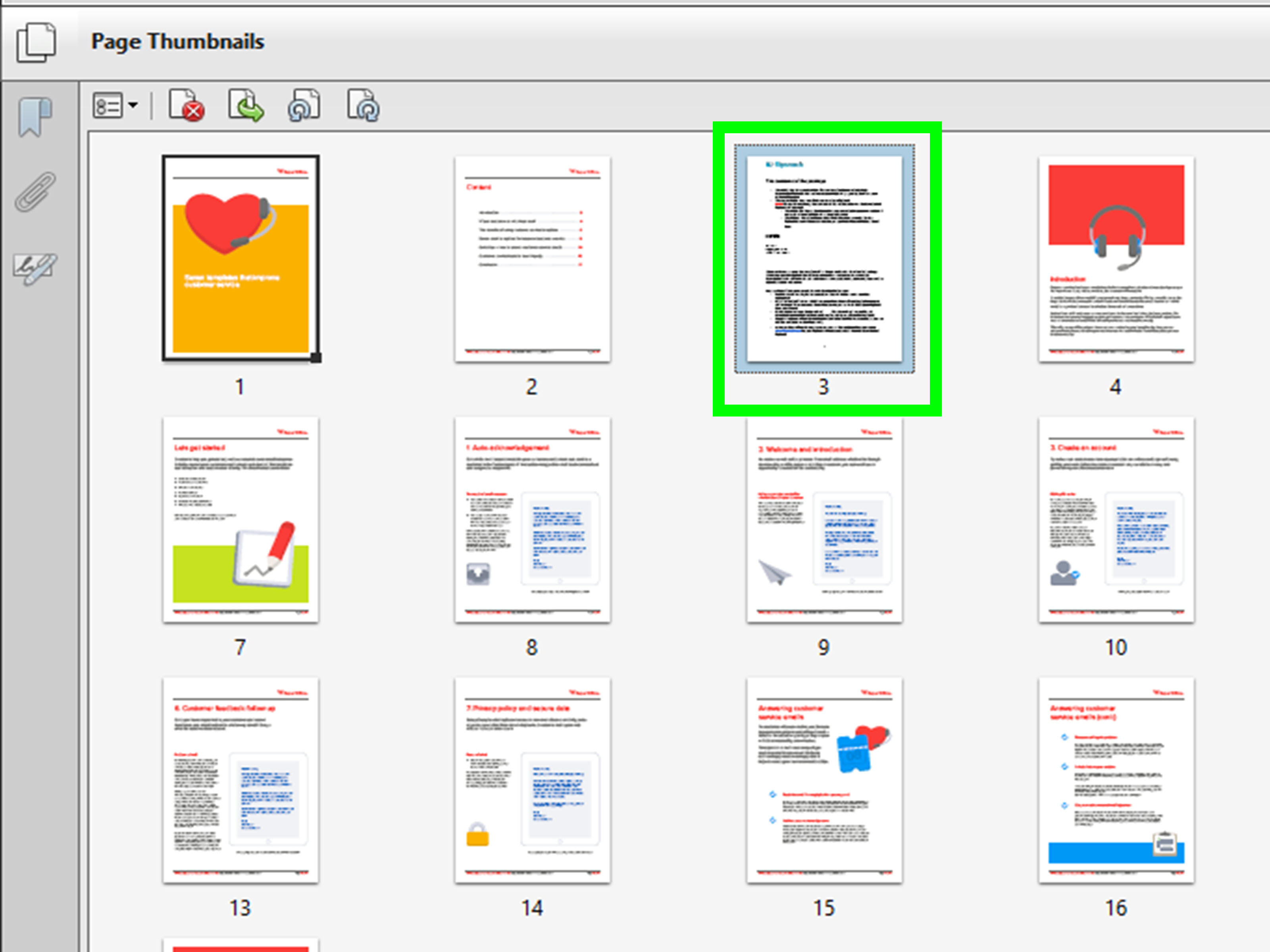
Most PDF editors display pages as small previews called thumbnails. These thumbnails are your best friends. They let you reorder, delete, rotate, extract, and insert pages without touching the actual text or images on the page. Think of thumbnails as little paper sheets on a digital desk. You can shuffle them around without spilling coffee on anything.
Before You Start: Make a Copy of Your PDFs
Before you move pages between PDF files, duplicate the original documents. This is especially important on Mac, where some changes in Preview may save automatically. If the document is a legal file, school record, invoice, tax form, medical document, or anything with signatures, never experiment on the only copy.
Simple File Safety Checklist
- Save backup copies of both PDFs before editing.
- Rename the working file clearly, such as “Project Packet – Edited.pdf.”
- Check whether the PDF is password-protected or restricted.
- Use desktop software for sensitive documents instead of uploading private files online.
- Review the final PDF page by page before sending it.
A good naming system prevents chaos. “Final.pdf” is fine until you create “Final-final.pdf,” “Final-final-real.pdf,” and “Final-final-real-use-this-one-I-mean-it.pdf.” Future you deserves better.
Method 1: Drag and Drop PDF Pages Using Adobe Acrobat
Adobe Acrobat is one of the most widely used tools for organizing PDF pages. The free Adobe Acrobat Reader is excellent for viewing, commenting, and signing, but full page organization features usually require Acrobat Standard or Acrobat Pro.
Steps for Adobe Acrobat
- Open the destination PDF in Adobe Acrobat.
- Open the source PDF in another Acrobat window or tab.
- Select All tools, then choose Organize pages.
- Make sure page thumbnails are visible.
- Select the page or pages you want to move from the source PDF.
- Drag them into the destination PDF at the correct location.
- Check the page order carefully.
- Save the destination PDF under a new file name.
If dragging between two Acrobat windows does not behave as expected, use Acrobat’s Insert or Combine Files tools instead. These tools let you add pages from another PDF and choose exactly where they should go. It is slightly less dramatic than drag-and-drop, but it works beautifully when Acrobat is feeling particular.
Method 2: Drag and Drop Pages Between PDFs on Mac Using Preview
Apple Preview is built into macOS and is surprisingly powerful for basic PDF editing. You can combine PDFs, add individual pages, rearrange pages, and move pages from one PDF to another using the thumbnail sidebar.
Steps for Apple Preview
- Open both PDF files in Preview.
- In each PDF window, go to View and choose Thumbnails.
- Click the page thumbnail you want to move. To select multiple pages, hold Command and click each page.
- Drag the selected thumbnails from the source PDF into the thumbnail sidebar of the destination PDF.
- Drop the pages exactly where you want them to appear.
- Review the page order.
- Choose File and save or export the combined PDF.
Preview is great for quick PDF page transfers, especially if you are on a Mac and do not want to install extra software. However, be careful: Preview can save changes automatically. Duplicate your files first if you want to preserve the originals.
Method 3: Use Foxit PDF Editor to Move Pages Between PDFs
Foxit PDF Editor is another strong option for organizing PDF pages. It supports page thumbnails, insertion, rearranging, deletion, extraction, and drag-and-drop workflows. Many users like Foxit because it offers robust PDF tools without feeling quite as heavy as some enterprise software.
Steps for Foxit PDF Editor
- Open both PDF documents in Foxit PDF Editor.
- Show the page thumbnails or Pages panel.
- Select the pages you want from the source document.
- Drag them into the destination PDF’s thumbnail panel.
- Drop the pages before or after the page where they belong.
- Save the combined PDF.
Foxit also lets you insert pages from another file through menu commands, which is helpful if you want to add an entire PDF rather than a few selected pages.
Method 4: Use Nitro PDF Pro to Reorder and Insert Pages
Nitro PDF Pro includes tools for assembling documents, inserting pages, combining files, and rearranging pages through a Pages pane. Like other professional PDF editors, Nitro is useful when you work with PDFs often and need more than basic viewing.
Steps for Nitro PDF Pro
- Open your destination PDF in Nitro PDF Pro.
- Open the Pages pane so you can see page thumbnails.
- Use the insert or combine option to bring in pages from another PDF.
- Rearrange the imported pages by dragging thumbnails into the right order.
- Save the finished file.
Dragging pages inside Nitro’s thumbnail panel is typically straightforward. When moving pages between documents, the insert command may give you more control over page range and placement.
Method 5: Use PDF-XChange Editor for Drag-and-Drop Page Copying
PDF-XChange Editor is popular with Windows users who want detailed PDF control. It supports thumbnail-based page operations, including copying selected pages between PDF documents in supported versions.
Steps for PDF-XChange Editor
- Open both PDF files in PDF-XChange Editor.
- Enable the thumbnails pane for both documents.
- Select the pages you want to copy from the source PDF.
- Drag the selected pages into the destination PDF’s thumbnails pane.
- Drop them where they should appear.
- Save the edited PDF with a clear new name.
If drag-and-drop does not work in your version, use the insert pages feature. Some PDF tools place advanced page manipulation behind paid editions, so check your software version if a feature appears missing.
Method 6: Use an Online PDF Organizer
Online PDF tools such as Adobe Acrobat online, Smallpdf, iLovePDF, PDF24, Sejda, and similar services can merge, split, rotate, delete, and reorder pages. These tools usually work in a browser and often use drag-and-drop interfaces for uploading files and arranging page order.
General Online Tool Steps
- Open a reputable PDF organizer or PDF merge tool.
- Upload the source and destination PDF files.
- Choose the option to organize, merge, or rearrange pages.
- Drag page thumbnails into the order you want.
- Delete unwanted pages if needed.
- Download the finished PDF.
Online tools are convenient, especially when you do not have PDF editing software installed. However, do not upload confidential documents unless you trust the service and understand its privacy policy. For school worksheets, public forms, recipes, or non-sensitive files, browser-based tools can be perfectly fine. For contracts, IDs, financial statements, or private records, desktop software is the safer choice.
How to Select Multiple PDF Pages at Once
Moving one page is easy. Moving 37 pages one by one is how people develop strong feelings about computers. Use multi-select shortcuts instead.
Common Selection Shortcuts
- Windows: Hold Ctrl and click individual pages.
- Windows: Hold Shift to select a range of pages.
- Mac: Hold Command and click individual pages.
- Mac: Hold Shift to select pages in a continuous range.
After selecting multiple pages, drag them as a group into the destination PDF. Most PDF editors preserve the selected pages’ order when you drop them into the new document.
How to Insert Pages in the Right Place
The trickiest part of dragging PDF pages into another PDF is dropping them exactly where you want them. Most tools show a line, marker, or highlighted space between page thumbnails. That marker tells you where the incoming pages will land.
For example, if you want pages from the source PDF to appear after page 4 in the destination PDF, drag the selected thumbnails into the destination thumbnail panel and pause between pages 4 and 5. When the placement line appears, release the mouse. The pages should drop into that position.
Example: Combining a Proposal PDF
Imagine you have a 12-page business proposal and a separate 2-page pricing sheet. You want the pricing sheet to appear after the project scope section on page 8. Open both PDFs, show thumbnails, select the two pricing pages, drag them into the proposal after page 8, and save the new file as “Business Proposal with Pricing.pdf.” Congratulations: you have just performed document surgery without wearing gloves.
Common Problems and Quick Fixes
The Pages Will Not Drag
If pages will not drag, check whether you are using a viewer instead of an editor. Some free PDF readers allow comments but not page editing. Also check whether the PDF has security restrictions. Password-protected files may block page extraction, insertion, or copying.
The Page Dropped in the Wrong Spot
Do not panic. Most PDF editors allow you to drag the page again to a new location. You can also use undo, usually Ctrl + Z on Windows or Command + Z on Mac.
The Page Rotated Sideways
Use the rotate page tool. This often happens with scanned documents, especially when pages were fed through a scanner in different directions. The scanner was not judging you. It was just confused.
The File Size Became Huge
PDFs with scanned pages or high-resolution images can grow quickly. Use a PDF compression tool after combining pages, but check image quality before sending the final document. Compression is useful; turning a crisp contract into potato-quality fog is not.
The Formatting Looks Different
Dragging pages between PDFs should preserve page appearance because PDFs are designed to maintain layout. However, forms, comments, bookmarks, layers, and interactive elements can behave differently depending on the software. Review fillable fields, signatures, and links after merging.
Best Practices for Professional PDF Page Management
When handling PDFs for work, school, or clients, treat page organization like a mini publishing job. A clean final PDF should have the right page order, readable page orientation, consistent naming, and no accidental duplicates.
Use a Page Plan
Before moving anything, write a quick page plan. For example: cover page, table of contents, summary, report pages, appendix, signature page. This prevents accidental page spaghetti.
Use Bookmarks for Longer PDFs
If your finished PDF is more than 20 or 30 pages, consider adding bookmarks. Bookmarks help readers jump to sections quickly. They are especially useful for manuals, proposals, ebooks, training documents, and large reports.
Check Page Numbers
When you insert pages into a PDF, printed page numbers may no longer match the PDF viewer’s page count. If the document has visible page numbers, check whether they still make sense. Some professional tools let you renumber pages or add page labels.
Flatten or Secure the Final File When Needed
If the document contains form fields, comments, or signatures, decide whether the final PDF should remain editable. For official delivery, you may need to flatten the file, apply permissions, or export a locked version. Always keep an editable master copy for yourself.
Desktop PDF Editor vs. Online PDF Tool: Which Should You Use?
The right tool depends on the document and your comfort level. Desktop PDF editors are better for sensitive, large, or complex files. Online tools are faster for simple tasks and casual documents.
Use Desktop Software When:
- The PDF contains private or confidential information.
- The file is very large.
- You need to preserve bookmarks, forms, signatures, or comments.
- You edit PDFs often.
- You need offline access.
Use an Online PDF Tool When:
- The file is not sensitive.
- You need a quick one-time merge.
- You do not want to install software.
- You are working from a shared or temporary computer.
- You only need basic page rearranging.
In short: if the PDF is private, keep it local. If it is a harmless worksheet or public brochure, online tools can save time.
Can You Drag and Drop Pages from a PDF in a Browser?
Sometimes. A browser like Chrome, Edge, or Safari can open PDFs for reading, printing, and basic annotation. However, built-in browser PDF viewers usually do not offer full page transfer features between PDFs. For dragging pages from one PDF into another, you typically need a dedicated PDF editor or an online PDF organizer.
Some browser-based PDF services let you upload documents, view thumbnails, and rearrange or merge pages by dragging and dropping. That is different from dragging pages directly inside the browser’s native PDF viewer.
Do Dragged PDF Pages Keep Their Quality?
In most cases, yes. Moving pages between PDFs should preserve the original page content, including text, images, and layout. The page is being copied or inserted, not retyped. However, quality can change if you export, compress, print to PDF, or convert the file during the process.
For best results, use “save” or “save as” rather than printing to PDF. Printing to PDF can flatten elements and sometimes reduce quality or remove interactive features.
Extra Experience: What I’ve Learned from Moving PDF Pages in Real Workflows
After dealing with many PDF page-moving tasks, one lesson stands above the rest: the thumbnail panel is where the magic happens. People often look for a complicated “merge selected pages into another document” button, when the fastest route is simply showing thumbnails and dragging the tiny page previews into place. The feature feels almost too simple, which is why it is easy to miss.
One practical experience involves scanned paperwork. Scanned PDFs are often messy because the scanner creates one long file with blank pages, upside-down pages, duplicate pages, and the occasional mysterious page that seems to belong to someone else’s lunch receipt. In that situation, dragging pages into a clean destination PDF is much better than trying to fix the original file. Create a new blank structure, pull over only the good pages, rotate them, delete blanks, and save a polished version.
Another useful habit is zooming out in the thumbnail panel. Many PDF editors let you resize thumbnails. Larger thumbnails help when pages look similar, but smaller thumbnails help when you are moving pages across a long document. If the document has 80 pages and you are dragging page 7 to page 63, a tiny thumbnail view can save your wrist from a dramatic journey.
When working with contracts or official forms, I recommend moving pages in small batches. Dragging 40 pages at once can work, but it also makes mistakes harder to spot. Moving pages section by section gives you natural checkpoints. Insert the cover letter, review. Insert the agreement, review. Insert the signature pages, review. It feels slower for about five minutes and then saves twenty minutes of cleanup.
File naming also matters more than people think. A good workflow might include three versions: “Original,” “Working,” and “Final.” The original stays untouched. The working file is where you drag, drop, rotate, and test. The final file is the polished version you send. This simple system prevents the classic disaster of editing the only copy and realizing later that page 2 disappeared into the digital Bermuda Triangle.
For online PDF tools, my experience is that they are excellent for quick, low-risk jobs. If I am combining public handouts, sample pages, or a basic study packet, an online organizer is fast and convenient. But for anything containing personal details, account numbers, signatures, client information, or school records, desktop software is the better choice. Convenience is lovely; privacy is lovelier.
Finally, the best habit is to review the final PDF like a reader, not like an editor. Open the finished file from page 1 and scroll through it normally. Look for missing pages, wrong order, duplicate inserts, blank scans, sideways pages, and broken flow. If the PDF tells a clear story from beginning to end, you did it right. If it suddenly jumps from a cover page to an appendix to a signature page, the thumbnails need one more round of attention.
Conclusion
Learning how to drag and drop pages from a PDF document into another PDF document is one of those small skills that saves a surprising amount of time. Once you understand thumbnails, page panels, and insertion points, PDF editing becomes far less mysterious. You can combine reports, insert signature pages, build application packets, repair scanned documents, and organize files without rebuilding everything from scratch.
The process is simple: make a backup, open both PDFs, show thumbnails, select the pages, drag them into the destination file, check the order, and save a new copy. Whether you use Adobe Acrobat, Apple Preview, Foxit, Nitro, PDF-XChange, PDFsam, or an online PDF organizer, the core workflow stays familiar.
PDFs may look locked down, but with the right tool and a little thumbnail confidence, you can rearrange them like a pro. Just remember to save a backup first. Your future self will applaud politely from a well-organized folder.