If Yahoo keeps serving up old searches like an overeager waiter who remembers your weirdest order, you are not alone. Many people say “Yahoo history” when they actually mean one of two things: the searches saved to their Yahoo account or the browsing history stored in the browser they used to visit Yahoo. Those are related, but they are not twins. They are more like cousins who borrow each other’s stuff and create chaos at family gatherings.
This guide walks you through both. You will learn how to delete Yahoo Search history from your Yahoo account, how to clear Yahoo-related browsing history on desktop and mobile, how to stop old suggestions from popping back up, and what to do when Yahoo still seems determined to remember everything. Whether you use Chrome, Safari, Edge, or Firefox, this guide keeps things simple and practical.
Note: Menu names can vary a little by browser version, device, or app update, but the paths below are the ones most people will see today.
What “Yahoo history” actually means
Before you start tapping buttons like a game-show contestant, it helps to know what you are deleting. In most cases, Yahoo history can include:
- Yahoo Search history: Searches tied to your signed-in Yahoo account.
- Browser history: Pages you visited on Yahoo, stored in Chrome, Safari, Edge, or Firefox.
- Cookies and cached data: Stored site data that can keep you signed in or preserve preferences.
- Search suggestions and autofill: Previously typed terms that reappear in the search box.
If you only clear one layer, the other layer may still show clues from your past browsing. That is why some users delete Yahoo history and then wonder why a suggestion still appears later. The answer is usually simple: one history was cleared, but not the other.
Quick answer: the fastest way to delete Yahoo history
If you want the short version, do these two things:
- Delete your Yahoo Search history while signed in to Yahoo.
- Clear your browser history, cookies, and cached Yahoo data on the device you used.
That one-two combo handles most cases. If old suggestions still appear after that, clear autofill entries, sign out and back in, or turn off history-related personalization where available.
How to delete Yahoo Search history on desktop
If you are signed in to Yahoo on a computer, deleting account-level search history is usually the cleanest first move. This removes searches connected to your Yahoo Search activity, not just the pages your browser remembers.
Desktop steps
- Sign in to your Yahoo account.
- Open Yahoo Search.
- Go to Settings or Search History.
- Review your saved searches.
- Delete individual entries if you only want to remove specific terms.
- Choose Clear all if you want a full wipe.
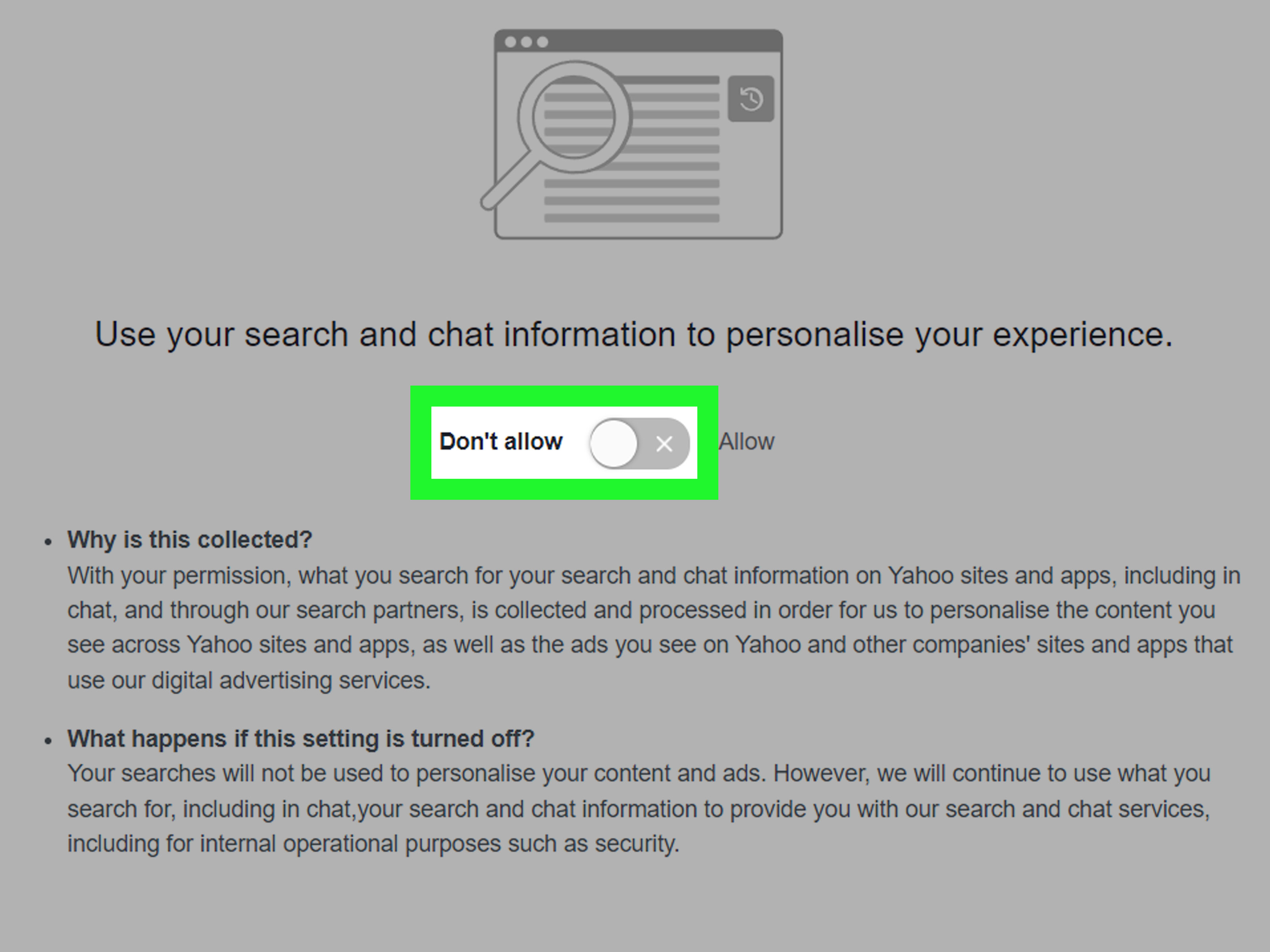
- Turn off search history or related personalization options if you do not want Yahoo to keep building a fresh history.
This is the best route if your old searches are appearing inside Yahoo itself rather than in the browser’s general history list. Think of it as cleaning the closet in Yahoo’s house, not just sweeping your own front porch.
How to delete Yahoo Search history on mobile
On mobile, the steps are similar, but the menus are a little more tucked away. Yahoo’s mobile search settings usually give you access to search history controls once you are signed in.
Mobile steps
- Sign in to Yahoo on your phone or tablet.
- Go to Yahoo Search.
- Tap Settings.
- Tap Search History.
- Delete individual searches or clear everything.
- Disable saved history or personalization settings if you want fewer future suggestions.
If you use a mobile app that relies on Yahoo Search in the background, check that app’s own settings too. Some apps layer their own search suggestions on top of Yahoo results, which is a fancy way of saying one app can create two places where history likes to hide.
How to clear Yahoo-related history on desktop browsers
Even after clearing your Yahoo account history, your browser may still remember visits to Yahoo pages, cookies, or typed search entries. Here is how to clean that up on major desktop browsers.
Google Chrome on desktop
- Open Chrome.
- Click the three-dot menu in the top-right corner.
- Select Delete browsing data.
- Choose a Time range, such as All time for a full cleanup.
- Check Browsing history.
- Add Cookies and other site data and Cached images and files if you want a deeper reset for Yahoo-related data.
- Click Delete data.
You can also open Chrome’s history page and remove individual Yahoo entries one by one if you do not want to wipe everything. That is handy when your browser history is mostly innocent except for a few deeply embarrassing celebrity searches.
Safari on Mac
- Open Safari.
- Click History in the top menu.
- Select Clear History.
- Choose how far back you want to clear.
- Confirm the deletion.
Safari can also remove recent searches, frequently visited sites, and other saved browsing traces. If you want to remove stored website data separately, you can manage website data in Safari settings under privacy. This is useful when Yahoo stays signed in or keeps acting like it knows you a little too well.
Microsoft Edge on desktop
- Open Edge.
- Click Settings and more.
- Go to Settings > Privacy, search, and services.
- Under Clear browsing data, choose Choose what to clear.
- Select a time range.
- Check Browsing history, plus cookies or cached files if needed.
- Click Clear now.
If you use syncing, remember that account-linked browsing data can be a separate privacy conversation. For most people, though, clearing device data solves the immediate Yahoo history problem.
Firefox on desktop
- Open Firefox.
- Open the History menu.
- Choose Clear Recent History.
- Select the time range you want to remove.
- Choose the data types to clear, such as browsing history, cookies, and cache.
- Confirm the deletion.
Firefox also lets you clear search bar history separately in some cases. If a typed Yahoo query still appears in the search or address bar, you may need to remove that individual entry from the suggestion list, not just clear general history.
How to clear Yahoo-related history on mobile
Phones are where search history gets especially clingy. One quick Yahoo lookup turns into a long trail of suggestions, visited pages, and saved site data. Here is how to clean things up on mobile browsers.
Safari on iPhone
- Open Settings.
- Tap Apps, then Safari.
- Tap Clear History and Website Data.
- Choose the timeframe and confirm.
This clears browsing history and website data, but it does not erase AutoFill information. If the issue is a repeated typed term in a field, AutoFill may be the real culprit.
Chrome on Android
- Open Chrome.
- Tap the three-dot menu.
- Tap Delete browsing data.
- Choose a time range, including All time if needed.
- Check Browsing history.
- Add cookies and cached files if Yahoo still looks “sticky.”
- Tap Delete data.
Chrome on iPhone
- Open Chrome.
- Tap More.
- Tap Delete Browsing Data.
- Choose a duration.
- Select the types of data you want to remove.
- Confirm the deletion.
Microsoft Edge on mobile
- Open Edge.
- Tap the menu.
- Go to Settings > Privacy or Privacy and security.
- Tap Clear browsing data.
- Select the data types to remove.
- Tap Clear.
Edge mobile also offers an option to clear browsing data when you exit the app. That is a great setting if you are privacy-minded or just tired of manually cleaning up after every search session.
Firefox on mobile
- Open Firefox.
- Tap the menu.
- Go to Settings.
- Find privacy controls.
- Use the option to clear browsing data, or enable deletion on quit where available.
Firefox mobile is especially nice for people who want a “set it and forget it” privacy habit. If you enable clearing on quit, your device basically becomes the neat roommate your group project never had.
How to stop Yahoo history from coming back
Deleting history is good. Preventing the rerun is even better. Here are smart ways to keep Yahoo history from rebuilding faster than your laundry pile:
- Turn off Yahoo search history or related personalization settings when available.
- Use private browsing or incognito mode for temporary searches.
- Clear browser data on exit in Edge or Firefox if that fits your routine.
- Remove individual autofill suggestions when they appear in search fields.
- Sign out of shared devices when you are done.
- Check whether browser sync is turned on if history seems to reappear across devices.
Also, do not overlook cookies. People often focus on history and forget that cookies and site data can preserve enough information to make a site feel very familiar with your habits.
Why Yahoo suggestions may still appear after deleting history
If you deleted Yahoo history and still see old suggestions, one of these is usually the reason:
- You cleared browser history but not Yahoo account history.
- You cleared Yahoo account history but not browser history or cookies.
- An autofill entry is stored locally in the browser.
- Another synced device still has matching history.
- The suggestion is based on general trending or aggregated search suggestions, not your personal history.
That last point surprises a lot of people. Not every suggestion is a confession from your device. Sometimes it is just Yahoo or the browser offering popular terms. So before you accuse your phone of betrayal, check whether the suggestion is actually account-based or just generic.
Troubleshooting when Yahoo keeps showing up
Sometimes the issue is not history at all. Sometimes Yahoo keeps appearing because your default search engine was changed, often by an extension, software bundle, or browser setting you did not mean to approve.
If that sounds familiar, try this:
- Check your browser’s default search engine setting.
- Review installed extensions or add-ons and remove anything suspicious.
- Reset browser search settings if Yahoo keeps reappearing.
- Run a trusted security scan if you suspect unwanted software or a browser hijacker.
This matters because deleting Yahoo history will not solve a search-engine takeover issue. That is like mopping the floor while the sink is still overflowing. Noble effort, wrong leak.
Real-world experiences: what people usually notice after deleting Yahoo history
One of the most common experiences people describe is a moment of relief followed by immediate confusion. They clear Yahoo history, reopen the browser, type one letter into the search box, and bam, something old still appears. At that point, many assume the delete option did not work. In reality, the cleanup often worked exactly as expected, but it only cleared one layer of data. For example, the Yahoo account history may be gone while the browser still holds autofill suggestions. Or the browser history may be gone while the Yahoo account remains signed in and still remembers past searches. This is why the best results usually come from doing both steps back to back.
Another common experience happens on phones. Users often say the mobile version feels harder because the menus are buried more deeply, and that is fair. On a desktop browser, privacy controls are usually only a few clicks away. On a phone, you may need to open the browser menu, then settings, then privacy, then clear browsing data, and then choose the exact items to remove. It is not difficult once you know where to go, but it can feel like a scavenger hunt designed by someone who really loves submenus.
People also notice that deleting history can sign them out of websites or reset certain preferences. That is especially true if they clear cookies along with browsing history. In practical terms, this means Yahoo or other sites may forget saved logins, location permissions, or site preferences. Some users love that because it feels like a fresh start. Others hate it because suddenly every website acts like it has never met them before. The lesson is simple: if you want maximum privacy, clear cookies too. If you mainly want fewer visible search traces, you may prefer a more selective cleanup.
Shared devices create another interesting experience. A person clears history on a family laptop, only to discover that Yahoo suggestions are still appearing on their phone. That does not necessarily mean anything went wrong. It usually means the mobile browser or Yahoo account still has its own saved data. History is not always one giant bucket. It is often several smaller buckets pretending to be one giant bucket, which is very on-brand for modern tech.
Some users become much more privacy-conscious after going through this once. They start using private browsing for quick searches, turning off history-saving features, or enabling automatic deletion on exit in browsers that support it. That shift makes sense. After you spend twenty minutes chasing down one stubborn suggestion, future-you starts to look very attractive. The easiest cleanup is the one you do not need later.
There is also a psychological side to the whole thing. People often want to delete Yahoo history not because they are hiding something dramatic, but because they want their digital life to feel less cluttered. Old searches can be annoying, irrelevant, or just plain weird months later. Maybe you searched for a Halloween costume in July, a broken appliance part at midnight, or a celebrity rumor you are not proud of. Clearing that out can make the search experience feel cleaner, faster, and less distracting. Sometimes privacy and peace of mind are basically roommates.
Final thoughts
If you want to delete Yahoo history the right way, remember the golden rule: clean both the Yahoo account layer and the browser layer. Start with Yahoo Search history if you are signed in. Then clear browsing history, cookies, and cache on the device you used. If suggestions still linger, check autofill, sync settings, and your default search engine. Once you understand where Yahoo history lives, removing it becomes much less mysterious and much less annoying.
In other words, you do not need a computer science degree or a dramatic breakup with your browser. You just need the right buttons in the right order.
Note: Before publishing, keep the JSON block at the end if you want the SEO tags visible in-page; remove it if your CMS stores metadata separately.