If your Gmail inbox looks less like a communication tool and more like an archaeological dig, you are not alone. Promotional blasts, old receipts, newsletters you swear you never signed up for, and random “just circling back” emails can pile up fast. Before long, your inbox is so crowded that finding one important message feels like searching for a sock in a teenager’s bedroom.
The good news is that Gmail does let you delete all emails in your inbox at once. The even better news is that you do not have to sit there clicking messages one by one until your wrist files a complaint. With the right steps, you can clear your inbox in minutes, and you can do it strategically so you do not accidentally send something important into the digital abyss.
In this guide, you will learn exactly how to delete all emails in your Gmail inbox at once, what happens after deletion, how to clean up Gmail faster with filters and search operators, and what to do if you are using the Gmail app on mobile. We will also cover a few common mistakes, because nothing ruins a cleanup session faster than realizing you archived everything instead of deleting it.
What “Delete All Emails in Gmail” Actually Means
Before you go full inbox demolition mode, it helps to know what Gmail means by “delete.” When you delete messages in Gmail, they move to the Trash folder. They are not gone forever immediately. Gmail keeps them there for a period before permanently removing them, which gives you a short rescue window in case you delete something you still need.
That detail matters because many people think clearing the inbox means the messages instantly vanish forever. Not quite. Deleting removes them from your inbox and sends them to Trash. If you want them gone for good right away, you also need to empty Trash after the bulk deletion is finished.
Also, deleting everything in your inbox is not the same as deleting everything in your Gmail account. Your account may still contain messages in Sent, Drafts, Spam, All Mail, custom labels, and archived folders. So if your goal is a clean inbox, you should focus on in:inbox. If your goal is a total mailbox wipe, that is a different, much more dramatic move.
How to Delete All Emails in Your Gmail Inbox at Once on Desktop
The easiest and most reliable way to bulk delete your Gmail inbox is through a desktop web browser. This is where Gmail gives you the full “select all conversations” feature that makes mass deletion possible.
Step 1: Open Gmail in a Web Browser
Go to Gmail and sign in to the account you want to clean up. This works best on a computer, because the desktop version gives you the broadest selection tools.
Step 2: Search for Inbox Emails Only
In the search bar at the top, type:
in:inbox
Then press Enter. This tells Gmail to show only the messages currently sitting in your inbox. It is a smart move because it keeps you from accidentally deleting archived messages or emails stored elsewhere.
Step 3: Click the Select Checkbox
At the top of the email list, click the master checkbox. This selects all messages shown on the current page. Depending on your Gmail settings, that may be a limited batch of messages, not your entire inbox.
This is where many people stop and think, “Done.” Sadly, Gmail is more sneaky than that. At this point, you have only selected the messages visible on that page.
Step 4: Click “Select All Conversations”
After selecting the visible messages, look for the banner or link that appears above your email list. It will offer an option similar to selecting all conversations that match the search. Click that link.
Now Gmail selects every email currently in your inbox, not just the ones on page one. This is the magic step. Miss it, and you are only cleaning a small slice of the mess instead of the whole kitchen.
Step 5: Click the Trash Icon
Once all inbox conversations are selected, click the Delete button, usually shown as a trash can icon. Gmail will move those selected emails into Trash.
If Gmail shows a warning or confirmation prompt, read it carefully and proceed only if you are sure. Bulk actions are efficient, but they are also extremely good at following orders you wish you had not given.
Step 6: Empty Trash if You Want Immediate Permanent Deletion
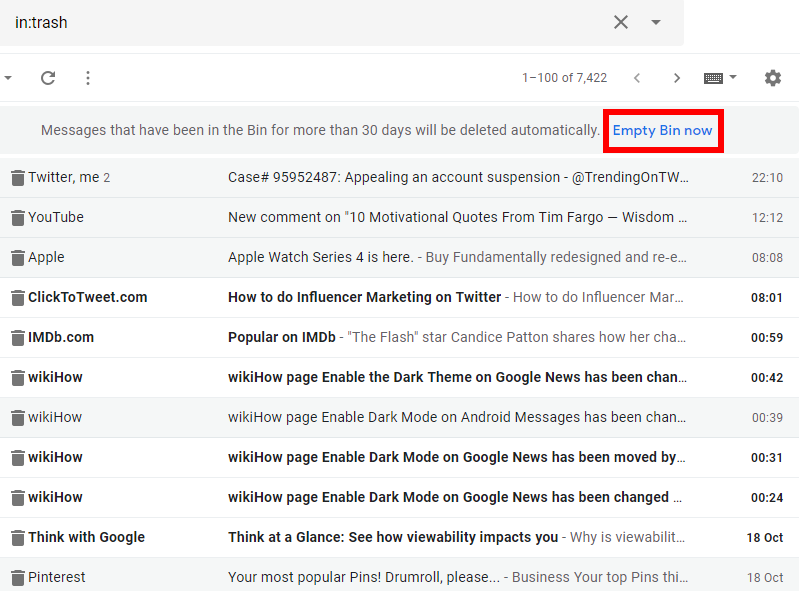
After the inbox is cleared, go to Trash from the left sidebar. If it is hidden, click More first. Then use the option to empty Trash.
This step matters if your goal is to free up space quickly. Deleting inbox emails without emptying Trash is like bagging up old clothes but leaving the bags in your hallway. Technically, the clutter moved. Spiritually, it is still there.
Quick Example: Delete Every Inbox Email Older Than One Year
Maybe you do not want to delete everything. Maybe you just want to erase the old stuff that has been sitting there since a different hairstyle and emotional era. Gmail’s search operators make that easy.
Try this search:
in:inbox older_than:1y
This shows inbox messages older than one year. From there, use the same process:
- Click the master checkbox
- Click the link to select all matching conversations
- Hit Delete
You can do the same with:
in:inbox is:unreadfor all unread inbox emailsin:inbox category:promotionsfor promotional mail in your inboxin:inbox has:attachment larger:10Mfor bulky inbox emails with large attachments
This is often a better strategy than deleting absolutely everything, especially if you still need current conversations, receipts, or work threads.
Can You Delete All Gmail Inbox Emails at Once on the Gmail App?
Here is the less glamorous truth: the Gmail mobile app is not nearly as powerful for mass deletion as the desktop web version. On mobile, you can select and delete batches of visible messages, but the app generally does not give you the same convenient “select all conversations that match this search” option that makes desktop cleanup so fast.
That means if you are using Gmail on Android or iPhone, you may be able to delete a chunk of messages at a time, but not your entire inbox in one elegant sweep. It is more of a repeated scoop-and-dump situation.
If you absolutely must do this from a phone, the better workaround is to open Gmail in your mobile browser and request the desktop site. Even then, the experience may be clunky. For a major cleanup, a laptop or desktop computer is still the best tool.
Archive vs Delete: Know the Difference Before You Click
In Gmail, Archive removes emails from the inbox but keeps them in your account under All Mail. Delete moves them to Trash.
This difference is huge. If your goal is a visually clean inbox but you still want searchable access to older messages, archive may be the safer choice. If your goal is actual removal and storage cleanup, you need delete, and then you should empty Trash.
A lot of users confuse the two because both make messages disappear from the inbox. But one is basically “put this in the closet,” while the other is “take this to the curb.” Know which chore you are doing before you start.
Best Gmail Search Operators for Faster Bulk Deletion
Gmail’s search tools are the secret weapon for smarter inbox cleanup. Instead of deleting everything blindly, you can target the clutter that matters least.
Useful Searches to Try
in:inbox older_than:6mdeletes inbox mail older than six monthsin:inbox from:[email protected]targets messages from one senderin:inbox category:socialclears social notificationsin:inbox has:attachment larger:10Mhelps free storage fasterin:inbox is:unreadremoves unread clutter you know you will never readin:inbox before:2025/01/01deletes messages before a specific date
Once the search results appear, the same bulk process applies: select visible messages, click the option to select all matching conversations, and delete them.
This approach is more strategic and less terrifying. You do not have to wake up tomorrow wondering why your flight confirmation, college email, and six recipes for baked pasta all disappeared together.
How to Free Up Gmail Storage Faster
If your real goal is not just a prettier inbox but more storage space, focus on the biggest and oldest emails first. Messages with attachments are usually the main offenders.
Try searches like:
has:attachment larger:10Mfilename:pdf larger:5Molder_than:2y has:attachment
Delete those in bulk, then empty Trash and Spam. This often makes a bigger difference than deleting a thousand tiny promotional emails. A mountain of coupons looks dramatic, but a few giant attachments are usually what chew through storage.
Also, do not panic if your storage meter does not update instantly. Sometimes Gmail and Google storage need a little time to catch up after large deletions.
Common Mistakes to Avoid When Deleting All Gmail Emails
1. Forgetting to Click the “Select All Conversations” Link
This is the classic mistake. You think you deleted everything, but Gmail only removed the messages on the first page. Always look for the extra selection link after checking the top box.
2. Deleting from the Wrong Search View
If you are in All Mail instead of in:inbox, you may delete far more than intended. Double-check your search before taking bulk action.
3. Confusing Archive with Delete
If you hit Archive, the inbox may look clean, but the messages are still in your account. That is fine if it was intentional. Not so fine if you were trying to free space.
4. Forgetting to Empty Trash
Deleted emails in Trash still count until Gmail permanently removes them or you empty Trash yourself. If you need immediate cleanup, do the full two-step process.
5. Not Saving Important Emails First
Before a big purge, star important emails, move them to a label, or search for them separately and exclude them from deletion. Future you will be much less dramatic that way.
Should You Delete Everything or Clean Gmail in Stages?
Technically, yes, you can delete all emails in your Gmail inbox at once. But should you? That depends on how reckless you are feeling and whether your inbox contains useful records.
For many people, a staged cleanup works better. Start with Promotions. Then Social. Then old unread emails. Then large attachments. Then messages older than one year. This gives you a clean inbox without the small emotional crisis that comes from deleting absolutely everything in a single move.
On the other hand, if your inbox is mostly junk and you are ready for a hard reset, the full bulk delete method is fast, satisfying, and surprisingly therapeutic.
Real-World Inbox Cleanup Experiences
One of the most common experiences people have when they try to delete all emails in their Gmail inbox at once is pure shock. They open Gmail thinking they might have a few thousand messages, then discover a number so large it feels less like an inbox count and more like a population statistic. That moment alone is often enough to trigger a cleanup spree.
Another very real experience is the false sense of victory after selecting the first page of emails. Many users click the checkbox, hit delete, and feel like productivity champions for about seven seconds. Then they refresh and realize the inbox still looks exactly like a hoarder’s garage. That is usually when they learn the most important Gmail lesson of all: the first checkbox is only step one, not the grand finale.
People also tend to discover patterns in their inbox once they start cleaning. Maybe one retailer has emailed them every day since 2019. Maybe a job board they used once has become a full-time pen pal. Maybe a streaming service sends more reminders than an anxious aunt. Bulk deletion is often the first time users really see how much clutter comes from just a handful of repeat senders and categories.
There is also the emotional side of inbox cleanup. Some emails are easy to delete. Others carry memories, old projects, conversations, travel plans, school records, or notes from people no longer in your life. That is why many users start with clearly disposable content like promotions, unread newsletters, automatic alerts, and oversized attachments. It builds confidence without the fear of losing something meaningful.
Another common experience is realizing that deleting is not enough unless habits change. Someone clears 20,000 emails, feels amazing, and then three weeks later the inbox is already messy again. Why? Because the real villains were subscriptions, notifications, and no-reply messages still pouring in. That is why the smartest cleanup sessions often end with unsubscribing, filtering, or setting rules for future messages.
Users trying this on mobile often report frustration too. They expect the Gmail app to offer the same bulk tools as desktop, but the app usually makes them work in smaller chunks. That leads to a lot of tapping, scrolling, and muttering at the screen. It is one of those situations where the old-fashioned computer still wins, and wins by a lot.
Finally, there is the post-cleanup feeling. A freshly cleared Gmail inbox can feel weirdly peaceful. Search becomes easier. Important emails stop hiding behind coupon codes and shipping notices. The account feels lighter, more manageable, and less nagging. It is not magic, but it is close enough for anyone who has been dodging their inbox for months.
Final Thoughts
If you have been wondering how to delete all emails in your Gmail inbox at once, the process is thankfully straightforward once you know where Gmail hides the important option. Use a desktop browser, search in:inbox, select the visible messages, click the link to select all matching conversations, and then delete them. After that, empty Trash if you want those emails gone right away.
The smartest approach, though, is not always the most dramatic one. Use Gmail’s search operators to target old messages, huge attachments, or clutter-heavy categories first. That way, you can clean up fast without accidentally deleting the digital equivalent of your house keys.
Either way, your inbox does not have to stay out of control. Gmail gives you the tools. You just have to click the right little checkbox and finally commit to inbox peace.