Creating a PDF used to sound like something that required expensive software, a mysterious office printer, and at least one person named “IT Dave.” Thankfully, those days are mostly gone. Today, you can create a PDF for free from a Word document, Google Doc, web page, photo, scan, spreadsheet, presentation, Canva design, or even a paper receipt hiding in your junk drawer.
A PDF, short for Portable Document Format, is popular because it keeps your layout, fonts, images, spacing, and page structure looking consistent across devices. That means your resume does not arrive looking like it lost a fight with a typewriter. Whether you are sending a contract, saving an invoice, submitting homework, archiving a recipe, or turning a web page into an offline reference, a PDF is usually the safest file format for sharing polished documents.
The best part? You do not need to pay for a premium PDF editor just to make one. Many computers, phones, browsers, office apps, and online tools already include free PDF creation features. Below are nine simple and quick methods to create a PDF for free, plus practical tips to help you choose the right one without accidentally turning your document into digital spaghetti.
What Makes a PDF So Useful?
Before jumping into the methods, it helps to understand why PDFs are everywhere. A PDF is designed to preserve document formatting, so what you see on your screen is usually what the recipient sees on theirs. Unlike editable word-processing files, PDFs are harder to accidentally rearrange. They are also easy to open on Windows, Mac, iPhone, Android, ChromeOS, and most web browsers.
PDFs are especially helpful when you need a final version of something. Think resumes, legal forms, invoices, event flyers, printable worksheets, digital receipts, manuals, checklists, ebooks, and client proposals. In short, if your document needs to look professional and stay put, PDF is the dependable friend who arrives on time and brings snacks.
How to Create a PDF for Free: 9 Simple & Quick Methods
1. Use “Print to PDF” on Windows
One of the fastest ways to create a PDF for free on a Windows computer is by using the built-in print feature. Despite the name, you are not actually printing paper. You are “printing” your file into a PDF document. It is like telling your printer, “Relax, buddy. Today we save trees.”
This method works in many apps, including Microsoft Word, Excel, PowerPoint, Notepad, browsers, image viewers, and other programs that support printing.
How to do it:
- Open the document, image, web page, or file you want to convert.
- Press Ctrl + P or choose File > Print.
- Select Microsoft Print to PDF or Save as PDF as the printer.
- Choose your page range, orientation, paper size, and layout settings.
- Click Print or Save.
- Name the file and choose where to save it.
This is ideal for quick documents, receipts, browser pages, forms, and screenshots. However, check the preview carefully before saving. Some web pages may include ads, sidebars, or awkward page breaks unless you adjust the scale or select a cleaner print layout.
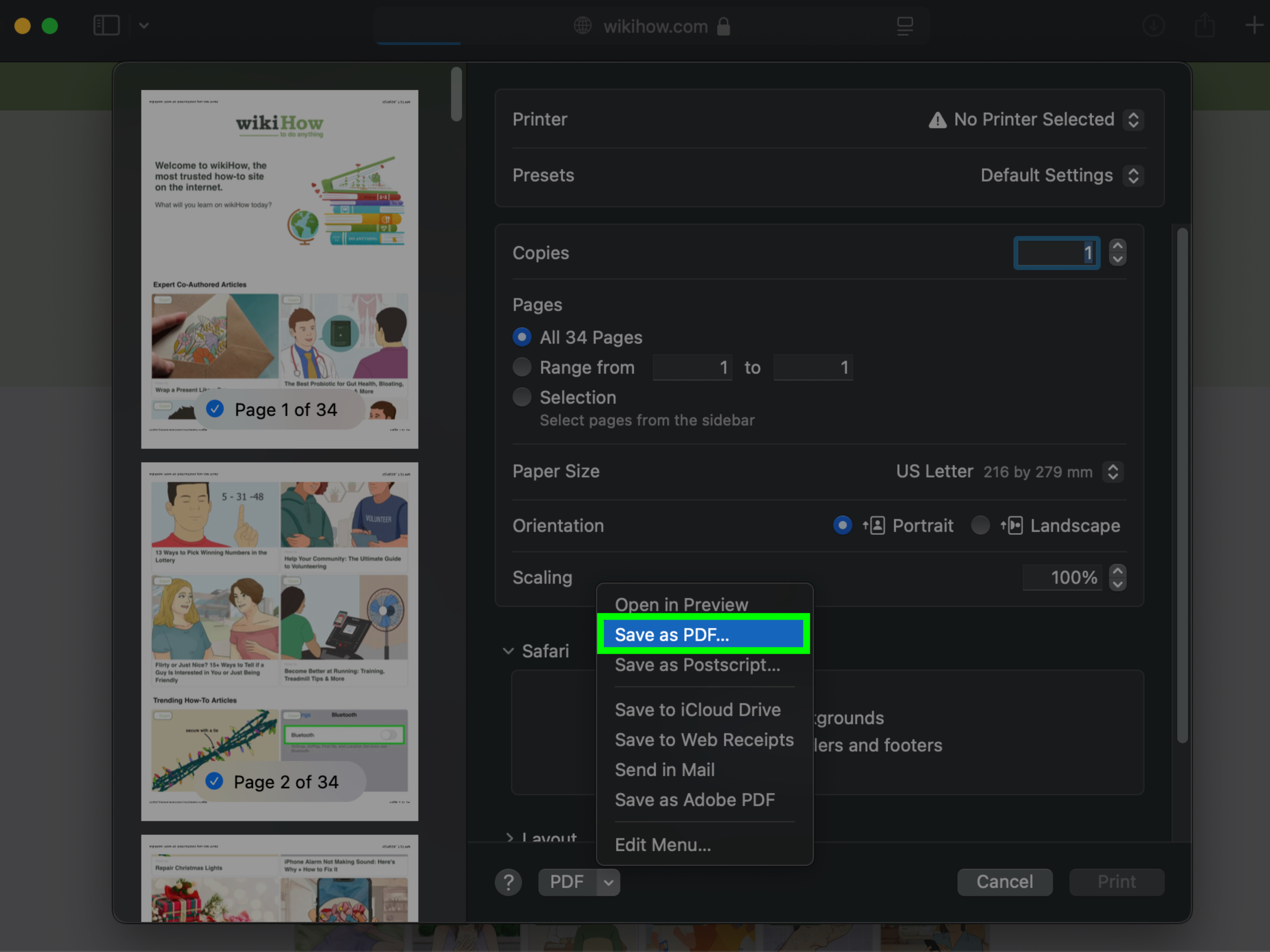
2. Use “Save as PDF” on Mac
Mac users have had a built-in PDF creation option for years, and it is one of the easiest free methods available. Any app that allows printing can usually create a PDF through macOS.
How to do it:
- Open your document, image, email, or web page.
- Click File > Print or press Command + P.
- Look for the PDF button or dropdown in the print window.
- Select Save as PDF.
- Enter a file name, choose a folder, and save it.
This method is excellent for documents, online receipts, travel confirmations, articles, forms, and emails. If you are handling sensitive information, creating the PDF directly on your Mac is often better than uploading the file to a random online converter with a logo that looks like it was designed during a coffee shortage.
3. Export a Microsoft Word Document as a PDF
If your file started in Microsoft Word, creating a PDF is straightforward. Word lets you export or save documents as PDF while keeping headings, images, tables, hyperlinks, and page formatting intact. This is one of the best methods for resumes, business documents, reports, proposals, and essays.
How to do it in Word desktop apps:
- Open your Word document.
- Click File.
- Choose Save As or Export.
- Select PDF as the file type.
- Choose Standard for better quality or Minimum size for smaller files.
- Click Save or Publish.
How to do it in Word for the web:
- Open the document in Word online.
- Click File.
- Choose Export or Save As.
- Select Download as PDF.
For professional documents, use built-in heading styles before exporting. Headings can help create better structure, bookmarks, and accessibility. Also, give the PDF a different file name from the editable Word file so you can keep both versions. Your future self will thank you instead of muttering at a folder named “final_final_REAL_final_v8.”
4. Download a Google Doc, Sheet, or Slide as a PDF
Google Docs, Google Sheets, and Google Slides make PDF creation simple and free. This method is perfect when you are working in the cloud, collaborating with others, or using a device that does not have Microsoft Office installed.
How to create a PDF from Google Docs:
- Open your Google Doc.
- Click File.
- Hover over Download.
- Select PDF Document (.pdf).
For Google Sheets:
- Open the spreadsheet.
- Click File > Download > PDF.
- Adjust page orientation, margins, scale, and sheet range.
- Click Export.
For Google Slides:
- Open the presentation.
- Click File > Download > PDF Document.
Google Docs is especially useful for articles, letters, simple reports, and shared drafts. Google Sheets needs a little extra attention because spreadsheets can easily become wide enough to require their own airport runway. Always check print settings, page breaks, and scaling before exporting.
5. Save a Web Page as a PDF in Your Browser
Need to save an online article, confirmation page, recipe, tutorial, invoice, ticket, or shipping label? Your browser can usually turn it into a PDF without extra software.
How to create a PDF from a web page:
- Open the page in Chrome, Edge, Firefox, Safari, or another modern browser.
- Press Ctrl + P on Windows or Command + P on Mac.
- Select Save as PDF as the destination.
- Adjust layout, scale, margins, background graphics, and page range.
- Click Save.
For cleaner PDFs, look for a page’s Print button if one exists. Many websites offer a print-friendly version that removes menus, ads, pop-ups, and unrelated clutter. If the PDF preview looks messy, try switching from portrait to landscape, reducing the scale, or using reader mode before printing.
This method is excellent for keeping offline records. For example, you can save hotel reservations, online purchase receipts, event tickets, government instructions, or long-form guides. Just remember that interactive content, videos, expandable menus, and dynamic forms may not appear perfectly in the final PDF.
6. Create a PDF with LibreOffice
LibreOffice is a free, open-source office suite that can create PDFs from text documents, spreadsheets, presentations, and drawings. If you want a no-cost desktop alternative to paid office software, LibreOffice is a strong option.
How to export a PDF in LibreOffice:
- Open your document in LibreOffice Writer, Calc, Impress, or Draw.
- Click File.
- Choose Export As.
- Select Export as PDF.
- Review options for page range, image quality, forms, links, and security.
- Click Export.
LibreOffice gives you more control than basic print-to-PDF tools. You can adjust compression, export bookmarks, preserve hyperlinks, set PDF options, and choose how images are handled. This makes it useful for longer reports, ebooks, manuals, and documents with internal links.
If your document uses unusual fonts, check the exported file on another device before sending it. Most PDF exports preserve appearance well, but a quick review can prevent embarrassing surprises. Nobody wants a polished business proposal where the heading suddenly looks like a medieval tavern sign.
7. Use a Free Online PDF Converter
Free online PDF converters can turn Word files, images, PowerPoint slides, Excel sheets, and other file types into PDFs directly in your browser. Popular tools include online services from well-known PDF platforms and document companies. Many offer drag-and-drop conversion with no software installation.
How it usually works:
- Go to a reputable PDF converter website.
- Choose the conversion type, such as Word to PDF, JPG to PDF, or PowerPoint to PDF.
- Upload your file.
- Wait for the conversion to finish.
- Download the PDF.
Online converters are convenient when you are using a shared computer, Chromebook, tablet, or device without office software. They are also handy for one-time conversions. However, use good judgment. Do not upload highly sensitive documents, tax records, medical files, contracts, IDs, financial statements, or private business files unless you fully trust the service and understand its privacy policy.
For sensitive documents, built-in tools like Windows Print to PDF, Mac Save as PDF, Microsoft Word export, or LibreOffice are safer because the file stays on your device. Online converters are best for low-risk files, such as public flyers, basic documents, school handouts, image collections, and casual projects.
8. Scan Paper Documents into PDFs with Your Phone
Your phone can become a free pocket scanner. This is perfect for receipts, signed forms, handwritten notes, classroom handouts, whiteboards, business cards, letters, and paper documents that need to become digital files.
On iPhone:
- Open the Notes app.
- Create a new note or open an existing one.
- Tap the camera or attachment icon.
- Select Scan Documents.
- Capture the pages, adjust corners, and save.
- Share or export the scan as a PDF when needed.
On Android:
- Open the Google Drive app.
- Tap the scan or camera option.
- Point the camera at the document.
- Crop, rotate, retake, or adjust the scan.
- Save it as a PDF in Drive.
You can also use free scanner apps, such as Adobe Scan, to capture paper documents and convert them into PDFs. Look for features like automatic edge detection, multiple-page scanning, OCR text recognition, cloud backup, and easy sharing. Before choosing any scanner app, check whether it is actively supported and whether premium features are locked behind a subscription.
For the best results, scan in bright, even lighting. Place the paper on a flat surface, avoid shadows, and line up the edges before capturing. If the document is important, review every page before sending. Phone scanning is quick, but it is still a camera, not a wizard.
9. Create a PDF from Images or Designs
If you have images, posters, flyers, social media graphics, resumes, menus, invitations, or visual layouts, you can create a PDF using free design tools or built-in device features.
Option A: Use Canva or another design platform
- Create or open your design.
- Click Share or Download.
- Choose PDF Standard for digital sharing or PDF Print for higher-quality printing.
- Download the file.
Option B: Convert images using your computer
- Open the image or select multiple images.
- Use the print function.
- Choose Save as PDF or Print to PDF.
- Adjust the page layout and save.
Option C: Use an online JPG-to-PDF converter
- Upload one or more images.
- Arrange the order.
- Choose page size and margins if available.
- Download the PDF.
This method works well for portfolios, scanned photo pages, certificates, image-based reports, product sheets, and printable graphics. If you plan to print the PDF, choose high-quality export settings. If you plan to email it, use a smaller file size so the recipient does not have to wrestle with a 90 MB attachment named “tiny flyer.”
How to Choose the Best Free PDF Method
The best method depends on what you are starting with. For a Word document, use Word export. For a Google Doc, use Google’s download option. For a web page, use your browser’s Save as PDF feature. For paper documents, use your phone scanner. For sensitive documents, avoid online converters and choose an offline method. For designed graphics, use Canva or another design app’s PDF download feature.
Here is a simple rule: if your content is already digital, use the app that created it. If your content is on paper, scan it. If your content is online, print it to PDF. If you need extra conversion help and the file is not private, a reputable online converter can save time.
Tips for Creating Better PDFs
Check the Preview Before Saving
The preview window is your best friend. It catches weird page breaks, missing images, tiny text, cut-off tables, and those dramatic blank pages that appear for no reason like they are auditioning for a ghost movie.
Use Clear File Names
Name your PDF something useful, such as Smith_Resume_2026.pdf or Invoice_1042_May.pdf. Avoid names like document.pdf, newnewfinal.pdf, or pleasework.pdf. They may feel emotionally accurate, but they are not helpful later.
Keep an Editable Original
A PDF is usually a final sharing format. Keep the original Word document, Google Doc, spreadsheet, design file, or image folder so you can make changes later. Editing PDFs can be possible, but it is often less convenient than editing the source file.
Think About File Size
High-resolution images can make PDFs huge. If you are emailing the file, choose standard quality or compress the PDF after exporting. If you are printing professionally, choose higher-quality settings and make sure images are sharp.
Protect Sensitive Files
Some tools allow you to add a password, restrict copying, or limit printing. For private documents, use trusted software and avoid uploading confidential files to unknown websites. Free is wonderful, but privacy is better than saving three minutes.
Common Problems When Creating PDFs
The Formatting Looks Different
This often happens when fonts are missing, margins are unusual, or the original document uses complex layouts. Use standard fonts, check page size, and preview before exporting.
The File Is Too Large
Large photos are usually the culprit. Try reducing image resolution, choosing minimum size export, or compressing the PDF with a trusted tool.
The PDF Is Blank or Missing Pages
Make sure you selected the correct page range and that the document loaded completely before printing or exporting. If a browser PDF looks strange, refresh the page, try reader mode, or use another browser.
Links Do Not Work
Use export options rather than basic print-to-PDF when hyperlinks matter. Word, Google Docs, and LibreOffice often preserve links better than screenshot-style printing.
Real-World Experience: What Actually Works Best
After creating PDFs for resumes, invoices, web articles, client documents, scanned receipts, printable checklists, and the occasional “please sign this before lunch” form, one thing becomes clear: the simplest method is usually the best method. People often search for advanced PDF software when the solution is already built into their computer or browser. For most everyday needs, Print to PDF on Windows and Save as PDF on Mac are fast, free, and reliable.
For writing projects, Microsoft Word and Google Docs are usually better than generic converters because they understand the document structure. If you have headings, links, tables, comments, or images, exporting directly from the writing app reduces the chance of formatting problems. This is especially important for resumes and business documents, where one awkward page break can make a polished file look careless.
For web pages, the browser method is wonderfully practical, but it is not perfect. Some pages save beautifully. Others drag along ads, cookie banners, navigation bars, or giant empty spaces. The best trick is to look for a print-friendly version of the page or turn on reader mode before saving. This can turn a chaotic web page into a clean PDF that does not look like it was assembled by a raccoon with a keyboard.
For paper documents, phone scanning is surprisingly powerful. A modern phone can capture sharp, readable PDFs in seconds. The biggest mistake is scanning in poor lighting or at an angle. Place the document on a darker background, use natural light if possible, and make sure the corners are detected correctly. For multi-page documents, scan all pages in one session so the final PDF is organized instead of scattered across your phone like digital confetti.
For sensitive files, offline tools win. If a document includes personal identification, medical details, banking information, private contracts, tax records, or confidential business data, use built-in system features or trusted desktop software. Online converters are convenient, but convenience should not outrank privacy. A good habit is to ask, “Would I be comfortable emailing this file to a stranger?” If the answer is no, do not upload it to an unknown website either.
For designs, Canva and similar tools make PDF creation easy, especially for flyers, menus, invitations, and marketing materials. The main choice is between a standard PDF and a print-quality PDF. Standard PDFs are lighter and better for email or web sharing. Print PDFs are larger but better for professional printing. If your file contains images, logos, or detailed graphics, always open the downloaded PDF and zoom in before sending it to print.
The final lesson is simple: make the PDF, open the PDF, review the PDF. That tiny review step catches most mistakes. Check the first page, last page, headings, images, links, and page numbers. A PDF is often the version other people see, download, print, sign, or judge. Taking thirty seconds to inspect it can save you from sending a file that says “final” but feels like “oops.”
Conclusion
Creating a PDF for free is easier than ever. You can use Windows Print to PDF, Mac Save as PDF, Microsoft Word, Google Docs, browser print tools, LibreOffice, online converters, phone scanner apps, or design platforms like Canva. The right method depends on your starting file, privacy needs, quality expectations, and whether the PDF is meant for email, printing, archiving, or professional sharing.
If you remember only one thing, remember this: use the tool closest to the original content. Export Word documents from Word, Google files from Google, web pages from your browser, paper documents from your phone scanner, and designs from your design app. Then preview the finished PDF before sharing. It is free, fast, and much less stressful than discovering your beautiful document turned into a formatting pancake.
Note: This guide focuses on free, legal, widely available PDF creation methods and prioritizes built-in tools, reputable platforms, privacy awareness, and practical everyday use.