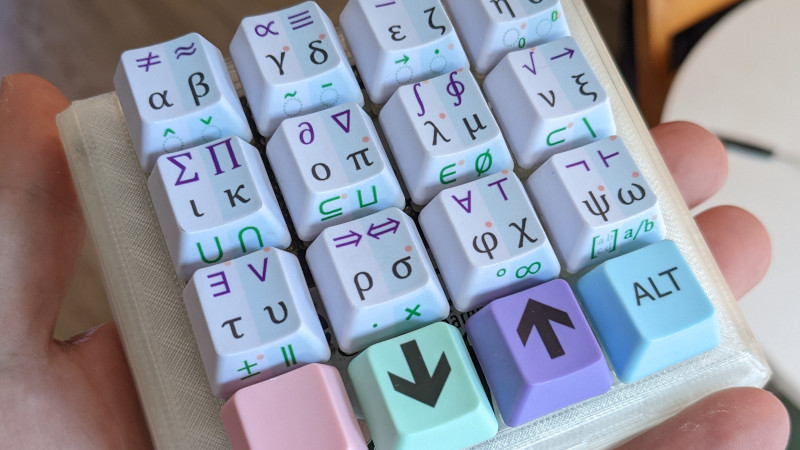
Some inventions arrive with fireworks. Others arrive because someone finally gets tired of hunting for the integral symbol at 1:17 a.m. A custom macro pad sits firmly in the second category, which is why it may be one of the most quietly brilliant desk upgrades for students, engineers, scientists, spreadsheet warriors, coders, and anyone who has ever whispered, “Where on earth is the Greek letter xi?”
The idea behind a macro pad is beautifully simple: take a small keyboard, give each key a special job, and let one press do what used to take five clicks, three menu dives, and a small emotional crisis. In the case of a math-focused custom macro pad, that job might be entering formulas, symbols, LaTeX snippets, Unicode characters, spreadsheet commands, or Microsoft Office equation shortcuts. Suddenly, equations stop feeling like a scavenger hunt and start feeling like typing.
The phrase “Custom Macro Pad Helps Deliver Winning Formulas” captures more than a clever gadget story. It points to a bigger trend in modern productivity: people are building tools that fit the way they think. Instead of forcing a scientist to memorize obscure codes, an engineer to click through symbol menus, or an analyst to repeat the same Excel sequence all afternoon, a programmable macro pad brings those actions to the fingertips. It is not magic. It just feels suspiciously close.
What Is a Custom Macro Pad?
A custom macro pad is a small programmable keyboard designed for shortcuts, macros, symbols, commands, and repeated actions. Unlike a full-size keyboard, it does not try to do everything. Its superpower is focus. It might have six keys, twelve keys, sixteen keys, a rotary knob, an OLED screen, RGB lighting, layered controls, or custom keycaps labeled with the exact commands a user needs.
For a typical office user, a macro pad might launch apps, paste email templates, mute audio, switch browser tabs, or trigger video-editing tools. For a spreadsheet professional, it might insert formulas, toggle formula view, paste values, format cells, run a VBA macro, or jump to the Formulas tab. For a STEM user, it can become a miniature command center for Greek letters, calculus operators, logic symbols, set notation, superscripts, subscripts, and equation-editor commands.
The best custom macro pads are not merely “extra keys.” They are workflow translators. They turn repetitive thought into repeatable action. That matters because formulas are not just characters on a screen. They are ideas. Every second spent searching menus is a second not spent solving the problem.
The Math Problem Nobody Talks About
Typing normal words is easy because modern keyboards were built around normal words. Typing equations is different. The average keyboard gives you letters, numbers, punctuation, and a few symbols. It does not give you ∑, ∫, ≈, ∂, ∞, α, β, γ, ∈, ⊂, or ⇔. These characters are essential in math, physics, engineering, statistics, computer science, finance, and technical writing, yet they often live behind menus, AutoCorrect systems, Unicode codes, copy-and-paste rituals, or LaTeX memory tests.
Anyone who writes technical documents knows the pain. You are working on a report and need to write a clean equation. You pause, open an equation editor, browse a symbol gallery, click the wrong thing, backspace, click again, forget whether the symbol you need is under “operators” or “relations,” and eventually wonder whether a career in pottery would have been calmer.
LaTeX solves part of the problem by making mathematical notation precise and flexible, but it still requires memorization. Microsoft Office equation tools provide another route, but they may involve keyboard shortcuts, equation boxes, and symbol rules. Plain Unicode is convenient for inline notes, but many characters remain hard to access quickly. A custom macro pad attacks the friction directly by putting the most-used symbols and commands on physical keys.
Meet the Math-Focused Macro Pad
One notable example is Mathpad, a project created for scientists, engineers, students, and professionals who regularly type equations. The project began with a familiar annoyance: mathematical symbols are used constantly in technical work, but standard keyboards make them awkward to enter. Mathpad answers that problem with a dedicated keypad designed to output mathematical characters and equation codes quickly.
Instead of asking users to remember every Unicode sequence, LaTeX command, or Office equation shortcut, Mathpad organizes commonly used symbols into a physical layout. It supports the Greek alphabet and a broad range of symbols from algebra, calculus, set theory, logic, and related fields. It can output plain Unicode for regular text, LaTeX codes for technical writing, and equation-editor formats for office documents.
That flexibility matters. A student may need LaTeX for a research paper, Unicode for a quick note, and Microsoft Office equation input for a class assignment. An engineer may move between spreadsheets, slides, reports, and code comments in the same afternoon. A useful formula pad cannot live in one software kingdom. It has to travel.
Why Physical Keys Still Matter
In an age of touchscreens and AI assistants, a physical macro pad can sound almost quaint. But physical keys have a practical advantage: muscle memory. When a command lives in the same place every time, the hand learns it. The brain stops negotiating. That is the same reason power users love keyboard shortcuts. A well-designed macro pad simply gives those shortcuts a dedicated home.
Consider the difference between typing an equation symbol by searching a menu and pressing one labeled key. The first requires recognition, navigation, and confirmation. The second becomes a habit. This is especially valuable for formulas because technical writing already demands concentration. You are balancing variables, units, assumptions, references, and formatting. The last thing you need is a side quest for the partial derivative symbol.
Physical keys also reduce context switching. When your hands leave the keyboard for the mouse, your attention often follows. A macro pad keeps the workflow keyboard-centered. For writers, analysts, and researchers, that can make the work feel smoother and less fragile.
How Macro Pads Work Behind the Scenes
A custom macro pad usually combines a microcontroller, switches, keycaps, firmware, and a case. The microcontroller reads key presses and sends signals to the computer as if they came from a normal keyboard. The switches provide the tactile feel. The keycaps show what each button does. The firmware decides what happens when a key is pressed.
Firmware is where the fun begins. QMK, a popular open-source keyboard firmware, lets builders define keymaps, macros, layers, and advanced behaviors. A macro can send several keystrokes with one press. A layer can make the same physical key do different things depending on the selected mode. One layer might be for Unicode math symbols, another for LaTeX, another for spreadsheet shortcuts, and another for presentation tools.
Tools such as VIA and Vial make configuration more approachable by letting users adjust compatible keyboards through a visual interface. Instead of recompiling firmware for every small change, a user can remap keys, test layouts, and configure macros more comfortably. Vial also supports features such as tap dance, where a key can perform different actions based on whether it is tapped, held, or tapped multiple times.
That is where a compact pad becomes surprisingly powerful. A sixteen-key device does not have to be limited to sixteen commands. With layers, modifiers, tap dances, and multi-tap behavior, it can hold dozens or even hundreds of useful outputs without needing to become the size of a cafeteria tray.
Winning Formulas in Spreadsheets
The phrase “winning formulas” also belongs in the world of spreadsheets. Excel and Google Sheets are packed with keyboard shortcuts for formulas, formatting, navigation, filtering, and data review. Yet many users still repeat the same manual actions: insert function, lock cell references, paste values, show formulas, format percentages, trace precedents, run calculations, and clean imported data.
A macro pad can make spreadsheet work faster by assigning high-frequency actions to dedicated keys. For example, one button could open the Formulas tab in Excel. Another could toggle formula view. Another could paste values only. Another could trigger a recorded macro that formats a monthly report. A rotary knob might zoom in and out or scroll horizontally through a wide model. A separate layer could hold finance-related shortcuts, while another layer handles data cleanup.
This is not only about speed. It is also about consistency. If a user formats a report manually ten times, tiny differences creep in. A macro pad paired with well-planned spreadsheet macros can help standardize repeated tasks. The result is fewer accidental formatting detours and fewer “why is this column suddenly purple?” moments.
Useful Macro Pad Ideas for Formula Work
1. Greek Letter Layer
A Greek letter layer is perfect for math, physics, statistics, and engineering. Keys can output α, β, γ, Δ, λ, μ, σ, Ω, and other symbols used constantly in formulas and variable names. With modifier keys, the same pad can produce uppercase and lowercase versions.
2. Calculus and Algebra Layer
A second layer can hold ∫, ∑, √, ∂, ∞, ≈, ≠, ≤, ≥, ±, and exponent-related commands. For anyone writing lecture notes, lab reports, or technical documentation, this layer pays for itself quickly.
3. LaTeX Snippet Layer
Instead of outputting the final symbol, a key can type LaTeX commands such as common fractions, integrals, summations, matrices, Greek letters, or equation environments. This is especially useful for students and researchers who write in LaTeX editors but do not want to memorize every command under deadline pressure.
4. Microsoft Office Equation Layer
Microsoft Office supports equation tools and Math AutoCorrect features. A dedicated macro pad layer can open equation mode, type equation-friendly commands, or insert frequently used structures for Word and PowerPoint. This is a major win for people preparing slides, assignments, reports, and technical proposals.
5. Spreadsheet Power Layer
Spreadsheet users can assign keys for paste values, show formulas, insert functions, format numbers, run macros, freeze panes, filter data, and jump between sheets. The goal is not to replace Excel skills. It is to make the good skills easier to use repeatedly.
Design Choices That Make a Macro Pad Better
A good macro pad starts with honest questions. What do you type every day? Which symbols do you search for? Which shortcuts do you forget? Which commands interrupt your concentration? Which mistakes happen because a process has too many steps?
The answers should shape the design. A math pad needs clear key labels and logical symbol grouping. A spreadsheet pad needs shortcuts arranged by workflow, not alphabetically. A coding pad might group compile, test, comment, search, and terminal commands. A creative pad might dedicate keys to undo, brush size, timeline control, export settings, and scene switching.
Keycaps matter more than they seem. If a macro pad is designed for symbols, the legends must be readable. If each key has multiple outputs, the visual system needs to make sense. Color, position, front-facing legends, and icons can help users remember layers. Otherwise, the pad becomes a tiny mystery board, which is adorable but not productive.
The enclosure also affects daily use. A low-profile case can feel sleek and comfortable. A heavier aluminum case can feel stable and professional. A 3D-printed case is excellent for prototypes and personal builds. Hot-swappable switches make experimentation easier. A USB-C connection keeps compatibility simple. Optional screens and LEDs can show active layers, which helps prevent the classic macro pad problem: pressing a key confidently and discovering you are on the wrong layer.
Custom Macro Pad vs. Software Shortcuts
Software shortcuts are powerful, and no macro pad should pretend otherwise. Excel, Google Sheets, Word, PowerPoint, operating systems, and creative applications already include many shortcuts. The problem is that humans are not shortcut encyclopedias. We remember what we use often and forget what hides in the foggy basement of the Help menu.
A macro pad works best when it complements software shortcuts. It gives important commands a visible, tactile interface. It also makes complicated shortcut chains more accessible. For example, a command that normally requires Alt navigation, a sequence of letters, or a recorded macro can be assigned to one key. That key becomes a reliable tool rather than a memory challenge.
The smartest approach is to automate the repetitive and preserve the thoughtful. Let the macro pad handle symbol entry, formatting, navigation, and repeated setup. Let the human focus on whether the formula is correct, whether the assumptions hold, and whether the conclusion makes sense. In other words, let the machine do the finger gymnastics while the person does the thinking.
Who Benefits Most from a Formula-Focused Macro Pad?
Students benefit because they often move between homework systems, note-taking apps, spreadsheets, and documents. A macro pad can reduce the friction of writing math-heavy assignments and make technical notation less intimidating.
Engineers benefit because formulas, units, symbols, and reports are part of daily work. A pad that quickly inserts standard notation or repeated phrases can make documentation faster and cleaner.
Scientists benefit because research notes, equations, plots, and presentations often involve recurring notation. The ability to type symbols consistently across tools can save time and reduce errors.
Analysts and accountants benefit because spreadsheet work is full of repeated actions. A macro pad can speed up model review, reporting, formatting, and data cleanup.
Teachers benefit because lesson materials, slides, quizzes, and feedback often require the same symbols and structures. A dedicated pad can make content preparation less clunky.
Writers and editors in technical fields benefit because they can enter specialized notation without breaking the writing flow. Nothing ruins a clean sentence like a five-minute hunt for “greater than or equal to.”
Potential Drawbacks and How to Avoid Them
A macro pad can be overbuilt. It is tempting to assign every possible command to a key, then create twelve layers, then forget what half of them do. The cure is restraint. Start with the ten actions you use most often. Add more only when you feel a real need.
Another issue is portability. A custom pad may work beautifully at one desk but feel less convenient on the go. Users who switch between computers should consider compatibility, driver requirements, and whether the device stores macros onboard.
Security also matters. Spreadsheet macros and automated commands can be powerful, but power deserves caution. Recorded macros should be tested on copies of important files. Any automation that edits data, sends messages, or changes documents should be designed carefully. A macro pad should save time, not create a highly efficient disaster button.
Experience: What It Feels Like to Use a Custom Macro Pad for Formulas
The first day with a formula-focused macro pad feels slightly awkward, like moving into a new kitchen and opening the wrong drawer for spoons. The keys are there, the symbols are printed, the firmware works, but your fingers still reach for old habits. You may still open the symbol menu out of muscle memory, then look down and remember that the integral sign is sitting patiently under your left hand, probably judging you.
After a few days, the experience changes. The pad starts to disappear into the work. You stop thinking, “I need to insert alpha.” You simply press alpha. You stop searching for plus-minus or less-than-or-equal-to. You tap the key. When writing a lab report, the difference is obvious. Equations become part of the sentence instead of interruptions between sentences.
One of the biggest surprises is how much mental space a small device can protect. Technical writing is fragile because it requires holding several ideas in mind at once. You may be explaining a method, checking units, formatting results, and keeping the argument coherent. Every trip to a menu risks dropping one of those thoughts. A macro pad keeps the path short. Symbol needed, symbol inserted, thought preserved.
In spreadsheet work, the benefit feels more mechanical but equally satisfying. Imagine reviewing a financial model with a macro pad layer for formula auditing. One key toggles formulas. One traces precedents. One applies a standard highlight. One pastes values. One runs a cleanup macro. Instead of reaching through ribbon menus, you move through the model with a rhythm. The work feels less like wrestling a spreadsheet octopus and more like conducting a small orchestra that knows when to stop playing the tuba.
For presentations, a macro pad can be a quiet hero. Technical slides often need symbols, arrows, equation boxes, superscripts, subscripts, and repeated formatting. With a dedicated layer, common equation structures can appear quickly. This makes it easier to polish slides without losing patience. The result is not just faster work; it is better-looking work because the barrier to doing things properly is lower.
The experience is especially rewarding for people who enjoy customization. Building or configuring a macro pad forces you to study your own habits. You start noticing which actions you repeat, which shortcuts you avoid, and which tasks cause tiny delays. That awareness alone can improve workflow. The hardware becomes a mirror for your process, except this mirror has switches and occasionally glows.
There is also a small emotional benefit that should not be dismissed: using a tool built for your exact problem feels good. A math-focused macro pad says, “Yes, this work is specific, and yes, it deserves a specific tool.” That matters in a world where many people do specialized work with general-purpose devices. A custom macro pad gives the desk a little personality and the workflow a lot more intention.
Of course, the pad will not fix weak formulas, bad assumptions, or a spreadsheet named “final_final_really_final_v9.xlsx.” It will not do your calculus homework, although it may make the homework look more civilized. What it can do is reduce friction. And in serious work, reducing friction is often how better results happen. The winning formula is not only the equation on the page. It is the workflow that helps you get there without losing your mind.
Conclusion
A custom macro pad helps deliver winning formulas because it turns specialized work into a smoother physical process. For math, science, engineering, spreadsheets, and technical writing, the challenge is rarely just knowing the right symbol or command. The challenge is reaching it quickly without breaking concentration. A well-designed macro pad solves that problem with dedicated keys, smart layers, programmable firmware, and a layout shaped around real tasks.
Whether it is a Mathpad-style equation keypad, a QMK-powered DIY build, an Adafruit-style hotkey pad, or a commercial VIA-compatible device, the principle remains the same: put the most valuable actions closest to the user. When formulas, shortcuts, and symbols become easy to enter, the work becomes faster, cleaner, and more enjoyable. That is not just productivity. That is desk-level engineering with a sense of humor.