“Facebook Fan Page” is the classic phrase, like calling a smartphone a “cellular telephone device.” Today, Facebook mostly calls it a Page (often a Professional Page)the place where brands, creators, nonprofits, and local businesses show up publicly, build trust, and post without making your aunt join a group chat first.
In this guide, you’ll learn exactly how to create a Facebook Fan Page (aka a Facebook Page), set it up so it looks legit (not “made in five minutes on a lunch break”), and avoid the common mistakes that make people abandon Pages faster than a “thoughts?” email.
What a Facebook Fan Page actually is (and why you want one)
A Facebook Page is a public presence for a business, brand, organization, or creator. Unlike a personal profile, a Page is built for marketing and community-building: you can add business details, run ads, assign roles/access to teammates, use analytics (Insights), and connect tools like Meta Business Suite.
The practical benefit: when someone searches your name, your Page is where they find your hours, location, services, updates, and the fastest way to message youwithout needing to “friend” you like it’s 2009.
Before you click “Create”: a 10-minute prep checklist
You can absolutely wing it. Facebook will let you. But your future self (and your future customers) will thank you if you gather a few basics first:
- Page name: Use your business/brand name or the name people actually search for.
- Category: Pick 1–3 categories that match what you do (e.g., “Restaurant,” “Bakery,” “Caterer”).
- Short description: One or two punchy sentences: what you do + for whom + why you’re different.
- Profile photo: Usually your logo (square image works best).
- Cover photo: Think “billboard” (promotion, vibe, or your #1 offer).
- Contact info: Website, phone, email (optional), location, service area, hours.
- Goal: What do you want the Page to do? Messages? Calls? Bookings? Store visits? Leads?
Step-by-step: How to create a Facebook Fan Page (desktop + mobile)
Option A: Create a Page on desktop (most straightforward)
- Log into Facebook using a personal profile.
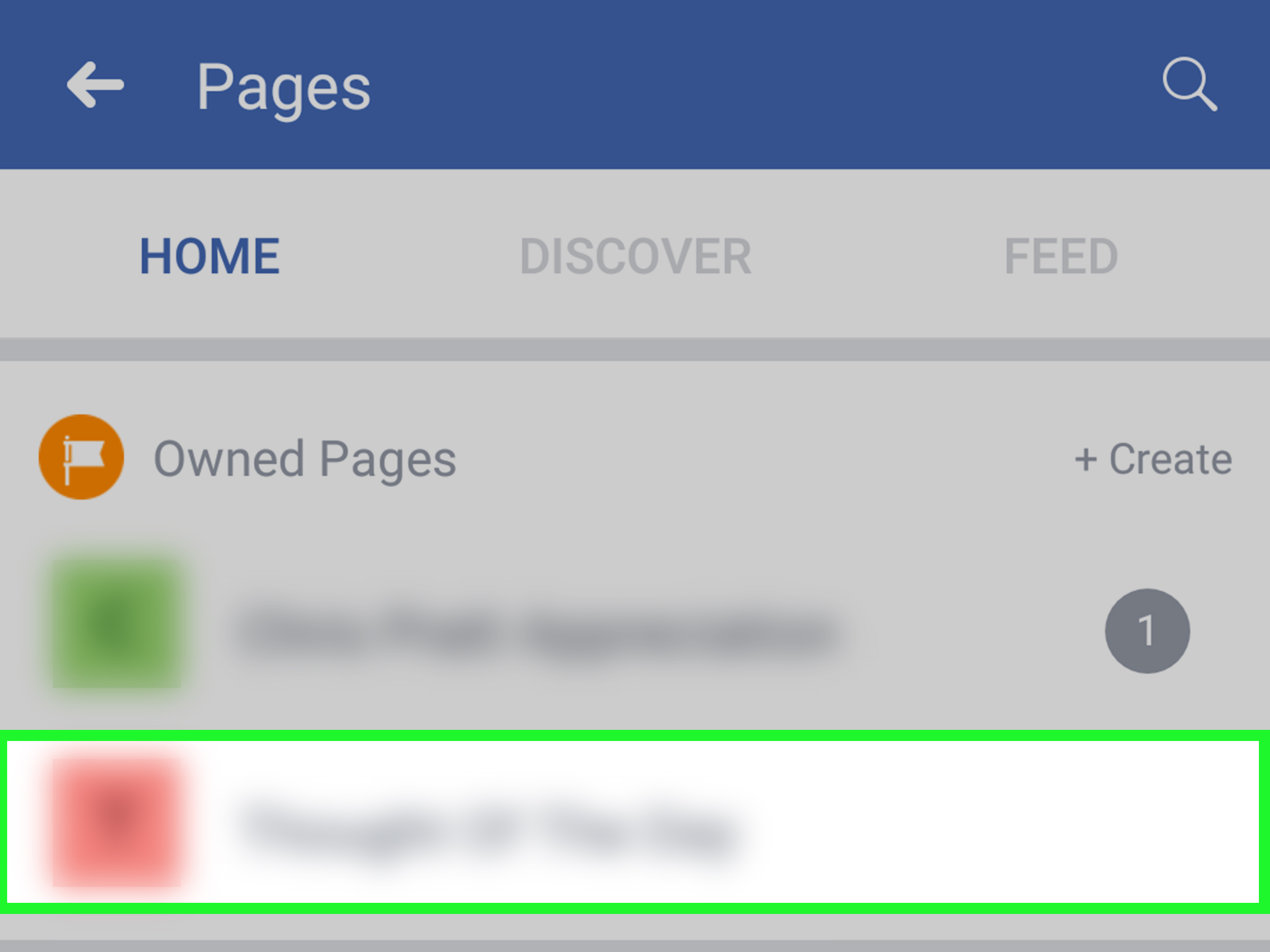
- From the left-side menu, click Pages.
- Click Create new Page (sometimes shown as Create).
- Enter your Page name.
- Choose up to three categories that describe your Page.
- Add your bio/description (short and human, not a corporate lullaby).
- Click Create, then follow prompts to add images and details.
Depending on your interface, Facebook may guide you through a “Professional” Page flow (you’ll see steps like selecting Professional, then choosing Create a new Page, then adding name/category and clicking Create). Either way, the core inputs are the same: name, category, description, and branding.
Option B: Create a Page on mobile (works great when you’re not trying to be “productive”)
- Open the Facebook app and tap Menu (the three lines).
- Tap Pages.
- Tap Create or Create new Page.
- Enter your Page name, category, and description.
- Tap Create and complete setup prompts.
Pro tip: desktop setup is usually faster for filling in details cleanly (hours, services, buttons). Mobile is great for quick creation, then you polish later.
Make your Page look trustworthy (not “mysterious and possibly abandoned”)
Creating the Page is step one. Making it feel real is what gets follows, clicks, and messages. Here’s the setup sequence that tends to work best.
1) Add a profile photo that reads instantly
For most businesses, use a high-contrast logo centered in a square. Facebook displays the Page profile photo at different sizes across devices and crops it to a circle, so keep important elements away from the corners. If you’re a public-facing professional (trainer, realtor, stylist), a clear headshot can outperform a logobecause humans trust humans.
2) Design a cover photo that doesn’t get “mysteriously chopped”
Cover photos display differently on desktop vs. mobile, so avoid putting critical text at the very top/bottom edges. A common, practical approach is designing for a taller canvas (so it looks crisp on mobile) while keeping key text inside a centered “safe zone.”
- Cover concept ideas: your #1 offer, your storefront/space, a hero product, a seasonal promotion, or a simple brand statement.
- Easy win: add your website or “Book Now” vibewithout turning it into a used-car ad.
3) Write an “About” section people can skim in three seconds
The best bios answer three questions fast: What do you do? Who is it for? What should I do next?
Example (local bakery): “Small-batch sourdough and pastries baked daily in Austin. Pre-order cakes online or stop by for the morning cinnamon rolls.”
4) Add your contact details (and be intentional)
Add what you actually want customers to use: website, phone, address (if you have a public location), service area (if you travel), and business hours. If you’re not ready for phone calls from strangers who think 10:58 PM is “business hours,” don’t add a phone number yet. You can still push people to messaging or a booking link.
5) Choose a call-to-action button that matches your real goal
Facebook lets you add a CTA like Call Now, Send Message, Book Now, Sign Up, or Shop Now. Pick one primary action and build the Page around it. If you try to do everything, people do nothing.
6) Claim a clean @username (so you’re easy to tag and find)
Your Page username becomes your handle and part of your URL. Keep it short, spellable, and consistent with Instagram/TikTok if possible. If the exact name is taken, add a simple modifier (city, “official,” or category) rather than a chaotic pile of underscores.
Lock it down: Page access, permissions, and the “don’t get hacked” basics
Pages are business assets. Treat them like business assets. Modern Facebook Page management commonly uses access levels like full control and partial accessso you can let teammates post or respond to messages without giving them the keys to the kingdom.
- Full control: typically includes managing settings, permissions, and granting/removing access.
- Partial access: usually limits what someone can do (for example, content, messages, or ads tasks) without full admin power.
Security must-dos: enable two-factor authentication on the personal profiles that have high-level access, keep the number of “full control” people small, and use Meta/Business tools for delegating access instead of sharing passwords (please don’t share passwords).
Your first week plan: what to publish so the Page doesn’t feel empty
A Page with zero posts feels like a store with the lights off. Before you invite people, publish a small “starter set”:
Post #1: A pinned welcome post (the “start here” message)
Write a friendly intro: who you are, what you offer, where you are, and what people should do next. Add one strong photo or a short video. Then pin it.
Post #2: Proof you’re real (behind-the-scenes)
Show your team, workspace, process, or a “day in the life.” People follow Pages that feel alive. Polished is great; human is better.
Post #3: A clear offer or signature service
One post dedicated to your #1 thing: bestselling product, most popular service, or a limited-time promo. Include pricing or “starting at” if appropriate, plus how to book/buy.
Post #4: A simple FAQ
Answer the top 3–5 questions you always get: hours, parking, delivery area, pricing model, turnaround time, booking rules. This reduces repetitive messages and builds trust fast.
A simple 30-day content strategy (that doesn’t require a marketing degree)
Consistency beats intensity. You do not need to post 12 times a day. A realistic schedule most small businesses can sustain:
- 2–4 posts per week (mix of photos, short videos, and text updates)
- 1 short-form video (Reel-style) weekly if you can
- Stories for quick updates (inventory, arrivals, today’s special, behind-the-scenes)
- Community engagement: reply to comments/messages daily (or at least consistently)
Content buckets (rotate these so you never stare at a blank screen again):
- Education: tips, “how it works,” myths vs facts
- Social proof: testimonials, before/after, customer stories
- Behind-the-scenes: process, people, values, day-to-day
- Offers: promos, bundles, limited drops, seasonal specials
- Community: local events, partnerships, shout-outs
Example (local gym):
Monday: “Beginner-friendly strength routine (3 moves)”
Wednesday: Client win story + quote
Friday: Short video: trainer demo + CTA “Book a free consult”
Weekend: Story: class schedule + behind-the-scenes clip
Growth levers: how to get followers without begging your cousins
Invite strategically (and don’t be weird about it)
Start with current customers, email subscribers, and people who already know you. Add your Page link to receipts, email signatures, your website footer, and your other social bios.
Cross-promote with a purpose
If you have Instagram, align branding and bio, and let people know what’s different on Facebook (e.g., events, community updates, customer support, longer posts).
Use Facebook tools when they match your business model
- Events: Great for classes, launches, pop-ups, workshops, live shows.
- Groups: Great for communities (members, VIP customers, local niches). Your Page can be the “home base,” your Group can be the conversation room.
- Shops: Useful for product businesses with clear inventory and shipping/pickup flow.
- Ads: Powerful when you have a clear offer and a landing page or message flow that converts.
Common mistakes (and how to fix them fast)
Mistake: picking a vague name no one searches for
Fix: use your real brand name or include a clarifier. “The Studio” is cool… until you realize every city has 400 “studios.”
Mistake: the Page looks unfinished
Fix: complete profile photo, cover, bio, hours, and CTA button before you invite people. First impressions happen in seconds.
Mistake: giving full access to too many people
Fix: restrict “full control” to 1–2 trusted admins; give everyone else task-based/partial access so mistakes don’t turn into disasters.
Mistake: posting like a brochure
Fix: for every “buy my thing” post, publish multiple value posts (tips, stories, behind-the-scenes, community). People follow Pages that help or entertain themnot just sell.
Quick FAQ
Do I need a personal Facebook profile to create a Page?
In most cases, yesyou create and manage a Page through a personal profile (your personal info isn’t automatically displayed on the Page).
Can multiple people manage the Page?
Yes. Assign access to teammates so you don’t become the single point of failure who can’t take a vacation because “the Page needs you.”
Is a Facebook Page the same as a Facebook Group?
No. A Page is your public brand presence; a Group is for community discussion. Many brands use both: Page for broadcasting and credibility, Group for conversation and loyalty.
Conclusion: Build it, polish it, then show up consistently
Creating a Facebook Fan Page is the easy part. The real advantage comes from setting it up like a real business assetclear branding, complete details, the right CTA, smart access controlsand then posting consistently with content that people actually care about.
If you do nothing else this week: create the Page, complete the basics, publish four starter posts, and reply to every message like a human. That alone puts you ahead of a shocking percentage of Pages on the platform.
Real-world experiences: lessons you only learn after you hit “Publish”
The first Facebook Page I ever helped set up (for a small local service business) taught me a humbling truth: Facebook doesn’t reward “perfect,” it rewards “clear.” We spent way too long trying to write an “About” section that sounded like a Fortune 500 press release. It was technically correctand it also sounded like it was written by a committee of sleepy robots. When we replaced it with two plainspoken sentences (“We fix busted AC fast in Dallas. Same-day appointments when available.”), messages immediately improved. People weren’t asking “what do you do?” anymore. They were asking “can you come today?” That’s a win.
Another lesson: your cover photo is not a posterit’s a moving target. What looked perfect on desktop suddenly got cropped on mobile, chopping off the phone number and turning “Call Today” into “Call To…(???)”. The fix was simple: design with breathing room and keep important text centered. If you want to include an offer, make the offer obvious in the first pinned post instead of cramming it into the edges of the cover image like you’re trying to hide clues in a treasure map.
Page access/permissions is where things get spicy. I’ve seen businesses “solve” the problem of multiple managers by sharing one login. That works right up until someone leaves the company, or someone’s phone gets compromised, or Facebook decides something looks suspicious. The modern approachgiving the right people the right level of accessfeels slightly annoying to set up, but it prevents the “we lost the Page” nightmare. My rule of thumb: keep full control limited, and treat anything that can run ads or change settings like it’s the master key to your storefront.
Content-wise, the Pages that grow aren’t always the ones with the fanciest cameras. They’re the ones that show up with a rhythm. A local café I worked with posted three times a week: one product photo, one behind-the-scenes clip, one community post (local event, customer spotlight, staff pick). Nothing fancy. But it trained customers to check the Page, and it gave Facebook consistent signals that the Page was active. When they did run a small promotion, it worked better because the audience already trusted the Page wasn’t a ghost town.
The sneakiest growth lever I keep seeing: responsiveness. If your Page replies quickly (even if it’s just “Hey! We saw thisgive us 10 minutes and we’ll confirm”), people are dramatically more likely to follow through. Facebook is often used like a search engine with a chat button. Folks don’t always want to browse a website; they want a fast answer. If you can be the business that replies like a friendly neighbor instead of a fax machine, you’ll win customers who never even looked at your competitor’s menu.
Finally, don’t underestimate the power of one great “starter post” pinned to the top. I’ve seen Pages struggle for months because visitors landed on a random outdated post. A pinned welcome post with a clear CTA (“Book here,” “Menu link,” “New client special,” “Hours & parking info”) turns your Page into a mini landing page. It’s not glamorous, but it’s effective. And effective is the whole pointunless you’re creating the Page purely to admire your own cover photo, in which case… honestly, respect.

