If your brain has ever said, “I will absolutely remember that,” and then immediately deleted the information like a mischievous little raccoon, congratulations: you need a checklist. The good news is that your iPhone already has one built in. No subscription. No complicated productivity system. No app icon promising to “change your life” and then asking for $7.99 a month. The Notes app on iPhone can create simple, useful, surprisingly flexible to-do lists and checklists in just a few taps.
Whether you want a grocery list, packing checklist, homework tracker, cleaning routine, content calendar, travel plan, or “things I keep forgetting even though they are obvious” list, Apple Notes is one of the quickest tools available. It syncs with iCloud, works across Apple devices, supports collaboration, lets you indent sub-items, and can automatically move completed tasks to the bottom. In other words, it is more powerful than many people realize, but still simple enough that your list does not need its own user manual.
This guide explains exactly how to create a to-do list or checklist in iPhone Notes, how to organize it, how to share it, and how to use it in real life without turning productivity into a second job.
Why Use iPhone Notes for a To-Do List?
The biggest advantage of using iPhone Notes for checklists is speed. The app is already on your iPhone, opens quickly, and does not require a new account. For many everyday tasks, that matters more than advanced project management features. A checklist is only useful if you actually create it before your brain wanders off to think about lunch.
Apple Notes is especially helpful for informal lists. It works well for errands, shopping, trip planning, party preparation, daily routines, school assignments, quick work notes, and household tasks. You can mix normal text, headings, photos, links, scanned documents, tables, and checklist items in the same note. That makes it more flexible than a basic task app when your “to-do list” also needs context.
For example, a vacation note can include flight details, hotel confirmation screenshots, a packing checklist, restaurant ideas, and a shared section for family members. A grocery note can include meal ideas at the top and a checklist below. A study note can include class reminders, links, and smaller tasks under each subject.
How to Create a Checklist in iPhone Notes
Creating a checklist in Notes is simple. Open the Notes app on your iPhone, tap the Compose button to start a new note, type a title, and then tap the Checklist button above the keyboard. A small empty circle appears. Type your first task, then tap Return to create the next checklist item.
Step-by-Step Instructions
- Open the Notes app on your iPhone.
- Tap the Compose button to create a new note.
- Add a clear title, such as “Weekend Errands” or “Packing List.”
- Tap the Checklist icon in the toolbar above the keyboard.
- Type your first task.
- Tap Return to add another checklist item.
- Tap the empty circle next to an item when it is complete.
That is the basic recipe. It is less dramatic than building a productivity dashboard, but it works. And honestly, “it works” is an underrated feature.
How to Turn Existing Text Into a Checklist
Already typed a list as plain text? You do not need to start over. In many cases, you can select the lines you have already written and tap the Checklist button. Notes will convert each line into a checklist item. This is useful when you quickly dumped ideas into a note and later realized, “Wait, this is not a paragraph. This is a tiny mountain of tasks.”
For best results, place each task on its own line before converting. For example:
- Buy milk
- Charge power bank
- Email the invoice
- Call the repair shop
After selecting the lines and tapping the checklist icon, each item becomes tappable with its own completion circle.
How to Check Off Completed Items
To mark a task complete, tap the empty circle beside it. Notes will add a checkmark. This tiny animation provides a surprisingly satisfying “yes, I am a functional human today” feeling.
If you complete something by accident, tap the checked circle again to uncheck it. This is helpful when you proudly mark “buy toothpaste” as done, then realize you bought mouthwash, which is close in spirit but not helpful tomorrow morning.
How to Automatically Move Checked Items to the Bottom
One of the best Notes checklist features is automatic sorting. When enabled, completed items move to the bottom of the checklist, keeping unfinished tasks visible at the top. This is perfect for grocery lists, recurring routines, and long task lists that would otherwise become a graveyard of checked circles.
How to Enable Automatic Sorting
- Open the Settings app on your iPhone.
- Scroll down and tap Apps, then choose Notes.
- Tap Sort Checked Items.
- Select Automatically.
You can also choose manual sorting if you prefer completed items to stay exactly where they are. Manual sorting is useful for step-by-step processes where order matters, such as a recipe prep list, event setup checklist, or troubleshooting routine.
How to Reorder Checklist Items
Plans change. Sometimes “buy cake” must move above “invite guests,” depending on your priorities and emotional relationship with dessert. To reorder checklist items in Notes, touch and hold an item, then drag it to a new position in the list.
This drag-and-drop feature is especially useful for daily planning. You can start by brain-dumping everything you need to do, then move the most urgent tasks to the top. It turns a messy list into a realistic plan without needing a separate productivity app.
How to Create Subtasks With Indentation
Notes checklists also support indentation, which means you can create subtasks under a larger task. For example:
- Prepare for road trip
- Check tire pressure
- Download offline maps
- Pack snacks
To indent a checklist item, swipe right on the item. To move it back, swipe left. Subtasks are great for breaking big tasks into smaller steps. Instead of writing “clean house,” which is basically a threat, you can break it into “vacuum living room,” “wipe kitchen counter,” and “take out trash.” Suddenly, the monster has smaller shoes.
How to Add Headings, Sections, and Notes Around Your Checklist
A checklist does not have to live alone. You can add headings, regular paragraphs, links, tables, photos, and scanned documents in the same note. Tap the Aa formatting button to add a title, heading, subheading, bold text, italic text, or other formatting.
This is useful when you want more structure. For example, a weekly planning note might include:
- A heading for “Top Priorities”
- A checklist for urgent tasks
- A section for appointments
- A section for ideas
- A checklist for errands
If you are using a newer iOS version, Notes also supports collapsible headings, which can make long notes easier to manage. That means your monster checklist can be divided into friendly little rooms instead of one endless hallway of responsibility.
How to Share a Checklist in iPhone Notes
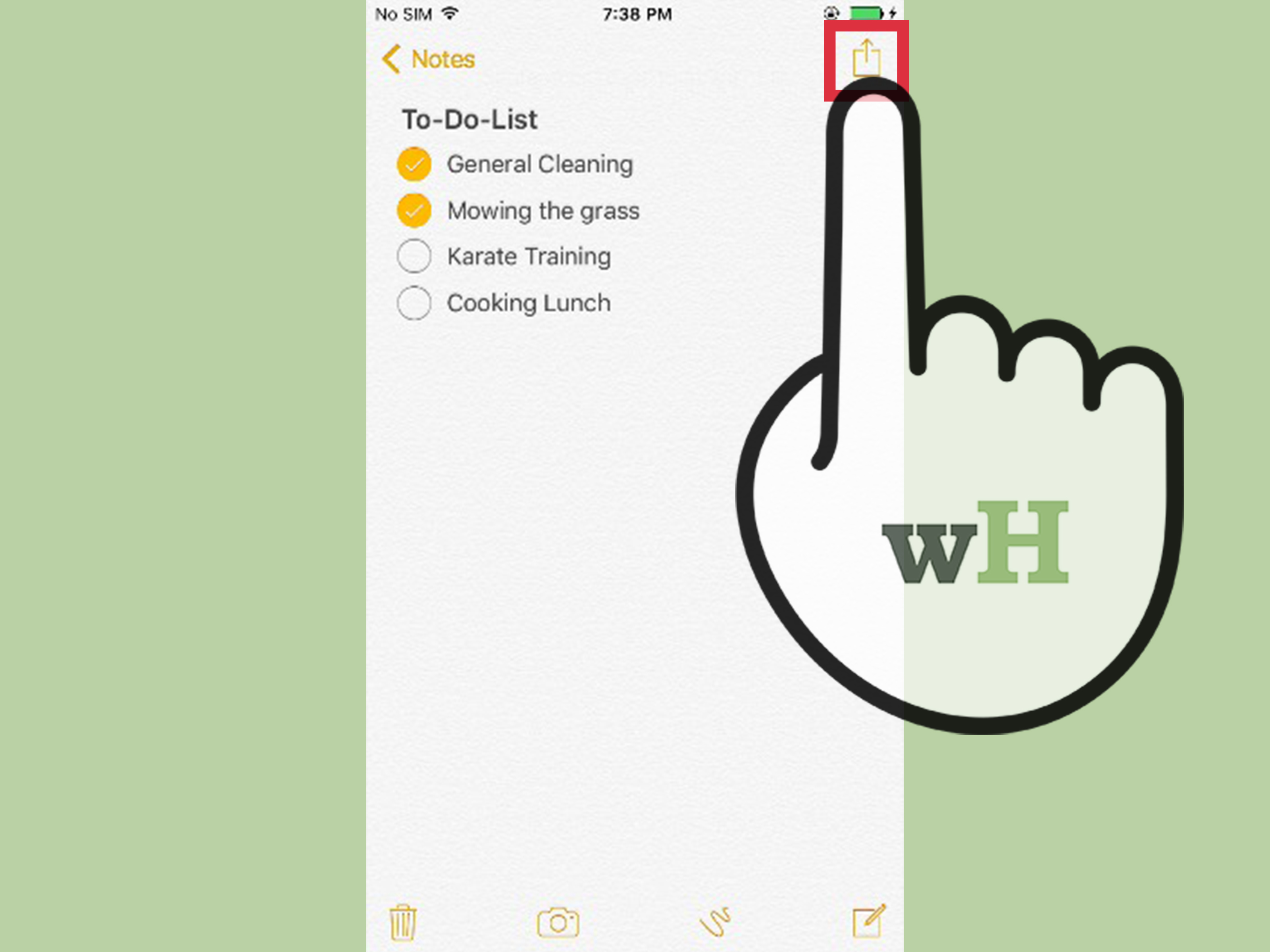
You can share a Notes checklist in two main ways: send a copy or collaborate. Sending a copy gives someone a static version of the note. Collaboration lets invited people edit the note and see updates.
How to Collaborate on a Checklist
- Open the note that contains your checklist.
- Tap the Share button.
- Choose Collaborate.
- Set permissions, such as who can access the note and whether they can make changes.
- Send the invitation using Messages, Mail, or another supported option.
Shared checklists are excellent for grocery shopping, moving house, group projects, event planning, family chores, and travel. Everyone can add items, check off completed tasks, and update the same note. This prevents the classic family-shopping problem where one person buys apples, another buys apples, and nobody buys the thing everyone actually needed.
How to Sync Notes Checklists Across Devices
If you use iCloud, your Notes checklists can stay updated across your iPhone, iPad, Mac, and iCloud on the web. To set this up, go to Settings, tap your name, choose iCloud, tap Notes, and turn on syncing for your device.
This is a huge advantage if you create a checklist on your iPhone but want to edit it later on a Mac or iPad. You can also access iCloud Notes from a web browser, which is handy when you are using a computer that is not yours. Just remember that some advanced Notes features work best when notes are stored in iCloud or directly on your device, not through third-party email accounts.
How to Organize To-Do Lists With Folders and Tags
Once you create more than a few checklists, organization becomes important. Otherwise, your Notes app becomes the digital equivalent of a drawer full of mystery cables. Use folders for broad categories, such as Work, School, Home, Travel, and Shopping.
You can also use tags by typing the # symbol followed by a word, such as #groceries, #urgent, #school, or #content. Tags make it easier to group related notes across different folders. For example, you could have travel notes in one folder and shopping notes in another, but use #packing to find all packing-related checklists quickly.
Smart Checklist Ideas for Everyday Life
Here are practical ways to use iPhone Notes checklists:
Grocery List
Create one shared grocery note for your household. Add sections like produce, dairy, pantry, frozen food, and household supplies. Check items off as you shop. If automatic sorting is enabled, purchased items move down, and what is left stays visible.
Packing List
Use categories such as clothes, toiletries, tech, documents, and snacks. Save the note and reuse it for future trips. A good packing checklist can prevent the tragic airport realization that your charger is still living peacefully at home.
Morning Routine
Create a short list: drink water, review schedule, pack bag, feed pet, take vitamins, check keys. Keep it simple. A morning routine checklist should help you leave the house, not become a philosophical essay.
School or Work Tasks
Use one note per project or subject. Add a checklist for tasks, links for resources, and short notes for deadlines. This keeps related information together instead of scattered across apps.
Content Planning
If you write blog posts, film videos, or manage social media, Notes can track ideas, outlines, publishing steps, image needs, and final review tasks. A checklist like “draft, edit, optimize, add images, publish, share” works well for repeatable content workflows.
Notes vs. Reminders: Which Should You Use?
Apple Notes and Apple Reminders overlap, but they are not the same. Use Notes when your checklist needs context, paragraphs, links, images, tables, or shared planning. Use Reminders when you need alerts, due dates, recurring reminders, location-based notifications, or more task-management structure.
For example, “buy eggs” with a time alert belongs in Reminders. A meal planning note with recipes, grocery items, and cooking steps belongs in Notes. Notes is better for flexible planning. Reminders is better for being nagged by your phone at exactly the right moment.
Troubleshooting: Why Can’t I See the Checklist Button?
If the checklist button is missing or not working, try these fixes:
- Make sure your iPhone is updated to a recent iOS version.
- Check whether the note is stored in iCloud or on your device instead of a third-party email account.
- Tap inside the note body so the keyboard and toolbar appear.
- Look for the toolbar above the keyboard and swipe through formatting options if needed.
- Close and reopen the Notes app if the toolbar is behaving strangely.
Some Notes features may not work with notes connected to certain email providers. For the best experience, use iCloud Notes or notes stored locally on your iPhone.
Best Practices for Better iPhone Notes Checklists
A good checklist is not just a pile of tasks. It is a small map for your future self. Keep each item short and action-based. Instead of writing “kitchen,” write “wipe kitchen counter” or “empty dishwasher.” Instead of “project,” write “send first draft to editor.” Clear tasks are easier to complete.
Use titles that are easy to search. “Tuesday” is not as helpful as “Tuesday Client Tasks” or “June Grocery List.” Add tags when useful, but do not create so many tags that your organization system needs its own organization system.
For recurring lists, do not delete everything. Reuse the note. Uncheck completed items, update what changed, and keep the structure. This works beautifully for packing lists, cleaning routines, weekly planning, and grocery staples.
Experience Section: What Using iPhone Notes Checklists Feels Like in Real Life
After using iPhone Notes checklists for everyday planning, one thing becomes obvious: the best productivity tool is often the one you can open fastest. A dedicated task app may have beautiful dashboards, priority levels, calendar views, and colorful labels, but if you hesitate before using it, the system breaks. Notes wins because it is frictionless. You can open it while standing in a grocery aisle, sitting in a parked car, waiting for coffee, or pretending to listen while someone explains a plan that definitely needs to be written down.
The most useful personal habit is creating “living checklists.” These are not one-time lists that disappear after a day. They are reusable notes that improve over time. A packing list is a perfect example. The first version might include clothes, toothbrush, charger, passport, and headphones. After one trip, you add “sleep mask” because the hotel curtains were apparently designed by someone who enjoys sunrise attacks. After another trip, you add “backup USB-C cable” because one cable always chooses betrayal. Over time, the checklist becomes personalized and genuinely valuable.
Grocery lists also work better in Notes than many people expect. A shared grocery note can become a household command center. One person adds eggs, another adds dish soap, and someone else checks off items while shopping. The list stays simple, but it solves a real problem. The key is to organize it by store section. Put produce together, frozen food together, and cleaning supplies together. This saves time and prevents the classic supermarket marathon where you walk from one end of the store to the other because “tomatoes” was hiding between “laundry detergent” and “ice cream.”
For work and study, Notes checklists are most effective when paired with short context. A plain task like “finish report” can feel vague and heavy. A better note might include a heading, three bullet points about what the report needs, a link to the source document, and a checklist with “write outline,” “add data,” “proofread,” and “send final version.” That small amount of structure reduces mental resistance. You are not just staring at a task; you are looking at the next step.
The biggest mistake is making checklists too ambitious. A daily list with 27 tasks is not a productivity plan. It is a tiny horror movie. Keep daily Notes checklists realistic. Put three to five important tasks at the top, then add optional items below. If everything is urgent, nothing is urgent. If everything is on today’s list, tomorrow is already mad at you.
Another practical lesson: use completed items as feedback. If the same unchecked task survives for five days, it may be too vague, too large, or not actually important. Break it down, rewrite it, schedule it in Reminders, or delete it with confidence. A checklist should help you think clearly, not preserve guilt in digital form.
In real life, iPhone Notes checklists are not about becoming a productivity robot. They are about reducing small moments of chaos. They help you remember the charger, buy the milk, send the file, pack the socks, and stop relying on the fragile confidence of “I’ll remember.” Spoiler: you may not remember. But your iPhone can, and unlike your brain at 11 p.m., it does not suddenly decide to think about raccoons.
Conclusion
Creating a to-do list or checklist in iPhone Notes is one of the simplest ways to stay organized without downloading another app. Open Notes, create a new note, tap the checklist button, type your tasks, and check them off as you go. From there, you can reorder items, indent subtasks, sort completed tasks, add headings, use tags, share lists, and sync everything through iCloud.
For everyday productivity, Apple Notes hits a sweet spot. It is not too complicated, not too plain, and not trying to become your life coach. It simply gives you a clean place to capture tasks and keep moving. Whether you are planning a trip, organizing schoolwork, managing errands, or building a repeatable workflow, the Notes checklist feature is fast, flexible, and already waiting on your iPhone.