A Steam disk write error is the gaming equivalent of your computer standing in front of your download with a tiny clipboard saying, “Sorry, you are not on the list.” You click install, Steam begins downloading, the progress bar looks hopeful, and thenboom“Disk Write Error.” The game refuses to update, install, or launch, and suddenly your evening of heroic quests becomes a troubleshooting side mission.
The good news: this error is usually fixable. It often means Steam cannot write files to the selected drive or Steam library folder. That can happen because of a corrupted download cache, broken library-folder permissions, antivirus interference, drive errors, low disk space, a locked file, or a read-only folder setting. The fix is not one magical button, but a sensible checklist. Start with the easy, low-risk steps, then move toward deeper Windows or Mac repairs only if the error keeps coming back like an annoying mini-boss.
What Does “Steam Disk Write Error” Mean?
A Steam disk write error appears when Steam can download data but cannot save, replace, unpack, or patch the required game files on your storage device. In plain English, Steam is trying to put files where they belong, but something is blocking the delivery truck.
You may see the error when installing a new game, updating a large title, resuming a paused download, moving a game between drives, or launching a game after an incomplete patch. It can affect Windows PCs, gaming laptops, external SSDs, hard drives, and Macs. The exact message may vary, but the basic idea is the same: Steam cannot write to disk.
Before You Start: Do These Fast Checks
1. Restart Steam Completely
Close Steam from the menu instead of only clicking the X. On Windows, right-click the Steam icon in the system tray and choose Exit. On Mac, click Steam in the menu bar and choose Quit Steam. Reopen it and retry the download. This clears temporary locks and can release files that Steam or another process was holding hostage.
2. Restart Your Computer
Yes, it is the classic “turn it off and on again” move. No, it is not glamorous. But restarting flushes system states, clears stuck background processes, and unlocks files. If Steam failed during a patch, a restart may be enough to let it continue.
3. Check Available Storage Space
Steam patches can need more free space than the download size suggests. A 5 GB update may temporarily require much more room while files are unpacked and replaced. On Windows, open Settings > System > Storage or File Explorer. On Mac, open System Settings > General > Storage. Try to keep a generous buffer, especially for large modern games that treat storage drives like an all-you-can-eat buffet.
Fix 1: Clear the Steam Download Cache
The Steam download cache stores temporary download data. If that cache becomes corrupted, Steam may fail during installation or updating. Clearing it is one of the safest first fixes.
Windows and Mac Steps
- Open Steam.
- Click Steam in the top-left corner.
- Select Settings on Windows or Preferences on Mac.
- Open Downloads.
- Choose Clear Download Cache or Clear Cache.
- Confirm, then sign back into Steam if prompted.
This should not delete your installed games. It may interrupt active downloads, so expect to resume them afterward. If the disk write error was caused by corrupted temporary download data, Steam may continue normally after the cache reset.
Fix 2: Repair the Steam Library Folder
Your Steam library folder contains installed games and update files. If the folder permissions are broken, Steam may not have proper write access. Repairing the folder refreshes those permissions.
How to Repair a Steam Library Folder
- Open Steam.
- Go to Steam > Settings.
- Choose Storage or Downloads, depending on your Steam client layout.
- Select the drive or library folder where the problem game is installed.
- Click the three-dot menu or folder options.
- Choose Repair Folder.
- Restart Steam and try the download again.
This fix is especially useful if only one drive or one Steam library is affected. For example, if games on your C: drive update normally but games on your external SSD throw disk write errors, the library folder on that external drive may be the problem child.
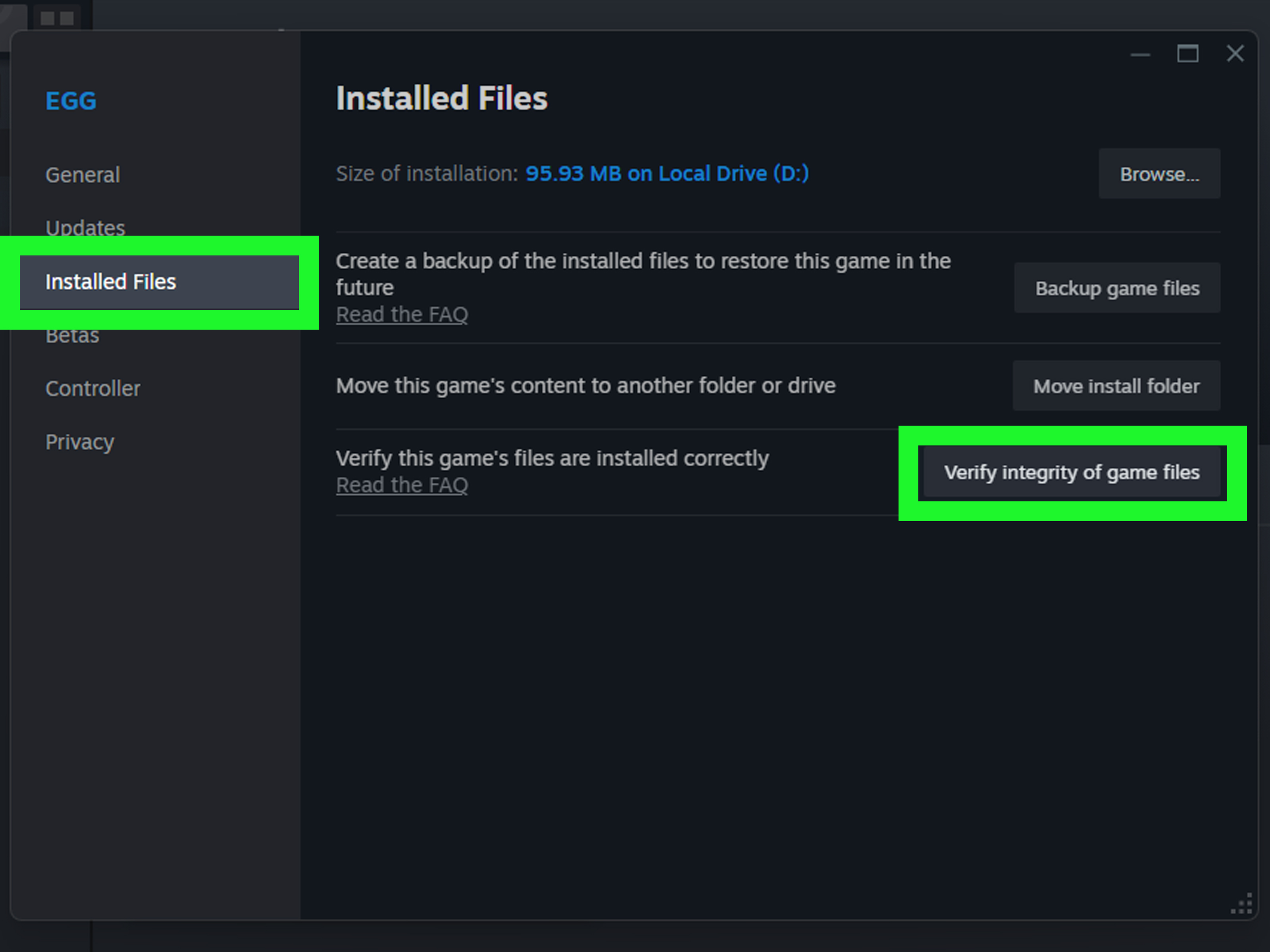
Fix 3: Verify Integrity of Game Files
If the error happens with one game, verify that game’s local files. Steam compares your installed files with the expected files and replaces missing or corrupted ones.
Steps to Verify Game Files
- Open your Steam Library.
- Right-click the affected game.
- Select Properties.
- Open Installed Files.
- Click Verify integrity of game files.
This process may take several minutes. For large games, go grab water, stretch, and resist the urge to stare at the percentage number like it owes you money. If Steam finds damaged files, it will reacquire them.
Fix 4: Change the Download Region
Sometimes the issue is not your drive but the content server feeding your download. Steam lets you switch download regions, which can help when downloads stall, fail, or behave strangely.
- Open Steam > Settings.
- Choose Downloads.
- Find Download Region.
- Select a nearby alternative region.
- Restart Steam and retry the download.
Choose a region close to you, not one on the other side of the planet unless you enjoy turning a simple update into a world tour.
Fix 5: Run Steam as Administrator on Windows
On Windows, Steam may need elevated permissions to write to certain folders, especially if it is installed under Program Files or trying to update files on a protected drive.
Temporary Administrator Launch
- Exit Steam completely.
- Search for Steam in the Start menu.
- Right-click Steam.
- Select Run as administrator.
- Approve the prompt and retry the download.
If this fixes the issue, permissions were likely involved. You can continue using this method when updating difficult games, but it is better to repair the library folder or move the library to a less restricted location for a long-term fix.
Fix 6: Remove Read-Only Restrictions on Windows
If the Steam folder or game folder is marked read-only, Steam may fail when writing update files. Windows can be dramatic about folder attributes, so check the basics.
- Exit Steam.
- Open File Explorer.
- Go to your Steam folder, such as C:\Program Files (x86)\Steam, or your custom SteamLibrary folder.
- Right-click the folder and choose Properties.
- On the General tab, clear Read-only if it is selected.
- Click Apply and apply changes to subfolders when prompted.
Do the same for the affected game folder inside steamapps\common. Then reopen Steam and test the update.
Fix 7: Check Antivirus or Windows Security Blocking
Security software can occasionally block Steam from changing files, especially during large patches where thousands of files are being created, unpacked, or replaced. Windows Controlled Folder Access may also stop apps from writing to protected folders.
Do not disable your protection permanently. Instead, check your antivirus quarantine or protection history. If Steam, steam.exe, or a game executable was blocked, add Steam as an allowed app only if you trust the installation and downloaded it from the official Steam site.
Practical Windows Security Check
- Open Windows Security.
- Go to Virus & threat protection.
- Check Protection history.
- If Controlled Folder Access blocked Steam, allow Steam through Controlled Folder Access.
After allowing Steam, restart the client and resume the download. If the problem disappears, your security software was guarding the folder a little too enthusiastically.
Fix 8: Delete the 0 KB File or Failed Download File
Some Steam disk write errors are caused by a broken placeholder file. If a game update repeatedly fails, inspect the game folder for a suspicious 0 KB file matching the game name or recently modified files.
- Exit Steam.
- Open the Steam installation folder.
- Go to steamapps\common.
- Open the affected game folder.
- Look for a 0 KB file or a file modified at the exact time the update failed.
- Move the suspicious file to the desktop as a backup, then relaunch Steam.
If Steam needs the file, it should redownload it. If nothing changes, restore the file and continue with the next fixes.
Fix 9: Use the Steam Content Log to Find the Problem File
For stubborn errors, Steam’s content log may point to the exact file it failed to write. This is a more advanced fix, but it can save time when one file is causing the whole patch to collapse like a lawn chair.
On Windows, look in the Steam logs folder for content_log.txt. Search near the bottom for phrases such as “failed to write” or “disk write failure.” The log may reveal the file path that Steam cannot update. Once you know the file, you can check whether it is locked, read-only, quarantined by antivirus, or sitting on a damaged part of the drive.
Fix 10: Check the Drive for Errors on Windows
If multiple games fail, downloads keep corrupting, or the same drive causes repeated errors, check the disk itself. Steam cannot write properly to a drive with file-system errors, bad sectors, or failing hardware.
Run CHKDSK
- Close Steam.
- Right-click the Start button.
- Open Terminal or Command Prompt as administrator.
- Type chkdsk X: /f, replacing X with the correct drive letter.
- Press Enter and follow the prompts.
If Windows says the drive is in use, schedule the scan for the next restart. For deeper checks, advanced users sometimes use /r, but that can take much longer because it looks for bad sectors. Back up important files before running repair operations, especially on an older drive that already sounds like it is auditioning for a horror movie.
Fix 11: Repair the Disk on Mac with Disk Utility
On macOS, use Disk Utility’s First Aid feature to check and repair storage problems. This is useful when Steam errors appear on a Mac internal drive or an external drive used for a Steam library.
Mac First Aid Steps
- Quit Steam.
- Open Disk Utility.
- Select the affected volume or external drive.
- Click First Aid.
- Click Run.
- Restart your Mac after the process completes.
If Disk Utility warns that the drive may be failing, back up your data immediately and replace the drive. A Steam disk write error is annoying; losing your save files and personal files is the final boss nobody asked for.
Fix 12: Check Mac Folder Permissions
Mac users should also check whether Steam has permission to access the location where games are stored. This matters most if your Steam library is on an external drive or in a custom folder.
- Quit Steam.
- Find the Steam library folder in Finder.
- Right-click it and choose Get Info.
- Open Sharing & Permissions.
- Make sure your user account has Read & Write access.
- Apply the permission change to enclosed items if needed.
Also confirm the external drive is formatted in a Mac-friendly format and is not mounted as read-only. If the drive works for reading games but not updating them, permissions or file-system compatibility may be involved.
Fix 13: Move the Game to Another Drive
If one drive is cramped, slow, failing, or permission-troubled, move the game to another Steam library folder.
- Open Steam.
- Go to Settings > Storage.
- Add another drive or library folder if needed.
- Select the affected game.
- Choose Move.
- Select the destination library and confirm.
This fix is great when your main SSD is full or your external drive keeps disconnecting. If the game updates normally on a different drive, the original location is the suspect.
Fix 14: Reinstall Steam Without Losing Games
Reinstalling Steam should be near the end of your checklist, not the opening move. Before removing Steam, protect your game files.
Windows Safety Tip
If you plan to reinstall Steam, move the steamapps folder outside the Steam installation folder first. That folder contains your installed games. After reinstalling Steam, move steamapps back or add the existing library folder through Steam’s Storage settings.
Mac Safety Tip
On Mac, Steam support provides separate reinstall guidance. Be careful when deleting Steam data from Library/Application Support/Steam. If you want to preserve installed games, back up the relevant Steam folders first.
After reinstalling, open Steam, add any existing library folders, and verify affected game files. Steam may rediscover installed games instead of forcing a full redownload.
Windows-Specific Checklist
- Run Steam as administrator.
- Clear read-only attributes from the Steam and SteamLibrary folders.
- Check Windows Security protection history.
- Allow Steam through Controlled Folder Access if it was blocked.
- Run CHKDSK on the affected drive.
- Update storage drivers if your SSD or external drive behaves unpredictably.
- Try moving the game from an external drive to an internal SSD.
Mac-Specific Checklist
- Quit and reopen Steam from the menu bar.
- Clear Steam’s download cache.
- Check Steam library folder permissions in Finder.
- Run First Aid in Disk Utility.
- Confirm the external drive is mounted properly and not read-only.
- Move the game to a different library folder if the current drive keeps failing.
- Reinstall Steam only after backing up important Steam folders.
Common Causes of Steam Disk Write Errors
The most common cause is a corrupted download cache. This is why clearing the cache is near the top of the list. Another frequent cause is a damaged or misconfigured Steam library folder. When Steam cannot access the folder correctly, even a tiny patch can fail.
Storage space is another sneaky culprit. Many users see “disk write error” and assume the drive is broken, when the real issue is that the game needs temporary patching space. Modern games can require enormous working room during updates. Your drive may technically have space for the download but not enough room to unpack and apply it.
Antivirus software can also interfere. Steam updates sometimes look suspicious to security tools because they modify executable files and large archives. That does not mean Steam is unsafe; it means your security software is doing its job with the subtlety of a fire alarm in a library.
How to Prevent the Error in the Future
Keep at least 15% to 20% of your game drive free when possible. Install large games on reliable internal SSDs rather than old external hard drives. Shut down Steam properly before unplugging external storage. Avoid force-closing Steam during updates. Keep Windows, macOS, storage drivers, and Steam itself updated.
If you use an external drive, plug it directly into the computer instead of a weak USB hub. A brief disconnect during a patch can corrupt temporary files and trigger disk write failures. Also avoid storing Steam libraries in folders synced by cloud backup tools, because sync conflicts can lock files at exactly the wrong moment.
When Should You Worry About the Drive?
If the disk write error affects only one game, the game files or Steam cache are probably the issue. If every game fails on one drive, the library folder, permissions, or the drive itself may be the problem. If Windows CHKDSK or Mac Disk Utility reports serious errors, back up your data immediately. If the drive clicks, disconnects randomly, overheats, or repeatedly corrupts downloads, replace it.
A failing drive rarely fixes itself. It just waits until you are 97% through a download before choosing violence.
Final Recommended Fix Order
- Restart Steam.
- Restart your computer.
- Check free storage space.
- Clear Steam download cache.
- Repair the Steam library folder.
- Verify game files.
- Change download region.
- Check permissions and read-only settings.
- Check antivirus or Controlled Folder Access.
- Run CHKDSK on Windows or First Aid on Mac.
- Move the game to another drive.
- Reinstall Steam carefully while preserving game files.
Real-World Experience: What Usually Works First
In real troubleshooting, the Steam disk write error rarely arrives with a polite explanation. It simply appears after a game update fails, leaving users to wonder whether Steam is broken, the game is cursed, or the SSD has entered its villain era. The fastest wins usually come from the simple fixes: restarting Steam, clearing the download cache, repairing the library folder, and verifying game files. These steps solve many cases because Steam updates rely on temporary files, correct folder permissions, and clean patch data.
One common scenario involves a large game update on a nearly full SSD. The user sees a 6 GB update and thinks, “Great, I have 12 GB free.” Then the update fails. Why? Because the patch may need extra temporary space to unpack, compare, replace, and rebuild files. The download size is not always the working-space requirement. Freeing an additional 30 GB or more can instantly fix the issue. It feels ridiculous, but modern games are basically small planets with launch buttons.
Another frequent case happens with external drives. A player installs Steam games on a portable SSD, then one day the disk write error appears during an update. The drive still opens. The files are still visible. But Steam cannot complete the write process. The cause might be a loose cable, a USB hub that briefly disconnects, a read-only mount, or a file-system problem. Moving the game to an internal drive is a useful test. If the game updates normally there, Steam is innocent; the external setup needs attention.
Windows users often fix the issue by running Steam as administrator once, especially when Steam is installed in a protected location. However, that should not be the only long-term strategy. A healthier solution is to keep game libraries in a folder Steam can write to without fighting Windows permissions every Tuesday. Repairing the Steam library folder from Storage settings is safer and cleaner than constantly elevating the app.
Mac users tend to run into permission or disk-format issues when using external drives. If Steam can read installed games but cannot update them, check Finder permissions and run Disk Utility First Aid. If First Aid reports that a drive is failing, believe it. Drives do not issue warnings for dramatic flair. Back up the Steam library and any personal files before experimenting further.
Antivirus interference is another underrated cause. Security tools may block a file during a patch, especially if the update modifies executable files. The best approach is not to shut protection off forever. Instead, check the protection history and allow Steam only if it was clearly blocked and you trust the installation. This keeps security intact while letting Steam do its job.
The biggest lesson is to troubleshoot in order. Do not reinstall Steam before clearing the cache. Do not replace a drive before repairing the library folder. Do not delete random files because a forum comment from 2017 sounded confident. Start gentle, test after each fix, and escalate only when the error survives. Steam disk write errors can be frustrating, but with a calm checklist, most of them are less “catastrophic hardware failure” and more “your computer needs a small permission pep talk.”
Conclusion
A Steam disk write error on Windows or Mac usually means Steam cannot save or update files in the selected location. The cause may be simple, such as a corrupted download cache, low free space, or a broken library-folder permission. It may also point to deeper problems, such as antivirus blocking, file-system errors, or a failing drive. Start with the safest fixes: restart Steam, clear the download cache, repair the library folder, verify game files, and check storage space. Then move into operating-system repairs like CHKDSK on Windows or Disk Utility First Aid on Mac.
The key is patience. Steam is not always broken, your game is not always doomed, and your drive is not always dying. But if the same drive keeps causing repeated write errors, treat that as a warning and back up your data. A working game library is nice. A safe backup is better.
Note: This guide is intended for practical troubleshooting. If your drive reports failure warnings, back up important files before attempting additional repairs.