Empty home screens on Android are like mystery drawers in the kitchen: nobody remembers creating them, nobody uses them, and yet there they are, quietly making your digital life feel messier than it needs to be. One accidental drag of an app icon, one enthusiastic widget experiment, or one “I’ll organize this later” moment can leave you swiping through blank pages just to find the screen you actually use.
The good news? Deleting empty home screens on Android is usually fast. In many cases, you do not even need a separate “delete” button. You simply remove the final app, shortcut, folder, or widget from that screen, and Android automatically clears the unused page. On some phones, especially Samsung Galaxy devices, you can also enter home screen editing mode and tap a trash icon to remove the page directly.
This guide walks you through the quick method, the brand-specific differences, and the small troubleshooting tricks that save you from angrily tapping your screen like it owes you money.
Quick Answer: How to Delete an Empty Home Screen on Android
On most Android phones, the fastest way to delete an empty home screen is to remove every item from that page. Once the last app icon, widget, folder, or shortcut is gone, the empty screen usually disappears automatically.
The basic method
- Go to the empty or unwanted home screen.
- Look for any remaining app icons, folders, shortcuts, or widgets.
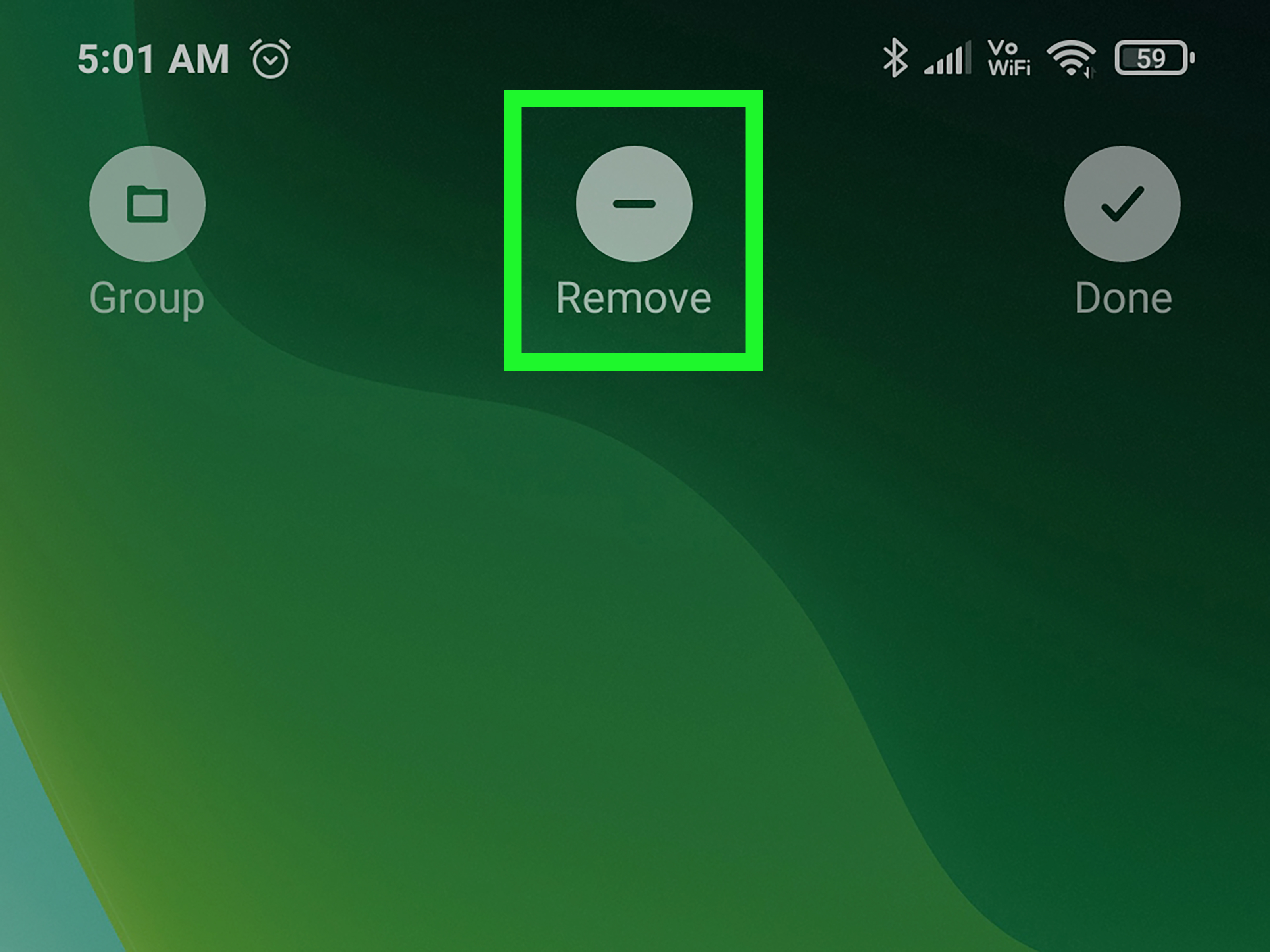
- Touch and hold each item.
- Drag it to another home screen or choose Remove.
- When the last item is removed, the blank page should disappear.
If you are using a Samsung Galaxy phone, you may have an even more direct option:
- Touch and hold an empty area of the home screen.
- Swipe to the screen you want to remove.
- Tap the Delete or trash can icon at the top.
That is the short version. Now let’s unpack the details, because Android is wonderfully customizableand occasionally as consistent as a cat deciding whether it wants to be inside or outside.
Why Empty Home Screens Appear on Android
Android home screens are flexible spaces where you can place app shortcuts, widgets, folders, browser shortcuts, contact shortcuts, calendar widgets, weather panels, and more. When you drag an app or widget toward the edge of a screen, many Android launchers create a new page automatically. That is useful when you want extra space, but it can also leave behind a blank page after you reorganize.
Common causes include:
- You moved apps to another page but left the original page behind.
- You deleted a widget but the home screen panel stayed visible temporarily.
- You installed a new launcher that created extra pages.
- You restored a phone backup that brought back an old home screen layout.
- You accidentally dragged an icon to the far right and created a new page.
Most of the time, nothing is wrong with your phone. The launcher is simply holding onto a page because it thinks something may still be thereor because your phone maker handles home screen pages differently.
How to Delete Empty Home Screens on Stock Android and Pixel Phones
On many stock Android-style launchers, including the general Android behavior described by Google, home screens are removed when all apps, shortcuts, widgets, and groups are moved off the page. In other words, the blank screen disappears when it becomes truly empty.
Step-by-step instructions
- Swipe to the home screen page you want to remove.
- Check for small items you may have missed, such as a tiny folder or widget.
- Touch and hold an item.
- Drag it to another page, or drag it to Remove if that option appears.
- Repeat until the screen has no items left.
- Swipe away and back. The empty page should be gone.
On Pixel-style launchers, you may not see a separate “delete page” button. That is normal. The launcher typically manages pages automatically. If the page is empty, it vanishes. If it stays, something is probably still sitting on it, even if it is not obvious at first glance.
Important Pixel note
You usually cannot delete the main home screen itself. Android needs at least one home screen. Think of it as the lobby of your phone: you can redecorate it, but you cannot remove the building entrance entirely.
How to Delete Empty Home Screens on Samsung Galaxy Phones
Samsung Galaxy phones running One UI usually make home screen management very visual. Instead of forcing you to remove items one by one and hope the page disappears, Samsung often lets you manage panels from a zoomed-out editing view.
Samsung Galaxy method
- Touch and hold a blank area on your home screen.
- The screen will zoom out and show your home screen pages.
- Swipe left or right to find the empty page.
- Tap the trash can or Delete icon above that page.
- Confirm if your phone asks for confirmation.
This method is one of the easiest because it treats home screens like pages in a notebook. Find the page you do not want, tap delete, and enjoy the rare pleasure of technology behaving exactly as expected.
What if the delete icon is missing?
If you do not see the delete icon, try these fixes:
- Make sure you are not trying to delete your main home screen.
- Remove any apps, folders, or widgets from the page first.
- Check whether Lock Home screen layout is turned on in Samsung Home screen settings.
- Restart the phone and try again.
- Update One UI if a system update is available.
Samsung also separates the Home screen from the Apps screen. Removing an app shortcut from the home screen does not uninstall the app. It simply removes that shortcut from the visible page. The app remains available in the app drawer unless you uninstall it separately.
How to Delete Empty Home Screens on Motorola Phones
Motorola’s Android experience is usually close to stock Android. On many Motorola devices, you remove a home screen by clearing everything from it. Once the last app, folder, shortcut, or widget leaves the page, the home screen is removed automatically.
Motorola method
- Swipe to the unwanted home screen.
- Touch and hold any app, folder, shortcut, or widget.
- Move it to another screen or remove it from the home screen.
- Repeat until the page is empty.
- The page should disappear after the final item is removed.
If it does not disappear, restart the phone. A restart can refresh the launcher and clear a blank page that is only stuck because of a temporary display glitch.
How to Remove Home Screens on Other Android Launchers
Android phones do not all use the same launcher. A launcher is the app that controls your home screen, app drawer, widgets, gestures, icons, and page layout. Samsung uses One UI Home. Pixel phones use Pixel Launcher. Motorola has its own near-stock launcher. Other users install launchers like Nova Launcher, Microsoft Launcher, Niagara Launcher, Smart Launcher, or Lawnchair.
If you use a third-party launcher, the steps may be slightly different. Try this general method:
- Touch and hold an empty area of the home screen.
- Look for options such as Home settings, Edit pages, Screen manager, or Desktop.
- Swipe to the blank page.
- Look for a delete, remove, minus, or trash icon.
- If no delete button appears, remove all items from the page and check whether it disappears automatically.
Third-party launchers often give you more control than the default launcher, but they also add more settings. Translation: more power, more menus, more opportunities to say, “I swear this option was here yesterday.”
Remove vs. Uninstall: Know the Difference
When cleaning up Android home screens, it is important to understand the difference between Remove and Uninstall.
Remove
Remove takes an app shortcut, widget, or folder off the home screen. The app stays installed on your phone. You can still find it in the app drawer or through search.
Uninstall
Uninstall deletes the app from your phone. Use this only when you no longer want the app at all.
If your goal is simply to delete an empty home screen, you usually want Remove, not Uninstall. Nobody wants to accidentally delete their banking app while trying to tidy up a blank page. That is not cleaning; that is chaos with a password reset.
What to Do If the Empty Home Screen Will Not Delete
Sometimes an Android home screen looks empty but refuses to disappear. Here are the most common reasons and how to fix them.
1. A tiny widget is still there
Some widgets can be small, transparent, or hard to notice against your wallpaper. Touch and hold different areas of the blank screen. If a widget outline appears, remove it.
2. A folder is hiding in plain sight
A small folder with one or two apps may blend into a busy wallpaper. Change your wallpaper temporarily to a plain background, then check the page again.
3. Home screen layout is locked
Some Android phones include a setting that prevents accidental changes to the home screen. This is useful until you actually want to change something. Go to your home screen settings and look for an option like Lock Home screen layout. Turn it off, then try removing the page again.
4. You are trying to delete the default screen
Most launchers require at least one home screen. If the page you want to delete is the main screen, set another page as the default first if your launcher allows it, then delete the old page.
5. Your launcher is glitching
If the page remains after everything is removed, restart your phone. If that does not help, check for launcher updates. As a last resort, you can reset the launcher’s storage, but this may erase your home screen layout and force you to set it up again.
How to Reset Your Android Home Screen Layout
If your home screen is beyond savingtoo many blank pages, duplicate icons, mystery folders, and widgets from apps you forgot existedyou can reset the launcher layout. This should be treated as a last resort because it may remove your custom arrangement.
General reset method
- Open Settings.
- Go to Apps.
- Find your launcher, such as Pixel Launcher, One UI Home, Moto App Launcher, or another home app.
- Tap Storage or Storage & cache.
- Choose Clear storage or Clear data.
Before doing this, remember that clearing launcher data can reset your home screen arrangement. It does not usually delete your apps, photos, messages, or files, but it may wipe your icon placement, folders, and widgets. Take screenshots first if you want to rebuild the layout later.
How to Prevent Empty Home Screens from Coming Back
Deleting blank home screens feels good, but preventing them feels better. Here are a few habits that keep your Android home screen clean.
Use folders wisely
Instead of spreading apps across five screens, group related apps into folders. Try simple folder names like Money, Travel, Work, Photos, and Food. The folder named “Stuff” is allowed, but only if you are emotionally prepared to never find anything in it again.
Keep one main screen and one utility screen
A practical setup is one primary screen for daily apps and one secondary screen for widgets. For example, keep Phone, Messages, Gmail, Chrome, Maps, Camera, and your favorite music app on the main screen. Use the second screen for weather, calendar, notes, and battery widgets.
Remove shortcuts you do not use
If an app lives comfortably in the app drawer and you open it once a month, it probably does not need a front-row seat on your home screen.
Be careful when dragging icons
Dragging an app too far to the right can create a new screen. When organizing, move slowly and release the icon only when you are sure it is on the page you want.
Review your home screen after installing apps
Some phones or launchers may add new app icons to the home screen automatically. If you notice this happening, check your home screen settings and app drawer settings. Turning off automatic shortcut placement can prevent clutter before it starts.
Best Home Screen Layout for a Cleaner Android Experience
The best Android home screen layout is the one that helps you open what you need quickly without turning every swipe into a scavenger hunt. Here is a simple layout that works for most people:
- Main screen: Most-used apps, search bar, and one small widget.
- Second screen: Calendar, weather, notes, or task widgets.
- Dock: Phone, Messages, browser, camera, and one flexible favorite.
- App drawer: Everything else.
This setup keeps your phone feeling fast and intentional. You will spend less time swiping past empty pages and more time doing what you actually picked up your phone to do. Revolutionary, I know.
Real-World Experience: What Deleting Empty Android Home Screens Actually Feels Like
In everyday use, deleting empty home screens on Android is one of those tiny tasks that feels oddly satisfying once you finally do it. It is not dramatic. No fireworks appear. Your phone does not whisper, “Great job, productivity champion.” But the next time you swipe across your home screen and do not land on a lonely blank page, you notice the difference immediately.
The biggest lesson from cleaning up Android home screens is that the “empty” page is not always empty. Many people assume a blank-looking panel should disappear instantly, but Android launchers can be picky. A small widget, a transparent shortcut, or a folder hiding against a dark wallpaper can keep the page alive. I have seen blank pages survive because of a nearly invisible weather widget outline sitting at the top of the screen like a tiny digital ghost. Touching and holding different parts of the page usually reveals the culprit.
Samsung users often have the smoothest experience because the zoomed-out home screen editor is easy to understand. You press and hold the screen, swipe through your panels, and remove the page with a trash icon. It feels like deleting a slide from a presentation, which is exactly how home screen management should feel. Pixel and Motorola users may need to think differently. Instead of looking for a delete button, they usually need to clear the page completely and let the launcher remove it automatically.
Another practical tip: take a screenshot before reorganizing. This sounds overly careful until you accidentally move half your apps and forget where everything lived. A screenshot gives you a map back to civilization. It is especially useful if you plan to reset your launcher data, because that can wipe your carefully arranged layout.
The cleanest home screens usually come from restraint, not from fancy customization. One screen with essential apps and one screen with useful widgets is enough for many users. The app drawer exists for a reason. Not every app needs to sit on the home screen waving for attention like it is running for mayor.
After deleting empty Android home screens, your phone feels less cluttered and more predictable. You swipe once, land where you expect, and stop wasting tiny bits of attention on pages that serve no purpose. It is a small cleanup, but small cleanups matter. A phone you use dozens of times a day should feel organized, not like a storage closet with a touchscreen.
Conclusion
Deleting empty home screens on Android is usually quick once you understand how your launcher works. On stock Android-style phones and many Motorola devices, remove every app, folder, shortcut, and widget from the unwanted screen, and the page should disappear automatically. On Samsung Galaxy phones, use the home screen editing view and tap the trash icon when available. If a page refuses to go away, check for hidden widgets, locked layouts, launcher glitches, or the possibility that you are trying to delete the required main screen.
The goal is not just to remove blank pages. It is to make your Android phone easier to use every day. A clean home screen saves time, reduces visual clutter, and keeps your most important apps exactly where your thumb expects them to be.