Google Calendar is already good at telling you where you need to be and when you need to pretend you are not late. But when every meeting, reminder, class, workout, dentist appointment, and mysterious “quick sync” looks the same, your calendar becomes less of a productivity tool and more of a digital bowl of oatmeal. Useful? Yes. Exciting? Not exactly.
The good news is that changing the color of your Google Calendar and individual events is simple once you know where Google tucked the buttons. You can color-code entire calendars, customize event colors, use color labels for work and school accounts, switch between modern and classic color sets, and even create a visual system that helps you understand your week at a glance.
This guide walks you through how to change Google Calendar colors on desktop, Android, iPhone, and iPad. It also explains when to use calendar colors versus event colors, how custom colors work, why some color options may not appear, and how to build a color-coding system that looks nice without becoming a full-time interior design project for your schedule.
Why Change Google Calendar Colors?
Changing Google Calendar colors is not just about making your screen prettier, although let us be honest: a tasteful pastel calendar can make Monday feel slightly less like a tax audit. Color-coding helps your brain sort information quickly. Instead of reading every event title, you can scan your week and instantly know what kind of day you are walking into.
For example, you might use blue for work meetings, green for health and fitness, yellow for family events, purple for deep-focus blocks, and red only for urgent items. That way, if your Wednesday is glowing red like a warning light on a dashboard, you know to cancel the optional coffee chat and maybe breathe into a paper bag.
Color also helps separate different calendars. Many people use one Google account but maintain several calendars inside it: Work, Personal, Family, School, Content, Birthdays, Holidays, or shared team calendars. Assigning a different color to each calendar makes your schedule easier to read, especially in week or month view.
Calendar Color vs. Event Color: What Is the Difference?
Before changing anything, it helps to understand Google Calendar’s two main color layers.
Calendar Color
A calendar color applies to every event inside a specific calendar by default. For example, if your “Work” calendar is blue, all work events will appear blue unless you manually change the color of an individual event. This is the best option when you want broad organization by category, account, team, or life area.
Event Color
An event color changes only one event. This is useful when a single item needs to stand out from the rest of its calendar. For example, most work meetings might be blue, but an important client presentation could be red, orange, or another attention-grabbing color. Event colors are great for priorities, deadlines, travel, interviews, exams, or anything that deserves a visual sticky note.
In short: change the calendar color when you want to organize a whole category. Change the event color when one event needs special treatment.
How to Change the Color of a Google Calendar on Desktop
The desktop version of Google Calendar gives you the most control, including custom colors. If you want to build a polished color system, start on your computer.
- Open Google Calendar in your web browser.
- Look at the left side of the screen under My calendars.
- Hover over the calendar you want to customize.
- Click the three-dot menu next to the calendar name.
- Choose one of the preset colors, or click the plus/add option to choose a custom color.
- If you use a custom color, enter a hex code or pick a color from the selector.
Once selected, that color becomes the default for events on that calendar. If you create a new event inside that calendar, it will automatically use the calendar’s color unless you manually override it.
This is especially helpful if you maintain several calendars. For example, your “Work” calendar might be navy, your “Personal” calendar might be soft green, your “Family” calendar might be warm orange, and your “Fitness” calendar might be bright teal. The goal is not to win an art contest. The goal is to make your week readable before your first sip of coffee.
How to Change the Color of a Single Google Calendar Event on Desktop
Sometimes you do not want to repaint the whole calendar; you just want one event to wave its tiny digital arms and say, “Hey, pay attention to me.” That is where single-event color changes come in.
Fast Method: Right-Click the Event
- Open Google Calendar on your computer.
- Find the event you want to recolor.
- Right-click the event.
- Select a new color from the color menu.
This is the quickest way to change event colors when you are reviewing your calendar and want to highlight something immediately.
Edit Method: Use the Event Details Window
- Click the event.
- Select the pencil icon to edit it.
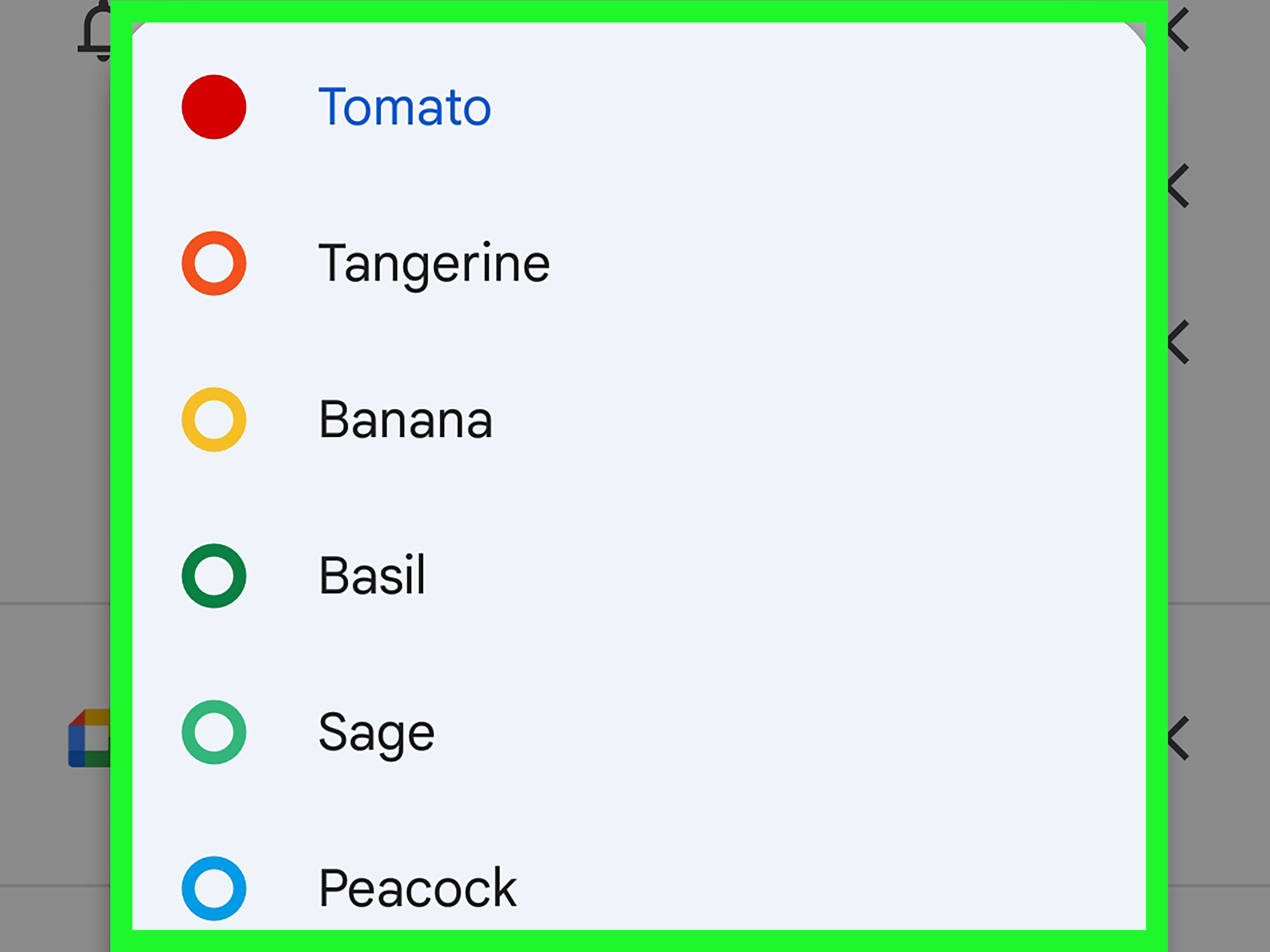
- Look for the colored circle near the event title or calendar selection area.
- Click the color circle.
- Choose a new event color.
- Click Save.
This method is useful when you are already editing event details such as time, location, guests, notes, or notifications.
How to Add Custom Colors to Google Calendar
Custom colors are available for calendars on the desktop version of Google Calendar. This is where things get fun, and also where some people discover they have strong opinions about lavender.
To add a custom color, go to the three-dot menu next to a calendar under My calendars, then choose the add/custom color option. You can use the color picker or paste a hex code, such as #3D6FAD for blue, #81C953 for green, or #F1B598 for a soft peach tone.
Hex codes are six-character color values used in web design. They allow you to create a more consistent look than simply choosing random colors. If you want a clean calendar, use colors from the same palette. For example, you might choose muted earth tones, calm blues, bright productivity colors, or soft pastels. A consistent palette makes your calendar easier on the eyes and less likely to look like a confetti cannon exploded in a spreadsheet.
How to Change Google Calendar Colors on Android
The Google Calendar Android app lets you adjust calendar settings and event colors, although some advanced options are easier to manage from the desktop version.
Change a Calendar Color on Android
- Open the Google Calendar app.
- Tap the menu icon in the upper-left corner.
- Scroll down and tap Settings.
- Select the calendar you want to adjust.
- Tap the color option.
- Choose a new color.
The exact wording may vary slightly depending on your app version, account type, and device. If you do not see the color you want, use Google Calendar on desktop to set a custom color.
Change an Event Color on Android
- Open the Google Calendar app.
- Tap an existing event or create a new one.
- Tap the edit pencil icon.
- Scroll near the lower part of the event editor.
- Tap the current calendar color or color label.
- Choose an available color or label.
- Tap Save.
If you are using Google Workspace color labels, remember that labels may need to be created first on a computer before they can be assigned on mobile.
How to Change Google Calendar Colors on iPhone and iPad
The Google Calendar app for iPhone and iPad also supports changing available event colors and labels. Like Android, the mobile app is convenient for quick edits, but desktop remains the better place for setting up a full custom color system.
- Open the Google Calendar app on your iPhone or iPad.
- Tap an event or create a new event.
- Tap the edit pencil icon.
- Find the current calendar color or color label near the lower part of the event settings.
- Select an available color or existing color label.
- Tap Save.
If your event colors do not appear exactly the same across devices, check that you are signed into the same Google account and using the official Google Calendar app. Sync delays can also happen, especially if you are switching between Google Calendar and Apple Calendar. For the most reliable color behavior, edit and view Google Calendar events inside Google Calendar itself.
How to Change the Google Calendar Color Set and Density
Google Calendar also includes an appearance setting that affects how colors and spacing look on your computer. This is not the same as changing a calendar’s assigned color, but it changes the overall visual style.
- Open Google Calendar on your computer.
- Click the settings gear in the upper-right corner.
- Select Appearance.
- Choose a color set, such as Modern or Classic.
- Choose a density setting, such as responsive or compact.
The modern color set typically uses a more contemporary look with white text, while the classic option has a more traditional feel. The density setting controls how much breathing room appears between calendar items. If your schedule is packed tighter than an airplane snack tray, compact density may help you see more at once.
What Are Google Calendar Color Labels?
Color labels are a newer and more structured way to categorize calendar entries, especially for Google Workspace work or school accounts. They are useful for people who want to track how they spend time across categories such as meetings, focus work, client calls, recruiting, planning, personal development, or administrative tasks.
Color labels can connect with Time Insights in supported Google Workspace accounts. That means your colors are not just decorative; they can help you understand where your time goes. For example, if half your week is labeled “Meetings,” you may finally have scientific evidence that your calendar has become a conference room with Wi-Fi.
Color labels are generally visible only to you and to people with the right permissions to edit or manage the calendar. Availability can vary by account type, organization settings, and administrator controls. If you do not see Time Insights or color label options, your account may not support them or your administrator may have turned them off.
Best Google Calendar Color-Coding Ideas
A good color system should be simple enough to remember. If you need a legend, a spreadsheet, and a spiritual advisor to decode your calendar, you have gone too far.
Simple Life Category System
- Blue: Work meetings
- Green: Exercise, health, and wellness
- Yellow: Family and social plans
- Purple: Study, writing, or deep work
- Red: Urgent deadlines
- Gray: Travel, errands, or flexible tasks
Work Productivity System
- Dark blue: Client meetings
- Light blue: Internal meetings
- Green: Focus time
- Orange: Reviews and approvals
- Red: Deadlines and launches
- Purple: Strategy and planning
Student Schedule System
- Blue: Classes
- Green: Study blocks
- Orange: Assignments
- Red: Exams and due dates
- Pink: Clubs and social events
- Gray: Commute and errands
Try to reserve bright colors for items that truly need attention. If everything is red, nothing is red. Your calendar should guide you, not yell at you in six shades of panic.
Common Problems When Changing Google Calendar Colors
The Color Option Is Missing
If you cannot find the color option, make sure you are using Google Calendar in a web browser or the official Google Calendar mobile app. Some third-party calendar apps may display Google events but not support all Google Calendar color features.
Custom Colors Do Not Show on Mobile
Custom calendar colors are easiest to create on desktop. Mobile apps may show available colors and labels but not always offer the same custom hex color controls. Set your custom palette on a computer first, then check the result on your phone.
Colors Look Different in Dark Mode
Colors can look different depending on dark mode, screen brightness, device display settings, and Google Calendar’s appearance options. A color that looks soft and elegant on your laptop may look like radioactive sherbet on your phone. Test your most important colors across devices before committing.
Shared Calendar Colors Are Confusing
Calendar colors often affect your personal view. Other people may see their own assigned colors for shared calendars or events. If you are using colors as part of a team workflow, explain the system clearly and do not assume everyone sees exactly what you see.
Should You Use Browser Extensions for More Colors?
There are browser extensions that add more color options or labels to Google Calendar. Some people love them because they make Google Calendar more flexible and aesthetic. However, use caution. Extensions may require browser permissions, may not work on mobile, and may stop working if Google changes its interface.
If you use Google Calendar for sensitive work, school, or client information, review extension permissions carefully before installing anything. For many users, Google Calendar’s built-in colors, custom calendar colors, and color labels are enough. The best productivity system is the one you actually trust and continue using.
Real-World Experience: What Happens When You Actually Color-Code Your Google Calendar
The first time you color-code Google Calendar, there is a strong temptation to create a masterpiece. You open the color picker with innocent intentions, and 45 minutes later you are comparing “dusty sage” with “foggy eucalyptus” as if your calendar is about to be featured in a home renovation magazine. This is normal. Enjoy the moment, then come back to earth.
In practice, the best Google Calendar color system is not the prettiest one. It is the one that helps you make decisions faster. After using color-coded calendars for a few weeks, the biggest benefit is pattern recognition. You stop seeing isolated events and start seeing the shape of your week. A Monday full of blue tells you it is meeting-heavy. A Thursday with big green blocks tells you there is real focus time available. A Friday sprinkled with yellow and pink says the weekend is beginning to sneak in, wearing sunglasses.
One useful habit is to review your calendar every Sunday evening or Monday morning. Look for color imbalance. If your entire week is one color, that usually means one part of your life is crowding out the others. Too much red might mean you are operating in deadline mode. Too much blue might mean meetings are eating your deep work. No green at all might mean exercise has quietly left the building without saying goodbye.
Color-coding also helps with emotional preparation. A calendar is not only a schedule; it is a preview of your energy demands. A day with three client calls, a dentist appointment, and a family dinner is very different from a day with two writing blocks and one team check-in. When those events are colored clearly, you can plan your energy instead of being surprised by your own life.
Another lesson: keep urgent colors rare. Red is powerful because it creates instant attention. But if you use red for every meeting you dislike, every deadline, every errand, and every “maybe important” task, your calendar becomes a fire alarm that never stops ringing. Save red for true deadlines, high-stakes events, and things that cannot slip.
It is also smart to create a neutral color for flexible tasks. Not everything deserves a bold category. Grocery pickup, laundry, admin cleanup, and “return that thing you bought with suspicious optimism” can live in gray or beige. This keeps your important colors meaningful.
After a month, a good color-coded Google Calendar starts to feel less like decoration and more like a control panel. You can glance at your week and understand what needs attention, where you have breathing room, and whether your schedule matches your priorities. It will not magically make you a productivity superhero. You may still ignore a reminder or forget why you created an event titled “Important thing!!!” But your calendar will be clearer, calmer, and much easier to use.
Final Thoughts
Learning how to change the color of your Google Calendar and events is a small upgrade that can make a big difference. On desktop, you can change calendar colors, add custom colors, adjust single-event colors, and fine-tune the overall appearance. On Android, iPhone, and iPad, you can update available event colors and assign existing labels when supported. For Google Workspace users, color labels and Time Insights can turn your calendar into a practical time-tracking tool.
Start simple. Pick five or six colors, assign each one a clear purpose, and use them consistently. Your goal is not to create the fanciest calendar on the internet. Your goal is to open Google Calendar and immediately understand your day without squinting, guessing, or whispering, “What fresh chaos is this?”
Note: Google Calendar menus and color options can vary slightly by account type, device, app version, Workspace administrator settings, and whether you are using Google Calendar directly or viewing Google events through another calendar app.