Sharing apps on an iPhone sounds like it should be as simple as tossing someone a snack across the table. In most cases, it is. You can send an App Store link, AirDrop the app page to someone nearby, use Family Sharing for eligible purchases, or gift a paid app when Apple allows it. The tiny catchbecause technology loves tiny catchesis that “sharing an app” does not always mean sending the actual installed app from your iPhone to another person’s phone.
On iPhone, apps are tied to the App Store, the recipient’s Apple Account, their country or region, their device compatibility, and sometimes the developer’s sharing settings. So, no, you usually cannot beam the app file itself like a secret digital sandwich. What you can do is share access, share the download page, share a paid purchase with family, or send a gift so the other person can download it properly from the App Store.
This guide explains four easy ways to share apps on an iPhone, when each method works best, and what to do when the app refuses to appear like it has joined a witness protection program.
What Does “Share Apps on an iPhone” Actually Mean?
Before jumping into the steps, it helps to understand the difference between sharing an app link and sharing an app purchase. When you share an app link, you are simply sending someone the App Store page. They still need to download the app themselves, and if the app costs money, they may need to buy it. This is perfect for recommending free apps, productivity tools, games, school apps, photo editors, fitness trackers, budgeting apps, and anything else that makes you say, “You need this on your phone yesterday.”
When you share a purchase through Family Sharing, eligible paid apps and some subscriptions or in-app purchases can be accessed by people in your Family Sharing group. This is more useful for households because it can help avoid buying the same app multiple times. However, not every app, subscription, or in-app purchase supports Family Sharing.
When you gift an app, you pay for a paid app and send it to someone by email. The recipient redeems it and downloads the app on their own device. Gift availability depends on region, app eligibility, and Apple’s current rules.
Now that we have cleared the fog, let’s get to the four easiest methods.
1. Share an App Store Link from Your iPhone
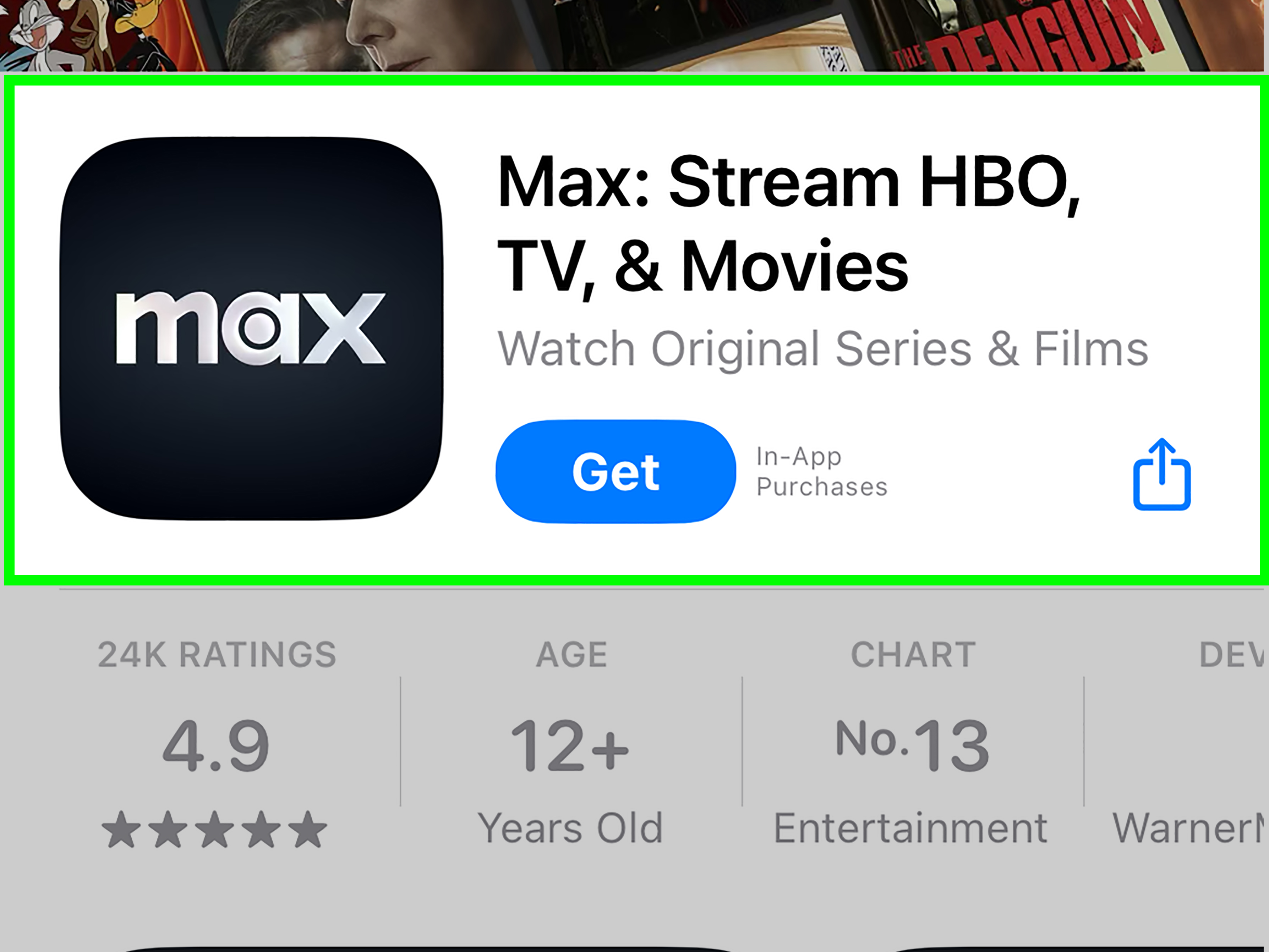
The simplest way to share an app on an iPhone is to send the App Store link. This works beautifully for free apps and for recommending paid apps without paying for them yourself. It is the digital version of pointing at a restaurant and saying, “That place has the best fries,” except the fries are an app and the restaurant is the App Store.
How to Share an App Link
- Open the App Store on your iPhone.
- Search for the app you want to share.
- Tap the app to open its details page.
- Tap the Share button.
- Choose Messages, Mail, WhatsApp, Messenger, Copy Link, or another sharing option.
- Send the link to the person who needs the app.
This method is fast, clean, and works well when the recipient is not physically near you. You can text the app to a friend, email it to a coworker, drop it into a group chat, or copy the link and paste it anywhere. If the recipient taps the link on an iPhone, it should open directly in the App Store.
Best Times to Use This Method
Use the App Store link method when you want to recommend a free app, send a useful tool to a friend, share a game with a group, or help someone find the correct app without forcing them to search manually. This is especially helpful when an app has a generic name. Searching “Scanner” in the App Store can feel like walking into a supermarket aisle labeled “food.” A direct link saves everyone from downloading the wrong thing.
For example, if your parent needs a banking app, your classmate needs the same study app, or your friend wants the exact photo editor you use, sending the App Store link avoids confusion. It also helps prevent accidental downloads of copycat apps with similar icons and names.
2. Share an App with AirDrop
AirDrop is the best option when the other person is nearby. Instead of texting or emailing the app link, you can send the App Store page directly to another Apple device. It is quick, wireless, and pleasantly futuristiclike passing a note in class, but with fewer paper cuts.
How to AirDrop an App Link
- Open the App Store on your iPhone.
- Find the app you want to share.
- Tap the app to open its details page.
- Tap the Share button.
- Tap AirDrop.
- Select the nearby person’s iPhone, iPad, or Mac.
- Ask them to accept the AirDrop request.
Once accepted, the app page opens on their device. From there, they can download the app, buy it, or save it for later. Again, AirDrop shares the app’s App Store page, not the installed app file itself.
What to Check If AirDrop Does Not Work
If the recipient does not appear in AirDrop, check that both devices have Wi-Fi and Bluetooth turned on. The recipient may also need to set AirDrop receiving to Contacts Only or Everyone for 10 Minutes, depending on their settings. If they are using Contacts Only, make sure both of you are saved correctly in each other’s contacts with the Apple Account email or phone number associated with the device.
AirDrop is ideal for in-person moments: helping a friend install a travel app at the airport, sharing a restaurant reservation app before dinner, or sending a game to someone sitting across the room. It is less ideal when the other person is 600 miles away, unless your Wi-Fi has developed superpowers.
3. Use Family Sharing to Share Eligible App Purchases
Family Sharing is the most powerful way to share apps on an iPhone when you want family members to access eligible paid apps, subscriptions, and some in-app purchases. It is designed so each person can use their own Apple Account while sharing certain purchases with the group. That means nobody has to pass around one Apple Account password like it is a family heirloom from the chaotic era of “just log in as me.”
How Family Sharing Works for Apps
With Family Sharing, a family organizer creates a group and invites up to five other people. When Purchase Sharing is turned on, eligible App Store purchases can become available to the rest of the family. Family members can then go to the App Store and download shared purchases from the Purchased section.
This works best for paid apps that support sharing. Some app subscriptions and non-consumable in-app purchases may also be shareable, but developers control whether certain purchases support Family Sharing. Consumable items, such as coins, gems, credits, boosts, or one-time game currency, usually are not shared because they are used up by one account.
How to Set Up Family Sharing for Apps
- Open Settings on your iPhone.
- Tap your name at the top.
- Tap Family or Family Sharing.
- Follow the prompts to create or manage your family group.
- Invite family members using their Apple Account information.
- Turn on Purchase Sharing.
- Make sure family members also enable purchase sharing on their devices when needed.
How a Family Member Downloads a Shared App
- Open the App Store.
- Tap the profile icon.
- Tap Purchased.
- Choose the family member who bought the app.
- Find the app and tap the download icon.
If the app is eligible, the family member should be able to download it without buying it again. If the App Store still shows a price, the app may not support Family Sharing, it may be hidden from purchase history, it may be unavailable in that person’s region, or there may be an account mismatch.
Important Family Sharing Tips
Family Sharing is convenient, but it is not magic. The app must still be available in the App Store, compatible with the recipient’s device, and eligible for sharing. The purchaser must not have hidden the app from purchase history. The recipient must also be part of the same Family Sharing group and signed in with the correct Apple Account.
Parents should also know about Ask to Buy. This feature lets organizers approve or decline purchase requests from children in the family group. It is useful because kids are creative, apps are tempting, and “I only tapped it once” has funded many surprise purchases throughout history.
4. Gift a Paid App or Send an Apple Gift Card
If you want to pay for an app for someone outside your Family Sharing group, gifting may be the right method. Apple allows users to gift some paid apps from an iPhone or iPad. The recipient gets an email and can redeem the gift with their Apple Account.
How to Gift an App from an iPhone
- Open the App Store.
- Find the paid app you want to gift.
- Tap the app to open its details page.
- Tap the Share button.
- Tap Gift App, if the option appears.
- Enter the recipient’s email address.
- Add a message if you want.
- Choose when to send it, then follow the on-screen instructions.
The app gift is billed to your payment method. After the recipient receives the email, they can redeem the gift and download the app. This is useful for birthdays, school tools, creative apps, productivity apps, or that one paid game your friend keeps pretending they are “thinking about buying.”
When App Gifting May Not Work
Not all apps can be gifted. Free apps cannot be gifted because there is nothing to purchase; just share the link instead. The recipient may also need an Apple Account in the same country or region as yours. Store availability varies by region, and Apple may restrict gifting in some places. If you use Family Sharing and Ask to Buy is enabled on your account, gifting may also be unavailable.
If the Gift App option does not appear, you can still send an App Store link or email an Apple Gift Card. A gift card gives the recipient more flexibility because they can choose the app, subscription, or other eligible Apple digital purchase themselves. This is the safer choice when you are not 100 percent sure which app they want.
What About SharePlay?
SharePlay is sometimes confused with app sharing, but it serves a different purpose. SharePlay lets people enjoy supported experiences together during FaceTime or through supported apps. For example, people can watch supported video content in sync, listen to music together, share certain app activities, play supported games, or share a screen during a call.
SharePlay does not usually give someone a copy of your app. If a supported activity requires an app the other person does not have, they may be prompted to download it from the App Store. Think of SharePlay as “let’s do this together” rather than “here, take my app.”
Common Problems When Sharing Apps on iPhone
The Recipient Cannot Download the App
If someone taps your shared app link but cannot download the app, the app may not be available in their country or region. It may also require a newer version of iOS, a specific device, or more storage space. Ask them to check the app’s requirements on the App Store page.
The App Shows a Price Even Though Family Sharing Is On
This usually means the app or purchase is not eligible for sharing, the app is hidden from purchase history, the wrong Apple Account is being used, or Purchase Sharing has not been enabled correctly by the organizer or family member. It can also happen when the purchase is an in-app item that the developer does not support for Family Sharing.
The Gift App Option Is Missing
The app may be free, unavailable for gifting, restricted by region, or not eligible under Apple’s current gifting rules. Try sharing the link instead, or send an Apple Gift Card by email.
AirDrop Does Not Show the Other Person
Make sure both devices have Wi-Fi and Bluetooth on. Check that Personal Hotspot is off, keep the devices close together, and confirm the recipient’s AirDrop receiving setting. If Contacts Only is selected, both users may need each other’s correct Apple Account contact details saved.
Which App Sharing Method Should You Use?
Choose the App Store link method when you want the fastest option. It is simple, works from anywhere, and is perfect for free apps or general recommendations. Choose AirDrop when the person is nearby and you want to send the app page instantly. Choose Family Sharing when you want a household to share eligible paid apps and subscriptions over time. Choose gifting when you want to buy a paid app for someone directly.
The best method depends on your goal. Are you recommending? Send a link. Are you standing next to them? Use AirDrop. Are you sharing with family? Set up Family Sharing. Are you paying for the app as a present? Gift it if available.
Extra Experience: What I’ve Learned from Sharing Apps on an iPhone
In real life, the easiest way to share apps on an iPhone is almost always the App Store link. It works because it does not require setup, billing changes, family permissions, or a group call with three relatives asking where the “blue button thingy” went. When someone asks, “What app are you using?” the cleanest move is to open the App Store, tap Share, and send the link through Messages. It takes less than a minute and removes the risk of the other person downloading a lookalike app.
AirDrop is my favorite in-person method, especially when helping someone who is not very comfortable searching the App Store. Instead of saying, “Type the name exactly, but not that one, the other one with the slightly different icon,” AirDrop sends the exact app page. This is great for travel groups, classrooms, family gatherings, and workplace setups. The only awkward part is when AirDrop settings are locked down and everyone spends two minutes staring at their screens like they are trying to summon a tiny wireless ghost.
Family Sharing is powerful, but it is the method that needs the most patience. It is excellent for families who buy paid apps, Apple subscriptions, educational tools, or creative software. However, expectations matter. Some people assume every purchase will automatically become free for everyone in the group. That is not always true. The app developer, the purchase type, account settings, and regional availability all matter. If something does not show up, start with the basics: confirm everyone is in the same Family Sharing group, Purchase Sharing is enabled, the app is not hidden, and the recipient is checking the correct family member’s purchase history.
Gifting an app feels more personal, but it is not always available. When it works, it is great for paid apps that someone specifically wants. When it does not work, an Apple Gift Card is usually the less stressful backup. Gift cards are also better when you are unsure whether the person already owns the app, whether their device supports it, or whether they would rather buy a different tool. Nobody wants to give the digital equivalent of a sweater that says, “I guessed.”
One useful habit is to explain what you are sending. Instead of just dropping a random App Store link into a chat, add a quick note like, “This is the scanner app I mentioneduse the free version first,” or “This is the budgeting app, not the similarly named one with ads everywhere.” A short message gives context and helps the recipient trust the link.
Another practical tip: keep privacy in mind. Family Sharing does not mean everyone sees everything on your iPhone, but purchase sharing can reveal eligible purchases unless you hide them. If you are setting it up for a household, take a minute to review what is shared, what is private, and which family members need Ask to Buy. A few minutes of setup can prevent confusion later.
In short, sharing apps on iPhone is easy once you pick the right tool for the situation. Most everyday sharing starts with a link. Nearby sharing is best with AirDrop. Long-term household sharing belongs to Family Sharing. Paid app surprises belong to gifting or gift cards. The iPhone gives you several doors; the trick is choosing the one that does not lead into a hallway of settings you did not plan to visit.
Conclusion
Learning how to share apps on an iPhone is mostly about understanding what kind of sharing you need. If you simply want someone to find the same app, share the App Store link. If they are nearby, AirDrop is fast and clean. If your family wants access to eligible paid apps or subscriptions, Family Sharing is the best long-term option. If you want to buy an app for someone, try gifting the app or sending an Apple Gift Card.
The key is remembering that iPhone apps are downloaded through the App Store and tied to Apple Accounts. You are not usually transferring the installed app itself. You are sharing the path to download it, the right to access an eligible purchase, or a gift that lets someone redeem it. Once you know that, sharing apps becomes much less mysteriousand much less likely to involve yelling “Why is it not showing up?” at a perfectly innocent rectangle of glass.