Creating a Zoom meeting link should not feel like launching a satellite. Whether you are organizing a client presentation next week or gathering coworkers for an emergency “Why is the website on fire?” call, Zoom gives you two fast options: schedule a meeting in advance or start an instant meeting and invite people immediately.
This guide explains both methods step by step across the Zoom Workplace desktop app, web portal, and mobile app. You will also learn how to copy the correct invitation, add it to a calendar, protect the meeting from unexpected visitors, and avoid the tiny mistakes that create surprisingly large headaches.
What Is a Zoom Meeting Link?
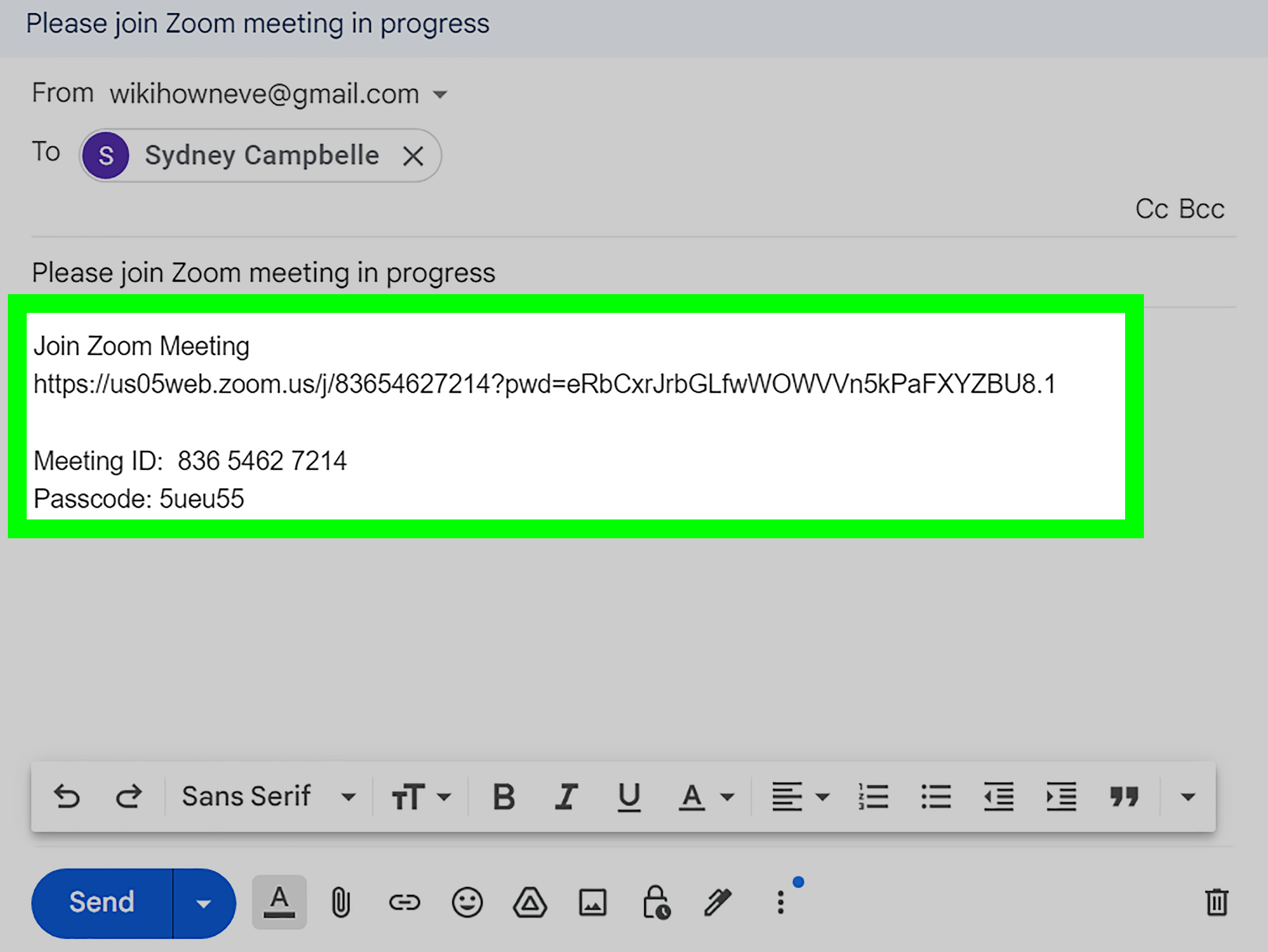
A Zoom meeting link is a web address that directs participants to a specific online meeting. The URL contains the meeting ID and may include an encrypted passcode, allowing invited participants to join without manually typing a long string of numbers. Clicking the link usually opens a browser first and then launches the Zoom Workplace app, although browser-based joining may also be available.
A typical invitation may contain several pieces of information:
- The clickable Zoom join link
- The meeting ID
- A meeting passcode, when required
- Telephone dial-in numbers
- The scheduled date, time, and time zone
- Additional instructions for joining from a room system
Participants usually need only the clickable link. The remaining details serve as backup options for anyone joining by phone, entering the meeting ID manually, or fighting with an unusually stubborn browser.
Before You Create a Zoom Invite Link
You need a Zoom account to host and manage a meeting. Participants generally do not need an account unless you enable an authentication requirement. You can create meetings through the Zoom Workplace desktop app, Zoom mobile app, Zoom web portal, or a supported calendar integration.
Before scheduling, confirm four details:
- Meeting purpose: Use a recognizable title such as “Quarterly Marketing Review,” not “Meeting 7,” which sounds like a low-budget sequel.
- Date and time: Check the time zone, especially when inviting people in different states or countries.
- Attendee access: Decide whether guests outside your company must be allowed to join.
- Security: Choose a passcode, Waiting Room, or authentication requirement.
Zoom requires meetings to use at least one qualifying security option in many account configurations. If no option is selected where this requirement applies, Zoom can automatically protect the meeting with Waiting Room.
Quick Way 1: Schedule a Zoom Meeting and Copy the Link
Scheduling is the best method for interviews, classes, consultations, project reviews, webinars, and any meeting that people need to place on a calendar. It creates a reusable event record that you can edit, resend, or cancel later.
How to Schedule a Meeting in the Zoom Desktop App
- Open the Zoom Workplace desktop app and sign in.
- Select the Home tab. If it is hidden, open More and choose Home.
- Click Schedule.
- Enter a clear meeting topic.
- Choose the date, starting time, duration, and time zone.
- Add invitees if calendar and contact integration is available.
- Review the meeting ID, security, video, audio, and advanced options.
- Click Save.
Depending on your Zoom Workplace layout and connected services, you may also create an event from the Calendar or Meetings tab. Zoom’s current scheduling interface allows hosts to add invitees, select security settings, configure audio and video, and save the event from one scheduling window.
How to Find and Copy the Scheduled Zoom Link
- Open the Meetings or Calendar tab.
- Select the meeting you just created.
- Locate the invitation or join-link controls.
- Choose Copy Invite Link for the URL alone or Copy Invitation for the complete meeting details.
- Paste the information into an email, text message, chat, calendar event, learning platform, or project-management tool.
You can also retrieve the link through the Zoom web portal. Open Meetings, select the meeting topic, and copy the address shown beside Invite Link. Zoom permits that link to be pasted into an email or shared through another appropriate communication channel.
How to Schedule Through the Zoom Web Portal
- Sign in to the Zoom web portal.
- Open the Zoom Products menu and select Meetings.
- Click Schedule a Meeting.
- Add the meeting name, date, time, duration, and time zone.
- Configure security, video, audio, and participant options.
- Click Save.
- Copy the invite link from the meeting details page.
The web portal is particularly useful when you need access to more detailed settings or are using a computer without the desktop app. It is also a convenient place to edit an existing meeting without accidentally creating a duplicate.
How to Create a Zoom Meeting Link on a Phone
- Open the Zoom mobile app and sign in.
- Tap Home and then Schedule.
- Enter the meeting topic, date, time, and other settings.
- Tap Save.
- Open the meeting from the Calendar tab.
- Tap the three-dot menu and select Copy Invitation.
- Paste the invitation into your preferred messaging or email app.
On current Android and iOS versions, hosts can schedule from the Home tab and copy an existing meeting invitation from its details screen. Exact menu placement can vary slightly with app updates and account configuration.
Best Ways to Share a Scheduled Meeting
A calendar invitation is usually the most reliable choice because it keeps the date, time, time zone, attendees, and Zoom link together. It also allows guests to accept, decline, or request another time.
For an informal conversation, sending the link through email, SMS, Slack, Microsoft Teams, or another private chat may be faster. Include the time and time zone in the same message. A naked Zoom URL arriving without context looks suspiciously similar to spam and may be treated accordingly.
Quick Way 2: Start an Instant Meeting and Share the Link
An instant Zoom meeting is ideal when everyone is ready to talk now. There is no need to schedule an event first. You start the room, copy its invitation, and send it to the participants while the meeting is running.
Start an Instant Meeting from Zoom Workplace
- Open the Zoom Workplace desktop or mobile app.
- Sign in to your account.
- Select New Meeting.
- Once the meeting opens, choose Participants.
- Select Invite.
- Click or tap Copy Invite Link or Copy Invitation.
- Paste the copied information into a private message and send it.
Use the zoom.new Shortcut
For an even faster start, enter zoom.new in your browser’s address bar. When you are signed in, the shortcut can open Zoom Workplace or the Zoom Web App and begin an instant meeting using your account’s default meeting settings. If the invitation window does not appear, open Participants, select Invite, and copy the link or complete invitation.
This shortcut is useful when a discussion has escaped the limits of email. After the twelfth reply-all message, everyone may agree that clicking one link is healthier than writing a thirteenth paragraph about “circling back.”
When an Instant Meeting Is the Better Choice
- A coworker needs immediate technical help.
- A client requests a quick demonstration.
- A small group is already chatting and wants to switch to video.
- A scheduled platform fails and you need a backup room.
- A conversation is easier to resolve by screen sharing.
An instant link is less suitable for an event several days away. Participants may lose the message, forget the time, or join while the host is not present. For future appointments, use the scheduled method and place the link on everyone’s calendar.
Copy Invite Link vs. Copy Invitation: Which Should You Choose?
Copy Invite Link
This option copies only the clickable meeting URL. It is useful for:
- Text messages
- Short chat messages
- Buttons on a private event page
- Calendar events that already contain the date and agenda
Copy Invitation
This option copies the full invitation, which may include the URL, meeting ID, passcode, telephone numbers, and room-system instructions. It is preferable for:
- Formal email invitations
- Guests who may join by telephone
- Large meetings with participants using different devices
- Situations where a backup joining method is important
As a simple rule, use the link alone for speed and the full invitation for clarity. The full version is longer, but it saves you from receiving five messages that say, “What is the meeting ID?” precisely two minutes before the call.
Add the Zoom Link to Google Calendar or Outlook
Google Calendar
Google Calendar supports third-party video-conferencing add-ons. After an approved conferencing add-on is installed, you can create or edit an event and select the provider from the video-conferencing field. Google warns that manually inserting conferencing details while also using an add-on can attach multiple conference options to one event, so check that guests are not being offered both Zoom and an unintended second service.
You can also copy a Zoom invitation manually, create a Google Calendar event, paste the invitation into the description, add guests, and save the event.
Microsoft Outlook
The Zoom for Outlook add-in can place Zoom details directly into an Outlook event. Create the calendar event, set its correct date and time, open the Zoom add-in, choose the desired options, and select Add Zoom Meeting. Zoom recommends setting the event’s time before adding the meeting so the Zoom record is created for the intended date.
Microsoft Outlook add-ins can be accessed while creating or editing a supported calendar appointment. If an installed add-in is not visible on the ribbon, it may appear under the Apps menu.
University IT teams at Stanford and Duke similarly recommend calendar integration because it places the Zoom URL, meeting ID, phone information, and invitation details into the calendar event automatically.
Make the Zoom Meeting Link Safer Before Sharing It
A meeting link is effectively a key to a virtual room. Treat it like a real key, not like a coupon code that belongs on every public forum.
Use a Passcode
A passcode creates an additional access layer. Zoom links may include an encrypted version of that passcode so invited participants can join by clicking once. Be aware that anyone who receives the complete link may also receive that access.
Enable Waiting Room
Waiting Room lets the host decide when participants enter. Hosts and co-hosts can admit attendees individually or in groups, making the feature useful for interviews, consultations, tutoring sessions, and meetings involving confidential information.
Require Authentication When Appropriate
Authentication can limit entry to users who are signed in or who belong to approved domains. This setting increases control but can also block clients, contractors, parents, or other legitimate guests who do not have the required account. Confirm your audience before enabling it.
Do Not Publish Private Links Publicly
Cybersecurity guidance recommends controlling meeting access, keeping conferencing software updated, and avoiding careless distribution of access information. CISA advises organizations and individuals to apply secure video-conferencing practices, while university security teams warn against posting private meeting links on public websites or social media.
For a public event, consider requiring registration and distributing the actual meeting link only to approved registrants. For a private team meeting, send the link through a controlled calendar invitation or internal communication channel.
Be Careful with Personal Meeting ID Links
A Personal Meeting ID creates a consistent room associated with the host. That convenience makes it useful for office hours and trusted recurring conversations, but it can be less appropriate for unrelated clients or sensitive one-time meetings. Harvard notes that a Personal Meeting ID remains tied to the account, while Georgetown recommends unique meeting rooms for private business discussions where a permanent link would create unnecessary exposure.
Common Problems and Fast Fixes
The Invite Link Is Missing
Open Meetings in the Zoom web portal, select the meeting topic, and look beside Invite Link. In the app, open the meeting details and look for Copy Invitation or an invitation menu.
The Link Opens the Wrong Meeting
You may have copied an older event, your Personal Meeting ID, or another host’s invitation. Compare the meeting ID in the invitation with the ID shown in the current meeting details.
The Calendar Shows Two Video-Conferencing Services
Remove the unwanted provider before sending the invitation. This often happens when a calendar automatically adds one service while a Zoom add-on inserts another.
Guests Are Asked for a Passcode
The shared URL may not contain the embedded passcode, or the guest may be entering the meeting ID manually. Send the full invitation so the participant has both the meeting ID and passcode.
Participants Cannot Enter Before the Host
Waiting Room or account-level security policies may require the host to admit them. This is normal behavior, not evidence that Zoom has developed a personal grudge against your attendees.
The Meeting Time Is Wrong
Edit the meeting in Zoom and update the associated calendar event. When using the Outlook add-in, synchronize changed dates and times through the Zoom panel rather than changing only the calendar text.
The Link Does Not Open the App
Copy the URL into a browser, approve the prompt to launch Zoom Workplace, or use an available browser-joining option. Participants can also open Zoom manually and enter the meeting ID and passcode.
Frequently Asked Questions
Can I create a Zoom link without starting the meeting?
Yes. Schedule the meeting in the desktop app, mobile app, or web portal. Zoom generates the invite link when the meeting is saved.
Can I share the same Zoom link with several people?
Yes. Send the same participant invitation to everyone attending that meeting. Do not send a host-specific starting link or other private host credentials.
Can I reuse a Zoom meeting link?
A recurring scheduled meeting can use the same join link for its occurrences. For unrelated or confidential meetings, creating a unique meeting ID is usually safer and easier to manage.
Does the host need to be present?
Normally, the host starts the meeting or admits participants from Waiting Room. Some accounts allow participants to join before the host, but the availability of that setting depends on meeting security and organizational policies.
Can someone join without installing Zoom?
A browser-joining option may be available depending on the host’s settings, the participant’s browser, and account policies. Browser access may offer fewer features than the Zoom Workplace app.
Should I send only the URL?
The URL is sufficient for most informal meetings. For formal appointments, send a calendar invitation or the complete Zoom invitation so attendees also receive the meeting ID, passcode, time, and dial-in information.
Experience-Based Lessons for Creating and Sharing Zoom Links
The technical process takes only a minute, but a smooth Zoom meeting depends on several small decisions made before anyone clicks Join. The following lessons come from common hosting scenarios involving client calls, remote teams, classes, interviews, and recurring meetings.
Put the Link Where People Naturally Look for It
A meeting link can be perfectly valid and still be practically invisible. When a host sends the URL in an email thread on Monday but schedules the meeting for Friday, attendees may spend Friday morning searching through dozens of replies. A calendar invitation solves most of this problem because the link remains attached to the event.
For important meetings, place the link in two logical locations: the calendar event and a reminder message. Avoid distributing different links through different channels. One official link is helpful; three competing links are a scavenger hunt.
Use Descriptive Meeting Names
Titles such as “Zoom Meeting” or “Quick Call” become meaningless when someone has seven online meetings in one day. A better title identifies the project and purpose: “Acme Website Launch Review” or “Jordan LeeSecond-Round Interview.”
The title appears in calendars, reminders, and meeting lists, so it should help both the host and participants recognize the event immediately. Clear naming also reduces the risk of copying the wrong invitation.
Always Check the Time Zone
Time-zone errors are among the most embarrassing meeting mistakes because the technology works exactly as instructed. The link is correct, the calendar is correct, and half the team is still eating breakfast.
Choose the host’s correct time zone during scheduling and use a calendar invitation that converts the event for each participant. When guests span several regions, mention the primary time zone in the invitation description as a second confirmation.
Match Security to the Audience
A small internal team meeting may work well with authentication. A sales demonstration involving outside prospects may not. Enabling strict domain-based authentication for external guests can leave legitimate attendees trapped outside while the host wonders why nobody likes the presentation.
For mixed audiences, a passcode and Waiting Room often provide a practical balance. The link remains convenient, while the host retains control over admission. For publicly promoted events, registration and unique attendee communications are safer than placing the direct meeting URL on an open webpage.
Test Important Links Before Sending Them
For routine meetings, copying the invitation is usually enough. For an executive presentation, paid consultation, job interview, or large training session, review the event details before sending. Confirm the meeting ID, date, time, time zone, security settings, and calendar provider.
Open the link in a private browser window or on another device to see what a guest will encounter. This quick check can reveal authentication restrictions, missing passcodes, outdated links, or a Waiting Room message that needs clarification.
Do Not Edit Only One Version of the Event
When a meeting moves from Tuesday to Thursday, update both Zoom and the calendar invitation. Calendar integrations can synchronize changes, but manually pasted invitations may not. Participants should receive an updated calendar notification rather than relying on a correction buried in chat.
Send a Short Human Message with the Link
Instead of dropping an unexplained URL into a conversation, add one sentence: “Here is the Zoom link for our 2:00 p.m. Eastern project review.” That tiny amount of context confirms the purpose, date, time, and legitimacy of the invitation.
The result is fewer confused replies, fewer missed meetings, and fewer participants joining an old room where one lonely person has been waiting since last Thursday.
Conclusion
There are two quick ways to create and share a Zoom meeting link. Schedule a meeting when participants need advance notice, calendar reminders, or a stable event record. Start an instant meeting when everyone is ready to talk immediately and you simply need to copy the invite link from the active room.
Whichever method you choose, check the meeting title, date, time zone, security settings, and invitation before sending it. Use a calendar event for planned meetings, share private links only with intended participants, and choose the complete invitation when attendees may need a meeting ID, passcode, or telephone option.
Creating the link is the easy part. Delivering the correct link, to the correct people, at the correct time is what transforms a random URL into a meeting that actually begins on schedule.