Snapchat notifications are supposed to be helpful. A friend sends a Snap, a group chat mentions you, someone posts a Story you actually care about, and your phone politely taps you on the shoulder. Lovely. But when every streak reminder, group chat joke, random Story update, and “someone is typing” moment starts shouting for attention, Snapchat can feel less like a social app and more like a tiny orange-yellow alarm clock with boundary issues.
The good news: you do not have to delete Snapchat, block everyone, move to a cabin, or pretend your phone fell into a lake. You can change who gives you Snapchat notifications in two main ways. First, you can adjust notification settings inside Snapchat, including muting specific friends, groups, calls, chats, and Story notifications. Second, you can use privacy and device-level settings to limit who can contact you or how Snapchat alerts appear on your iPhone or Android phone.
This guide explains both methods in clear, practical steps. Whether you want alerts only from close friends, fewer group chat interruptions, Story notifications from selected people, or a quieter lock screen, here is how to take control without starting unnecessary digital drama.
Quick Answer: The 2 Ways to Change Who Gives You Snapchat Notifications
There are two practical ways to control who can trigger Snapchat notifications:
Way 1: Change notifications inside Snapchat
Use Snapchat’s built-in settings to mute specific friends, silence calls, adjust group chat alerts, manage Story notifications, and turn off notification categories you do not need.
Way 2: Change privacy and phone notification settings
Use Snapchat privacy settings, your friend list, and your phone’s notification controls to reduce alerts from non-friends, remove people, block unwanted contact, or silence Snapchat at the system level.
For most people, the best solution is a combination: use Snapchat settings for “who” and phone settings for “how loud, visible, or disruptive” the notification feels.
Before You Start: What Snapchat Notifications Can Include
Snapchat notifications are not just one thing. The app may notify you about Chats, Snaps, audio or video calls, Story updates, group messages, mentions, friend activity, Spotlight comments, memories, subscriptions, public profile activity, and other app features. That is why one simple “turn off notifications” switch can feel too extreme. You might still want alerts from your best friend, but not from a group chat that treats “lol” as a competitive sport.
Before changing anything, decide what you actually want. Do you want to stop hearing from one person? Do you want fewer group notifications? Do you want Story notifications only from selected friends? Do you want to stop non-friends from contacting you? Or do you want Snapchat to stay quiet during school, work, sleep, or family time?
Once you know the problem, the settings become much easier to choose.
Way 1: Change Who Gives You Notifications Inside Snapchat
The most direct way to change who gives you Snapchat notifications is to manage alerts from inside the Snapchat app itself. This is usually better than turning off Snapchat notifications completely because it lets you keep important alerts while muting the noisy ones.
1. Mute Chat Notifications from One Friend
If one person keeps sending messages, Snaps, or late-night “you up?” energy when you are absolutely not up, mute their chat notifications. This does not remove them as a friend. It does not block them. It simply stops their chats from popping up on your home screen.
- Open Snapchat.
- Swipe right from the Camera screen to open the Chat screen.
- Press and hold the friend’s name.
- Tap Chat and Notification Settings.
- Tap Notification Settings.
- Turn on Mute Chats.
You can also mute calls from that person by turning on Mute Calls. This is useful when someone is not doing anything wrong, but their timing is tragically committed to chaos.
2. Mute Snapchat Calls from a Specific Person
Some friends text. Some Snap. Some call. Some call repeatedly because apparently the first missed call was merely an opening statement. If you want messages but not calls, go to the same friend notification menu and use Mute Calls instead of muting everything.
This is a good middle-ground option. You are not cutting off the friendship; you are just telling Snapchat, “Please do not let this person ring my phone during dinner, class, meetings, sleep, or the fragile five minutes of peace I get each day.”
3. Change Group Chat Notifications
Group chats can be wonderful. They can also produce 87 notifications before you have finished brushing your teeth. Snapchat lets you mute group chat notifications or narrow them down so you only get alerts for more relevant activity.
- Open Snapchat and swipe right to the Chat screen.
- Press and hold the group chat.
- Tap Chat and Notification Settings.
- Turn on Mute Chats if you want the group quiet.
- If available, tap Chat Notifications and choose a more selective option, such as Mentions Only.
Mentions Only is especially helpful for large groups. You can still be notified when someone actually needs your attention, but you will not be interrupted every time two friends start debating pizza toppings like it is a Supreme Court case.
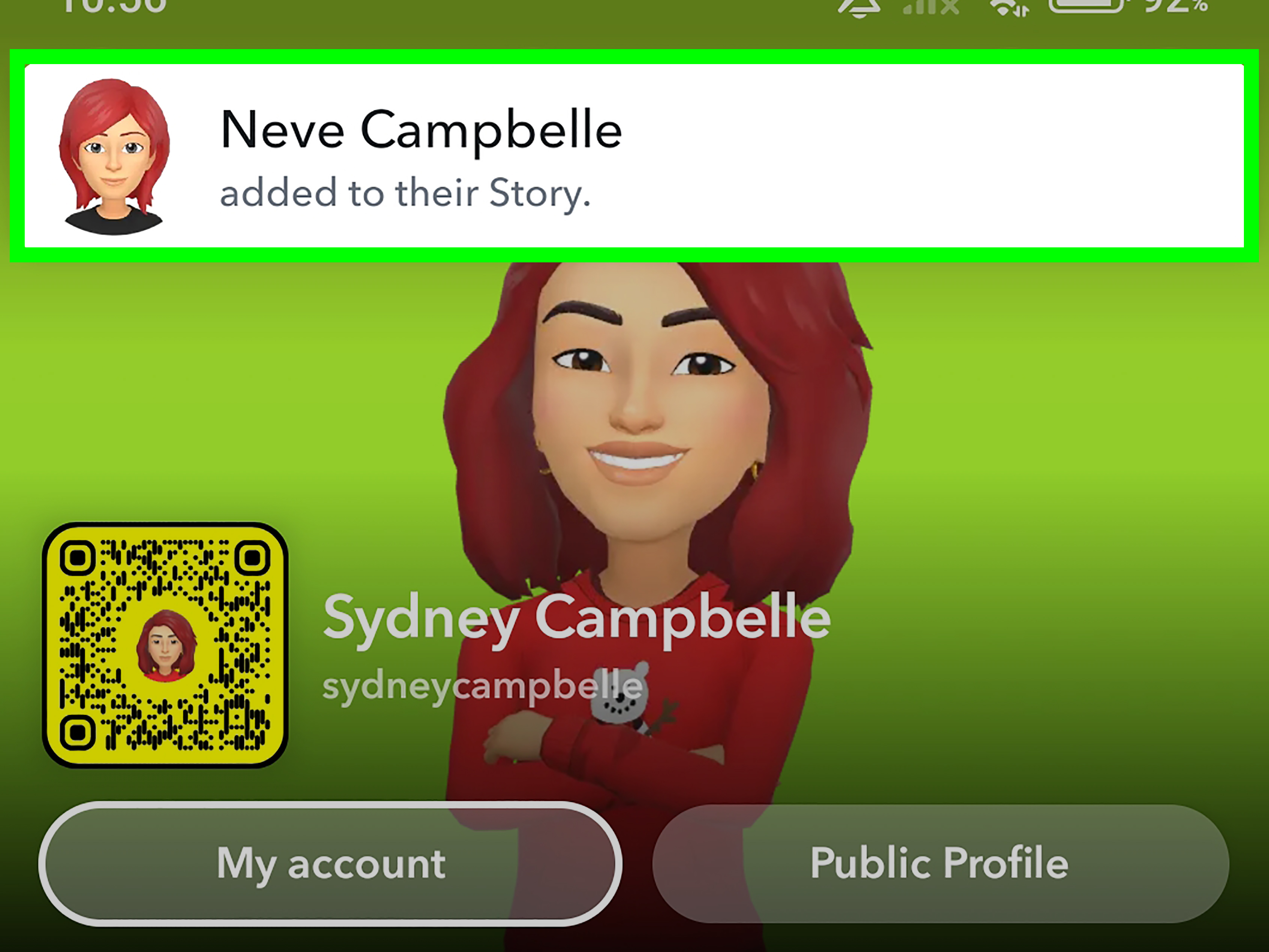
4. Turn Story Notifications On or Off for Specific Friends
Story notifications are different from chat notifications. You may want to know when your best friend posts a Story, but not when every casual acquaintance uploads a blurry concert video with bass so loud your speakers need therapy.
To manage Story notifications from a friend or group:
- Swipe right to open the Chat screen.
- Tap and hold a Chat or Group Chat.
- Tap Story Settings.
- Toggle Story Notifications on or off.
On iPhone, you may also see a broader Story notification manager inside Snapchat settings:
- Tap your profile icon.
- Tap the gear icon to open Settings.
- Tap Notifications.
- Tap Manage Story Notifications.
- Select the Snapchatters you want Story notifications from.
- Tap Done.
This is one of the cleanest ways to make Snapchat feel more personal. Instead of letting every Story fight for your attention, you choose whose updates deserve a little spotlight.
5. Turn Off Notification Types You Do Not Care About
If the issue is not one person but Snapchat being generally too enthusiastic, adjust the app’s notification categories.
On iPhone:
- Open Snapchat.
- Tap your profile icon.
- Tap the gear icon for Settings.
- Tap Notifications.
- Use the toggle switches to turn off notification types you do not want.
On Android:
- Open Snapchat.
- Tap your profile icon.
- Tap the gear icon for Settings.
- Tap Notifications.
- Uncheck or turn off the notification types you want to silence.
For example, you may keep Chat notifications on but turn off less urgent categories. This gives you a quieter app without making you unreachable.
Way 2: Change Privacy, Friend, and Phone Notification Settings
Snapchat’s internal settings are the best place to control specific friends and groups. But sometimes the problem is bigger: strangers can contact you, your lock screen shows too much, or your phone treats every Snapchat alert like breaking news. That is when privacy and phone-level settings matter.
1. Change Who Can Contact You on Snapchat
If you do not want notifications from people you are not friends with, check your Snapchat privacy settings. Snapchat’s Contact Me setting helps control who can send you Snaps, Chats, or Calls.
- Open Snapchat.
- Tap your profile icon.
- Tap the gear icon to open Settings.
- Scroll to App & Privacy.
- Tap Contact Me.
- Choose the option that limits contact to friends, if available on your account.
This setting is especially important if you have a public profile, appear in search, share your Snapcode, or connect your phone contacts. If fewer people can contact you, fewer people can create notification noise in the first place.
2. Remove a Friend Who Should No Longer Trigger Notifications
Muting is polite. Removing is firmer. If someone no longer belongs on your friend list, removing them can reduce their access to your private Stories and friend-based interactions. Depending on your privacy settings, they may still be able to see public content or contact you, so combine this with Contact Me settings for better control.
- Swipe right to open the Chat screen.
- Tap and hold the friend’s name.
- Tap Manage Friendship.
- Tap Remove Friend.
Use this when muting is not enough, but blocking feels more dramatic than necessary. Think of it as moving someone from the front row of your digital life to the parking lot.
3. Block Someone If You Need Stronger Boundaries
If someone is bothering you, pressuring you, spamming you, or making you uncomfortable, blocking may be the right move. Blocking is stronger than muting or removing because it stops that person from sending you Snaps or Chats.
- Swipe right to open the Chat screen.
- Tap and hold the person’s name.
- Tap Manage Friendship.
- Tap Block.
You do not need to write an essay, defend your decision, or hold a farewell ceremony. If someone is harming your peace, your privacy settings are allowed to have a backbone.
4. Change Snapchat Notifications on iPhone
If Snapchat settings look correct but notifications are still too loud, too visible, or too distracting, adjust iPhone notification settings.
- Open the iPhone Settings app.
- Tap Apps or Notifications, depending on your iOS version.
- Select Snapchat.
- Tap Notifications.
- Turn Allow Notifications on or off.
- Adjust lock screen, banner, sound, badge, and preview options.
If you want Snapchat alerts but not embarrassing lock screen previews, hide notification previews. If you want the badge but not the sound, turn off sounds. If you want total silence during certain times, use Focus modes like Do Not Disturb, Work, Sleep, or School.
5. Change Snapchat Notifications on Android
Android gives you strong control over app notifications, although exact menus vary by phone brand and Android version.
- Open your phone’s Settings app.
- Tap Notifications.
- Tap App notifications.
- Find and select Snapchat.
- Turn all Snapchat notifications on or off, or adjust specific categories if available.
On many Android phones, you can also press and hold a Snapchat notification, tap the settings icon, and change how that type of alert behaves. Some categories can be made silent, meaning they still appear in the notification shade but do not buzz, ring, or jump onto your screen like they own the place.
6. Use Samsung Notification Categories
Samsung Galaxy phones often include notification categories, though the menu may need to be enabled first on some devices. This lets you control specific types of Snapchat notifications instead of using one giant on/off switch.
- Open Settings.
- Tap Notifications.
- Tap Advanced settings.
- Turn on Manage notification categories for each app, if available.
- Return to App notifications.
- Select Snapchat.
- Tap Notification categories and adjust the options you want.
This is helpful if you want Snapchat to remain active but less annoying. You can often silence categories, change sounds, or stop certain alert types while keeping others.
Which Method Should You Use?
Use Snapchat settings when the problem is a specific person, group, Story, chat, or call. Use privacy settings when the problem is who can reach you. Use phone settings when the problem is how notifications appear, sound, vibrate, or interrupt your day.
Here is a simple way to choose:
- One friend is too noisy: Mute Chats or Mute Calls for that friend.
- A group chat will not stop: Mute the group or switch to Mentions Only.
- You only want Story alerts from certain people: Use Manage Story Notifications.
- Non-friends are contacting you: Adjust Contact Me privacy settings.
- Snapchat is distracting overall: Change phone notification settings or use Focus/Do Not Disturb.
- Someone makes you uncomfortable: Remove, block, or report them.
Common Mistakes to Avoid
Turning Off All Notifications Too Quickly
Turning off all Snapchat notifications works, but it is a blunt tool. You may miss messages from people you actually care about. Try muting specific friends or groups first.
Forgetting About Story Notifications
Many users mute chats but forget that Story alerts are controlled separately. If you still get notifications after muting someone, check Story Settings or Manage Story Notifications.
Ignoring Phone Settings
If Snapchat settings are correct but alerts still appear loudly, your phone settings may be overriding the experience. Check iPhone, Android, or Samsung notification controls.
Removing Someone Without Adjusting Privacy
Removing a friend may not fully stop contact if your privacy settings allow broader communication. Review Contact Me after removing someone.
Troubleshooting: Why Am I Still Getting Snapchat Notifications?
If notifications continue after you change settings, try these checks:
- Restart Snapchat and your phone.
- Update Snapchat to the latest version.
- Check whether you muted chats, calls, and Stories separately.
- Check phone-level notification categories.
- Look for Focus, Do Not Disturb, or battery settings that may affect alerts.
- Confirm that the notification is really from the person you muted and not a group, mention, subscription, or Snapchat system alert.
Also remember that app menus can change slightly over time. If a setting is not exactly where expected, search within Snapchat settings or your phone settings for “notifications.”
Real-Life Experience: Building a Better Snapchat Notification Setup
The most useful way to manage Snapchat notifications is not to silence everything in frustration. It is to build a small system that matches your actual life. Think of Snapchat like a party. You probably do not want to throw everyone out. You just want the loudest guests to stop yelling into a microphone.
Start with your top five people. These are the friends, family members, classmates, coworkers, or favorite creators whose updates you genuinely want to see quickly. Keep notifications on for them. If Story updates from one or two people make your day better, enable Story notifications for those people only. This keeps Snapchat feeling fun instead of chaotic.
Next, look at the group chats. Most notification overload comes from groups, not one-on-one conversations. A school group, gaming squad, family thread, or weekend planning chat can produce a shocking number of alerts. For groups that matter but do not require instant replies, choose Mentions Only if the option is available. That way, you still get notified when someone directly needs you, but you are not interrupted by every meme, sticker, and “wait what time?” message.
Then handle the people who are not a problem socially but are a problem technologically. Everyone has someone like this: the friend who sends 14 separate messages instead of one complete thought, the cousin who calls through Snapchat instead of texting, or the person who posts Stories every six minutes like they are running a documentary channel about their lunch. Muting them is not rude. It is maintenance. Digital friendships work better when your phone is not constantly poking you in the ribs.
After that, clean up privacy. If you have ever shared your Snapcode publicly, synced contacts, joined public conversations, or used Snapchat heavily for school or creator activity, you may have more people reaching you than you realize. Review who can contact you. Remove people who do not belong on your friend list. Block anyone who crosses a line. Your notification settings should support your boundaries, not negotiate against them.
Finally, tune your phone settings. This is where many people find the biggest quality-of-life improvement. On iPhone, hiding previews can protect your privacy while still letting you know Snapchat has something waiting. Focus modes can keep Snapchat quiet during work, class, sleep, or study time. On Android and Samsung phones, notification categories can help you silence less important Snapchat alerts while keeping direct messages visible.
A good setup might look like this: direct chats from close friends stay on, group chats are muted or set to Mentions Only, Story notifications are limited to a few favorite people, non-friend contact is restricted, lock screen previews are hidden, and Snapchat is silenced during sleep hours. Nothing dramatic. No mass blocking spree. No social meltdown. Just a phone that behaves like it has manners.
The best part is that these settings are reversible. If you mute someone and later want alerts again, turn them back on. If a group chat becomes important during a trip or project, re-enable notifications. If Snapchat gets noisy again, adjust the system. Your notification setup does not have to be perfect forever. It only has to work for your life right now.
Conclusion
Changing who gives you Snapchat notifications is really about choosing your level of attention. Snapchat gives you controls for specific friends, groups, calls, chats, and Stories. Your phone gives you controls for sounds, badges, previews, lock screen alerts, categories, and quiet hours. Together, those settings let you keep the fun parts of Snapchat without letting every ping hijack your day.
For the fastest fix, open the Chat screen, press and hold a friend or group, and adjust Chat and Notification Settings. For a deeper cleanup, review Notifications, Manage Story Notifications, Contact Me, your friend list, and your phone’s notification settings. A few minutes of setup can turn Snapchat from a noisy roommate into a much better-behaved app.
Note: Snapchat and phone menus may vary slightly depending on your app version, device, operating system, and region. If a menu name is different, look for similar terms such as Notifications, Chat Settings, Story Settings, Contact Me, App Notifications, or Notification Categories.