Few things are more annoying than opening Firefox, typing a quick search, and watching Bing appear like an uninvited guest who somehow found your Wi-Fi password. Maybe Bing became your default search engine after installing an extension. Maybe it shows up on your homepage. Maybe every new tab feels like it has joined Team Microsoft without your permission. The good news: removing Bing from Firefox is usually simple, and you do not need to be a tech wizard wearing a hoodie in a dark room to fix it.
This guide explains four practical ways to remove Bing from Firefox, including changing your default search engine, removing Bing from search shortcuts, fixing your homepage and new tab settings, and checking for extensions or unwanted software that may keep bringing Bing back. The goal is not to declare war on Bing. Bing is a legitimate search engine, and some people prefer it. But your browser should work the way you choose, not the way a random toolbar, installer, or sneaky setting decided at 2 a.m.
Whether you are using Firefox on Windows, macOS, or Linux, the steps below will help you clean up your browser settings and get back to searching with Google, DuckDuckGo, Yahoo, Startpage, Ecosia, or whichever search engine makes your digital heart happy.
Why Bing Keeps Showing Up in Firefox
Before removing Bing, it helps to understand where it may be hiding. In Firefox, Bing can appear in several places: the default search engine, the address bar, the search bar, search shortcuts, the homepage, new windows, or even through an extension. Sometimes the issue is harmless. For example, Bing may simply be listed as one of Firefox’s available search options. Other times, Bing may keep returning because an extension, downloaded program, or browser hijacker is changing your settings behind the scenes.
A common example is installing free software and clicking through the setup too quickly. Some installers offer “recommended” settings that quietly change your browser’s search engine or homepage. Another example is a search-related extension that promises coupons, wallpapers, maps, shopping deals, or “faster browsing,” but then redirects searches through Bing or another search provider. That is why removing Bing from Firefox is not always one setting. You may need to check several spots.
Think of Firefox like a house. If Bing is sitting on the couch, you can ask it to leave. But if someone keeps opening the back door, you also need to find the back door.
Method 1: Change the Default Search Engine in Firefox
The fastest way to remove Bing from Firefox is to change the default search engine. This controls what Firefox uses when you type a search into the address bar or search box. If Bing appears every time you search, start here.
How to change Firefox’s default search engine
- Open Firefox.
- Click the menu button in the top-right corner. It looks like three horizontal lines.
- Select Settings.
- Click Search in the left-hand menu.
- Find the section called Default Search Engine.
- Open the drop-down menu and choose your preferred search engine, such as Google, DuckDuckGo, Yahoo, or another available option.
After changing this setting, open a new tab and type a test search into the address bar. For example, search “best pizza near me” or “why do cats stare into space like tiny philosophers.” If your chosen search engine appears, congratulations. You have completed the easiest fix.
If Firefox still searches with Bing after this change, do not panic. That usually means Bing is being triggered somewhere else, such as a search shortcut, homepage setting, extension, or outside program.
Helpful tip: Check both the address bar and search bar
Some Firefox users show a separate search bar next to the address bar. Others search directly from the address bar. The default search engine usually affects both, but it is still smart to test both areas if your Firefox layout includes a separate search box. If one behaves correctly and the other does not, the problem may involve a shortcut or extension.
Method 2: Remove or Hide Bing from Firefox Search Shortcuts
Even after changing the default search engine, Bing may still appear as a search shortcut. Firefox lets you keep multiple search engines available for quick access. This is useful if you sometimes want to search Amazon, Wikipedia, DuckDuckGo, Google, or Bing without changing your default. But if you never want Bing to appear, you can remove or hide it from the shortcut list.
How to remove Bing from search shortcuts
- Open Firefox.
- Click the menu button and choose Settings.
- Select Search.
- Scroll to the section labeled Search Shortcuts.
- Find Bing in the list.
- Uncheck it if you want to hide it from search shortcuts.
- If Firefox gives you a remove option for that search engine, select it to delete Bing from the list.
Hiding Bing from search shortcuts does not always delete it from Firefox entirely, but it removes it from the places where it can pop up as an option. This is especially helpful if you keep accidentally clicking Bing when using the address bar suggestions. It is the browser equivalent of moving the cookie jar to a higher shelf.
When should you hide instead of remove?
If Bing is built into your Firefox search options, Firefox may allow you to hide it rather than fully remove it. That is normal. Hiding it is enough for most users because it prevents Bing from appearing as a convenient search option. If you later decide you want Bing back, you can return to the Search settings and re-enable it.
However, if Bing was added by an extension or outside installer, you may need to remove that extension before the search engine disappears for good. That leads us to the next method.
Method 3: Remove Bing Extensions and Suspicious Add-ons
If Bing keeps returning after you change your Firefox settings, an extension may be controlling your search behavior. Browser extensions can be useful. Password managers, ad blockers, grammar tools, and screenshot utilities can make browsing easier. But some extensions are less charming. They may change your homepage, redirect searches, or add search engines you did not request.
Firefox allows you to disable or remove extensions from the Add-ons Manager. This is one of the most important steps if your browser seems “stuck” on Bing.
How to remove suspicious Firefox extensions
- Open Firefox.
- Click the menu button in the top-right corner.
- Select Add-ons and themes.
- Click Extensions.
- Review the list carefully.
- Look for anything related to Bing, search tools, coupons, shopping helpers, unknown toolbars, PDF converters, download managers, or extensions you do not remember installing.
- Click the three-dot menu beside the suspicious extension.
- Choose Remove.
- Restart Firefox and test your search again.
Do not remove extensions you recognize and trust, such as your password manager, school tools, or security software extension, unless you are sure they are causing trouble. But if you see something named like “Search Helper,” “Fast Search Pro,” “Best Deals Finder,” or “Bing Homepage and Search Engine,” and you did not intentionally install it, that deserves a closer look.
Use Troubleshoot Mode if Firefox is acting stubborn
If you are not sure whether an extension is the problem, try Firefox Troubleshoot Mode. This mode temporarily disables extensions and some custom settings. If Bing stops appearing in Troubleshoot Mode, that is a strong clue that an extension or customization is involved.
- Open Firefox.
- Click the menu button.
- Select Help.
- Choose Troubleshoot Mode.
- Restart Firefox when prompted.
- Test your search again.
If everything works normally in Troubleshoot Mode, go back to your extensions list and disable extensions one by one until you find the culprit. Yes, this takes a few minutes. No, it is not glamorous. But it works, and it is still less annoying than being redirected to the wrong search engine forever.
Method 4: Reset Your Homepage, New Window, and Refresh Firefox if Needed
Sometimes Bing is not your default search engine at all. Instead, it is set as your homepage or new window page. This means Firefox may open Bing when you launch the browser, click the Home button, or open a new window. The search engine itself may be fine, but your startup settings are pointing to Bing.
How to remove Bing from the Firefox homepage
- Open Firefox.
- Click the menu button.
- Select Settings.
- Click Home in the left-hand menu.
- Find Homepage and new windows.
- If it is set to a Bing URL, change it to Firefox Home, Blank Page, or a custom page you prefer.
- Check New tabs as well and choose the option you want.
This step is perfect for users who say, “My searches are fine, but Firefox opens Bing every time.” In that case, Bing is probably sitting in your homepage settings, waving politely every time Firefox starts.
When to refresh Firefox
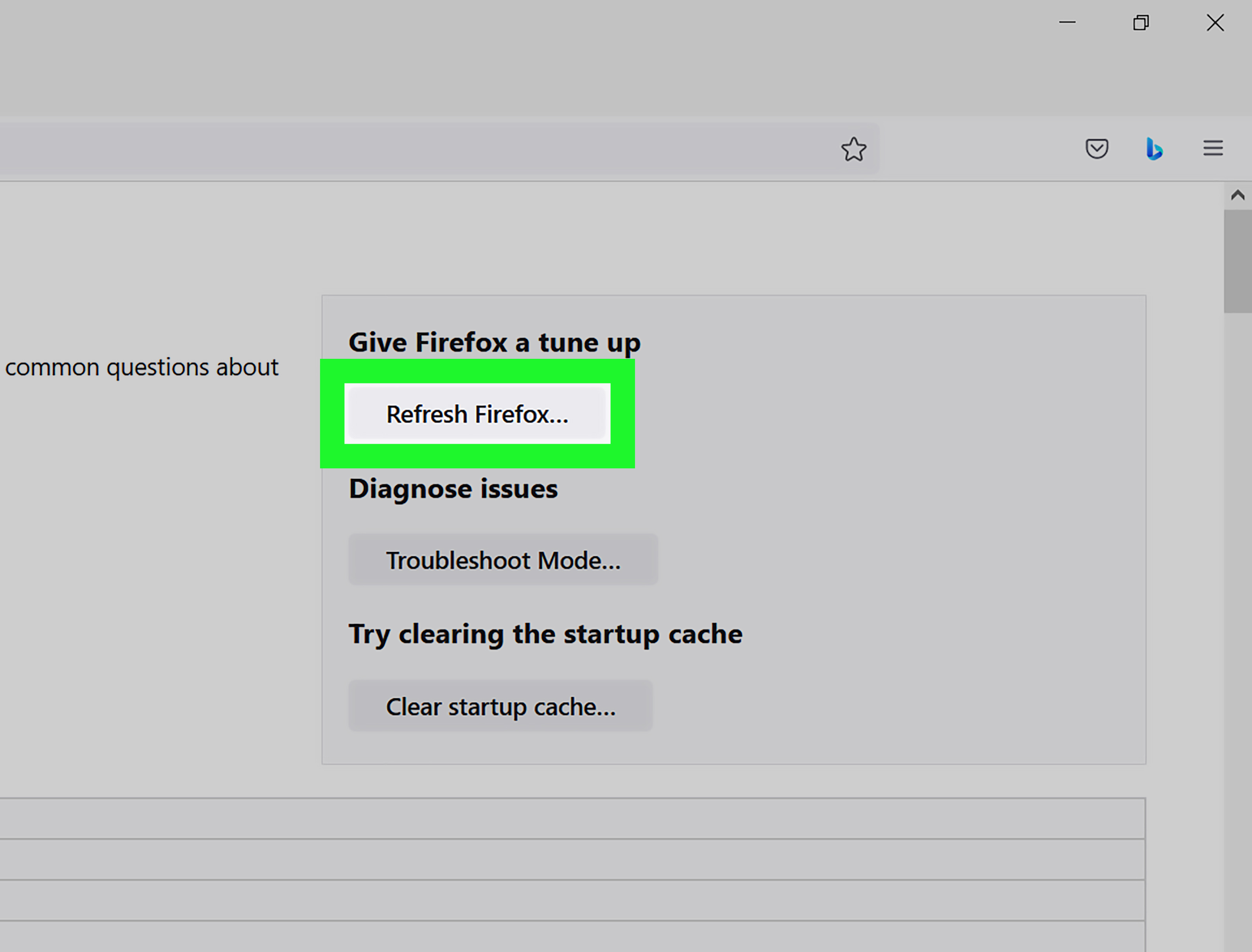
If you have changed the search engine, removed Bing from shortcuts, checked extensions, fixed your homepage, and Bing still will not leave, consider using Firefox Refresh. Refreshing Firefox creates a new profile and resets many browser settings while keeping important personal data like bookmarks, history, and saved passwords. It removes many extensions and customizations, which is why it can solve stubborn browser problems.
Use Refresh as a final cleanup step, not the first move. It is powerful, but it also means you may need to reinstall extensions and adjust preferences afterward.
How to refresh Firefox
- Open Firefox.
- Click the menu button.
- Select Help.
- Choose More troubleshooting information.
- Click Refresh Firefox.
- Confirm the action and let Firefox restart.
After the refresh, go back to Settings > Search and choose your preferred default search engine. Then check Settings > Home to make sure your homepage and new tab settings look right.
What to Do If Bing Still Comes Back
If Bing keeps coming back after every fix, the problem may not be inside Firefox alone. It may come from software installed on your computer. This is common with browser hijackers, adware, bundled installers, and “helper” applications that change browser settings. The name sounds dramatic, but the fix is usually straightforward: uninstall suspicious programs and run a security scan.
Check installed programs on Windows
On Windows, open Settings > Apps > Installed apps. Sort by installation date and look for anything added around the time Bing started appearing. Pay special attention to unknown search tools, coupon apps, browser assistants, download utilities, and software you do not recognize. If something looks suspicious, research it first or uninstall it if you are confident it is unwanted.
Check applications on macOS
On a Mac, open the Applications folder and look for unfamiliar apps. Also check System Settings > Login Items to see whether unknown software starts automatically when you log in. If a questionable app keeps launching in the background, it may be changing browser behavior.
Run a malware scan
If searches are being redirected, pop-ups appear, or browser settings change again after you fix them, run a scan with trusted security software. Keep your operating system, Firefox, and security tools updated. Browser hijackers often rely on old software, careless installs, or extensions with too much permission.
How to Prevent Bing or Any Search Engine from Taking Over Firefox Again
Once Firefox is back under your control, a few habits can help prevent the same issue from happening again. First, download software only from official websites or trusted app stores. Second, slow down during installation. Read each screen before clicking “Next.” If you see optional offers to change your homepage or search engine, decline them. Third, keep your extension list lean. If you have not used an extension in months, remove it. A tidy browser is a happy browser.
Also, review extension permissions before installing anything. If a simple wallpaper extension wants permission to read and change data on every website, manage downloads, control search settings, and make coffee, maybe it is asking for too much. Extensions should match their purpose. A calculator add-on does not need to rule your browser kingdom.
Quick Comparison: Which Method Should You Use?
| Problem | Best Fix | Difficulty |
|---|---|---|
| Firefox searches with Bing from the address bar | Change the default search engine | Easy |
| Bing appears as a search option | Remove or hide Bing from search shortcuts | Easy |
| Bing keeps returning after changes | Remove suspicious extensions | Medium |
| Firefox opens Bing at startup | Change homepage and new window settings | Easy |
| Nothing works | Refresh Firefox and scan for unwanted software | Medium |
Common Mistakes to Avoid
Only changing the homepage
Many users change the homepage and assume Bing is gone. But the homepage and search engine are separate settings. If Bing appears when you type into the address bar, you need to change the default search engine, not just the homepage.
Ignoring extensions
If Bing comes back repeatedly, an extension may be resetting it. Removing Bing from settings without checking extensions is like mopping the floor while the sink is still overflowing.
Clicking through installers too fast
Many browser changes happen because users accept bundled offers during software installation. Choose custom installation when available, and uncheck anything that changes your browser, search engine, homepage, or new tab page.
Resetting Firefox too early
Refreshing Firefox can help, but try simpler fixes first. In many cases, changing the default search engine or removing one extension solves the issue in under five minutes.
Experience Notes: Real-World Lessons from Removing Bing from Firefox
In real-world troubleshooting, the most important lesson is that “Bing in Firefox” does not always mean the same thing. One person may say, “I want to remove Bing,” but Bing only appears on the homepage. Another person may have Google set as the homepage while the address bar still searches through Bing. A third person may change every visible setting and still get redirected because an extension is quietly calling the shots. That is why the best approach is to diagnose the location first: search engine, shortcut, homepage, extension, or system-level software.
The easiest cases usually involve Firefox’s default search engine setting. These take less than a minute. Open Settings, go to Search, choose another provider, and the problem disappears. This is the browser equivalent of flipping the right light switch. If someone recently installed Firefox or restored a profile, this is often all they need.
The second most common situation is homepage confusion. Many users describe Bing as their “search engine” because it appears when Firefox opens. But if typing in the address bar uses Google or DuckDuckGo, Bing is probably just the homepage. Changing the Home panel fixes that. This is why it helps to test two things separately: what opens when Firefox starts, and what happens when you type a search into the address bar.
The more frustrating cases involve extensions. A suspicious extension can make users feel like Firefox is ignoring them. They change the default search engine, restart the browser, and Bing returns like a sequel nobody asked for. In these cases, removing the extension is more important than changing the search setting. The best clue is timing. If Bing started appearing after installing a PDF tool, shopping extension, coupon finder, theme, video downloader, or “search assistant,” that add-on should be inspected immediately.
Another practical lesson: do not remove everything blindly. Some extensions are important, especially password managers, accessibility tools, school-related tools, and security add-ons. A safer method is to disable extensions one at a time, restart Firefox, and test searching after each change. It feels slower, but it helps you identify the exact cause without breaking useful parts of your browser setup.
On shared computers, the cause may be outside Firefox. A family member, school software, work policy, or bundled desktop program may change browser settings. If Firefox settings look correct but Bing still appears, check installed apps and startup items. Also consider whether the computer is managed by an organization. On managed devices, some search settings may be controlled by policy, and you may not be able to change them without administrator permission.
The final lesson is prevention. Most unwanted search changes begin with rushed installation. When installing free software, avoid the “express” option when possible. Read each screen. Decline browser offers. Keep Firefox updated. Install fewer extensions. Review permissions. These habits sound boring, but they prevent a lot of browser drama. A clean Firefox setup should feel invisible: you open it, search where you want, and move on with your life. No surprise Bing, no mystery redirects, no digital hide-and-seek.
Conclusion
Removing Bing from Firefox is usually a simple process once you know where to look. Start by changing the default search engine under Firefox Search settings. Then remove or hide Bing from search shortcuts. If Bing still appears, check your homepage and new tab settings. Finally, inspect extensions, remove suspicious add-ons, and consider refreshing Firefox if the issue refuses to go away.
The key is to treat Bing’s appearance as a clue, not a mystery. If Bing appears when you search, check search settings. If Bing appears when Firefox opens, check homepage settings. If Bing keeps coming back, check extensions and installed software. With a few careful clicks, Firefox can return to doing what it should have done all along: letting you browse the web your way.
Note: This article is written for general Firefox users and focuses on safe, practical browser settings. Menu names may vary slightly by Firefox version, operating system, device type, or organization-managed browser policy.