Downloading something from the internet should feel simple: click, save, install, enjoy. Unfortunately, cybercriminals looked at that smooth little process and said, “What if we added chaos?” Malicious code can hide inside fake apps, cracked software, email attachments, browser extensions, game mods, “urgent” updates, QR-code links, developer packages, and even websites that look as harmless as a grandma’s cookie blog.
The good news is that avoiding malicious code does not require a hoodie, a basement, or the ability to type like a movie hacker. It mostly requires better habits, a few security tools, and a healthy suspicion of anything online that screams, “Download me immediately or your computer will explode.” In this guide, we will walk through 13 practical ways to avoid downloading malicious code, with clear examples, real-world reasoning, and zero panic. Think of it as a seatbelt for your digital life: not glamorous, but extremely useful when the internet starts driving like a raccoon in a shopping cart.
What Is Malicious Code?
Malicious code is software or script designed to harm a device, steal data, spy on activity, disrupt systems, or secretly give attackers control. It can include viruses, spyware, ransomware, trojans, worms, malicious browser scripts, infected installers, harmful mobile apps, and poisoned software dependencies. Sometimes it arrives loudly, locking your files and demanding money. Other times it tiptoes in quietly, collecting passwords while pretending to be a PDF converter.
The goal is usually simple: money, access, data, or control. Attackers may use malicious code to steal banking logins, hijack accounts, mine cryptocurrency, spy through a device, spread through a network, or turn your machine into part of a botnet. That sounds dramatic because it is. But the defenses are surprisingly manageable when you know where the traps are.
13 Ways to Avoid Downloading Malicious Code
1. Download Only From Official Sources
The safest download is the one that comes directly from the official developer, official app store, or verified marketplace. If you need Zoom, go to Zoom. If you need Chrome, go to Google. If you need an iPhone app, use the Apple App Store. If you need an Android app, use Google Play whenever possible. Third-party download sites often bundle installers with extras nobody asked for, like adware, tracking tools, or suspicious “helper” software that helps itself to your privacy.
A classic trick is the fake download button. You visit a page looking for a legitimate tool, and suddenly there are six giant buttons shouting “DOWNLOAD NOW.” Only one is real. The others are digital banana peels. Official sources reduce that risk because they are more likely to use signing, scanning, review processes, and update controls.
2. Avoid Pirated Software and “Cracked” Apps
Pirated software is one of the internet’s oldest malware delivery systems. A cracked video editor, free premium game, or “activated” office suite may look like a bargain, but the hidden cost can be stolen passwords, encrypted files, or a computer that suddenly behaves like it has joined a secret crime syndicate.
Cracks often require users to disable antivirus protection, run unknown executables, or grant administrator permissions. That is the software equivalent of a stranger saying, “Please turn off your alarm system before I enter your house.” Legitimate free and open-source alternatives are almost always safer than pirated commercial tools. If a deal looks too good to be legal, it may also be too infected to be usable.
3. Keep Your Operating System and Apps Updated
Updates are not just annoying little pop-ups that appear when you are about to start a meeting. They often patch security holes that attackers use to install malicious code without much effort. An outdated browser, PDF reader, operating system, or media player can become a welcome mat for malware.
Turn on automatic updates for your operating system, browser, mobile apps, and security tools. When possible, update from inside the app, the official website, or the official app store. Be suspicious of web pop-ups that claim your Flash Player, video codec, driver, or antivirus is outdated. Real update notices rarely appear as terrifying browser ads with flashing warning triangles and grammar that sounds like it was assembled during a thunderstorm.
4. Use Built-In Security Tools Like SmartScreen, Gatekeeper, and Play Protect
Modern devices come with useful defenses already built in. Windows includes Microsoft Defender SmartScreen and Windows Security features that warn about suspicious apps, downloads, and websites. macOS uses protections such as Gatekeeper, notarization, and XProtect to help block known malware and verify trusted software. Android uses Google Play Protect to scan apps and warn users about potentially harmful behavior.
Do not disable these protections just because an installer tells you to. Malicious downloads often try to convince users that security warnings are “false alarms.” Sometimes they are, but that decision deserves careful verification. If your system says an app is suspicious, pause. Search the developer’s official site, check the file source, and ask yourself why this program needs you to lower the drawbridge before entering the castle.
5. Scan Downloads Before Opening Them
Security software is not perfect, but it is a valuable layer. A reputable antivirus or endpoint protection tool can detect many known threats, suspicious behaviors, and dangerous files before they run. Make sure real-time protection is enabled and that new files are scanned automatically.
You can also manually scan a downloaded file before opening it. This is especially wise for email attachments, compressed folders, executable files, macros, scripts, and anything from a source you do not fully trust. Be extra cautious with file types such as .exe, .msi, .bat, .cmd, .scr, .js, .vbs, .apk, .dmg, and macro-enabled Office documents. A file named “invoice.pdf.exe” is not an invoice. It is a tiny parade of red flags wearing a fake mustache.
6. Read App Permissions Before Installing
Permissions tell a story. A flashlight app asking for camera access may make sense. A flashlight app asking for contacts, microphone, location, SMS, and permission to manage calls is auditioning for the role of “spyware with a light bulb.” Before installing any app or browser extension, review what it wants to access.
Browser extensions deserve special attention because they can sometimes read or change data on websites you visit. That may be necessary for password managers, ad blockers, or grammar tools, but it should match the extension’s purpose. Install fewer extensions, remove the ones you no longer use, and favor developers with strong reputations, clear privacy policies, frequent updates, and large numbers of legitimate reviews.
7. Check the Publisher, Reviews, and Download History
Before downloading software, spend a minute checking the publisher. Is the developer known? Does the website look professional? Are there support pages, documentation, and a real company or community behind it? Does the app have a history of updates? Are reviews specific and believable, or do they all say “Best app very good excellent five star” like they were written by a robot trapped in a marketing department?
Be careful with brand-new apps that imitate popular tools. Attackers often use lookalike names, logos, and descriptions to trick users. “WhatsAap,” “Chromium Secure Update,” or “Adobe PDF Pro Free 2026 Ultimate” may sound official at a glance, but that glance is exactly what scammers are counting on.
8. Be Skeptical of Email Attachments and Links
Email remains a favorite delivery method for malicious code. Attackers send fake invoices, shipping notices, resumes, tax forms, shared documents, voicemail alerts, and urgent account warnings. The message may look like it comes from a bank, delivery company, employer, school, or coworker. The attachment or link is the trap.
Do not open unexpected attachments just because the subject line sounds important. Verify through a separate channel if something feels off. If your “boss” sends a strange file at midnight asking you to enable macros immediately, contact them through a known phone number or messaging platform. Cybersecurity sometimes looks heroic; other times it looks like asking, “Did you really send this?” before clicking.
9. Avoid Enabling Macros Unless You Are Absolutely Sure
Macros can automate useful tasks in Office documents, but they have also been abused for years to run malicious scripts. A document that demands you “Enable Content” to view an invoice, resume, or report should be treated with caution. Attackers often hide malicious instructions inside documents and rely on the user to approve execution.
If you receive a macro-enabled document from an unknown sender, do not enable macros. If it appears to come from someone you know, verify first. Many organizations now block internet-downloaded macros by default because the risk is so common. A real document should not need you to unlock a trapdoor before you can read it.
10. Watch Out for Fake Updates, Fake Antivirus Warnings, and Scareware
Scareware tries to frighten you into downloading malicious or unwanted software. You may see a full-screen warning claiming your computer has 37 viruses, your browser is outdated, or your files will be deleted unless you install a “security tool” immediately. Real security warnings do not usually threaten you like a villain in a budget spy movie.
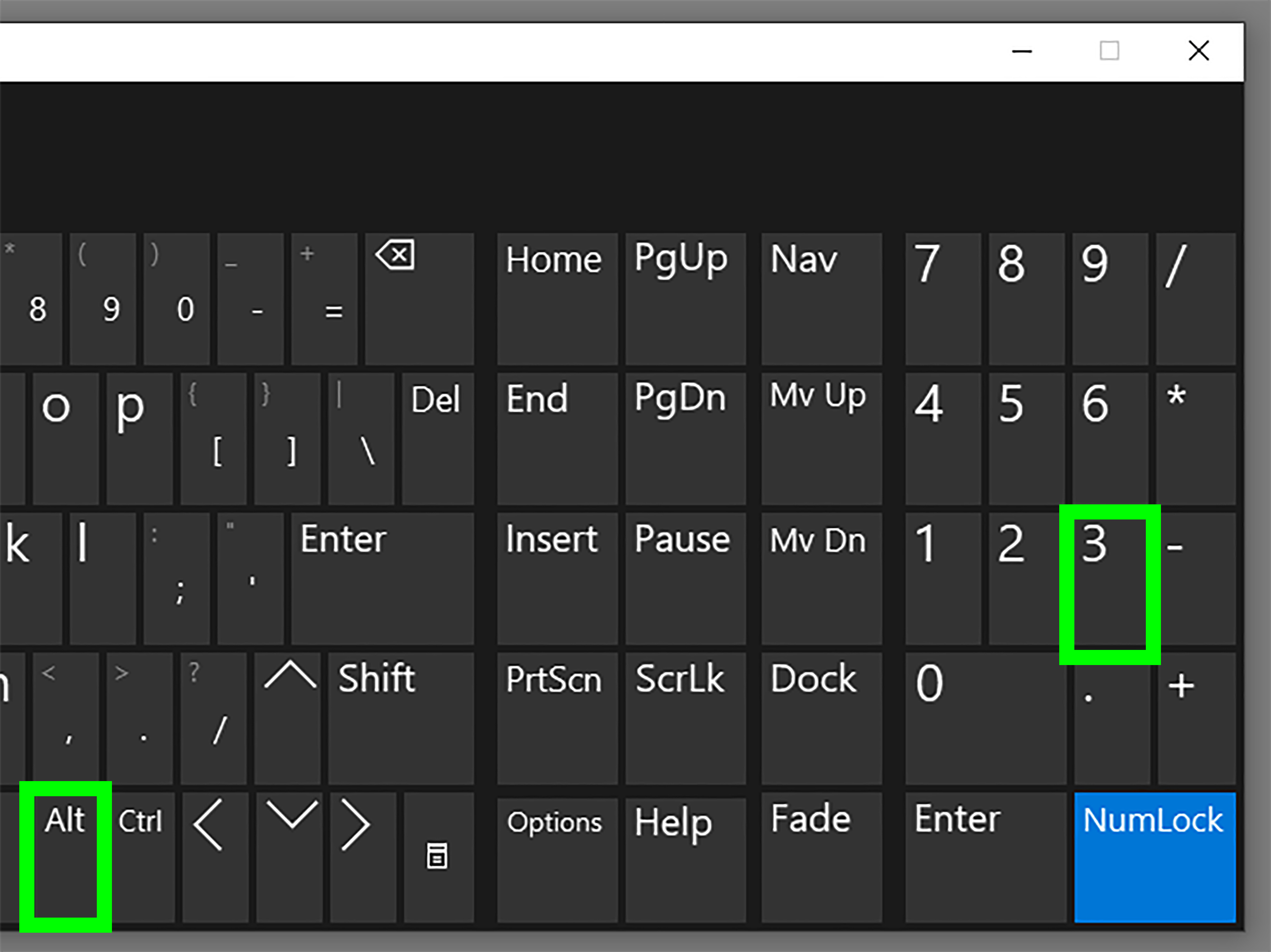
Close suspicious tabs without clicking inside the page. On Windows, use Alt + F4 or Task Manager if the browser freezes. On Mac, use Force Quit if needed. Then run a scan with your trusted security software. Never call phone numbers shown in pop-up warnings, and never install software from a panic message. Urgency is a favorite weapon of scammers.
11. Use a Standard User Account for Daily Work
Administrator accounts can install software, change system settings, and give programs deep access. That is useful when you are intentionally managing your device, but risky for everyday browsing and email. If malicious code runs while you are using an administrator account, it may gain more control than it would under a standard user account.
Use a standard account for routine tasks and keep administrator privileges reserved for trusted installations and maintenance. This will not stop every threat, but it can limit damage. Think of it as not giving every visitor to your house a master key, garage opener, and permission to remodel the kitchen.
12. Verify Files With Checksums or Digital Signatures When Available
Some software developers publish checksums, hashes, or digital signatures so users can verify that a downloaded file has not been altered. This is especially common with developer tools, open-source projects, operating system images, and security software. If you are downloading something important, especially from a mirror site, verification is worth the extra minute.
A checksum is like a fingerprint for a file. If the fingerprint on the developer’s site does not match the file you downloaded, something may be wrong. Digital signatures can also show whether software came from a trusted publisher and whether it was modified after signing. This step is more technical, but it is powerful for anyone handling sensitive systems, business devices, or development environments.
13. For Developers: Treat Dependencies Like Downloads Too
Malicious code is not limited to obvious installer files. Developers can accidentally download it through package managers, build tools, containers, plugins, and dependencies. A harmful package in npm, PyPI, RubyGems, NuGet, Maven, or another ecosystem can enter a project quietly and run during installation or build steps.
Use lockfiles, dependency review, package reputation checks, vulnerability alerts, software composition analysis, and trusted registries. Review new packages before adding them. Watch for typosquatting, dependency confusion, abandoned packages, sudden maintainer changes, and install scripts that do more than expected. In software development, “just add this package” can be the beginning of a great feature or the start of a very expensive incident report.
Common Red Flags Before You Download
Malicious downloads often reveal themselves through patterns. Be cautious when a website uses aggressive countdown timers, excessive pop-ups, misspelled brand names, strange domain endings, forced browser notifications, or multiple misleading download buttons. Another warning sign is a file that requires unnecessary permissions or asks you to disable security settings.
Also watch for mismatched file names and formats. A movie should not be an .exe file. A resume should not require macros. A browser update should not arrive as a random attachment. A mobile game should not need access to your text messages. When the request does not match the purpose, slow down.
What to Do If You Think You Downloaded Malicious Code
First, do not panic-click your way into a bigger mess. Disconnect from the internet if the device is behaving strangely, especially if files are disappearing, pop-ups are multiplying, or unknown programs are launching. Run a scan with trusted security software. Remove suspicious apps or extensions. Change passwords from a different clean device, starting with email, banking, cloud storage, and work accounts.
If the device belongs to your employer, school, or organization, report the incident immediately. Fast reporting can prevent wider damage. If ransomware appears, do not rush to pay. Contact IT support, follow your organization’s incident response process, and consider reporting serious cybercrime to appropriate authorities. Backups, multi-factor authentication, and quick action can turn a disaster into a recoverable headache.
Extra Experience: Real-Life Lessons From Avoiding Malicious Code
After dealing with enough suspicious downloads, you start to notice that malicious code rarely arrives wearing a black cape. It usually shows up dressed as convenience. A free converter. A faster driver updater. A “required” browser extension. A cracked app that promises professional features for zero dollars and only asks for one tiny favor: please ignore every security warning your computer gives you. That is the moment to step back.
One of the most useful habits is the two-minute pause. Before downloading anything, ask three questions: Do I know the source? Do I need this file? Does the request make sense? This short pause catches many problems. For example, if a website says you need to install a special video player to watch a clip, that is suspicious. Modern browsers play most videos without mystery software. If a PDF asks you to enable macros, that is suspicious too, because PDFs and macros are not exactly best friends.
Another practical lesson is that “popular” does not always mean “safe forever.” Browser extensions, developer packages, and mobile apps can change ownership, receive bad updates, or become compromised. That is why it helps to clean house every month or two. Remove apps you do not use. Delete old extensions. Review permissions. Update the tools you keep. Digital clutter is not just messy; it gives attackers more doors to knock on.
For families and small businesses, the best defense is making safe downloading boringly routine. Agree that software comes only from official sources. Keep automatic updates on. Use a password manager and multi-factor authentication. Back up important files. Teach everyone that urgent messages are not automatically trustworthy. A scammer’s favorite emotion is panic; your best response is calm verification.
For developers, the experience is slightly different but the principle is the same. Every dependency is a download, and every download is a trust decision. A tiny package can carry a huge amount of risk if nobody reviews it. Before adding a library, check its maintainer activity, issue history, release notes, install scripts, and community trust. Pin versions where appropriate, review dependency changes, and use automated alerts. Secure coding is not only about the code you write; it is also about the code you invite in for coffee.
The biggest takeaway from these experiences is simple: avoiding malicious code is not about paranoia. It is about friction. Add just enough friction between “I want this” and “I installed this” to give your brain time to notice danger. Cybercriminals rely on speed, urgency, curiosity, and convenience. When you slow the process down, even slightly, many attacks lose their magic trick.
Conclusion
Avoiding malicious code is not about becoming afraid of every download. It is about becoming selective. Use official sources, keep systems updated, scan files, read permissions, avoid pirated software, question surprise attachments, and respect security warnings. The internet is full of useful tools, brilliant apps, and legitimate open-source projects. It is also full of digital raccoons trying to sell you “free premium antivirus ultimate edition.” Choose carefully.
The best security habits are simple, repeatable, and realistic. You do not need to inspect every line of code on earth. You just need to stop treating every download button like a trusted friend. With the 13 methods above, you can dramatically reduce your chances of downloading malicious code and keep your devices, accounts, and data much safer.