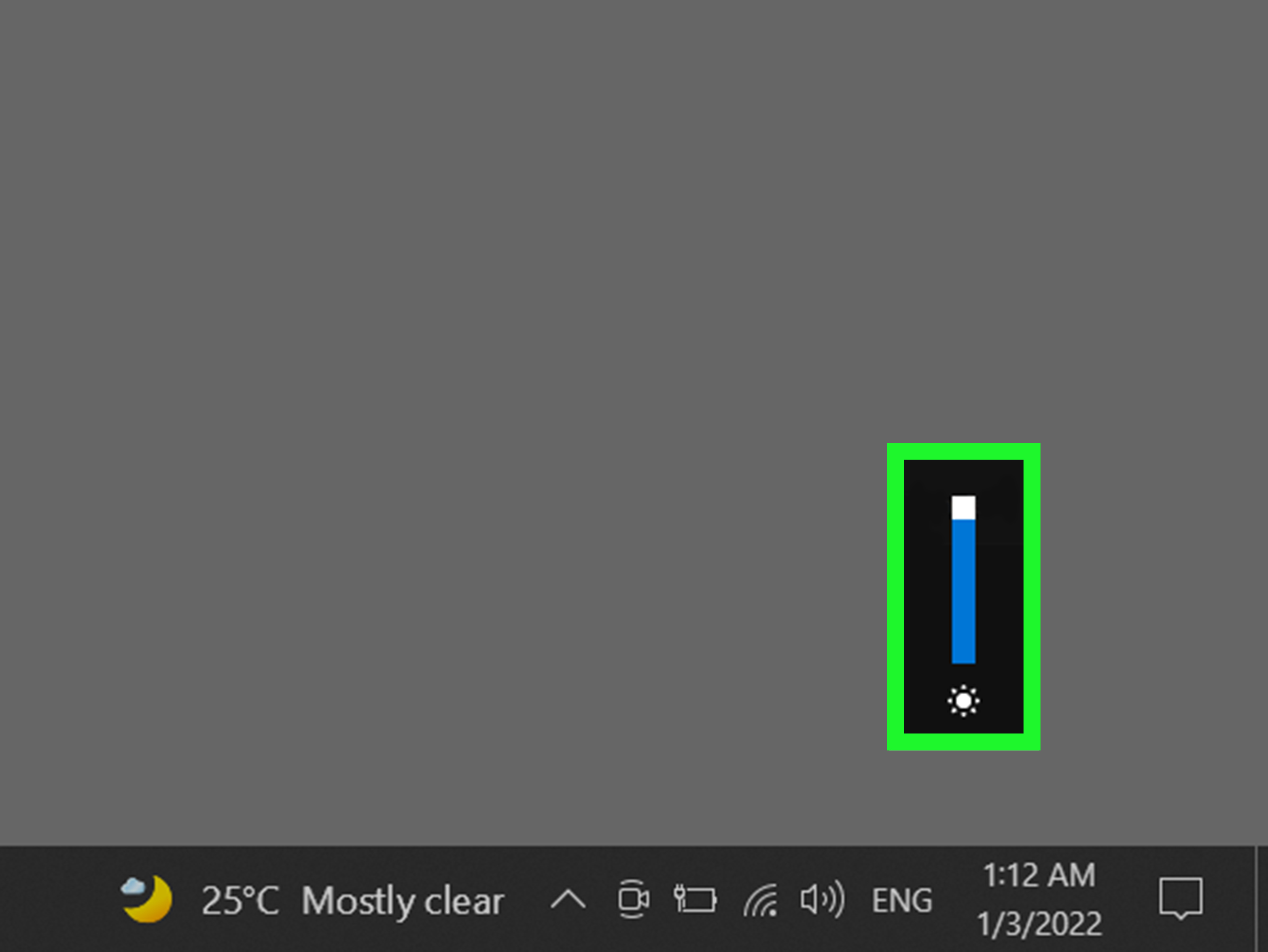
A screen that is too bright can feel like a small artificial sun aimed directly at your face. A screen that is too dim, meanwhile, turns every spreadsheet into an eye exam. Fortunately, you can adjust brightness on Windows 10 with the keyboard in secondsonce you know which keys your computer expects.
The fastest method is usually a brightness key in the top row of a laptop keyboard. Depending on the manufacturer and function-key settings, you may press that key alone or combine it with the Fn key. Windows 10 also provides keyboard-accessible alternatives through the Action Center, Display settings, and Windows Mobility Center.
This guide explains each method, offers model-specific examples, and covers the common reasons brightness shortcuts stop working.
Quick Answer: Which Keyboard Shortcut Changes Brightness?
Look across the F1–F12 row for two keys marked with sun-shaped symbols. The smaller or darker sun normally reduces brightness, while the larger or brighter sun increases it.
- Press the brightness key once to change the level by one step.
- Hold the key to make a larger adjustment.
- If nothing happens, hold Fn while pressing the brightness key.
- If the shortcut works only with Fn and you want one-touch control, try toggling Fn Lock.
There is no universal Windows 10 brightness shortcut that uses the same F-key on every laptop. The keyboard manufacturer assigns those controls, which is why one computer may use F5 and F6 while its neighbor confidently insists on F11 and F12.
Method 1: Use the Dedicated Brightness Keys
On most Windows 10 laptops, dedicated brightness controls are integrated into the function row. These are hardware hotkeys, so they often work without opening an application or interrupting whatever is on the screen.
Find the sun icons
Inspect the symbols printed on the top row. Screen-brightness icons typically resemble a sun, a circle with rays, or a sun paired with an upward or downward marker. Press the key with the smaller symbol to dim the screen and the larger one to brighten it.
Do not confuse screen brightness with keyboard backlight brightness. A screen-brightness key usually shows a sun or display. A keyboard-light key normally shows a keyboard with rays above it. They control different lights, despite apparently being designed by the same tiny-icon committee.
Common brightness shortcuts by manufacturer
| Manufacturer | Common shortcuts | What to remember |
|---|---|---|
| Lenovo | F5/F6 or Fn + Home/End | ThinkPad and IdeaPad layouts can differ. |
| Dell | F6/F7, Fn + F6/F7, or Fn + F2/F3 | The mapping varies considerably between product lines. |
| HP | Sun-icon keys, with or without Fn | The icon is more reliable than a specific F-key number. |
| ASUS | F4/F5 or Fn + F4/F5 | Some models support Fn + Esc to switch hotkey behavior. |
| Acer | Fn + Left/Right Arrow or sun-icon F-keys | Some newer models place the controls in the function row. |
| Samsung | Fn + F2/F3 | F2 commonly lowers brightness and F3 raises it. |
These combinations are common examples, not universal promises. Check the printed icons or the manual for your exact laptop model before concluding that your keyboard has joined a rebellion.
Method 2: Try the Brightness Keys With the Fn Key
The Fn key changes how the top row behaves. With one setting, pressing F5 sends the traditional F5 command, such as refreshing a browser page. With another, that same key activates its special hardware function, such as lowering screen brightness.
- Locate the Fn key, usually near the lower-left corner.
- Hold Fn.
- Press the brightness-down or brightness-up key.
- Repeat the shortcut until the display reaches a comfortable level.
If holding Fn makes the shortcut work, your laptop is configured to prioritize standard F1–F12 commands. That setting is useful in software that relies heavily on function keys, but it adds an extra finger to routine brightness adjustments.
Method 3: Toggle Fn Lock for One-Key Brightness Control
Fn Lock can reverse the default behavior of the function row. After enabling it, you may be able to change screen brightness by pressing a sun-icon key without holding Fn.
On many laptops, the shortcut is:
Fn + Esc
Look for a small padlock or “FnLk” symbol on the Esc key. Press the combination once, then test the brightness keys. Press it again if you want to restore the original behavior.
Some computers manage function-key behavior through BIOS or UEFI settings instead. The option may be called Action Keys Mode, Hotkey Mode, Function Key Behavior, or something similarly determined to avoid using one standard name.
Method 4: Open the Windows 10 Action Center With the Keyboard
If the dedicated keys are unavailable, press:
Windows + A
This opens the Windows 10 Action Center. On Windows 10 version 1903 and later, it normally contains a brightness slider for a built-in display.
- Press Windows + A.
- Press Tab until the brightness slider is selected.
- Use the Left Arrow to reduce brightness.
- Use the Right Arrow to increase brightness.
- Press Esc to close the Action Center.
This is particularly helpful when the laptop’s brightness keys have stopped responding but Windows still recognizes the built-in display correctly.
Earlier Windows 10 releases may show brightness as a quick-action button instead of a slider. Each activation cycles through preset levels. If neither control appears, use Display settings or Windows Mobility Center.
Method 5: Reach Display Settings Without Using the Mouse
The Settings application provides a dependable backup method:
- Press Windows + I to open Settings.
- Select System and press Enter.
- Select Display.
- Press Tab until the “Change brightness for the built-in display” slider is highlighted.
- Adjust it with the left and right arrow keys.
You can also press the Windows key, type brightness, and select the relevant display-setting result. Search wording and available controls may vary with the installed Windows 10 build.
The brightness slider generally appears only for an integrated laptop or all-in-one display. Its absence on a desktop computer connected to an external monitor is often normal, not evidence that Windows has misplaced an entire setting.
Method 6: Use Windows Mobility Center
Windows Mobility Center places several laptop controlsincluding display brightness, volume, battery status, and presentation settingsin one compact window.
- Press Windows + R.
- Type mblctr.
- Press Enter.
- Use Tab to reach the Display brightness slider.
- Use the arrow keys to adjust the level.
Mobility Center is mainly intended for portable computers. It may not be available or may omit the brightness control on desktops and unsupported devices.
How to Adjust Brightness on an External Monitor
Windows 10 usually controls the backlight of a built-in laptop display, but external monitors are different. The brightness slider may be missing because the monitor expects adjustments through its physical buttons or on-screen display menu.
Start by checking the front, lower edge, side, or rear of the monitor for buttons or a small joystick. Open the monitor menu, find Brightness under Picture or Display, and change the value there.
If you want a keyboard shortcut for an external monitor, a trusted monitor-control application may help. Utilities that support DDC/CI can communicate with compatible monitors and may provide custom hotkeys. Before installing one:
- Confirm that DDC/CI is enabled in the monitor’s menu.
- Download the utility from its official website or the Microsoft Store.
- Verify that your monitor and cable connection support software control.
- Avoid unfamiliar tools that demand unnecessary administrator access.
Brightness software cannot force compatibility where the monitor provides none. Some displays, docks, adapters, and older cables do not pass DDC/CI commands reliably.
Why Brightness Keyboard Shortcuts May Not Work
The function-key mode is reversed
Try the brightness key by itself and then with Fn. If one method works, the keyboard is fine; its operating mode simply differs from what you expected. Use Fn Lock or the manufacturer’s hotkey setting if you want to reverse the behavior.
The graphics driver is missing or outdated
Brightness control depends partly on the graphics driver. If Windows is using the Microsoft Basic Display Adapter or an incompatible driver, both the keyboard shortcut and brightness slider may fail.
- Press Windows + X.
- Open Device Manager.
- Expand Display adapters.
- Open the installed adapter and choose Update driver.
For laptops, the display driver supplied by the computer manufacturer may preserve model-specific features better than a generic graphics package. Check the manufacturer’s support page for graphics, chipset, keyboard-hotkey, and system-interface drivers.
The laptop needs a hotkey utility
Some manufacturers use a background service or utility to interpret special keys. After reinstalling Windows 10, those buttons may stop working even though normal typing remains perfect. Installing the correct hotkey, system-event, or keyboard-control package can restore them.
Adaptive brightness keeps changing the result
A light sensor, content-adaptive brightness feature, or power-saving setting can modify brightness after you set it manually. Check Settings > System > Display for automatic brightness options. Some computers place additional controls in advanced power settings or the manufacturer’s utility.
The shortcut controls the wrong light
If the keyboard glows but the display does not change, you pressed the keyboard-backlight shortcut. Look for a sun or monitor symbol rather than a keyboard-shaped icon.
An external monitor is selected
Laptop brightness keys normally control the internal panel. They may do nothing to an HDMI, DisplayPort, or USB-C monitor. Adjust that display through its hardware menu or compatible monitor-control software.
Additional Troubleshooting Steps
If the shortcut still refuses to cooperate, work through these fixes in order:
- Restart the computer. This reloads keyboard services and display drivers.
- Test both key modes. Try the brightness key alone and with Fn.
- Toggle Fn Lock. On supported models, press Fn + Esc.
- Check Windows Update. Install relevant driver and system updates available for your device.
- Install manufacturer drivers. Prioritize the exact model’s graphics and hotkey packages.
- Review automatic brightness settings. Disable them temporarily to test manual control.
- Check BIOS or UEFI. Look for action-key or hotkey behavior settings, changing only options you understand.
If the brightness indicator moves but the screen remains unchanged, the problem is probably deeper than a key assignment. A graphics driver, firmware issue, display cable, sensor, or panel controller may be involved.
Choose a Comfortable Brightness Level
There is no magical brightness percentage that suits every room. A display should be bright enough to read comfortably without looking like a glowing rectangle pasted onto the surroundings.
- Increase brightness in daylight or near a sunny window.
- Reduce it in a dim room to avoid harsh contrast.
- Use Night light in the evening if you prefer warmer screen colors.
- Remember that Night light changes color temperature, not the physical backlight level.
- Lower brightness when running on battery if you need more operating time.
Small adjustments are usually better than jumping between zero and maximum brightness. Your eyes receive a gentler transition, and you are less likely to turn a late-night email into an accidental interrogation lamp.
Practical Experiences and Real-World Lessons
Everyday brightness problems tend to look mysterious until the computer reveals which layer is responsible. One common experience occurs after moving from one laptop brand to another. A user accustomed to pressing F5 and F6 may discover that the new laptop places brightness on F11 and F12or on the arrow keys. The practical lesson is simple: trust the printed sun icons before trusting muscle memory. Function-key numbers are merely addresses, and manufacturers apparently enjoy rearranging the neighborhood.
Another familiar situation appears after a clean Windows installation. The keyboard types normally, volume buttons work, and yet the brightness keys produce absolutely nothing. Opening Display settings may reveal that the slider is also missing. In this case, installing the correct graphics driver and the manufacturer’s hotkey utility often solves both symptoms. The missing slider is an especially useful clue because it suggests that the issue is not just a damaged brightness key.
A third scenario happens during presentations. A laptop is connected to a large monitor, and the user repeatedly presses the brightness-down shortcut. The laptop display obediently becomes darker, while the external screen continues shining at full power. This is expected: the keyboard shortcut usually controls only the integrated panel. The external monitor must be adjusted with its own controls or through DDC/CI-compatible software. Knowing this distinction can save several minutes of key pressing and increasingly suspicious looks at the computer.
Fn Lock creates another small but memorable puzzle. Someone presses F6 expecting a darker screen and instead triggers an application command. Holding Fn suddenly makes brightness control work again. Nothing is broken; the function-row mode has changed. Toggling Fn Lock restores one-touch access, although people who depend on traditional F-keys in spreadsheets, development tools, or business software may prefer to leave the original behavior intact.
Automatic brightness can be equally confusing. A user lowers the screen at night, only to see it brighten again after opening a mostly white webpage or connecting the charger. Depending on the hardware, an ambient-light sensor, content-adaptive control, or power profile may be overriding the manual setting. Temporarily disabling automatic adjustments helps identify the cause. Once confirmed, the feature can remain disabled or be configured around the user’s routine.
Finally, a dim screen is not always a brightness problem. Warm Night light colors, Battery saver, an HDR configuration, a privacy-screen feature, or a dark application theme can change how bright the display appears. If the brightness indicator reaches 100 percent but the image still looks unusually dark, compare several applications, check the power state, and review display features before blaming the backlight.
The best working habit is to keep more than one method available. Dedicated keys are fastest, Windows + A is an excellent backup, and Windows + I provides the full settings path. Once those options become familiar, adjusting Windows 10 screen brightness takes seconds instead of becoming an unexpected technical side quest.
Conclusion
The simplest way to adjust brightness on Windows 10 using the keyboard is to press the sun-icon keys in the function row. If they do not respond, add the Fn key, test Fn Lock, or use Windows + A to reach the Action Center brightness control. Windows + I and Windows Mobility Center provide useful keyboard-accessible alternatives.
When every brightness method fails, check the graphics driver, manufacturer hotkey software, automatic brightness settings, and display type. External monitors frequently require their own controls, while built-in laptop screens depend on compatible drivers and firmware. Once the correct shortcut is identified, screen brightness becomes one of those settings you can adjust without pausing to thinkwhich is exactly how a good shortcut should behave.