If you have ever stared at Microsoft Word and thought, “Why is typing x squared somehow making me feel like I need a computer science degree?” welcome to the club. Exponents look tiny, but they cause a surprisingly large amount of drama. Whether you are writing a math assignment, a science report, a finance document, or just trying to type “10th” without wrecking your formatting, knowing how to add exponents in Microsoft Word can save time, frustration, and a few unnecessary sighs.
The good news is that Word gives you several ways to do it. The even better news is that you do not need to memorize a wizard spell or bribe your keyboard. In this guide, you will learn four reliable ways to add exponents in Microsoft Word, when to use each one, and how to avoid the formatting mess that happens when Word decides to “help” a little too much.
If you use Word for homework, business reports, technical writing, or everyday documents, this walkthrough will help you type exponents faster and more cleanly. By the end, you will know which method is best for simple superscripts, which one works best for equations, and which option to use when you want your document to look polished instead of mildly chaotic.
What Is an Exponent in Microsoft Word?
In Word, an exponent is usually created with superscript formatting. That means the number or character is raised slightly above the normal line of text and made smaller. So instead of typing x2, you can type x2. Much better. Much less “I forgot middle school math.”
Exponents are common in many types of documents, including:
- Math homework and quizzes
- Science lab reports
- Engineering documents
- Statistical or financial formulas
- Ordinals like 1st, 2nd, and 10th
In Microsoft Word, you can create exponents using formatting tools, keyboard shortcuts, font settings, and the built-in equation feature. Each approach has a slightly different purpose, so picking the right one can make your work easier and your final document more professional.
Way 1: Use the Superscript Button on the Home Tab
The easiest and most beginner-friendly way to add exponents in Microsoft Word is by using the Superscript button in the ribbon. If you like clicking visible buttons instead of trying to remember shortcuts, this is your method.
How to do it
- Type your base number or variable, such as x2.
- Select the character you want to turn into an exponent, such as the 2.
- Go to the Home tab.
- In the Font group, click the Superscript icon, which looks like x2.
Once you click it, the selected text jumps up neatly into exponent position. That is it. No drama. No keyboard gymnastics.
When this method works best
This approach is ideal for short expressions like x2, y3, cm2, or dates such as 21st. It is especially useful for casual documents or whenever you want a quick visual method.
Pros
- Simple and easy to find
- Great for beginners
- No shortcut memorization required
Cons
- Slightly slower if you use exponents often
- Not the best option for complex equations
Example: If you are typing “The area is measured in m2,” the Superscript button gets the job done quickly and cleanly.
Way 2: Use the Keyboard Shortcut for Superscript
If the mouse feels too slow and you want to work like a Word power user, keyboard shortcuts are your friend. This is one of the fastest ways to add exponents in Microsoft Word, especially if you need them often.
How to do it
- Type your expression, such as x2.
- Select the number or letter you want to raise.
- Press Ctrl + Shift + Plus Sign (+) on Windows.
The selected character becomes superscript instantly. Press the same shortcut again to toggle the formatting off if needed.
Why people love this method
It is fast. Really fast. Once the shortcut becomes muscle memory, you can format exponents without breaking your typing rhythm. This is perfect for students, teachers, researchers, and anyone who writes technical content regularly.
Best use cases
- Typing repeated math expressions
- Editing long documents with many exponents
- Saving time during note-taking
Common mistake to avoid
Some users accidentally select too much text before using the shortcut. If you highlight an entire word, the whole word becomes superscript. That may be useful for a chemistry formula, but it is less helpful when your sentence suddenly looks like it is trying to float away.
Example: In a document about population growth, you might type “The model uses 2n patterns.” With the shortcut, you can create that exponent in seconds.
Way 3: Use the Font Dialog Box for More Control
If you want a little more precision, the Font dialog box is another smart way to add exponents in Word. This option is less flashy than the ribbon button but often more useful when you are tweaking multiple formatting settings at once.
How to do it
- Type your text, such as x2.
- Select the character you want to format as an exponent.
- Right-click the selected text and choose Font, or open the small dialog launcher in the Font group on the Home tab.
- In the Font window, check the box for Superscript.
- Click OK.
Why this method matters
The Font dialog box is helpful when you are already changing font size, style, color, or effects. Instead of bouncing around several menus, you can manage everything in one place.
When to use it
- When you want more formatting control
- When the ribbon is minimized or customized
- When you prefer menu-based editing over shortcuts
Pros
- Precise and reliable
- Good for editing styled documents
- Useful alongside other font changes
Cons
- Slower than the shortcut
- Requires a few extra clicks
Example: If you are formatting a polished report and need “CO2 emissions rose by 3rd-quarter estimates,” the Font dialog box gives you tighter control over how the text appears.
Way 4: Use the Equation Tool for Real Math Expressions
Here is where things get interesting. If you are writing actual equations, not just adding a tiny number after a letter, Word’s Equation tool is usually the best choice. This is the method for documents that include formulas, nested exponents, fractions, radicals, or anything that belongs in math class rather than casual body text.
How to do it
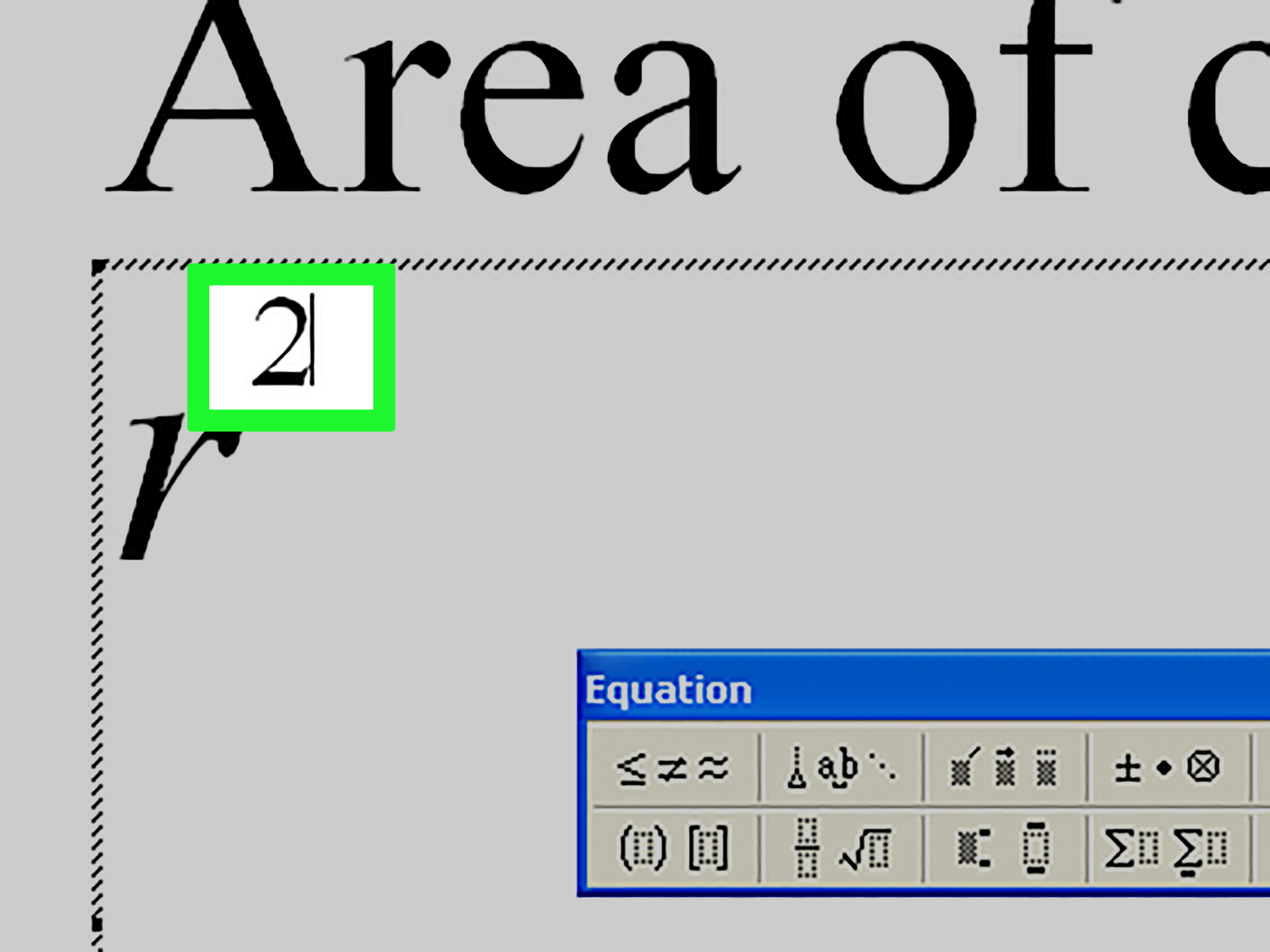
- Go to the Insert tab.
- Click Equation.
- Choose a built-in structure or type directly into the equation box.
- Use the Script option to create superscripts and subscripts.
You can also type equations in a more natural math style. For example, entering x^2 inside an equation box can turn into a properly formatted exponent. For more advanced writing, this feature is a lifesaver.
Why the Equation tool is different
Regular superscript formatting is great for simple exponents in sentences, but it is not ideal for full equations. The Equation tool is built for mathematical structure, so your formulas are cleaner, more readable, and better aligned.
Best situations for this method
- School assignments with formulas
- Technical reports and research papers
- Complex expressions like (x + y)2 or ab+c
- Documents that need professional math formatting
Example: If you need to type E = mc2, simple superscript works fine. But if you are typing a whole formula like x = (-b ± √(b2 – 4ac)) / 2a, the Equation tool is the better choice by a mile.
Bonus Tip: Use Symbols for Common Exponents Like ² and ³
This is not one of the main four methods, but it is worth knowing. Microsoft Word also lets you insert special symbols such as ² and ³. This can be handy if you need common exponents quickly and do not want to format them manually.
How to do it
- Go to Insert.
- Click Symbol, then More Symbols.
- Choose the superscript character you want.
- Insert it into your document.
This works best for simple powers like squared and cubed. It is less flexible than superscript formatting, but handy in a pinch.
Which Method Should You Use?
Here is the quick answer:
- Use the Superscript button if you want the easiest visual option.
- Use the keyboard shortcut if speed matters.
- Use the Font dialog box if you want extra formatting control.
- Use the Equation tool if you are writing real math expressions.
In most everyday documents, the first two methods are enough. But if you work with formulas often, the Equation feature is the real MVP.
Common Problems When Adding Exponents in Word
The exponent looks too small or too high
That is usually normal for superscript formatting, but it can look odd depending on your font. Try changing the font family or using the Equation tool for better balance in formal math writing.
The shortcut is not working
Make sure you selected the character first. Also check whether another application or keyboard setting is interfering. In some cases, laptop keyboards require the plus key combination to be entered carefully.
The whole word becomes superscript
This happens when you accidentally select too much text. Highlight only the character or characters you want to raise.
The formatting keeps continuing after the exponent
Toggle superscript off after typing the exponent. Otherwise, Word assumes you are still in exponent mode and happily sends your next letters skyward too.
Practical Examples of Exponents in Microsoft Word
Here are a few common scenarios where exponents show up:
- Math: x2 + y2 = z2
- Science: Water samples measured in cm3
- Finance: Compound growth formulas
- Ordinals: 1st, 2nd, 3rd, 10th
- Technical writing: File versions, notes, and annotations
Once you know how to create exponents in Word, a lot of small formatting annoyances suddenly disappear. It is one of those tiny skills that feels minor until the moment you need it, at which point it becomes weirdly important.
Final Thoughts
Learning how to add exponents to Microsoft Word is not exactly the flashiest digital skill on earth, but it is surprisingly useful. The right method depends on what you are writing. For quick everyday use, the superscript button and keyboard shortcut are excellent. For polished formatting, the Font dialog box gives you more control. And for real math work, the Equation tool is the clear winner.
The best part is that once you practice these methods a couple of times, they become second nature. Soon you will be typing x2, m3, and neatly formatted formulas without pausing to wonder why Word sometimes behaves like it was designed by a committee of helpful squirrels.
If your goal is cleaner documents, faster formatting, and fewer battles with tiny raised numbers, these four methods will cover just about every situation you are likely to run into.
Experiences and Lessons Learned from Using Exponents in Microsoft Word
The funny thing about exponents in Microsoft Word is that they seem like such a small feature until you actually need them. Then suddenly they become the entire mission. I have seen students spend ten minutes trying to type x squared in a homework file, only to end up with x2, a random symbol, or an entire paragraph in superscript because one shortcut went rogue. It is a humble formatting problem, but it shows up in very real situations.
One common experience is that beginners often assume there must be one single “math button” in Word that fixes everything. They start by clicking around the ribbon like they are hunting for buried treasure. Usually, they find the Superscript button first, which is great for simple expressions. That moment feels oddly victorious. Suddenly x2 appears correctly, and confidence returns. It is a small win, but in document editing, small wins matter.
Then there is the second stage: speed. Once someone learns the keyboard shortcut, they rarely want to go back. The shortcut feels awkward at first, but after a few uses it becomes automatic. This is especially true for students typing science notes, teachers preparing worksheets, and office workers who need quick formatting for reports. The shortcut saves time, and more importantly, it keeps you in your writing flow. You are not constantly stopping to click menus, which makes the whole experience smoother.
Another lesson people learn quickly is that not all exponents are created equal. A tiny superscript works perfectly in body text, but when the equation becomes more complex, regular formatting starts to look clumsy. Fractions, radicals, nested powers, and multi-part expressions can get messy fast. This is usually the point where users discover the Equation tool and realize Word has been hiding a much better math system in plain sight. It is one of those “where have you been all my life?” features.
There is also a practical design lesson here. The best-looking document is not always the one with the fanciest formatting. Sometimes a simple superscript is exactly right. Other times, forcing regular text to behave like an equation creates a result that looks uneven and hard to read. Experienced Word users eventually learn to match the tool to the task. That is the real secret. Not every exponent needs the Equation tool, and not every formula should be built with simple superscript.
Finally, the biggest experience-based takeaway is this: Word gets much less frustrating when you stop fighting it and start using the built-in tools the way they were intended. Exponents are a perfect example. Once you know the four main methods, the task becomes easy, repeatable, and surprisingly satisfying. It is one of those little productivity skills that makes your work look sharper and makes you feel a lot more capable, all because a tiny number is finally sitting exactly where it belongs.