We have all been there. You open WhatsApp to find an old message staring back at you like a raccoon in the kitchen at 2 a.m. Maybe it was a typo. Maybe it was sent to the wrong group. Maybe it was a dramatic paragraph that should have stayed in drafts, next to your abandoned gym plan. Naturally, the next question is simple: Can you delete old messages on WhatsApp?
The honest answer is: yes, but with limits. You can delete old WhatsApp messages from your own phone almost anytime. However, deleting old WhatsApp messages for everyone in a chat is much more restricted. WhatsApp gives users a limited window to use “Delete for Everyone,” and once that window closes, you cannot magically erase the message from other people’s phones. WhatsApp is powerful, but it is not a time machine with a trash-can icon.
This guide explains how to delete old messages on WhatsApp, what “Delete for Me” and “Delete for Everyone” actually do, how disappearing messages work, how to clean up storage, and what to do when a message is too old to unsend. We will also cover practical examples, privacy tips, and a real-world experience section for anyone who has ever wished their thumb had asked permission before tapping “Send.”
Can You Delete Old WhatsApp Messages?
Yes, you can delete old WhatsApp messages from your own chat history. This removes the message from your device, helping you clean up conversations, protect privacy on your phone, or free up a little digital breathing room.
No, you usually cannot delete very old WhatsApp messages for everyone. The “Delete for Everyone” option is time-limited and is mainly designed for recent mistakes, such as sending a message to the wrong person, dropping a typo into a professional chat, or sharing a photo that made sense for exactly four seconds.
The Quick Difference: Delete for Me vs. Delete for Everyone
- Delete for Me: Removes the message only from your WhatsApp chat. Other people can still see it.
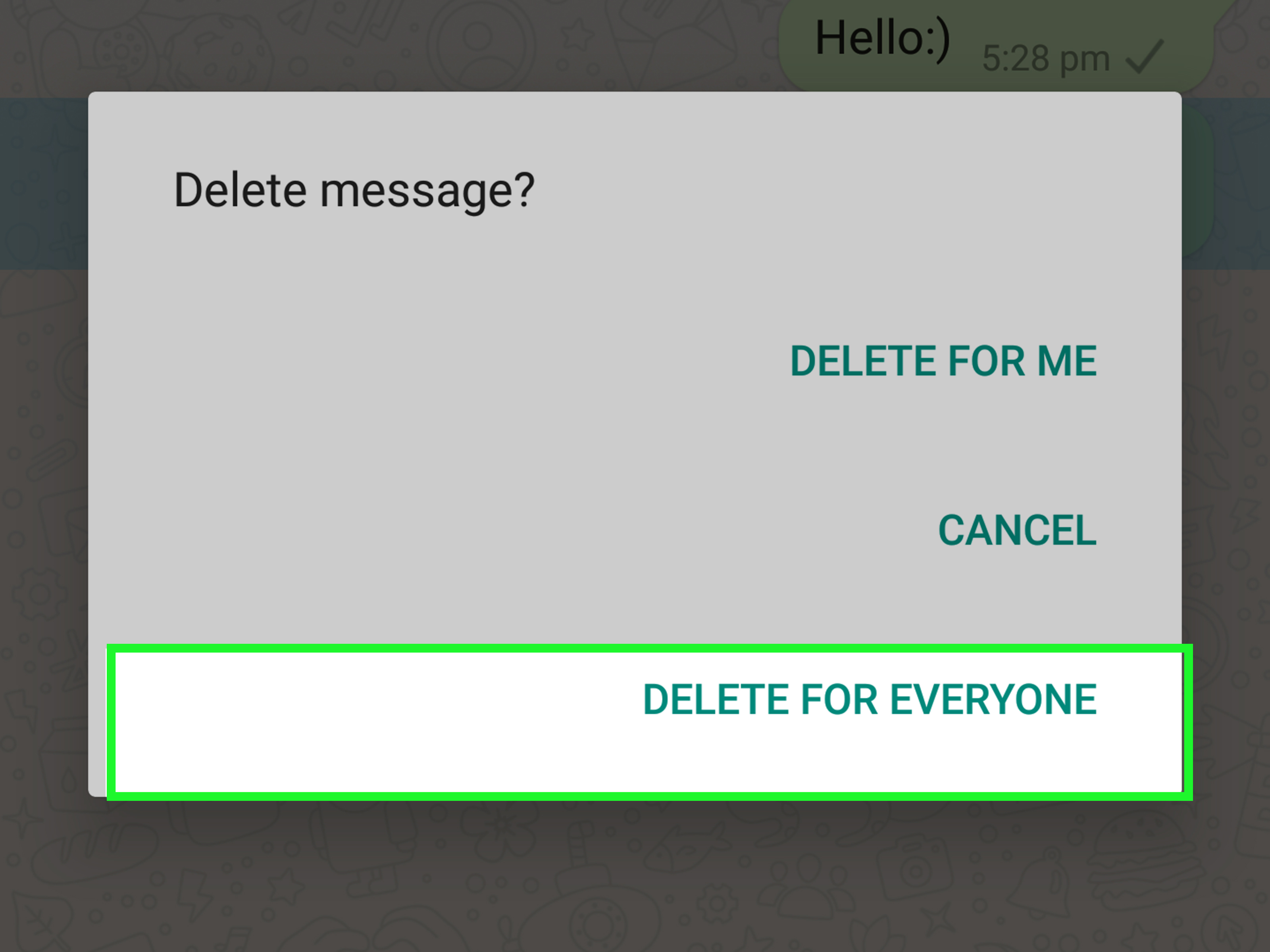
- Delete for Everyone: Attempts to remove a message you sent from everyone’s chat, but only within WhatsApp’s allowed time window.
- Clear Chat: Removes messages from a conversation on your device, but does not delete them for other participants.
- Delete Chat: Removes an entire chat thread from your chat list.
- Disappearing Messages: Automatically removes new messages after 24 hours, 7 days, or 90 days, depending on the setting.
Think of “Delete for Me” as cleaning your room. Think of “Delete for Everyone” as trying to clean everyone else’s room too. WhatsApp lets you try, but only shortly after the mess happens.
How to Delete Old WhatsApp Messages for Yourself
If your goal is to remove messages from your own phone, the process is simple. This is useful when you want to tidy up old chats, remove sensitive information from your screen, or stop your phone from looking like a museum of conversations from 2017.
On iPhone
- Open WhatsApp.
- Go to the chat containing the message you want to delete.
- Tap and hold the message.
- Tap Delete.
- Select one or more messages if needed.
- Tap the trash icon.
- Choose Delete for Me.
On Android
- Open WhatsApp.
- Open the individual or group chat.
- Tap and hold the message you want to remove.
- Select additional messages if you want to delete several at once.
- Tap the trash icon.
- Choose Delete for Me.
On WhatsApp Web or Desktop
- Open WhatsApp Web or the desktop app.
- Open the chat with the message.
- Hover over the message or open the message menu.
- Choose Delete message.
- Select Delete for Me.
After you delete a message for yourself, it disappears from your view. However, it does not disappear from the recipient’s phone, group members’ chats, screenshots, exported chat files, notifications, or any media that was already saved outside WhatsApp. In other words, “Delete for Me” is personal housekeeping, not a global vanishing spell.
How to Delete WhatsApp Messages for Everyone
The Delete for Everyone feature is the one people usually mean when they ask how to delete old messages on WhatsApp. It is designed to remove a message from both your chat and the recipient’s chat. It can work in individual chats and group chats, but it comes with important conditions.
When “Delete for Everyone” Works
You can generally use “Delete for Everyone” when:
- You are deleting a message that you sent.
- The message is still within WhatsApp’s allowed deletion window.
- You and the recipients are using versions of WhatsApp that support the feature.
- The message has not already been copied, screenshotted, forwarded, saved, or backed up somewhere else.
Steps to Delete a Message for Everyone
- Open WhatsApp and go to the chat.
- Tap and hold the message you sent.
- Tap the trash icon or choose Delete.
- Select Delete for Everyone.
- Confirm the action if prompted.
Once deleted, WhatsApp usually leaves a notice in the conversation, such as “This message was deleted.” This is normal. It means the content is gone from the chat, but the evidence that something was removed remains. It is the messaging equivalent of a cookie crumb trail after someone definitely, absolutely did not eat the last cookie.
Can Group Admins Delete Old Messages on WhatsApp?
In WhatsApp groups, admins may be able to delete messages sent by other members for everyone in the group. This is mainly a moderation feature. It helps admins remove spam, inappropriate content, misinformation, or messages that accidentally reveal private details.
However, group members can see which admin deleted the message. Deleted messages are not recoverable through the chat itself, and the action is not something members can appeal inside WhatsApp. For group admins, this is useful but should be handled carefully. Nobody wants to become the “delete-happy admin” who removes every harmless meme like it is classified government material.
Why You Cannot Delete Very Old WhatsApp Messages for Everyone
WhatsApp messages live on devices. When you send a message, it reaches the recipient’s phone, and that person may see it immediately, receive a notification preview, save media, forward the message, export the chat, or take a screenshot. Once that happens, deleting the original message from WhatsApp may not remove every trace.
This is the big privacy lesson: message deletion is useful, but it is not absolute control. If someone already saw the message, they saw it. If they saved a photo to their gallery, deletion may not remove that saved copy. If they backed up their chats before deletion, a version of the message may exist in that backup. If they took a screenshot, your message has moved from “chat” to “evidence,” and WhatsApp cannot chase it around the internet wearing tiny detective shoes.
Can You Use the Date-and-Time Trick to Delete Old WhatsApp Messages?
You may see videos or blog posts claiming you can delete old WhatsApp messages for everyone by turning off the internet, changing your phone’s date and time, reopening WhatsApp, and forcing the “Delete for Everyone” option to appear. This so-called trick has circulated for years.
Here is the practical advice: do not rely on it. WhatsApp updates frequently, server-side checks may prevent outdated workarounds, and changing phone time settings can cause problems with apps, backups, authentication, and message syncing. Even if a workaround appears to work for one user on one device, it may fail for another user, especially if the recipient is online, using a newer version, or already has the message saved.
Even worse, third-party WhatsApp mods or “message eraser” apps can create privacy and security risks. Some may ask for permissions they do not need, expose your data, or violate WhatsApp’s terms. If an app promises to delete ancient WhatsApp messages from everyone’s phones with one tap, treat it like a stranger offering “free diamonds” in a parking lot. Smile politely, then walk away.
What Happens When You Clear or Delete a WhatsApp Chat?
Clearing or deleting a chat is different from deleting a message for everyone. These tools are mainly for organizing your own WhatsApp account.
Clear Chat
Clear Chat removes messages inside a chat while keeping the conversation itself in your chat list. You can often choose whether to delete media from that chat as well. This is useful when a conversation is important, but the 4,000 photos of lunch, receipts, and “LOL” replies are not.
Delete Chat
Delete Chat removes the chat thread from your chat list. On group chats, you usually need to exit the group before deleting the chat from your list. This does not remove the group or conversation history for other members.
Delete All Chats
WhatsApp also offers options to clear or delete all chats through chat history settings. This is the nuclear declutter button. It can be helpful before switching phones, giving a device to someone else, or doing a major privacy cleanup. Before using it, check whether you need any important records, addresses, files, receipts, or sentimental messages. Once you delete everything, you may suddenly remember that your Wi-Fi password was buried in a chat from three years ago.
How to Delete WhatsApp Media and Free Up Storage
Old WhatsApp messages are not always the biggest storage problem. Photos, videos, voice notes, GIFs, forwarded memes, and documents can quietly eat your phone storage like raccoons at a buffet.
To clean up WhatsApp storage:
- Open WhatsApp.
- Go to Settings.
- Tap Storage and data.
- Select Manage storage.
- Review large files, forwarded items, and media by chat.
- Select items you no longer need.
- Delete them from WhatsApp and, when available, from your device gallery.
This is one of the best ways to make WhatsApp feel lighter without deleting every conversation. Start with large videos and forwarded files. A single video from a family group can take more space than months of text messages. Text is tiny. Aunt Linda’s 4K fireworks video is not.
Do WhatsApp Backups Keep Deleted Messages?
Backups can complicate deletion. WhatsApp can back up chat history to Google Account storage on Android or iCloud on iPhone. If a message existed when a backup was created, that message may be included in the backup. If you later delete the message from WhatsApp, your newest backup may eventually overwrite the older backup, depending on your backup settings.
If privacy is your main concern, review your backup settings. You may want to:
- Check whether automatic backups are turned on.
- Create a fresh backup after cleaning your chats.
- Delete old cloud backups if you no longer need them.
- Turn on end-to-end encrypted backups for stronger backup privacy.
- Avoid restoring an old backup if you do not want deleted messages to reappear.
Backups are helpful when you lose a phone or switch devices, but they can also preserve old messages you thought were gone. It is like cleaning your closet, then realizing your storage unit has the same clutter wearing a fake mustache.
Do Disappearing Messages Delete Old Messages?
No, disappearing messages do not usually delete old messages that were sent before the setting was turned on. They apply to new messages in the chat after the feature is enabled. WhatsApp lets users choose disappearing message durations such as 24 hours, 7 days, or 90 days.
Disappearing messages are useful when you want future conversations to stay tidy. For example, a travel planning group might use disappearing messages so old restaurant debates and “What time is the flight?” messages do not live forever. A work chat might use them for low-stakes coordination, though teams should be careful if they need records for legal, HR, or project documentation.
However, disappearing messages are not perfect privacy armor. Someone can still screenshot a message, copy it, forward it, photograph the screen, or save media depending on settings. Use disappearing messages as a clutter-control tool, not as a guarantee that nobody can keep a copy.
Can You Edit Instead of Delete a WhatsApp Message?
If the message is recent and the problem is only a typo, editing may be better than deleting. WhatsApp allows users to edit text messages within a short time after sending. Edited messages are labeled as edited, so the other person can tell the message changed, but the chat stays cleaner than a deleted-message notice followed by an awkward replacement text.
Editing is ideal for simple fixes:
- Correcting “I’ll be there at 8” to “I’ll be there at 9.”
- Fixing a typo in a professional message.
- Changing a wrong address before someone drives to the wrong place.
- Clarifying a sentence that sounded much ruder than intended.
But editing also has a time limit. If the message is old, you will need to send a correction, delete it for yourself, or accept that the typo has joined the historical record.
Best Practices Before You Delete WhatsApp Messages
Before deleting old WhatsApp messages, take a minute to decide what you are trying to accomplish. Different goals require different tools.
If You Want Privacy on Your Own Phone
Use Delete for Me, Clear Chat, Delete Chat, Chat Lock, app lock, and backup controls. This helps prevent someone with access to your phone from reading old conversations.
If You Sent Something by Mistake
Use Delete for Everyone as soon as possible. Do not wait until tomorrow, after coffee, after three meetings, and after your courage returns. The sooner you act, the better.
If You Want Less Clutter
Use Manage Storage and delete large media files first. Then clear old chats that no longer matter. This saves storage without erasing conversations you still need.
If You Want Future Messages to Vanish
Turn on Disappearing Messages. Choose 24 hours, 7 days, or 90 days based on how long the chat needs to remain useful.
If You Need a Record
Do not delete important messages too quickly. Save order numbers, addresses, business agreements, school details, medical instructions, or anything you may need later. Your future self may not appreciate your minimalist era.
Common Problems When Deleting WhatsApp Messages
The “Delete for Everyone” Option Is Missing
This usually means the message is too old, the message was not sent by you, or the feature is not available in that context. In groups, admins may have additional moderation options, but regular users cannot delete other people’s messages for everyone.
The Recipient Still Saw the Message
Deleting a message does not guarantee the recipient never saw it. They may have opened the chat, read a notification preview, saved the media, or taken a screenshot before you deleted it.
Deleted Media Still Appears in Photos or Gallery
Some media may already be saved to the phone’s gallery or photos app. You may need to delete it separately from device storage, depending on your settings and platform.
Old Messages Reappear After Restoring a Backup
If you restore an older backup, messages that existed at the time of that backup may come back. To avoid this, create a fresh backup after cleaning chats, or delete old cloud backups if you are sure you do not need them.
Specific Examples: What You Can and Cannot Do
Example 1: You Sent a Message to the Wrong Person 10 Minutes Ago
Use Delete for Everyone immediately. If it works, the message content should be removed from both sides, though the recipient may still have seen the notification.
Example 2: You Sent an Embarrassing Message Three Months Ago
You can delete it from your own chat using Delete for Me, but you probably cannot delete it from the recipient’s chat. If the message matters, the best solution may be a human one: explain, apologize, clarify, or pretend your cat walked across the keyboard only if the cat is willing to testify.
Example 3: A Group Member Posts Private Information
If you are a group admin, you may be able to delete that message for everyone in the group. You should also ask members not to share or screenshot it, and consider changing group permissions if the group needs tighter control.
Example 4: Your Phone Storage Is Full
Go to Settings > Storage and data > Manage storage. Delete large videos, forwarded files, and unnecessary media. This is usually more effective than deleting text messages one by one.
Privacy Tips for Avoiding Message Regret
The best way to delete old WhatsApp messages is to avoid creating messages you will desperately want to delete later. Easier said than done, of course. Thumbs are fast. Emotions are faster. Group chats are chaos with profile pictures.
- Pause before sending sensitive information. Check the recipient name twice.
- Use View Once for certain photos or videos. It adds a layer of control, though it is not perfect.
- Turn on disappearing messages for casual chats. This helps reduce long-term clutter.
- Review media auto-download settings. Stop every meme from moving into your phone like it pays rent.
- Use Chat Lock for private conversations. This protects chats from casual snooping.
- Keep WhatsApp updated. Newer versions include current security and privacy features.
- Avoid third-party WhatsApp tools. They can put your privacy and account at risk.
Experience Section: What It Feels Like to Clean Up Old WhatsApp Messages
Cleaning old WhatsApp messages sounds simple until you actually do it. At first, you think, “I’ll just delete a few chats.” Ten minutes later, you are reading a conversation from 2019 about a restaurant that closed during the pandemic, a forgotten birthday plan, and a group chat where everyone argued for 47 messages about who was bringing cups. Suddenly, deleting messages becomes less like phone maintenance and more like emotional archaeology.
The first practical lesson is that most people do not need to delete every old message. What they really need is to separate useful history from digital dust. Useful history includes addresses, payment confirmations, work notes, family information, school updates, and anything that answers the eternal question, “Wait, what did we agree on?” Digital dust includes old memes, duplicate photos, blurry videos, one-word replies, and voice notes that begin with seven seconds of pocket noise.
A good cleanup usually starts with storage, not individual messages. When someone complains that WhatsApp is taking too much space, the villain is rarely text. Text messages are tiny. The real storage goblins are videos, forwarded media, and group chat files. Opening WhatsApp’s storage manager can be shocking. You may discover that one group chat has quietly collected enough videos to launch its own streaming service. Deleting large files first gives the biggest reward with the least effort.
The second lesson is that deleting for yourself feels satisfying, but it should not be confused with deleting for everyone. Many users delete an old message from their own chat and feel relieved, only to realize the other person still has it. This is normal. WhatsApp is not secretly broken. That is simply how “Delete for Me” works. It cleans your side only. If the message is old and the “Delete for Everyone” option is gone, you cannot force it back through official settings.
The third lesson is emotional: sometimes the best fix is not technical. If an old message caused confusion, a short follow-up can be better than trying to erase history. “Sorry, that message was outdated,” “I sent that to the wrong chat,” or “Please ignore the earlier file; here is the correct one” often works better than silently deleting and hoping nobody noticed. Spoiler: somebody noticed. There is always one fast reader in every group chat.
The fourth lesson is preventive. Disappearing messages are excellent for casual, temporary conversations. They are helpful for event planning, quick coordination, travel groups, and chats that do not need a permanent record. However, they are not ideal for important agreements, business decisions, legal matters, or anything you may need to prove later. Deleting everything automatically can feel clean until you need one specific detail and realize it vanished yesterday with the confidence of a magician in a cape.
Finally, cleaning WhatsApp works best as a routine. Once a month, review large media. Once a quarter, clear dead group chats. Before switching phones, check backups. Before sending sensitive information, check the recipient. These tiny habits prevent huge cleanup sessions later. WhatsApp is a communication tool, not a storage attic. Treat it like a living inbox, and it becomes much easier to manage.
Conclusion: So, Is It Possible to Delete Old WhatsApp Messages?
Yes, it is possible to delete old WhatsApp messages from your own device. You can delete individual messages, clear chats, delete entire conversations, and remove media to free storage. These tools are great for privacy, organization, and phone cleanup.
But deleting old WhatsApp messages for everyone is limited. “Delete for Everyone” is mainly for recent messages. Once the allowed time window has passed, you usually cannot remove that message from someone else’s chat. You also cannot erase screenshots, forwarded copies, saved media, notification previews, or old backups with a simple tap.
The best strategy is to act quickly when you send something by mistake, use disappearing messages for temporary chats, manage backups carefully, and clean media regularly. And before sending anything sensitive, pause for one glorious second and check the chat name. That tiny pause may save you from a future cleanup mission, an apology message, or a family group incident that becomes legend.