Microsoft Calculator is one of those tiny Windows apps that looks simple until you use it thirty times a day. Then every click starts to feel personal. Whether you are balancing a budget, checking tax, converting units, helping with homework, or doing quick work math between browser tabs, knowing how to clear Microsoft Calculator using a keyboard shortcut can save time and spare your mouse from another unnecessary tap.
The fastest shortcut is simple: press Esc to clear the full calculation in Microsoft Calculator. If you only want to clear the current number you just typed, press Delete. That small difference matters. Esc works like the calculator’s C button, while Delete works like CE, or “clear entry.” In other words, Esc says, “Let’s start over,” and Delete says, “Oops, just fix that last thing.”
This guide explains the keyboard shortcuts, the difference between C and CE, when to use each one, and how to make Microsoft Calculator faster for everyday Windows users.
Quick Answer: The Microsoft Calculator Clear Shortcuts
Here are the two most useful keyboard shortcuts for clearing Microsoft Calculator:
| Shortcut | Calculator Button | What It Does | Best Used When |
|---|---|---|---|
| Esc | C | Clears the full calculation | You want to start over completely |
| Delete | CE | Clears the current entry only | You typed the wrong number but want to keep the operation |
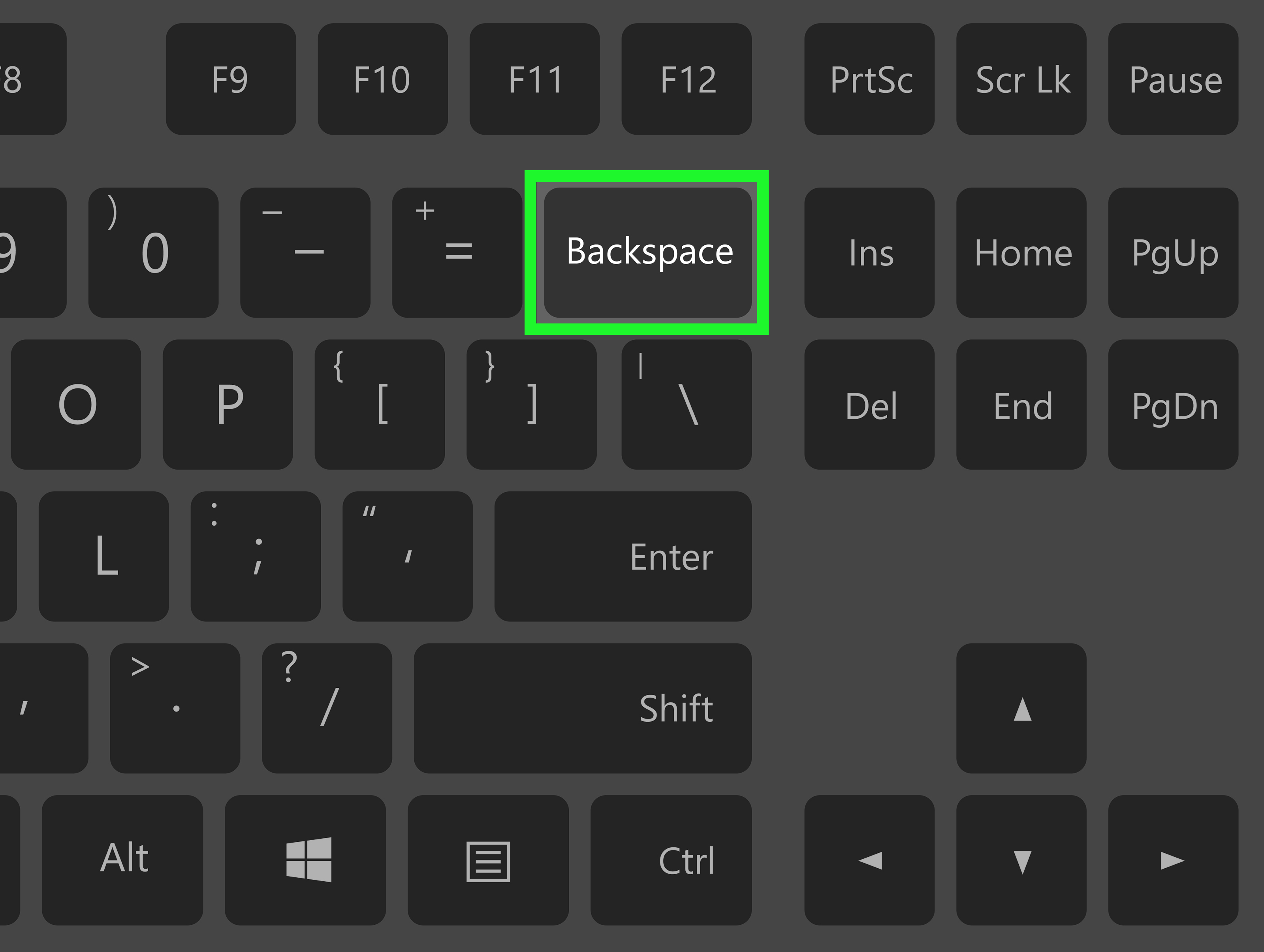
| Backspace | Backspace | Deletes one digit at a time | You made a small typing mistake |
For most users searching for the Microsoft Calculator clear shortcut, the answer is Esc. Press it once, and the Calculator app clears the current calculation so you can begin again.
How to Clear Microsoft Calculator Using Esc
To clear Microsoft Calculator with your keyboard, follow these steps:
- Open the Microsoft Calculator app on Windows.
- Enter any calculation, such as 452 + 39.
- Press Esc on your keyboard.
- The calculator clears the calculation and resets the display.
This shortcut is especially useful when you are using Calculator in a work rhythm. For example, you may be typing values from an invoice, spreadsheet, or browser window. Instead of moving your hand to the mouse, finding the C button, clicking it, and returning to the keyboard, you can simply hit Esc and keep going. It is the digital version of wiping a whiteboard, minus the marker dust.
Esc vs. Delete: What Is the Difference?
The most common confusion is between Esc and Delete. They both clear something, but they do not clear the same thing.
Esc Clears the Entire Calculation
Pressing Esc is like clicking the C button in Microsoft Calculator. It clears the full calculation and gives you a fresh start. Use it when your entire calculation is wrong, finished, or no longer needed.
Example: You typed 85 × 14, then realized you were supposed to calculate 85 × 12. Press Esc and begin again.
Delete Clears Only the Current Entry
Pressing Delete is like clicking the CE button. It clears only the number you are currently entering while keeping the rest of the calculation structure.
Example: You type 100 + 250, but the second number should have been 205. Press Delete after entering 250, then type 205. Calculator keeps the earlier part of the expression, so you do not have to rebuild the whole thing.
Backspace Removes One Digit
Backspace is more precise. It removes one digit at a time from the current number. If you type 12008 instead of 1200, Backspace can remove the extra digit without clearing the whole entry. It is the tiny eraser; Esc is the reset button.
Why Keyboard Shortcuts Make Microsoft Calculator Faster
Keyboard shortcuts are not just for power users wearing noise-canceling headphones and typing like they are defusing a movie bomb. They are practical for anyone who uses Windows regularly. Microsoft Calculator supports keyboard input because calculations are often faster when your hands stay on the keyboard.
Using the keyboard can help you:
- Clear mistakes faster without reaching for the mouse.
- Move through repeated calculations more smoothly.
- Reduce interruptions when copying numbers from documents or spreadsheets.
- Improve accuracy by staying focused on the number flow.
- Use Calculator more comfortably on laptops, compact keyboards, or touchpad-heavy setups.
The difference may seem tiny, but it adds up. If you use Microsoft Calculator dozens of times per day, pressing Esc instead of clicking C can make the app feel much less clunky.
Microsoft Calculator Keyboard Shortcuts Worth Knowing
Once you know how to clear Microsoft Calculator using a keyboard shortcut, it is worth learning a few related shortcuts. You do not need to memorize every command in the app, but these are helpful for everyday use.
| Shortcut | Action |
|---|---|
| Esc | Clear all |
| Delete | Clear current entry |
| Backspace | Remove the last digit |
| Enter | Calculate the result |
| F9 | Change the sign of the current number |
| Ctrl + L | Clear memory |
| Ctrl + R | Recall memory |
| Ctrl + M | Store a value in memory |
These shortcuts are most useful in Standard, Scientific, and Programmer modes. Some functions may vary depending on the Calculator mode, Windows version, keyboard layout, or whether the Calculator window is focused.
How to Open Microsoft Calculator Quickly
Clearing Calculator is useful, but opening it quickly matters too. Windows gives you several easy ways to launch Microsoft Calculator without hunting through menus.
Use the Start Menu Search
Press the Windows key, type calculator, and press Enter. This is the simplest built-in method and works well on both Windows 10 and Windows 11.
Use the Run Command
Press Windows + R, type calc, and press Enter. This opens Calculator immediately. It is fast, reliable, and satisfying in a nerdy little way.
Pin Calculator to the Taskbar
If you use Calculator constantly, pin it to the taskbar. After that, you can open it with Windows + number, depending on its position. For example, if Calculator is the third pinned app from the left, Windows + 3 opens it.
Common Problems When the Clear Shortcut Does Not Work
If pressing Esc does not clear Microsoft Calculator, do not panic. The keyboard probably has not betrayed you. Usually, one of a few simple issues is responsible.
The Calculator Window Is Not Active
Keyboard shortcuts only work when Calculator is the active app. Click the Calculator window once or use Alt + Tab to switch to it, then press Esc again.
Your Keyboard Has a Function Lock or Special Mode
Some laptop keyboards, compact keyboards, and gaming keyboards include special layers, function locks, or software profiles. If keys behave strangely, test Esc in another app, restart Calculator, or check your keyboard utility.
Accessibility Features Are Changing Key Behavior
Windows accessibility features such as Sticky Keys or Filter Keys can affect how keyboard input feels. These tools are useful for many people, but if shortcuts are acting oddly, review your keyboard accessibility settings.
The App Needs a Restart
Like any Windows app, Calculator can occasionally glitch. Close it, reopen it, and try the shortcut again. If that fails, check for Windows updates or reset the Calculator app through Windows Settings.
When Should You Use C, CE, Esc, Delete, or Backspace?
The easiest way to remember the difference is this:
- Esc / C: Clear everything and start over.
- Delete / CE: Clear only the current number.
- Backspace: Remove the last digit only.
Here is a real-world example. Suppose you are calculating a grocery total:
12.99 + 8.49 + 17.95 + 6.25
If you accidentally type 67.25 instead of 6.25, you do not need to clear the whole calculation. Press Delete to clear the current entry, then type 6.25. But if you realize you were calculating the wrong receipt entirely, press Esc and start fresh.
Tips for Using Microsoft Calculator More Efficiently
Keep Your Hands on the Keyboard
The more you use Calculator from the keyboard, the faster it becomes. Type numbers directly, use operators such as +, –, *, and /, press Enter for the result, and press Esc to clear.
Use Calculator History
Microsoft Calculator includes a history feature that lets you review previous calculations. This is handy when you are checking several numbers and want to confirm what you already entered. Just remember that clearing the current display does not always mean you have erased every previous history item.
Learn the Memory Buttons
Memory functions can help when you need to reuse a number across multiple calculations. For example, store a tax rate, discount amount, or repeated value, then recall it later instead of retyping it. Shortcuts such as Ctrl + M, Ctrl + R, and Ctrl + L make this smoother.
Choose the Right Calculator Mode
Microsoft Calculator is not limited to basic arithmetic. It includes Standard, Scientific, Programmer, Date Calculation, and Converter tools. If you only need simple math, Standard mode is perfect. If you work with exponents, trigonometry, binary, hexadecimal, or unit conversions, switching modes can save time.
Experience-Based Notes: What It Feels Like to Use the Clear Shortcut Every Day
After using Microsoft Calculator regularly with keyboard shortcuts, the biggest improvement is not dramatic; it is friction. The app starts to feel less like a separate tool and more like a natural part of typing. When you are working through numbers, the mouse can interrupt your rhythm. You type a value, reach for the mouse, click C, return to the keyboard, and then wonder why such a small task feels like assembling furniture with missing screws.
The Esc shortcut fixes that. It is immediate. When a calculation is wrong, finished, or no longer useful, Esc clears it without ceremony. There is no need to aim at a button. There is no tiny moment of visual searching. Your hand stays where it already is, and your brain gets to keep its place. That matters more than it sounds, especially when you are comparing prices, checking percentages, or adding several small amounts from a webpage.
The Delete shortcut becomes useful once you understand CE. Many people ignore CE because C feels simpler. But CE is smarter when you make a mistake during a longer calculation. Imagine adding several invoice lines: 129 + 244 + 388 + 91. If you mistype the last number, pressing Esc would erase everything. Pressing Delete clears only the current entry, letting you correct the mistake without rebuilding the whole calculation. It is like having an undo button for just the part you messed up.
Backspace is the precision tool. It is best when the number is almost right. If you enter 15500 instead of 1550, Backspace saves the moment. You do not need to clear the entry; you just shave off the extra zero. In actual daily use, the three-key system becomes natural: Backspace for tiny mistakes, Delete for a wrong entry, Esc for a full reset.
Another practical experience is that Calculator shortcuts are most helpful when paired with quick launching. Pressing Windows + R, typing calc, and pressing Enter is often faster than opening the Start menu with a mouse. Once Calculator is open, typing numbers, pressing Enter, and clearing with Esc creates a smooth keyboard-only workflow. For people who work in spreadsheets, email, accounting tools, school assignments, or online shopping carts, this feels much faster than clicking through the app.
There is also a confidence benefit. When you know exactly what Esc and Delete do, you make fewer accidental resets. Beginners often press C because it is visible, then lose a calculation they meant to preserve. Learning that Delete equals CE helps prevent that. It turns Calculator from a basic app into a small productivity tool you can control with intention.
The best habit is to practice with simple examples. Type 50 + 25, press Delete, and notice what changes. Then type it again and press Esc. Try Backspace after entering a long number. Within a few minutes, the differences become obvious. After a day or two, you will probably stop clicking the clear buttons altogether. Your mouse may feel neglected, but it will survive.
Final Thoughts
Learning how to clear Microsoft Calculator using a keyboard shortcut is a small trick with surprisingly practical value. Press Esc to clear the full calculation, press Delete to clear the current entry, and use Backspace to remove one digit at a time. These shortcuts make Calculator faster, cleaner, and easier to use when you are working through numbers quickly.
Microsoft Calculator may be simple, but simple tools become powerful when you know their shortcuts. The next time your calculation goes sideways, do not glare at the screen. Press Esc, start again, and pretend the mistake was part of your highly advanced mathematical process.
Note: This article is based on current Microsoft Calculator keyboard behavior in Windows 10 and Windows 11, along with established Windows keyboard shortcut usage and practical everyday testing patterns.