Some playlists deserve a clean handoff. You know the kind: one song ends, the next one slides in, and nobody gets ambushed by two seconds of awkward silence. That is exactly why Spotify’s transition controls are so handy. Whether you are throwing a party, powering through a workout, or pretending your kitchen is a tiny Brooklyn DJ booth, learning how to crossfade in Spotify can make your music feel smoother and more intentional.
The good news is that Spotify gives you two practical ways to control transitions. The first is Crossfade, which manually overlaps the end of one song with the start of the next. The second is Automix, which aims for smarter, more seamless transitions on supported playlists. Add in Spotify’s Gapless playback behavior as a bonus concept, and suddenly your listening setup feels a lot less “random shuffle chaos” and a lot more “curated experience.”
In this guide, you will learn how to turn on Spotify crossfade on mobile and desktop, how Automix works, when each option makes sense, and what to do if Spotify refuses to blend your songs like the cooperative little jukebox you hoped it would be.
What Crossfade Means in Spotify
Crossfade is a playback feature that overlaps two tracks. As the current song nears the end, Spotify lowers its volume while gently bringing in the next song. The result is a smoother transition that removes the dead air between tracks and makes your playlist feel more continuous.
That sounds simple, and it is. But the effect can completely change how your music feels. A playlist with no crossfade is like a slideshow with hard cuts. A playlist with crossfade is more like a movie montage. Suddenly your songs are not just lining up politely; they are flowing.
This feature is especially useful for:
- Workout playlists that need momentum
- Party playlists that should keep the room moving
- Focus playlists where silence can break concentration
- Casual background listening when you want a more polished sound
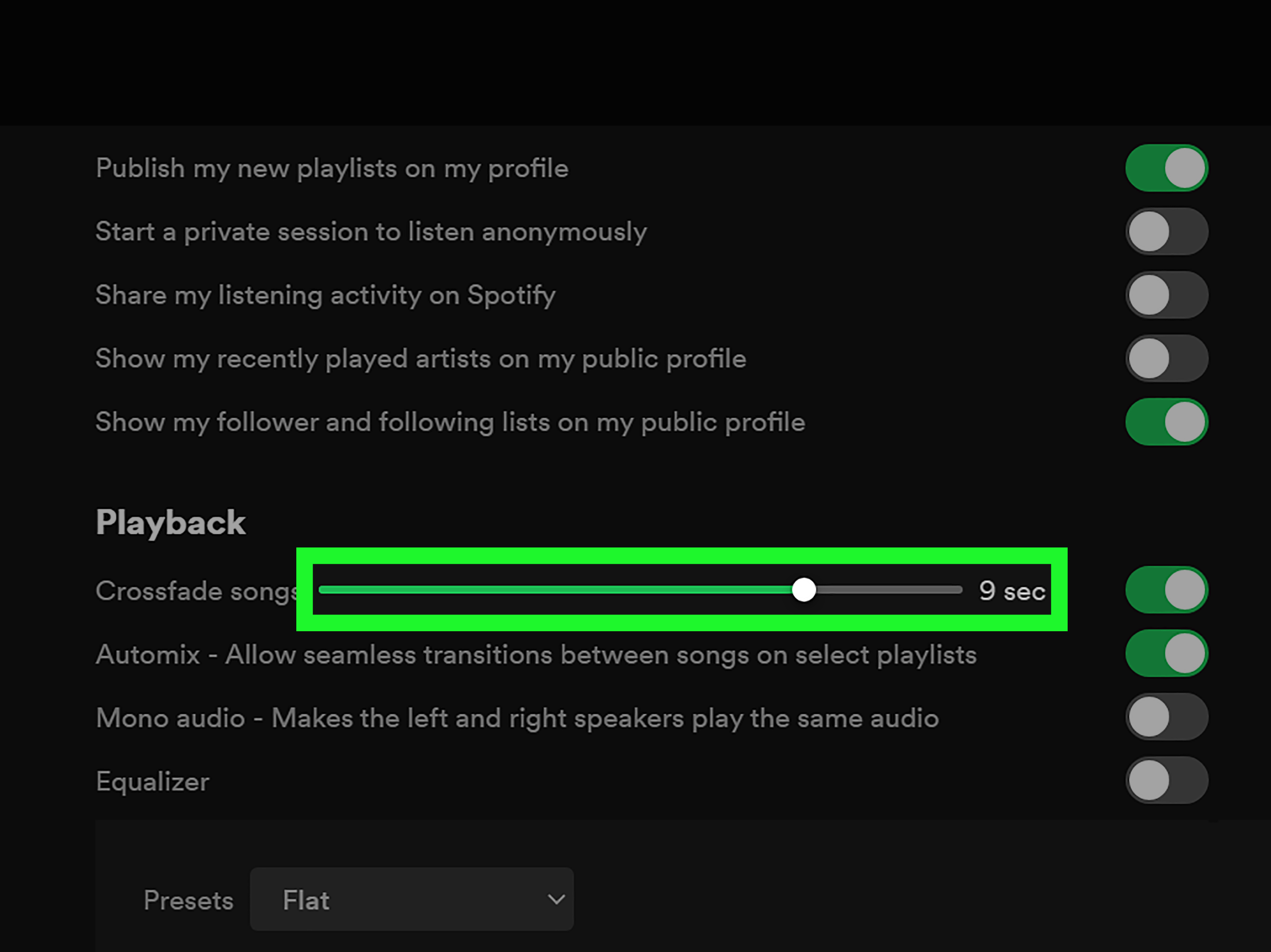
Spotify’s transition controls are available in the app’s Playback settings on mobile and desktop. In most app versions, you can adjust crossfade with a slider for a short or longer overlap, typically up to 12 seconds.
Method 1: Use Spotify Crossfade for Manual Transition Control
If you want direct control over how songs blend, Crossfade is the setting to use. Think of it as the “I know what vibe I want” option. You choose the overlap length, and Spotify applies it as tracks change.
How to Turn On Crossfade in Spotify on iPhone, iPad, or Android
- Open the Spotify app.
- Tap your profile picture or open Settings and privacy, depending on your app version.
- Go to Playback.
- Find Crossfade or Crossfade songs.
- Move the slider to choose your preferred transition length.
That is it. No secret handshake. No audio engineering degree. No dramatic movie trailer voice needed.
On mobile, this is the easiest way to create smoother transitions between songs. If you listen mostly through playlists, especially during workouts or commutes, this one setting can make Spotify feel much more polished.
How to Turn On Crossfade in Spotify on the Desktop App
- Open the Spotify desktop app.
- Click your profile icon.
- Select Settings.
- Scroll to the Playback section.
- Turn on Crossfade and adjust the slider to your preferred timing.
If you use Spotify while working from your laptop or desktop, this is the version worth setting up. It is especially good for background listening because it keeps your music moving without turning every track change into a tiny, annoying reminder that time exists.
Best Crossfade Settings for Different Listening Styles
There is no single perfect crossfade length. The best setting depends on what you are listening to and why.
- 1 to 2 seconds: Good for light blending without changing the character of each song too much
- 3 to 5 seconds: A strong everyday setting for playlists, errands, and casual listening
- 6 to 8 seconds: Great for parties, cardio, and high-energy playlists
- 9 to 12 seconds: Better for dramatic overlap, but it can sound messy if songs do not match well
If you are just starting, a setting around 4 seconds is a smart middle ground. It gives you a noticeable blend without turning every transition into a musical collision.
When Crossfade Works Best
Crossfade shines when you are listening to playlists that jump between songs with similar energy. Pop, dance, electronic, hip-hop, indie, and workout mixes usually benefit the most. It can also make algorithmic playlists feel more intentional, even when Spotify is doing its usual “trust me, this next song totally makes sense” routine.
Where it can be less ideal is with concept albums, classical recordings, live albums, or songs that already have carefully designed endings. In those cases, a manual fade may interrupt a transition the artist actually intended. Nobody wants to ruin a dramatic final note because your playlist was in a hurry.
Method 2: Use Automix for Smarter Spotify Transitions
The second way to control transitions in Spotify is Automix. This feature is different from crossfade because it is not just a simple overlap timer. Instead, it is designed to create more seamless, beat-matched transitions between songs on select Spotify playlists, and it can work even when Shuffle is on.
If Crossfade is the blunt instrument, Automix is the slightly more elegant one. One is “fade these songs together.” The other is “try to make these songs behave nicely.”
How to Turn On Automix in Spotify
- Open Spotify.
- Go to Settings or Settings and privacy.
- Tap or scroll to Playback.
- Find Automix.
- Turn it on.
Automix is available on mobile and desktop in Spotify’s transition settings. The key detail, though, is that it works on supported Spotify playlists, not necessarily every album or playlist in your library. So if you switch it on and expect every song transition in the universe to sound like a club set, you may be setting yourself up for disappointment.
Crossfade vs. Automix: What Is the Difference?
These two Spotify features sound similar, but they are not identical.
Crossfade gives you direct, manual control over overlap length. You choose how long the outgoing track fades into the incoming one.
Automix aims for a more natural, beat-aware transition, but only on certain Spotify playlists where the feature is supported.
Here is the easiest way to think about it:
- Use Crossfade when you want predictable blending everywhere possible
- Use Automix when you want Spotify to do a little more transition magic on supported playlists
Many users experiment with both. Some prefer Crossfade for everyday use because it is consistent. Others like Automix for curated playlists where smoother transitions can make the playlist feel smarter and more polished. You are allowed to be loyal to one. Spotify will not take it personally.
Bonus: What Gapless Playback Does
Even though this article focuses on two main ways to control transitions, it is worth knowing about Gapless playback. Gapless playback removes pauses or gaps that may occur between tracks. It is not the same as crossfade, because it does not blend songs together. It simply removes the little silence between them.
This is especially useful for:
- Live albums
- Classical music
- Albums with songs designed to run continuously
- Ambient or cinematic listening sessions
If Crossfade is a handshake between songs, Gapless is just opening the door faster. No overlap, no flourish, just a cleaner pass from one track to the next.
Why Spotify Crossfade Might Not Work
If you turned on crossfade and nothing happened, do not panic. Your app is probably not cursed. There are a few common reasons Spotify transitions may not work the way you expect.
1. You Are Using Spotify Connect
Spotify notes that you cannot set these transition features when using Spotify Connect. So if your phone is acting as a remote for another device, transition controls may not behave the way they do during direct playback in the app.
This is one of the most common reasons people think crossfade is broken when it is really just being bypassed by the playback setup.
2. You Are Using Exclusive Mode on Windows
Spotify’s newer Exclusive Mode on the Windows desktop app is aimed at cleaner, bit-perfect audio for Premium users. The catch is that features such as Automix and Crossfade are disabled when you use it. So if you care more about pure audio output than seamless transitions, Exclusive Mode may be worth it. If you care more about flow, leave it off.
In other words, your ears get premium treatment, but your playlist loses the soft landing.
3. You Need the Mobile or Desktop App
Spotify documents transition controls for its mobile/tablet and desktop apps. If you are hunting for the setting somewhere else and coming up empty, make sure you are using the actual app version that supports Playback controls.
4. Your App Version Looks a Little Different
Spotify loves a moving menu. The general path is still Settings > Playback, but the exact entry point may vary slightly by device, operating system, or app version. If you do not see the option immediately, look for Playback first and work from there.
Practical Examples: Which Spotify Transition Setting Should You Use?
For Workout Playlists
Use Crossfade at around 4 to 6 seconds. This keeps energy up between tracks and helps avoid that momentum-killing pause right when you are trying to convince yourself burpees are somehow character-building.
For Dinner Parties or Background Music
Try Automix on supported Spotify playlists or set Crossfade to about 3 to 4 seconds. You want transitions that feel smooth without making every song melt into the next one like a candle in July.
For Albums and Live Recordings
Lean toward Gapless playback rather than a long crossfade. Albums with intentional sequencing usually sound better when the tracks connect naturally instead of overlapping.
For Focus and Study Sessions
A short Crossfade setting works well here, often around 2 to 3 seconds. It smooths transitions without being so noticeable that it distracts you. The goal is less “club DJ” and more “quietly efficient human with a color-coded to-do list.”
Final Thoughts on How to Crossfade in Spotify
If you want smoother listening, Spotify gives you two solid transition tools. Crossfade is the manual option that lets you choose how tracks overlap. Automix is the smarter option that can create more seamless, beat-aware transitions on supported Spotify playlists. And if you simply want to remove silence without overlapping songs, Gapless playback is worth understanding too.
The best place to start is simple: open Playback settings, turn on Crossfade, set it to around 4 seconds, and test it on a playlist you know well. Then try Automix and see whether you prefer Spotify’s version of cleverness or your own. Either way, your songs will stop bumping into silence like they forgot what comes next.
Once you dial in the right transition settings, Spotify feels less like a playlist machine and more like a listening experience that actually understands pacing. And honestly, that is a pretty nice upgrade for something that takes about 20 seconds to turn on.
Real-World Experiences With Spotify Crossfade and Automix
After using Spotify’s transition controls across different moods and listening situations, one thing becomes clear: crossfade changes the emotional rhythm of a playlist more than most people expect. It is one of those settings that sounds minor until you live with it for a few days. Then you switch it off, and suddenly every pause between songs feels suspiciously loud, like your playlist is clearing its throat before speaking again.
For example, on a morning walk playlist, a 4-second crossfade can make the entire session feel more energized. You are not stopping mentally at the end of each track. The songs keep moving forward, and you keep moving with them. The effect is subtle, but it creates continuity. That matters more than people realize, especially in routines like walking, cleaning, lifting, or cooking, where momentum is half the battle.
At home, the experience is different. During dinner or while hosting friends, crossfade makes background music feel more intentional. Instead of obvious stops between tracks, the room gets a steady musical thread. It does not turn you into a professional DJ, but it does make your playlist feel like it was put together by someone who has their life together. Even if there is a sink full of dishes two feet away, that is still a win.
Automix, on the other hand, feels most impressive when it works on the right playlist. With the right mix of songs, transitions can feel more natural than a fixed crossfade timer. It is especially enjoyable on upbeat or Spotify-curated playlists where pacing matters. But it is also a little less predictable. Some users will love that “Spotify, surprise me” energy. Others will prefer the consistency of the manual crossfade slider.
There are also times when crossfade is absolutely not the hero. Live recordings, cinematic albums, and carefully sequenced records can sound better without heavy overlap. If a song ends with a dramatic piano note, a crowd cheer, or a deliberate moment of silence, a long crossfade can flatten that effect. In those moments, shorter settings or gapless playback usually make more sense.
One of the most useful lessons from actually living with these settings is that different playlists deserve different transition styles. A workout mix and a Sunday-morning acoustic playlist should not necessarily have the same handoff. If you tend to use Spotify for lots of different listening contexts, it helps to think of crossfade as a tool, not a permanent personality trait.
In day-to-day use, the sweet spot for many listeners is still a moderate crossfade setting with Automix available when appropriate. That combination keeps things smooth, modern, and easy without overcomplicating your listening. Which is nice, because sometimes the best tech feature is the one that quietly makes everything better while asking for almost nothing in return.
Note: Menu names and exact placement can vary slightly by device and Spotify app version, but the transition controls are generally found in the Playback settings of the mobile and desktop apps.