Instagram is excellent at helping you discover a cooking tutorial, travel clip, workout routine, or marketing idea at exactly the wrong momentusually when you have no time to watch it properly. Saving the post inside Instagram helps, but bookmarks are not the same as having an offline copy available on your computer.
That is where an Instagram video downloader Chrome extension can be useful. Instead of copying a link, opening a suspicious-looking downloader website, closing three pop-ups, and wondering whether the flashing green button is the real download button, a browser extension can place the download option directly inside Instagram.
The challenge is choosing a reliable tool. Chrome Web Store listings change frequently, Instagram regularly redesigns its interface, and an extension that worked perfectly last month may suddenly stare blankly at a Reel like it has never seen a video before.
This guide compares the top four video downloader for Instagram Chrome extensions based on supported media types, ease of use, update activity, browser integration, privacy disclosures, ratings, and practical value. The information reflects publicly available extension listings reviewed in July 2026.
Quick Comparison of the Best Instagram Video Downloader Extensions
| Chrome Extension | Best For | Supported Content | Notable Feature | Main Limitation |
|---|---|---|---|---|
| Turbo Downloader for Instagram | Best overall | Posts, videos, Reels, Stories, Highlights, carousels | Bulk profile downloads | Moderate user rating |
| IMDownloader | Best lightweight option | Images, videos, Reels, Stories, Highlights | Small extension size and right-click downloads | Less frequently updated |
| FastReel | Best for Reels | Reels, Instagram videos, Reel audio | Separate soundtrack extraction | Limited focus outside Reels |
| FastSave | Best for simple everyday use | Photos, videos, Reels, Stories, Highlights | Desktop and mobile-style viewing modes | Mixed ratings despite broad features |
How We Selected These Instagram Downloader Chrome Extensions
A large installation count is useful, but popularity alone does not make an extension safe, effective, or pleasant to use. Some browser tools accumulate users over many years while receiving increasingly inconsistent reviews. Others have excellent ratings based on only four people, one of whom may be the developer’s cousin.
The strongest Instagram video downloader extensions were evaluated using several practical criteria:
- Supported formats: The ability to save Reels, standard video posts, Stories, Highlights, photos, or carousel media.
- Workflow: Whether a download button appears naturally inside Instagram without requiring repeated link copying.
- Maintenance: Recent updates matter because Instagram frequently changes its page structure.
- Privacy disclosure: The Chrome Web Store should clearly state how the extension handles user data.
- User feedback: Ratings and review volume provide context, although neither should be treated as a guarantee.
- Feature relevance: A downloader should make saving media easier rather than transforming Chrome into a cockpit with 87 mysterious switches.
Browser permissions also deserve attention. An Instagram downloader normally needs access to Instagram pages so it can identify media and add download controls. However, access to unrelated websites, browsing history, cookies, or excessive account information should make you pause and investigate before installing.
1. Turbo Downloader for Instagram: Best Overall
Turbo Downloader for Instagram earns the top position because it covers nearly every common Instagram media format while offering one feature that separates it from simpler competitors: bulk profile downloading.
The extension adds download controls to posts, Reels, Stories, Highlights, profile grids, and carousel content. When a post contains several images or videos, it can download the entire carousel rather than forcing you to save every slide individually.
Why Turbo Downloader Stands Out
Its most valuable feature is the “Download All” option for Instagram accounts. You select a destination folder, and the extension creates a subfolder using the account name. It can also skip files that already exist, which is helpful when updating a personal archive without downloading the same 400 vacation photos again.
Individual downloads are equally straightforward. Depending on the page, the button may appear near Instagram’s bookmark and share controls or when you hover over a profile preview. Keyboard shortcuts are also supported, including Ctrl + Shift + D on Windows and Cmd + Shift + D on macOS.
As of the reviewed listing, Turbo Downloader had approximately 600,000 users, a 3.6-star rating from about 1,400 ratings, and an update dated February 2026. The developer’s Chrome Web Store disclosure stated that the extension did not collect or use user data.
Best Uses
- Backing up media from an Instagram account you own
- Saving complete carousel posts
- Organizing large collections into folders
- Downloading Stories and Highlights from one interface
Potential Drawbacks
The 3.6-star rating suggests that the experience has not been perfect for every user. Instagram interface changes can temporarily hide buttons or interrupt downloads. The extension’s update history contains numerous fixes for missing controls and content-detection errors, which demonstrates active maintenance but also illustrates how fragile Instagram downloading tools can be.
Verdict: Turbo Downloader is the strongest all-purpose choice for users who want both individual and bulk Instagram downloads.
2. IMDownloader: Best Lightweight Instagram Downloader
IMDownloader is a compact extension designed to save Instagram images, videos, Reels, Stories, and Highlights in their available resolution. Its simple approach makes it appealing to users who want a download buttonnot an entire social media management empire.
How IMDownloader Works
The extension inserts download controls in several logical locations. A button may appear below media in the home feed, in the upper corner of a Story, over profile-grid content, beside a Reel, or under a post on its detail page.
It also supports right-click downloading. When you right-click suitable Instagram media, an additional downloader command appears in the context menu. This is convenient when the regular button is hidden by Instagram’s latest design experiment.
At the time of review, IMDownloader had roughly 20,000 users and a 4.4-star rating from 146 ratings. Its listed size was only 139 KiB, significantly smaller than several multifunctional alternatives. The Chrome Web Store also displayed both a Featured badge and a statement that it followed recommended extension practices.
Best Uses
- Saving individual Instagram videos or photos
- Downloading media through the right-click menu
- Using a small, focused browser extension
- Capturing Story or Highlight media before it disappears
Potential Drawbacks
The listing showed an August 2025 update, making it less recently updated than some competitors. That does not automatically mean it is abandoned, but maintenance frequency matters when a tool depends on Instagram’s constantly shifting page layout.
Its user base and review count are also smaller than those of Turbo Downloader or FastSave. The available feedback is positive, but the sample is more limited.
Verdict: IMDownloader is an excellent option for people who value simplicity, low overhead, and flexible one-click downloading.
3. FastReel: Best Chrome Extension for Instagram Reels
FastReel focuses on the part of Instagram that consumes entire lunch breaks with remarkable efficiency: Reels. Instead of trying to become a universal Instagram toolkit, it concentrates on downloading short-form videos and their audio tracks.
What Makes FastReel Different
The extension can download videos from public Instagram profiles and save Reel content directly to a desktop computer. More importantly, it includes an option to extract the soundtrack separately.
That audio feature is useful for editors, marketers, researchers, and creators who are studying trends or collecting authorized reference material. You might save a Reel for visual inspiration while downloading its audio separately for easier analysis.
The reviewed Chrome Web Store listing showed approximately 40,000 users, a 4.6-star rating from more than 600 ratings, and an April 2026 update. It supported 23 languages and carried a Featured label. The developer also disclosed that it did not collect or use user data.
Best Uses
- Downloading Instagram Reels in available quality
- Saving Reel soundtracks separately
- Collecting trend references for authorized research
- Building an offline inspiration library
Potential Drawbacks
FastReel is specialized. Users primarily interested in bulk profile backups, image carousels, or extensive Story archiving may find Turbo Downloader or IMDownloader more suitable.
The extension listing also described support primarily for public profile content. Private media should never be treated as available merely because a technical tool can detect it. Privacy settings and creator permission still matter.
Verdict: FastReel is the best choice when Reels and downloadable Reel audio are your main priorities.
4. FastSave: Best for Straightforward Everyday Downloads
FastSave combines Instagram downloading with a browser-based viewing experience that can resemble either the desktop or mobile version of Instagram. It supports photos, standard videos, Reels, Stories, Highlights, and older IGTV-style content.
Why FastSave Is Convenient
The workflow is designed to be uncomplicated. Open Instagram, find the media, and use the download icon placed near the post. The extension claims to preserve the original available quality and works across Windows, macOS, and Linux.
The mobile-style viewing mode may appeal to users who prefer Instagram’s phone interface but want to work from a larger screen. It is especially handy when organizing reference files, preparing social campaigns, or moving authorized content into a desktop editing workflow.
At the time of review, FastSave had approximately 100,000 users, a 3.4-star rating from more than 300 ratings, and an April 2026 update. Its Chrome Web Store privacy disclosure stated that it did not collect or use user data.
Best Uses
- Occasional Instagram video downloads
- Switching between desktop and mobile-style layouts
- Saving multiple types of Instagram media
- Using the same extension across major desktop operating systems
Potential Drawbacks
The relatively modest rating indicates mixed user experiences. A broad feature set can also create more opportunities for something to stop working after an Instagram update. Users who only need Reels may prefer FastReel, while users who prioritize minimalism may prefer IMDownloader.
Verdict: FastSave is a practical general-purpose option for users who want simple downloads and flexible Instagram viewing modes.
How to Install and Use an Instagram Video Downloader Chrome Extension
- Open the official Chrome Web Store.
- Search for the exact extension name.
- Confirm the developer, ratings, latest update, and privacy disclosure.
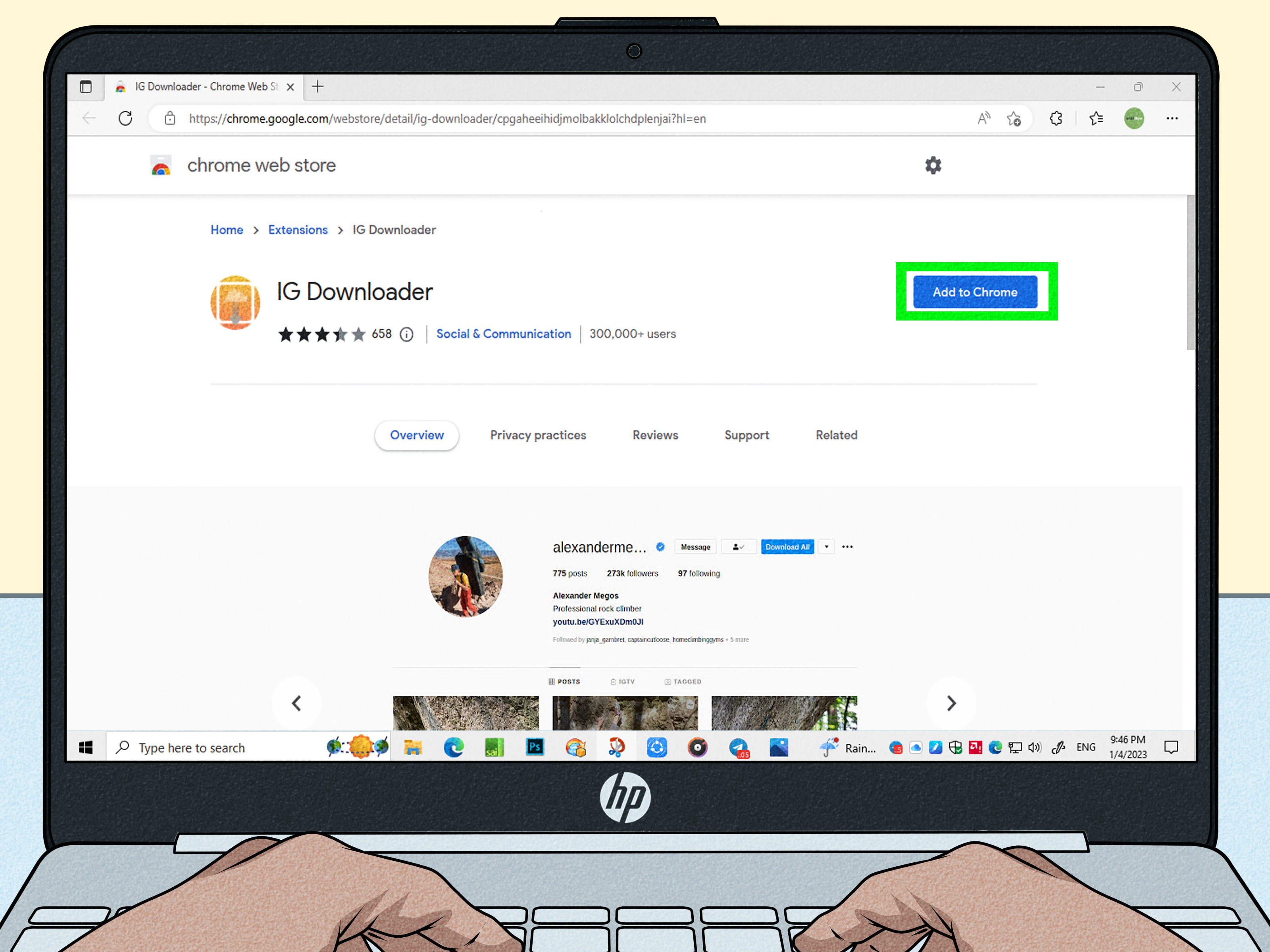
- Select Add to Chrome.
- Review the requested permissions before approving installation.
- Open or refresh Instagram in a new browser tab.
- Navigate to an authorized video, Reel, Story, or post.
- Select the download button added by the extension.
- Check your browser’s default Downloads folder.
If no download button appears, refresh the Instagram tab first. Extensions that modify webpages are often not activated inside tabs that were already open during installation. Disabling conflicting extensions or restarting Chrome may also solve display problems.
Are Instagram Video Downloader Extensions Safe?
No browser extension should be considered automatically safe simply because it appears in an official store or has a Featured badge. Extensions can access webpage content, and their behavior can change through updates. The sensible approach is to reduce unnecessary exposure.
Safety Checklist Before Installing
- Install extensions only from the official Chrome Web Store.
- Read the permission request carefully.
- Check whether the requested access matches the extension’s purpose.
- Review the developer identity and privacy disclosure.
- Look at recent reviews, not only the average rating.
- Remove extensions you no longer use.
- Recheck permissions after major updates.
An Instagram downloader may reasonably request access to Instagram because it needs to inspect the page and locate media files. Access to every website you visit would be harder to justify for a tool with such a narrow function.
Developer statements such as “does not collect data” are useful, but they remain disclosures supplied by the developer. They should be considered alongside permissions, update history, reputation, and current user feedback.
Copyright and Responsible Downloading
Downloading a video does not give you ownership of it. Instagram videos, photographs, music, illustrations, and other original works may be protected by copyright from the moment they are created.
The safest uses for an Instagram downloader include:
- Backing up content you created
- Saving media when the creator has given permission
- Downloading assets owned by your employer or client
- Keeping authorized materials for offline personal reference
- Archiving public-domain or properly licensed content
Avoid reposting, editing, selling, or using someone else’s video commercially without the necessary rights. Giving credit is polite, but credit alone does not replace permission.
Instagram also provides official options for downloading your own account information. Some public Reels may have a native download option when the creator has enabled downloads. These official methods should be considered before installing third-party software.
Practical Experiences: What Using Instagram Downloader Extensions Feels Like
In day-to-day use, the best Instagram downloader extension is usually the one that stays out of the way. You should not need a training course, a subscription funnel, and a ceremonial restart of the computer just to save a 20-second recipe video.
For occasional downloads, IMDownloader provides the cleanest type of experience. After installation and a page refresh, the added controls are generally easy to understand. The right-click option is particularly useful because Instagram’s interface can become crowded. When five icons are competing for attention beside a Reel, opening a familiar context menu feels refreshingly ordinary.
Turbo Downloader becomes more valuable when the task grows beyond one or two videos. Imagine managing a brand account and needing an offline backup of campaign posts before reorganizing the profile. Downloading each post manually would be possible, just as moving apartments with a shopping cart would technically be possible. The bulk profile feature makes the process far more manageable, and skipping existing files helps when refreshing an archive later.
That convenience comes with a lesson: test a small batch before launching a large download. Confirm the folder location, inspect several files, and check that carousels contain every expected item. A bulk button saves time only when the output is organized correctly. Otherwise, it simply creates confusion at industrial speed.
FastReel offers the most focused workflow. When researching short-form video trends, separating the video and audio can be genuinely helpful. A marketer might save an authorized Reel to study pacing, captions, transitions, and soundtrack structure. An editor might download permitted reference material and place the audio in a separate folder. The narrower feature set also makes the extension easier to understand: it downloads Reels, and it does not pretend to prepare your taxes.
FastSave feels better suited to users who browse Instagram extensively from a desktop. Its mobile-style mode can make familiar Instagram controls easier to locate, particularly for people accustomed to the phone app. However, users who want only a simple download button may find the additional interface features unnecessary.
Across all four extensions, the most common frustration is not download speed. It is compatibility after Instagram changes its website. A button may disappear, move to an unexpected location, or stop recognizing a carousel. Refreshing the page, checking for extension updates, and temporarily disabling other Instagram-related extensions usually provides a sensible first troubleshooting sequence.
Another useful habit is installing an extension only when needed. A social media manager may use a downloader during a monthly archive session, verify the files, and then disable it until the next session. This limits the number of active browser extensions while preserving convenience.
File organization also matters more than expected. Create separate folders for your own account backups, licensed client media, campaign references, and personal inspiration. Use clear filenames or date-based folders. Without a system, a download collection quickly becomes a digital attic filled with files named something like “video_847392_final_final2.mp4.”
The overall experience is best when expectations remain realistic. These extensions are convenience tools, not permanent parts of Instagram. Features can break, listings can change, and developers can modify privacy practices. Choose a maintained extension, review it periodically, and keep original files for content you own instead of relying on Instagram as your only archive.
Frequently Asked Questions
Can Chrome extensions download videos from private Instagram accounts?
Some extensions may detect media visible while you are signed in, but technical visibility does not grant permission to download or redistribute private content. Respect the account owner’s privacy and obtain consent.
Can I download Instagram Reels without installing an extension?
Yes. Instagram may display a native download option for eligible public Reels when the creator allows downloading. You can also request a download of your own Instagram information through Meta’s account tools.
Why did my Instagram download button disappear?
Instagram may have changed its interface, the extension may require an update, or the current tab may not have loaded the extension. Refresh Instagram, restart Chrome, check for updates, and disable potentially conflicting extensions.
Which extension is best for downloading an entire Instagram profile?
Turbo Downloader for Instagram is the strongest option in this comparison for profile-level backups because it includes bulk downloading and folder organization features.
Which extension is best for downloading Reel audio?
FastReel is the most suitable choice because it specifically advertises separate soundtrack extraction in addition to Reel video downloads.
Final Verdict
The best video downloader for Instagram Chrome extension depends on what you plan to save. Turbo Downloader is the most complete option and the clear winner for bulk account backups. IMDownloader is lightweight, flexible, and ideal for individual downloads. FastReel is the specialist choice for Reels and soundtrack extraction, while FastSave offers broad media support with desktop and mobile-style browsing modes.
Whichever tool you choose, inspect its permissions, review recent feedback, and remove it when you no longer need it. Most importantly, download only content you own or have permission to use. The presence of a download button is a technical opportunitynot a magical copyright eraser.