Your Windows PC has a roomy screen, a real keyboard, and enough processing power to make many smartphones feel slightly underdressed. Naturally, you may want to install your favorite Android apps and games on it. The catch is that Google does not provide a complete desktop version of the Google Play Store that installs every Android app directly into Windows.
That does not mean you are stuck tapping away on a six-inch screen forever. You can use Google Play Games on PC for supported games, install an Android emulator for broader app access, create a virtual Android device with Android Studio, or sideload a trusted APK file when necessary. This guide explains each method, its limitations, and the safest way to avoid turning a simple app installation into an afternoon of troubleshooting.
Can You Install the Google Play Store Directly on Windows?
Not as a normal Windows application. You cannot officially download a universal Google Play Store installer, double-click it, and have Android apps appear beside Microsoft Word and your calculator.
Android apps need an Android-compatible environment. On a Windows computer, that environment is generally provided by one of three tools:
- Google Play Games on PC for compatible Android games
- An Android emulator for a wider variety of apps and games
- Android Studio for development, testing, and technical use
Once installed through one of these methods, the Android app usually runs inside a virtual Android window. It does not become a traditional Windows program, even when you can pin its shortcut to the Start menu or desktop.
Method 1: Use Google Play Games on PC
Google Play Games on PC is the most official way to download Google Play content on Windows. It is created by Google and designed specifically for playing Android games on desktop and laptop computers.
It provides access to a PC-compatible game catalog, keyboard and mouse controls, Google account integration, achievements, purchases, and progress synchronization for supported titles. However, it is primarily a gaming platform. It is not a complete replacement for the Android Play Store, so you should not expect to install every messaging, banking, productivity, or social media app.
Verified with official Google Play Games installation and product documentation.
Check the system requirements
Google currently lists Windows 10 version 2004 or newer, an SSD with at least 10 GB of available space, 8 GB of RAM, four physical CPU cores, and Intel UHD Graphics 630 or comparable graphics as minimum requirements. You also need a Windows administrator account, and hardware virtualization must be enabled.
Current requirements verified with Google Play Help.
How to install Google Play Games
- Visit the official Google Play Games on PC download page.
- Select the download button to save the Windows installer.
- Open the downloaded executable file.
- Approve the Windows security prompt when it appears.
- Follow the installation instructions.
- Sign in with your Google account.
- Browse or search for a compatible game.
- Select Install, wait for the download, and launch the game.
The installation program checks your hardware before continuing. When your computer does not meet the minimum requirements, it may stop the process and explain which component needs attention.
Why choose this method?
- It is an official Google product.
- It provides a clean, gaming-focused interface.
- Supported games are optimized for PC controls and displays.
- Game progress may synchronize between mobile and PC.
- You do not need to configure a complete virtual Android phone.
What are the limitations?
Google Play Games is not intended for downloading every Android application. An app may appear in the ordinary Play Store on your phone yet remain unavailable through the PC gaming client. Hardware compatibility, geographic restrictions, developer decisions, and account eligibility can also affect availability.
Method 2: Download Play Store Apps with an Android Emulator
An Android emulator creates a virtual Android device inside Windows. Open the emulator and you will see something resembling an Android tablet, complete with settings, storage, apps, andon many emulatorsthe Google Play Store.
This method is usually the most practical option when you want more than games. Popular choices include BlueStacks, NoxPlayer, LDPlayer, and MEmu. Their layouts and gaming features differ, but the basic installation process is similar.
Emulator Play Store and APK installation methods verified with current BlueStacks, NoxPlayer, LDPlayer, and MEmu documentation.
How to install Google Play apps using BlueStacks
- Go to the official BlueStacks website.
- Download the latest compatible Windows installer.
- Open the installer and complete the setup.
- Launch the App Player.
- Open System apps from the emulator home screen.
- Select the Play Store icon.
- Sign in with your Google account.
- Search for the Android app or game you want.
- Select Install.
- Open the app from the emulator home screen after installation.
The procedure feels much like using the Play Store on a phone. The biggest difference is that you control the virtual device with a mouse and keyboard instead of your fingers. For games, the emulator may automatically assign keyboard controls. For ordinary apps, clicking and dragging generally replaces tapping and swiping.
BlueStacks Play Store procedure verified with BlueStacks support documentation.
Choosing the right emulator
BlueStacks is a common starting point because it offers a polished interface, Google Play access, game-control tools, multiple Android instances, and support for manually installing APK files. NoxPlayer and LDPlayer are also popular among gamers, while MEmu provides another Windows-focused virtual Android environment.
Download whichever emulator you choose directly from its official website. Avoid advertisements that imitate download buttons, unofficial mirrors, modified installers, and mysterious “premium unlocked” packages offered by websites that look as though they were designed during a thunderstorm.
Advantages of using an emulator
- Access to a wider range of apps than a games-only service
- Support for multiple Android versions or device profiles
- Keyboard mapping and controller support for games
- Resizable windows and full-screen operation
- APK sideloading when an app is not listed in the Play Store
- Multiple instances for separate accounts or testing
Possible disadvantages
Android emulators can consume significant memory, processor capacity, and storage. Performance may feel sluggish on older computers, particularly when virtualization is disabled. Some apps also detect emulators and refuse to run because they require physical-phone hardware, mobile network features, certified security components, GPS sensors, or strict digital-rights protection.
Banking apps, payment services, streaming platforms, camera-heavy tools, augmented-reality apps, and competitive games with anti-cheat systems are among the applications most likely to have restrictions.
Method 3: Use Android Studio and a Virtual Device
Android Studio is Google’s official development environment for Android software. It includes the Android Emulator, which allows developers to test applications on virtual phones, tablets, foldable devices, TVs, and other Android profiles.
This option offers more control than a consumer-focused emulator, but it also requires more setup. For someone who simply wants to check a social app from a laptop, Android Studio can feel like using a forklift to move a coffee mug. It works, but there may be an easier tool nearby.
Android Emulator purpose verified with official Android developer documentation.
How to create a Play Store-enabled virtual device
- Download Android Studio from the official Android developer website.
- Install the program and allow it to download the required SDK components.
- Open Device Manager.
- Select Create Device.
- Choose a phone or tablet profile displaying the Google Play logo.
- Select and download a compatible system image.
- Finish creating the Android Virtual Device, also called an AVD.
- Start the virtual device.
- Open the Play Store and sign in with a Google account.
- Search for and install the desired application.
A hardware profile marked with the Google Play logo includes the Play Store and access to Google Play services. Profiles labeled only with Google APIs may include Play services without offering the complete Play Store experience, so check the icon before downloading a large system image.
Google Play-enabled AVD details verified with Android Studio documentation.
Who should use Android Studio?
- Android developers testing applications
- Website owners checking mobile integrations
- Technical users who need specific Android versions
- Quality-assurance teams testing different screen sizes
- Users who need a clean, configurable virtual device
Method 4: Install an APK File Manually
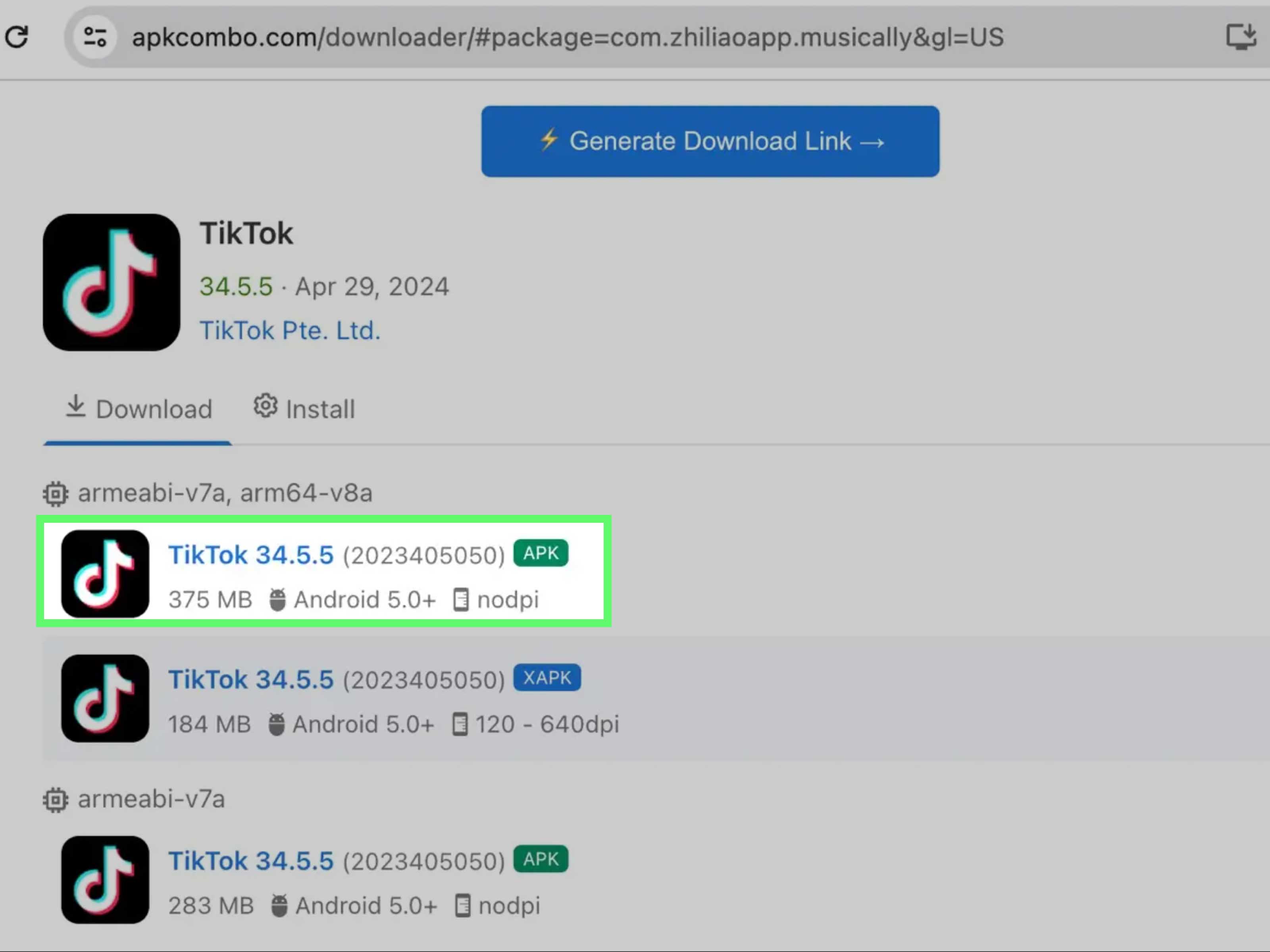
An APK is an Android application package. It serves a role similar to an installer file on Windows, although it must still be opened inside an Android environment. Downloading an APK onto your desktop does not make it a Windows application.
Most major Android emulators support manual APK installation. In BlueStacks, for example, you can use the Install APK button or a keyboard shortcut and then choose the package from your computer. Android Studio also lets you drag an APK file onto the running emulator screen.
APK installation procedures verified with BlueStacks and Android developer documentation.
Basic APK installation steps
- Obtain the APK from the app developer or another trustworthy source.
- Open your Android emulator.
- Select its APK installation tool or drag the file into the emulator.
- Review any requested permissions.
- Wait for the installation to finish.
- Launch the app from the virtual Android home screen.
Important APK safety precautions
Use sideloading only when you understand where the file came from. Modified APKs can contain malicious code, advertising components, stolen credentials, or outdated software vulnerabilities. A file promising unlimited coins, free subscriptions, and eternal happiness is more likely to deliver the first two words of “eternal technical support headache.”
Prefer the Play Store whenever possible. When sideloading is unavoidable, use the developer’s official website, verify the publisher, scan the file with reputable security software, and avoid granting permissions unrelated to the app’s purpose.
What Happened to Windows Subsystem for Android?
Windows 11 previously supported Android apps through Windows Subsystem for Android and the Amazon Appstore. Microsoft discontinued that distribution channel, and starting March 5, 2025, Windows Subsystem for Android and the Amazon Appstore were no longer available through the Microsoft Store.
Microsoft discontinuation date verified with Microsoft Support.
Older tutorials may still tell you to install the Amazon Appstore, enable Windows Subsystem for Android, or modify the subsystem to add Google Play services. Those instructions are now outdated for ordinary new installations. Unofficial subsystem packages may also create security and update problems, so a supported emulator or Google Play Games is generally the cleaner choice.
How to Fix Common Installation Problems
Enable hardware virtualization
Virtualization allows an emulator to use processor features designed for virtual machines. Without it, an Android emulator may run very slowly or refuse to start.
Open Windows Task Manager, select Performance, and choose CPU. Look for the virtualization status. When it says disabled, restart the computer, enter the BIOS or UEFI settings, and enable Intel Virtualization Technology, Intel VT-x, AMD-V, or SVM Mode. The exact name depends on the motherboard.
Hardware acceleration guidance verified with Android Emulator documentation.
Update Windows and graphics drivers
Outdated graphics drivers can cause black screens, distorted colors, freezing, or crashes. Install current Windows updates and obtain graphics drivers from Intel, AMD, NVIDIA, or your computer manufacturer.
Close memory-heavy programs
Browsers with dozens of tabs, video editors, virtual machines, and modern games can compete with an emulator for RAM. Close unnecessary software before launching the Android environment, especially on a computer with 8 GB of memory.
Create a different Android instance
An app may require a newer Android version, a 64-bit environment, or a different device profile. Many emulators include a multi-instance manager that lets you create another virtual device without deleting the first one.
Clear the Play Store cache
When the Play Store gets stuck on “pending,” displays an empty page, or repeatedly fails to download, open Android Settings inside the emulator. Go to Apps, select Google Play Store, open Storage, and clear its cache. Restart the emulator before trying again.
Check app compatibility
An app can be unavailable because of its Android-version requirement, processor architecture, country restrictions, screen requirements, or developer settings. Changing the virtual device profile may help, but some applications simply do not support emulated devices.
Security and Privacy Tips
- Download emulators only from their official websites.
- Keep Windows, the emulator, and installed apps updated.
- Use the Play Store instead of unknown APK repositories whenever possible.
- Review permissions before allowing access to files, contacts, cameras, or microphones.
- Avoid using sensitive banking or business accounts in an emulator you do not fully trust.
- Enable two-step verification on your Google account.
- Remove unused Android instances because they may contain cached account information.
You may use your regular Google account, which allows compatible purchases and game progress to synchronize. A separate Google account can provide additional separation when you are testing unfamiliar apps, experimenting with multiple emulators, or sharing the PC with other people.
Which Method Should You Choose?
| What You Want to Do | Recommended Method |
|---|---|
| Play supported Android games | Google Play Games on PC |
| Install a wider variety of Android apps | BlueStacks or another established emulator |
| Test an Android app you are developing | Android Studio Emulator |
| Install an app package supplied by a developer | APK sideloading inside an emulator |
| Use a banking or security-sensitive app | A physical Android device is usually safer and more compatible |
For most casual users, the decision is simple: start with Google Play Games for gaming and use BlueStacks or a comparable emulator for general apps. Android Studio is excellent, but its flexibility comes with extra menus, downloads, and opportunities to wonder why you suddenly have six virtual Pixel phones.
Frequently Asked Questions
Is the Google Play Store free on Windows?
Google Play Games and many Android emulators can be downloaded without an upfront fee. Individual apps may still require payment, subscriptions, or in-app purchases.
Can I install every Android app on a PC?
No. Some apps require phone-specific hardware, mobile network services, security certification, location sensors, or an actual camera. Developers may also block installation on emulators.
Will my existing purchases transfer?
Purchases associated with your Google account may be available when you sign in with the same account, provided the app supports the virtual device and the purchase remains valid in your region.
Can Android apps run without an emulator?
Google Play Games supplies its own managed environment for supported games. Most other Android applications require an emulator, a virtual device, remote access to a phone, or another Android-compatible platform.
Do Android apps appear in the Windows Start menu?
Some emulators can create desktop or Start menu shortcuts. However, selecting the shortcut still launches the emulator or its background components before opening the Android app.
Can I uninstall an Android app normally?
Yes. Open the virtual Android device, press and hold or right-click the app icon, and select the uninstall option. You can also remove it from the Android Settings menu inside the emulator.
Real-World Experience: What Using Play Store Apps on Windows Is Actually Like
The first lesson from using Android apps on Windows is that the experience depends heavily on the type of application. A puzzle game, card game, reading app, or lightweight productivity tool may run so smoothly that you quickly forget it was designed for a phone. A camera app or banking service may remind you within thirty seconds that your laptop is not secretly a Samsung Galaxy.
Google Play Games generally provides the cleanest experience for compatible games. Installation is straightforward, controls are usually mapped sensibly, and the program feels more like a native PC game launcher than a virtual phone. Progress synchronization is particularly convenient. You can play briefly on a phone during lunch and continue on a larger display later without starting from the beginning.
Its biggest weakness is also obvious: it is designed around games. When the application you need is not included, there is no secret switch that transforms the service into the entire Play Store. At that point, an Android emulator becomes more useful.
BlueStacks and similar emulators provide a familiar Android home screen, so anyone who has used a phone can understand the basics. Signing into Google Play, searching for an app, and selecting Install feels normal. The amusing part comes when a mobile interface assumes you are holding a touchscreen. Swiping may require clicking and dragging, long-pressing becomes a carefully timed mouse click, and rotating a virtual phone can feel like asking a desktop monitor to perform yoga.
Performance is usually good on a modern computer with an SSD, sufficient memory, and virtualization enabled. On an older laptop, the first launch can take longer, animations may stutter, and running multiple apps can make the cooling fan sound deeply concerned. Assigning additional CPU cores and memory may help, although allocating too many resources can slow down Windows itself.
Games often benefit the most from an emulator. Keyboard mapping makes movement easier, a larger display reveals small interface details, and multi-instance tools can run separate accounts. However, competitive games may restrict emulators or separate emulator users from mobile players. Checking the game’s rules before investing hours in configuration is wise.
Ordinary apps produce mixed results. Messaging, reading, education, shopping, and simple editing tools tend to work well. Applications that depend on Bluetooth accessories, cellular connections, precise GPS data, biometric authentication, or protected video playback may not function correctly. Notifications can also behave differently because the emulator must remain open or active in the background.
Android Studio offers the most precise control, but it is not the friendliest choice for casual use. Creating a virtual device, selecting a system image, and adjusting hardware settings is valuable for testing. For everyday app use, the additional complexity rarely provides a meaningful advantage over a consumer emulator.
APK sideloading is convenient when testing a private app or installing software supplied directly by its developer. It is less appealing when the file comes from an unknown download site. The safest experience comes from staying within the official Play Store, keeping the emulator updated, and treating unbelievable APK promises with the same suspicion you would give an email from a distant prince offering a shared cryptocurrency fortune.
Overall, Android apps on Windows can be surprisingly practical. The experience is best when expectations remain realistic: you are creating an Android environment inside Windows, not magically converting a mobile app into native desktop software. Pick the method that matches the app, give the virtual device enough resources, and keep a physical phone nearby for the handful of apps that refuse to cooperate.
Conclusion
Downloading Google Play Store apps on a Windows PC is possible, but there is no single method that works for every application. Google Play Games is the safest official choice for compatible games. Android emulators provide the broadest access to general apps, while Android Studio offers detailed controls for developers and testers. APK installation can fill occasional gaps, provided the file comes from a trustworthy source.
Begin with the simplest supported option, enable hardware virtualization, keep your software updated, and remember that some mobile apps genuinely need a physical phone. Even a powerful gaming laptop cannot manufacture a cellular modem through confidence alone.