The Starbucks Card mobile app is one of those small modern conveniences that can make your coffee run feel suspiciously organized. Instead of digging through your bag for a gift card, counting coins like it is 1998, or repeating a custom drink order with the seriousness of a courtroom testimony, you can open the Starbucks app, pay, earn Stars, order ahead, reload your Starbucks Card, and track rewards from one place.
This easy guide explains how to use the Starbucks Card mobile app step by step, including how to download it, create an account, add a Starbucks Card, reload your balance, pay in stores, order ahead, redeem Rewards, send eGifts, and avoid common mistakes. Whether you are a daily latte loyalist, a weekend cold brew explorer, or someone who only visits Starbucks when a friend says, “I need caffeine or I may become difficult,” this guide will help you use the app confidently.
What Is the Starbucks Card Mobile App?
The Starbucks Card mobile app, usually called the Starbucks app, is the official Starbucks mobile application for iPhone and Android. It combines digital payment, Starbucks Card management, Starbucks Rewards, mobile ordering, store finding, personalized offers, and account tools in one app.
In simple terms, it turns your phone into a digital Starbucks Card. You can add money to your card balance, scan the app at checkout, earn Stars on eligible purchases, order before arriving, and save favorite drinks. The app is especially useful if your usual order contains more customizations than a small home renovation project.
Why Use the Starbucks App?
The biggest reason to use the Starbucks app is convenience. You can pay quickly, order ahead, track Rewards, and manage your Starbucks Card balance without carrying a physical card. It also reduces the chance of losing a gift card, because registered Starbucks Cards can be managed through your account.
Another major benefit is customization. When ordering in person, it is easy to forget whether you wanted oatmilk, almondmilk, two pumps, three pumps, no whip, extra foam, or emotional support cinnamon. In the app, you can customize carefully, review the order, and save it for next time.
How to Download the Starbucks App
For iPhone Users
Open the App Store, search for “Starbucks,” and download the official app from Starbucks Coffee Company. Once installed, open the app and allow important permissions only when they are useful to you, such as location access for finding nearby stores.
For Android Users
Open Google Play, search for “Starbucks,” and install the official Starbucks app. After installation, open it and follow the setup prompts. For best performance, keep the app updated, especially if you use mobile ordering or saved payment methods.
How to Create a Starbucks Account
To get the most out of the app, create a Starbucks Rewards account. You will usually need to provide your name, email address, password, and basic account details. If you want to receive a Birthday Reward, add your birthday accurately and make sure your account meets the eligibility requirements before your birthday arrives.
After creating your account, you can sign in on the app and access Starbucks Rewards, digital Starbucks Cards, mobile ordering, and personalized offers. Think of the account as your coffee headquarters, only with fewer spreadsheets and more espresso.
How to Add a Starbucks Card to the App
If you already have a physical Starbucks Card or eGift Card, you can add it to your Starbucks account. Open the app, go to the card or payment section, and choose the option to add a card. Enter the card number and security code. Once added, the balance should appear in your account.
Adding your Starbucks Card to the app helps you track the balance, reload funds, pay digitally, and protect the card balance if the registered card is lost or stolen. Treat your Starbucks Card like cash, because the balance has real value. Do not share card numbers, screenshots, or security codes with strangers, even if they claim they can “double your coffee money.” That is not a promotion; that is a trap wearing a tiny apron.
How to Reload Your Starbucks Card
Reloading means adding money to your Starbucks Card balance. You can reload manually in the app or set up Auto Reload. To reload manually, open the app, select your Starbucks Card, choose “Reload,” pick an amount, select a payment method, and confirm.
Auto Reload can add funds automatically based on a schedule or when your card balance falls below a chosen amount. This is useful if you visit Starbucks often and do not want the tiny panic of seeing a $0.43 balance at the register. However, use Auto Reload carefully. Choose an amount that fits your real spending habits, and review your settings regularly.
Smart Reloading Tip
Do not reload more than you expect to use. A Starbucks Card is convenient, but it is still store value. If you are a casual customer, a smaller reload may be better than parking too much money in your coffee account. Your future self may appreciate the restraint, especially when bills arrive and they are sadly not payable in caramel macchiatos.
How to Pay with the Starbucks App In Store
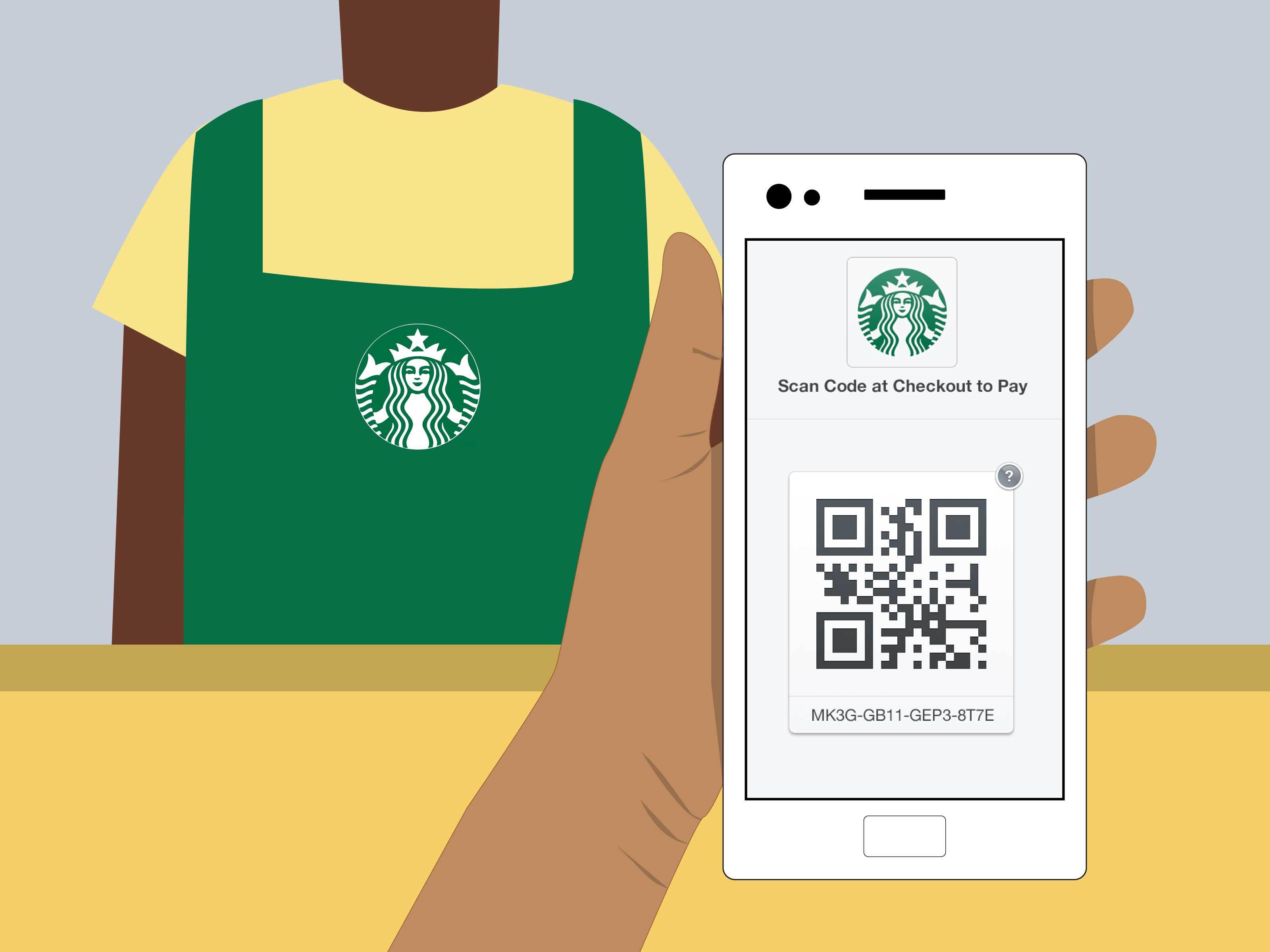
To pay in store, open the Starbucks app and tap the scan or pay option. The app will display a barcode linked to your Starbucks Card or selected payment method. Show the barcode to the barista so it can be scanned at the register.
Before scanning, check that the correct card or payment method is selected. If you have multiple Starbucks Cards, choose the one you want to use. If your balance is low, reload before reaching the front of the line. This prevents the classic checkout shuffle, where everyone politely pretends not to notice you fighting with your phone.
How to Order Ahead with the Starbucks App
Mobile Order & Pay is one of the app’s most popular features. It lets you choose a store, customize your drink or food, pay in advance, and pick up your order when it is ready.
Step-by-Step Mobile Ordering
- Open the Starbucks app.
- Tap “Order.”
- Choose a nearby participating store.
- Select drinks, food, or merchandise available for mobile order.
- Customize your items, such as milk type, espresso shots, syrups, toppings, and temperature.
- Review your order carefully.
- Choose your payment method.
- Place the order.
- Go to the selected store and pick up your order from the pickup area.
Always confirm the store location before placing the order. The app may suggest nearby stores, and “nearby” can become surprisingly dramatic if you accidentally order from the café across town. Nothing builds character quite like realizing your latte is ready 18 minutes away.
How to Use Scheduled Ordering
At participating North American Starbucks locations where Mobile Order & Pay is available, the app may allow scheduled ordering. This lets you choose an available pickup window up to one hour ahead. It is helpful when you are planning around a commute, class, meeting, or school drop-off.
To use scheduled ordering, build your order as usual, then look for the pickup time option on the review screen. Choose an available time window, complete your order, and arrive as close to that pickup time as possible. The app is smart, but it cannot teleport a Frappuccino through traffic. Yet.
How to Customize Drinks in the Starbucks App
The app makes customization easier because you can see options before ordering. Depending on the item and store availability, you may be able to adjust milk, espresso shots, syrup pumps, sauces, toppings, cold foam, ice level, temperature, cup size, and other add-ons.
For example, you could order an iced latte with oatmilk, an extra shot, light ice, and vanilla syrup. Or you could create something so specific it sounds like a Wi-Fi password. Either way, the app gives you a chance to review everything before checkout.
Customization Best Practices
Start with small changes if you are new to customizing. Add one syrup, switch milk, or adjust ice before building a beverage with seven modifications. Also, remember that some customizations may cost extra. Review the final price before ordering so your “little treat” does not become a financial plot twist.
How to Save Favorite Orders
If you order the same drink often, save it as a favorite. This saves time and reduces mistakes. After placing an order, the app may allow you to reorder from your order history or save custom drinks. This is perfect for regular customers who know exactly what they want and have no interest in negotiating with their caffeine needs before 8 a.m.
You can also save favorite stores. This is useful if you rotate between home, work, school, or a location near your gym where you buy coffee after exercising and pretend the cake pop is part of the recovery plan.
How Starbucks Rewards Works in the App
Starbucks Rewards is the loyalty program connected to your account. Members earn Stars on eligible purchases at participating stores. Stars can be redeemed for certain drinks, food, discounts, and merchandise, depending on the current reward tiers and program terms.
The app lets you track your Star balance, see available Rewards, view offers, and monitor progress toward membership levels. Starbucks Rewards includes levels such as Green, Gold, and Reserve, with benefits that may vary by level and by current program rules.
How to Earn Stars
You can earn Stars by making qualifying purchases through the app or by scanning the app in store before paying. Depending on your membership level, earn rates may differ. Some purchases, such as Starbucks Card reloads, taxes, tips, delivery orders, alcohol, or certain excluded items, may not earn Stars unless a specific promotional benefit applies.
How to Redeem Stars
To redeem Stars, open the app and check your available Rewards. When ordering ahead, eligible items may show reward options during checkout. In store, tell the barista you want to redeem a Reward before paying and scan your app. Always check the details, because reward tiers, eligible items, and maximum values may vary.
How to Send a Starbucks eGift in the App
The Starbucks app also lets you send digital gift cards. Choose the gift card or eGift option, select a design, enter the recipient’s details, choose an amount, add a message, and complete the purchase. It is a fast gift for birthdays, thank-yous, work celebrations, teacher appreciation, or apologizing for replying “Sounds good” to an email you definitely did not read.
Before sending, double-check the recipient’s email address or phone number. A Starbucks eGift sent to the wrong person is not the worst disaster in history, but it is a very preventable donation to someone else’s latte fund.
How to Check Your Starbucks Card Balance
Open the app and go to your Starbucks Card section. Your balance should appear with the selected card. If you have multiple cards, review each one. You can also check recent transactions in your account. If something looks wrong, contact Starbucks customer service and provide the transaction details.
Balances may not always update instantly after every transaction. If your Stars or balance do not appear immediately, give the system some time, make sure you are signed into the correct account, and confirm that the store was participating.
How to Manage Multiple Starbucks Cards
If you receive several gift cards, you can add them to your account and manage them digitally. Depending on the app’s current options, you may be able to transfer balances between cards, choose a primary card, or remove cards you no longer use.
A simple strategy is to keep one main Starbucks Card in the app and transfer smaller balances to it when possible. This keeps payment cleaner and makes it easier to avoid tiny leftover balances scattered across multiple cards like coffee-flavored confetti.
Security Tips for Using the Starbucks Card Mobile App
Because your Starbucks Card balance is real money, app security matters. Use a strong password, do not reuse passwords from other accounts, and keep your phone locked with a passcode, fingerprint, or face recognition. If your phone is lost, take action quickly by securing your account and contacting Starbucks if needed.
Never give your Starbucks Card number, security code, or account login to someone who contacts you unexpectedly. Gift card scams are common. A real business, government agency, utility company, or law enforcement office will not demand payment through gift cards. If someone insists that you pay a bill, fine, fee, prize charge, or emergency expense with a gift card, assume it is a scam.
Common Starbucks App Problems and Easy Fixes
The App Will Not Load
Check your internet connection, close and reopen the app, and make sure you have the latest version. If the app still fails, restart your phone. Sometimes technology simply needs a tiny nap.
You Cannot Sign In
Confirm that you are using the correct email address and password. Use the password reset option if needed. If you created multiple accounts over time, check which one has your Starbucks Card and Rewards.
Your Store Is Not Available for Mobile Order
Not all stores support mobile ordering at all times. Some stores may pause mobile orders during busy periods, staffing limitations, outages, or inventory changes. Choose another nearby store or order in person.
Your Drink Is Not Available
Menu availability can vary by store. If an ingredient is out of stock, the app may remove certain items or customizations. Try a different store, adjust your order, or ask in person.
Your Stars Are Missing
Stars may take time to appear. Make sure you scanned the app before paying or ordered while signed into the correct account. If the purchase qualifies and the Stars still do not appear, contact customer support with your receipt details.
Best Tips for Getting More Value from the Starbucks App
Check the app before you order. Starbucks often displays personalized offers, games, bonus Star challenges, and limited-time promotions. These can help you earn Rewards faster if they match what you already planned to buy.
Use mobile ordering when timing matters, but do not place the order too early if you are far away. Hot drinks cool, cold drinks melt, and whipped cream has never been known for its patience. For the best experience, order when you are close enough to arrive near the estimated pickup time.
Review your customizations before checkout. One accidental tap can turn your normal latte into a dairy-free, extra-hot, no-foam mystery beverage. The app gives you a review screen for a reason: it is the final boss before caffeine.
Real-Life Experiences: What Using the Starbucks App Actually Feels Like
Using the Starbucks Card mobile app for the first time can feel a little like learning the control panel of a very caffeinated spaceship. There are cards, Stars, offers, menus, pickup times, saved stores, payment methods, and enough drink options to make a person briefly question whether they are ordering coffee or designing a luxury sofa. But after a few uses, the app becomes surprisingly natural.
One of the best experiences is the morning commute order. Imagine leaving home, opening the app, selecting your usual store, tapping your saved iced coffee, and placing the order before you arrive. By the time you walk in, your drink may be waiting at the pickup counter. No line debate. No awkward “Did they call my name?” guessing game. Just grab, smile, and continue pretending you are a highly efficient adult.
The app is also helpful for people who feel rushed at the register. If you are the kind of person who freezes when asked, “What size?” the app gives you breathing room. You can browse the menu slowly, compare prices, read ingredients, and customize without a line forming behind you. This is especially useful for seasonal drinks, where names can sound like cheerful tongue twisters.
Another real advantage is order memory. Once you save a favorite drink, future ordering becomes much faster. This matters because many Starbucks customers do not just have a drink; they have a “usual.” Maybe it is a grande iced shaken espresso with oatmilk. Maybe it is a hot tea with honey. Maybe it is a cold foam situation that requires architectural support. Whatever it is, the app remembers better than most humans before breakfast.
Reloading is convenient, but it teaches a practical lesson: pay attention to your balance. Auto Reload is wonderful for frequent customers, but casual users may prefer manual reloads. Nobody wants to discover they have added more money than planned because they forgot about a setting. A good habit is to check your reload amount, payment method, and balance once a month.
The Rewards section can feel like a small game. Watching Stars build up is satisfying, especially when you redeem them for something you were already planning to buy. The trick is not to buy things only because of Stars. Rewards are best when they reward your normal habits, not when they convince you that a second pastry is “basically financial strategy.” Delicious? Yes. Accounting? Not quite.
Mobile ordering also teaches timing. Order too late, and you may still wait. Order too early, and your drink may sit. Scheduled ordering helps, but the best habit is still simple: choose a pickup time you can realistically meet. Your drink wants to be enjoyed, not abandoned like a tiny melted snowman.
Overall, the Starbucks app is most useful when you use it intentionally. Save your favorites, check offers, protect your account, reload thoughtfully, and confirm the store before ordering. Used well, it turns the coffee run into a smoother routine. Used carelessly, it may send your latte to the wrong location while you stand in the right one, learning humility.
Conclusion
The Starbucks Card mobile app is a practical tool for paying quickly, managing Starbucks Cards, ordering ahead, tracking Stars, redeeming Rewards, and personalizing your coffee experience. The basics are simple: download the app, create an account, add or create a Starbucks Card, reload when needed, scan to pay, and use mobile ordering when it saves time.
For the best experience, keep your app updated, protect your login, avoid overspending on reloads, review orders before checkout, and arrive close to your pickup time. Once you learn the flow, the app can make Starbucks visits faster, easier, and more rewarding. It will not make you a morning person, but it can make your morning coffee arrive with fewer obstacles, which is close enough.